# Settings
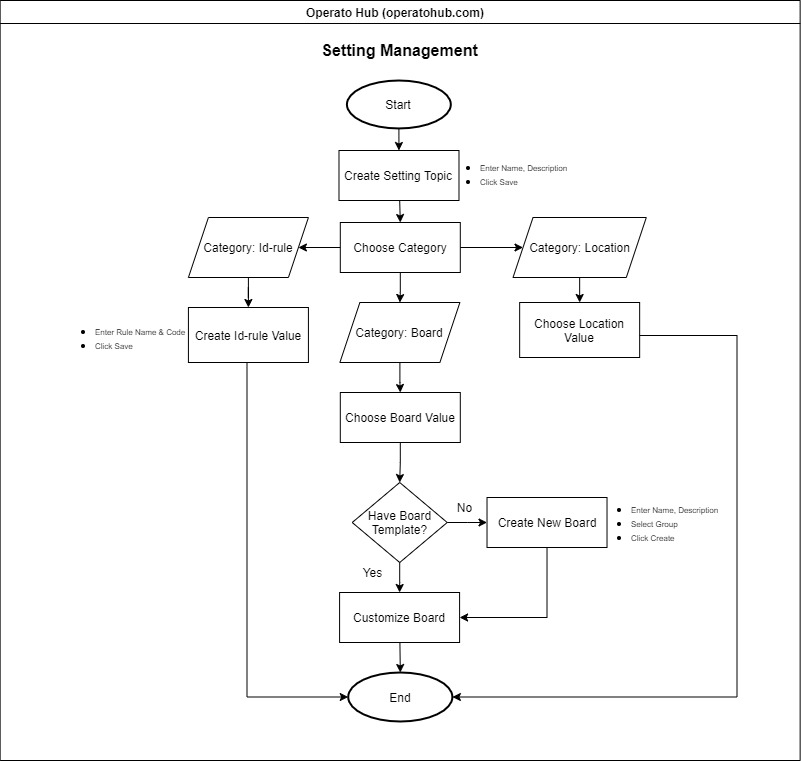
**Settings** is a page that manages which options arethe functions displayed in Operato WMS.
## Add Setting
| SETTING | STEPS |
| :-------| :-----|
| Name and Description | 1. Double click on the row or column you want to update.
2. Enter the information.
3. Click 
| Category | 1. Double click on the row or column you want to update.
2. Choose the category:
- **Location**: sort location
- **Id-rule**: hide or display features through coding and setting the naming pattern
- **Board-id**: set the user dashboard for user
3. Click 
| Value from list of board | 1. Double click on the row or column you want to update.
2. Click on the board you want to use.
3. Click 
| Value from create new board | 1. Double click on the row or column you want to update.
2. Click on Create Board. 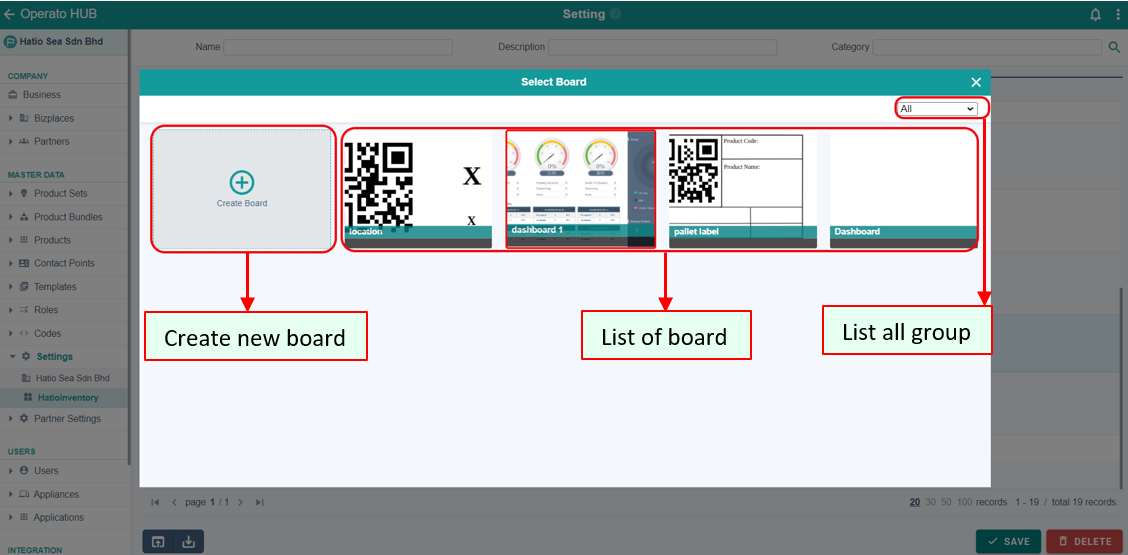
3. Enter all necessary information.
4. Click **Create**.
5. Click 
|
## Delete setting
1. Click on the check box left to the setting name.
2. Click 
## Export/upload setting data
1. Click on the check box left to the setting name.
2. Click on the **Export**  or **Upload** 
## ERROR MESSAGE
| ERROR MESSAGE | EXPLANATION |
| :------------:| :-----------|
| 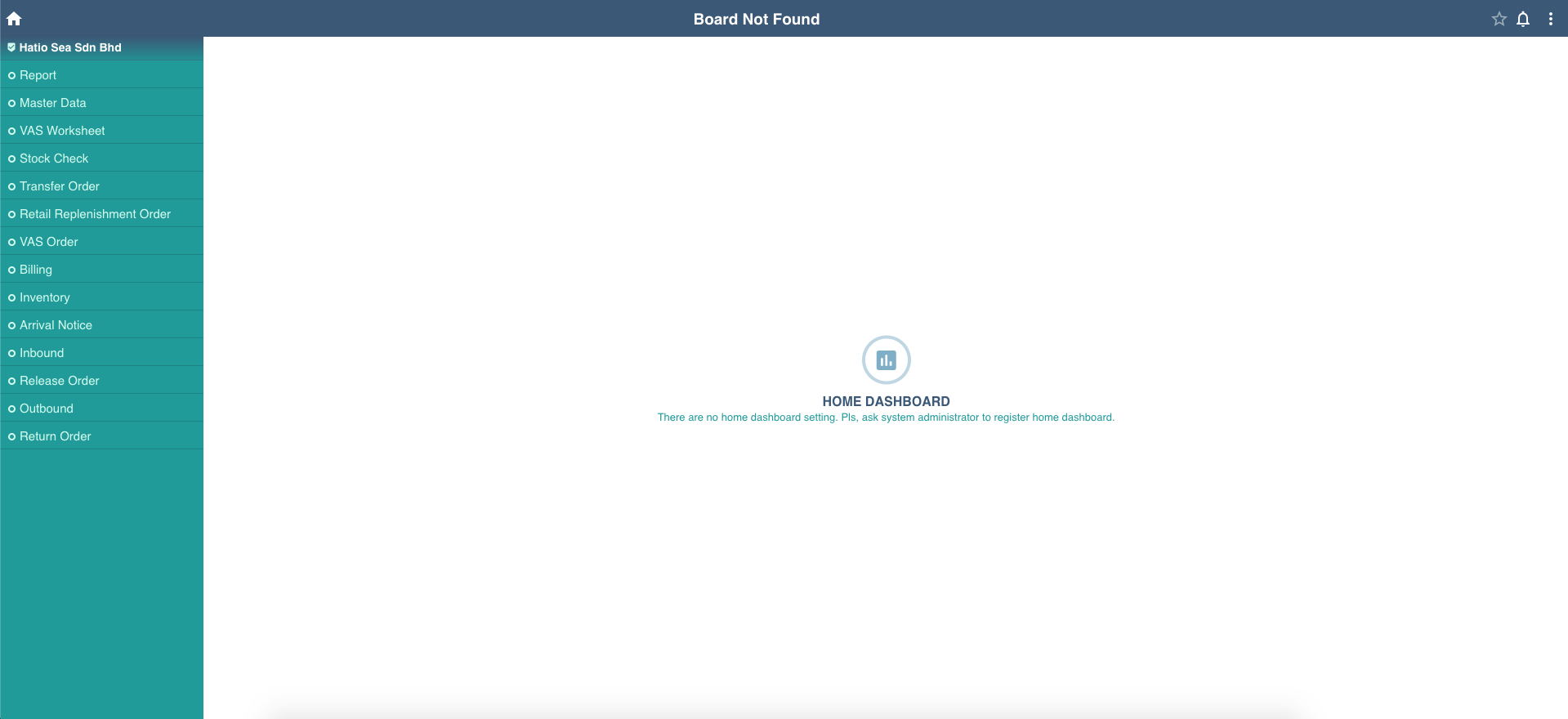 The dashboard doesn’t appear | Naming of roll in the setting not same as registered in the role section |