# Hype Text Path
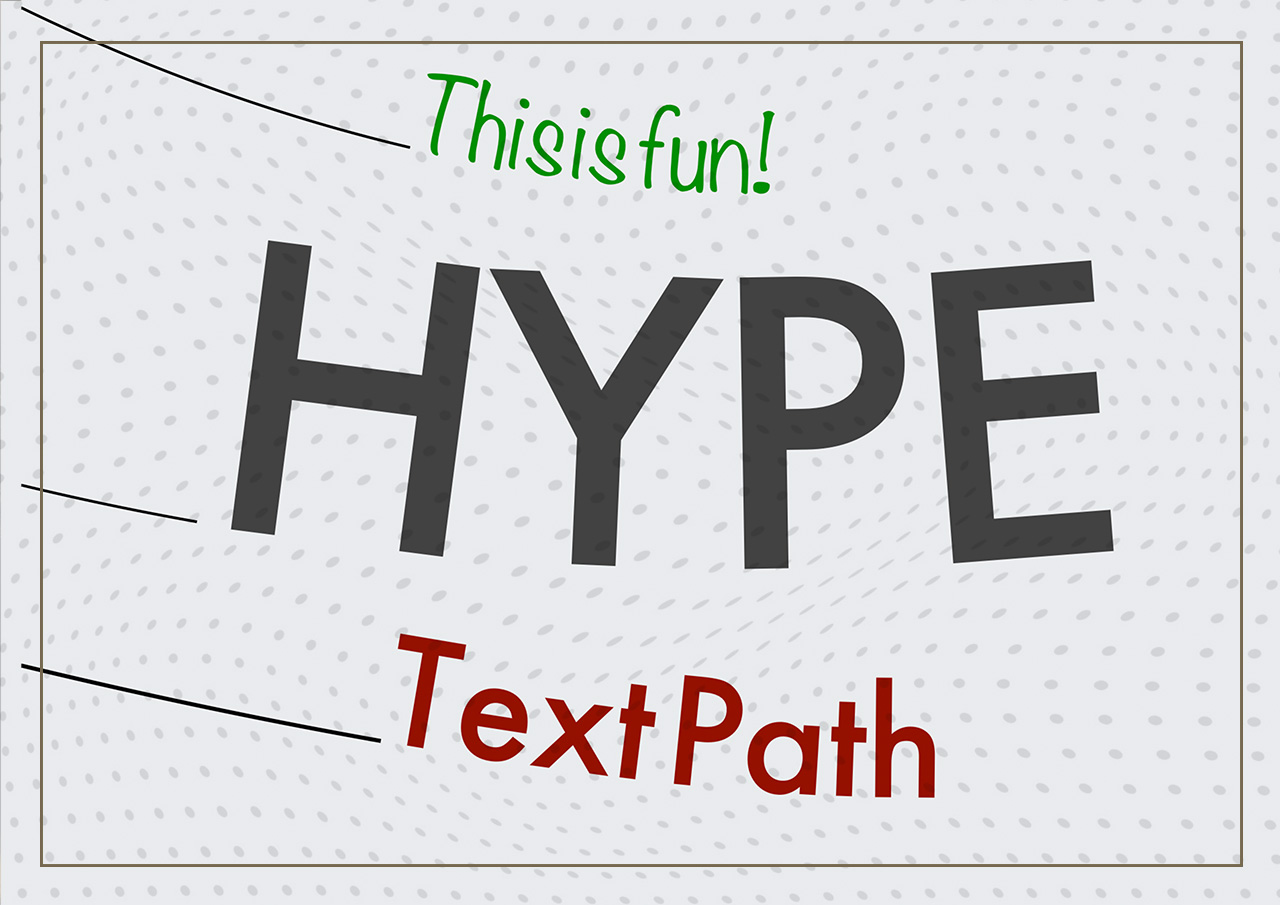
A small custom-tailored extension to animate text along a path in Tumult Hype.
## How to Use the Hype Text Path
### Introduction
The Hype TextPath Extension allows you to animate text along a path in Tumult Hype. This guide will help you set it up in your project, ensuring smooth integration and usage.
### Steps to Get Started
#### 1. Download the Extension
You can include the Hype TextPath Extension by either linking it via CDN or downloading it from the GitHub repository.
##### Option A: Content Delivery Network (CDN)
The latest version can be linked into your project using the following in the head section of your project:
```html
```
##### Option B: Download from GitHub
1. Go to the [Hype TextPath Extension GitHub Repository](https://github.com/worldoptimizer/HypeTextPath).
2. Download the latest version of `HypeTextPath.js` or `HypeTextPath.min.js`.
3. Place the downloaded `HypeTextPath.js` or `HypeTextPath.min.js` file in your Hype project's `resources` folder.
#### 2. Include the Script in Your Project
Add the script reference to your Hype document’s head section.
1. **If using CDN**:
- Go to the **Document Inspector** and add the script reference in the **Head HTML** section.
```html
```
2. **If using downloaded file**:
- Drag the `HypeTextPath.js` or `HypeTextPath.min.js` file into your project's **Resources** folder. Hype will automatically link it in the Head HTML.
#### 3. Set Up Data Attributes
To animate text along a path, you need to set up specific data attributes in your Hype elements.
1. **Create a Path**:
- Use the **Vector Tool** to draw your path.
- Select the path, go to the **Identity Inspector**, and add the following data attribute:
| Key | Value |
|---------------|----------------|
| data-text-path | textPath1 |
2. **Create Text**:
- Use the **Text Tool** to create your text element.
- Enter the text you want to animate along the path.
- Select the text element, go to the **Identity Inspector**, and add the following data attribute:
| Key | Value |
|-----------------|----------------|
| data-text-content | textPath1 |
*The value must match, but can be anything you like*
### Conclusion
You are now set up to use the Hype TextPath Extension in your Tumult Hype projects. Follow the steps above to integrate and start animating text along paths effortlessly. For more details and updates, always refer to the [GitHub repository](https://github.com/worldoptimizer/HypeTextPath).
Happy animating!
### Additional Resources
#### Content Delivery Network (CDN)
The latest version of the Hype TextPath Extension can be linked into your project using the following script in the head section of your project:
```html
```
Optionally, you can also link a specific release or a version with SRI. For more details, visit the [JsDelivr (CDN) page for this extension](https://www.jsdelivr.com/package/gh/worldoptimizer/HypeTextPath).
Learn how to use the latest extension version and how to combine extensions into one file at [HypeCookBook - Including external files and Hype extensions](https://github.com/worldoptimizer/HypeCookBook/wiki/Including-external-files-and-Hype-extensions).