A WordPress plugin designed to disable plugin updates, theme updates, core updates, hide update notifications, and disable administrator notifications in the WordPress backend.
## ✨ Features
* ✅ **Disable Plugin Updates** - Prevent automatic and manual plugin updates
* ✅ **Disable Theme Updates** - Block theme update notifications and processes
* ✅ **Disable Core Updates** - Stop WordPress core update checks and installations
* ✅ **Hide Update Notifications** - Remove update notices from admin dashboard
* ✅ **Disable Admin Notifications** - Suppress update-related email notifications
## 📦 Installation
### Method 1: WordPress Admin Dashboard
1. Download the latest release from [GitHub Releases](https://github.com/weiyuhl/Disable-system-background-updates/releases)
2. Navigate to `Plugins > Add New` in WordPress admin
3. Click `Upload Plugin` and select the downloaded zip file
4. Click `Install Now` and then `Activate`
### Method 2: Manual Installation
1. Download and extract the plugin files
2. Upload the `Disable-system-background-updates` folder to your `/wp-content/plugins/` directory
3. Activate the plugin through the `Plugins` menu in WordPress admin
## ⚙️ Configuration
### Access Plugin Settings
Choose one of the following methods to access the plugin configuration:
**Method 1:** From Plugins Page
- Navigate to `Plugins > Installed Plugins`
- Find "Disable WordPress Background Updates" and click `Settings`
**Method 2:** From Tools Menu
- Navigate to `Tools > Disable Update Settings` in WordPress admin sidebar
### Configure Features
Select the features you want to enable based on your needs:
- Check/uncheck the options according to your requirements
- Click `Save Changes` to apply the settings
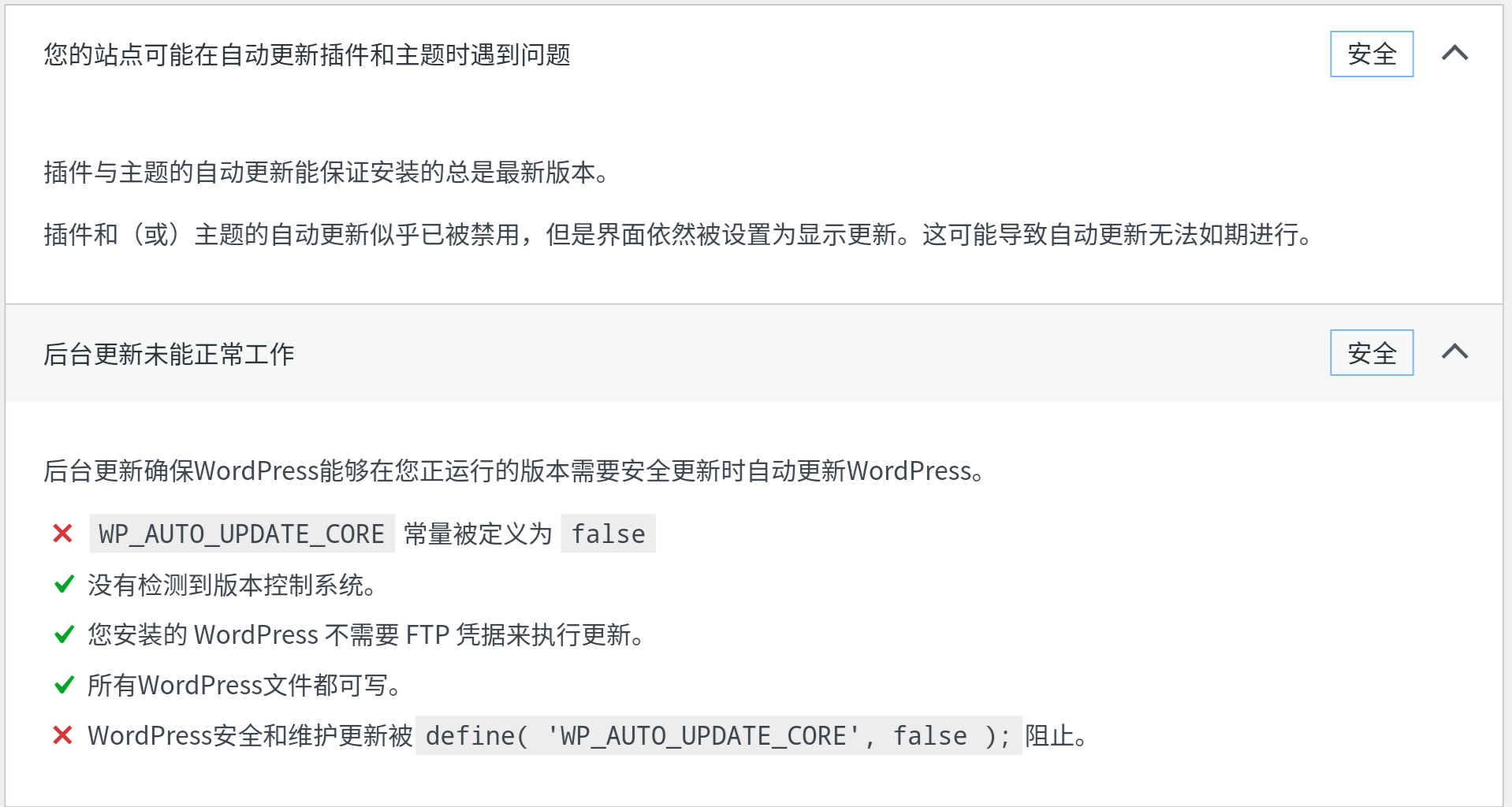
## 🎯 Preview
To see the plugin in action:
1. Navigate to `Tools > Site Health` in WordPress admin
2. Observe that update-related warnings and notifications are now hidden
## 📋 Requirements
- **WordPress**: 4.2 or higher
- **PHP**: 5.6.0 or higher
- **Tested up to**: WordPress 6.5
## 📄 License
This project is licensed under the [Apache License 2.0](LICENSE).
## 🤝 Contributing
Contributions are welcome! Please feel free to submit a Pull Request or open an issue on [GitHub](https://github.com/weiyuhl/Disable-system-background-updates).
## 📞 Support
- **GitHub Issues**: [Report bugs or request features](https://github.com/weiyuhl/Disable-system-background-updates/issues)
- **Author**: [和离](https://heliq.cn)
---