# Memory Tile
With the skeleton code in place, this step looks at the first element of the game, the memory tile. It's the
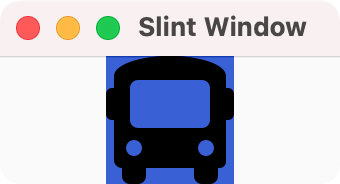
visual building block that consists of an underlying filled rectangle background, the icon image. Later steps add a covering rectangle that acts as a curtain.
You declare the background rectangle as 64 logical pixels wide and tall
filled with a soothing tone of blue.
Lengths in Slint have a unit, here, the `px` suffix.
This makes the code easier to read and the compiler can detect when you accidentally
mix values with different units attached to them.
Copy the following code inside of the `slint!` macro, replacing the current content:
```slint
{{#include main_memory_tile.rs:tile}}
```
Inside the Rectangle place an Image element that
loads an icon with the @image-url() macro.
When using the `slint!` macro, the path is relative to the folder that contains the `Cargo.toml` file.
When using Slint files, it's relative to the folder of the Slint file containing it.
You need to install this icon and others you use later first. You can download a pre-prepared
[Zip archive](https://slint.dev/blog/memory-game-tutorial/icons.zip) and extract it with the
following commands:
```sh
curl -O https://slint.dev/blog/memory-game-tutorial/icons.zip
unzip icons.zip
```
This unpacks an `icons` directory containing several icons.
Running the program with `cargo run` opens a window that shows the icon of a bus on a
blue background.