---
## Overview
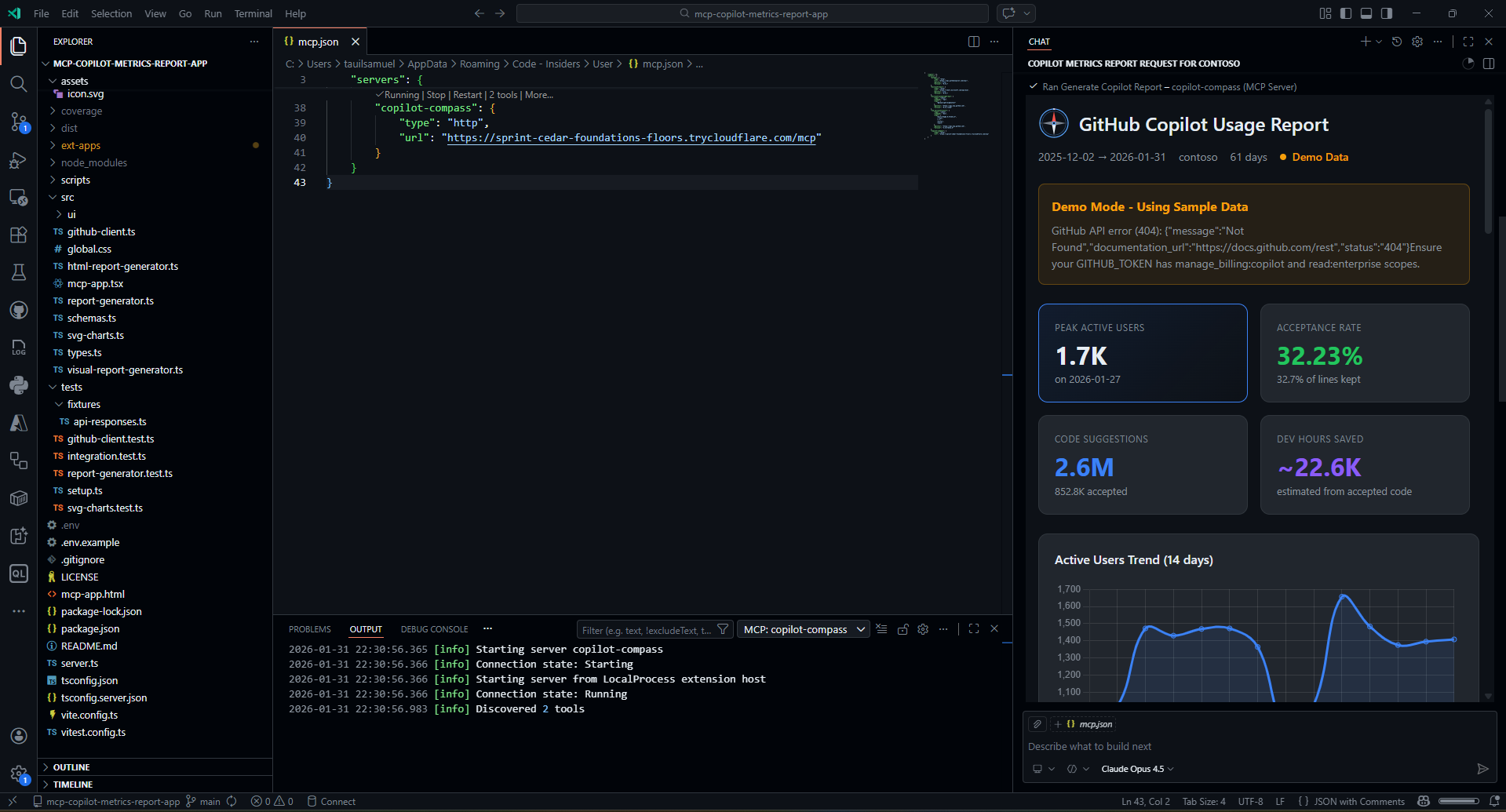
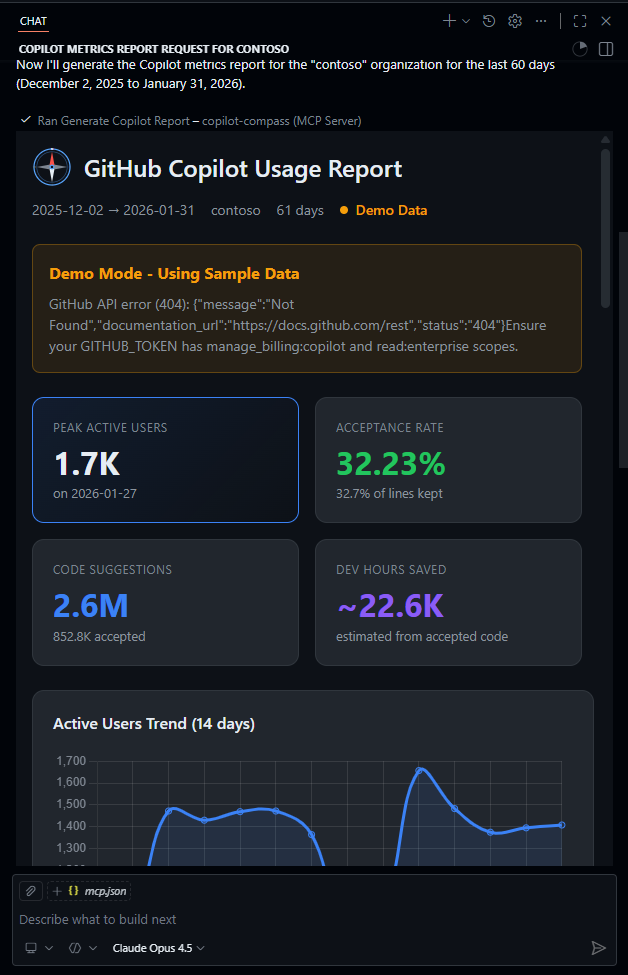
**Copilot Compass** is a Model Context Protocol (MCP) application that transforms raw GitHub Copilot metrics into actionable intelligence. Built with the MCP Apps SDK, it provides both AI-readable data and an interactive visual dashboard that renders directly in MCP-compatible hosts like VS Code and Claude Desktop.
### What Makes This Special?
Unlike traditional dashboards, Copilot Compass leverages the **MCP Apps SDK** pattern:
- **AI-First**: Tools return structured data that AI models can analyze and summarize
- **Visual Dashboard**: The same tool invocation renders an interactive React UI in the host
- **Real-Time Sync**: UI automatically updates when new data arrives via `ontoolresult`
- **Host Theming**: Dashboard adapts to the host's color scheme via `useHostStyles`
## Features
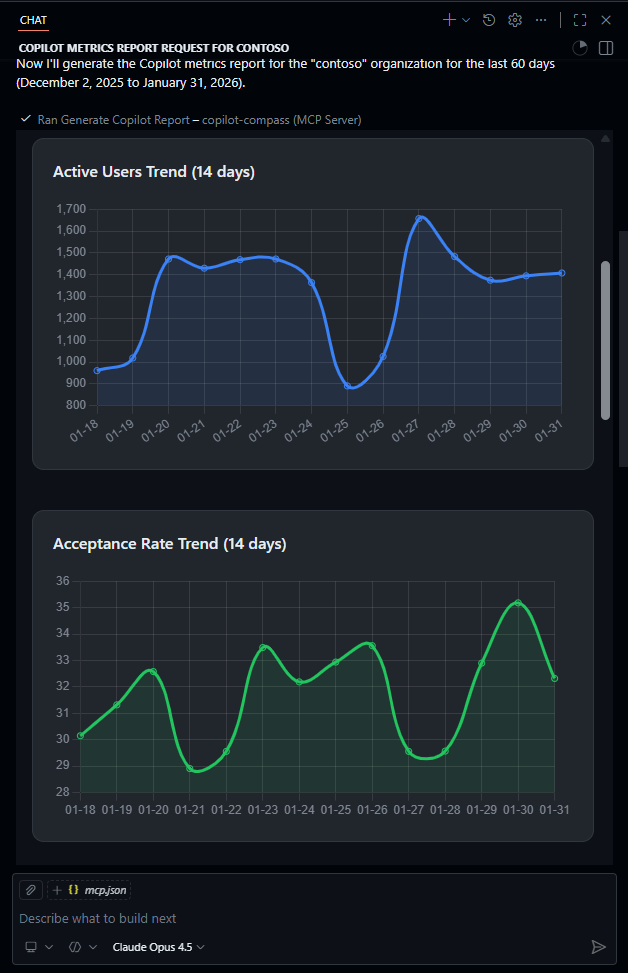
### Analytics Dashboard
- **Active Users Trend** — 14-day line chart with daily active user counts
- **Acceptance Rate** — Track code suggestion acceptance over time
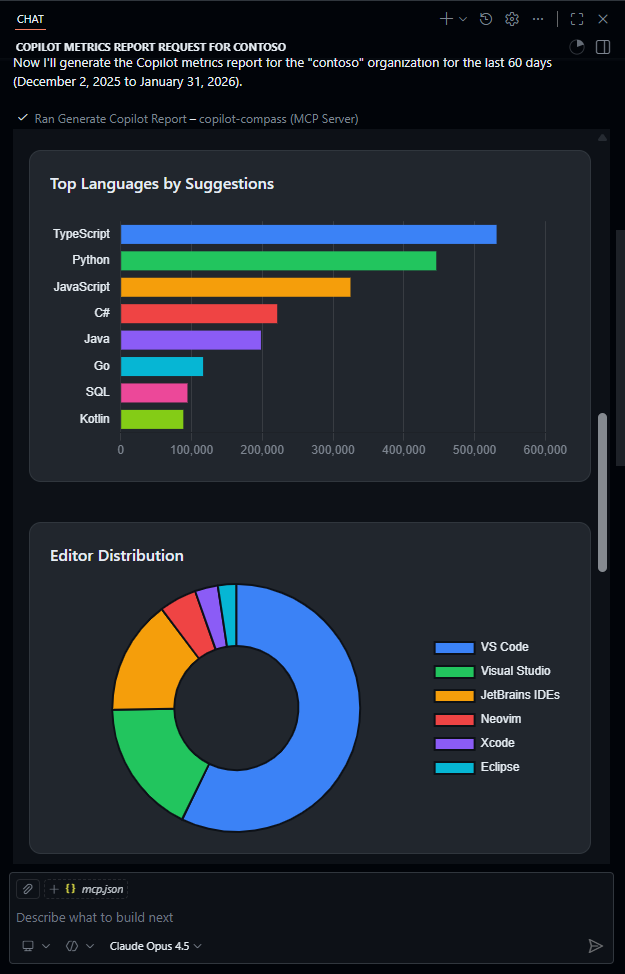
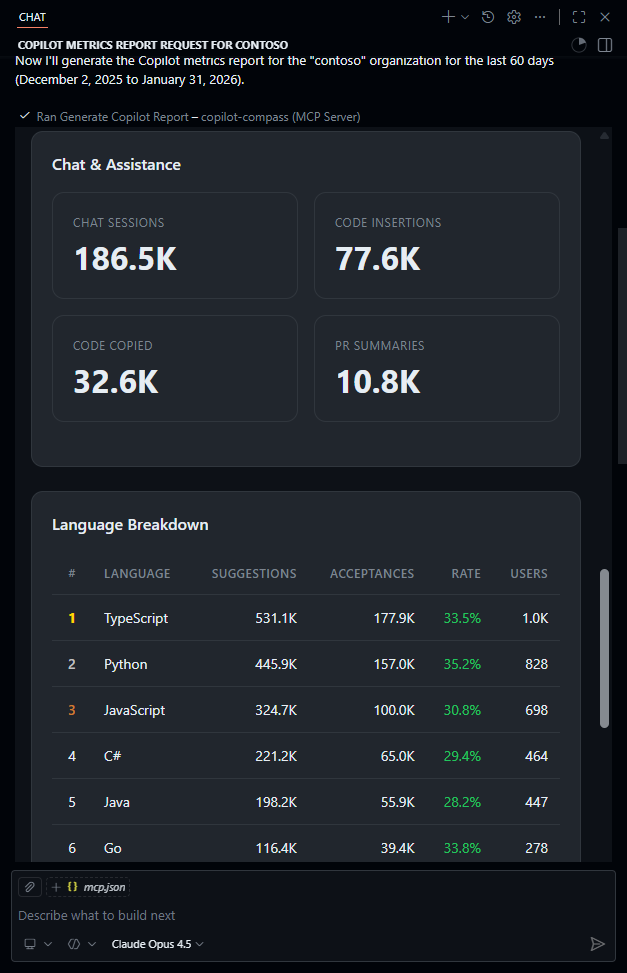
- **Language Breakdown** — Top languages by suggestions, acceptances, and engaged users
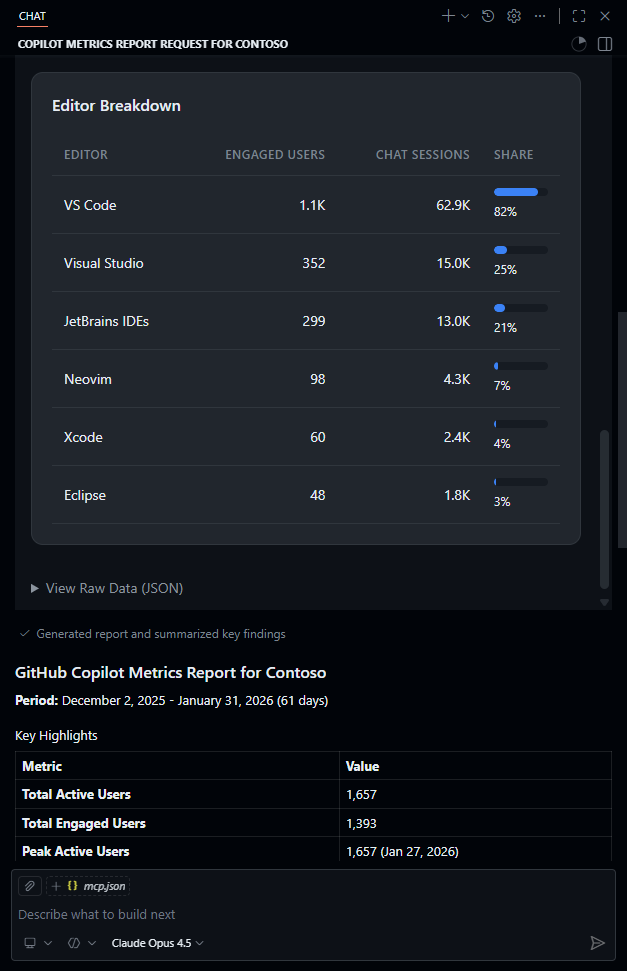
- **Editor Distribution** — Usage split across VS Code, JetBrains, Neovim, and more
- **Chat Metrics** — Sessions, code insertions, and copy events from Copilot Chat
- **PR Intelligence** — Pull request summary generation statistics
### Understanding the Metrics
| Metric | What It Measures | Why It Matters |
|--------|------------------|----------------|
| **Active Users** | Unique users who received Copilot suggestions | Adoption breadth |
| **Engaged Users** | Users who accepted at least one suggestion | Active value extraction |
| **Acceptance Rate** | Accepted suggestions ÷ total suggestions | Quality of suggestions |
| **Lines Accepted** | Actual code lines integrated from Copilot | Productivity impact |
| **Chat Sessions** | Copilot Chat conversations initiated | AI pair programming usage |
| **Code Insertions** | Chat-generated code added to files | Conversational coding value |
| **PR Summaries** | Pull request descriptions auto-generated | Review process efficiency |
### Report Generation
- **Enterprise & Organization Support** — Fetch metrics at enterprise or org level
- **Flexible Date Ranges** — Analyze any time period
- **Automatic Fallback** — Demo mode with realistic mock data when API unavailable
- **Caching Layer** — 5-minute TTL reduces API calls and improves response times
### MCP Apps SDK Features
- **Tool + UI Binding** — `_meta.ui.resourceUri` links tools to their visual representation
- **App-Only Tools** — `visibility: ["app"]` for UI-initiated actions hidden from AI
- **Host Context** — Safe area insets and theme integration
- **Lifecycle Hooks** — `ontoolresult`, `ontoolinput`, `onteardown` callbacks
## Quick Start
### Prerequisites
- **Node.js** 18+
- **VS Code Insiders** — Required for MCP Apps SDK (interactive dashboard). [Download here](https://code.visualstudio.com/insiders/). *VS Code Stable supports MCP tools but not the visual dashboard UI yet.*
- **GitHub PAT** with scopes:
- `manage_billing:copilot` — Access Copilot metrics
- `read:enterprise` — Enterprise-level access
- `read:org` — Organization metrics
### Installation
```bash
# Clone the repository
git clone https://github.com/samueltauil/copilot-compass.git
cd copilot-compass
# Install dependencies
npm install
# Configure environment
cp .env.example .env
# Edit .env and add your GITHUB_TOKEN
```
### Build & Run
```bash
# Build the React dashboard and TypeScript server
npm run build
# Start the MCP server
npm start
```
The server starts at `http://localhost:3001` with:
- **MCP Endpoint**: `http://localhost:3001/mcp`
- **Health Check**: `http://localhost:3001/health`
### Connect Your MCP Client
Add to your MCP client configuration (e.g., Claude Desktop, VS Code):
**For remote HTTP connection:**
```json
{
"mcpServers": {
"copilot-compass": {
"type": "http",
"url": "http://localhost:3001/mcp"
}
}
}
```
**For local stdio connection (alternative):**
```json
{
"mcpServers": {
"copilot-compass": {
"type": "stdio",
"command": "node",
"args": ["dist/server.js"],
"cwd": "/path/to/copilot-compass",
"env": {
"GITHUB_TOKEN": "your-github-token"
}
}
}
}
```
**For VS Code users:**
Copy the included example file to create your MCP config:
```bash
cp .vscode/mcp.json.example .vscode/mcp.json
```
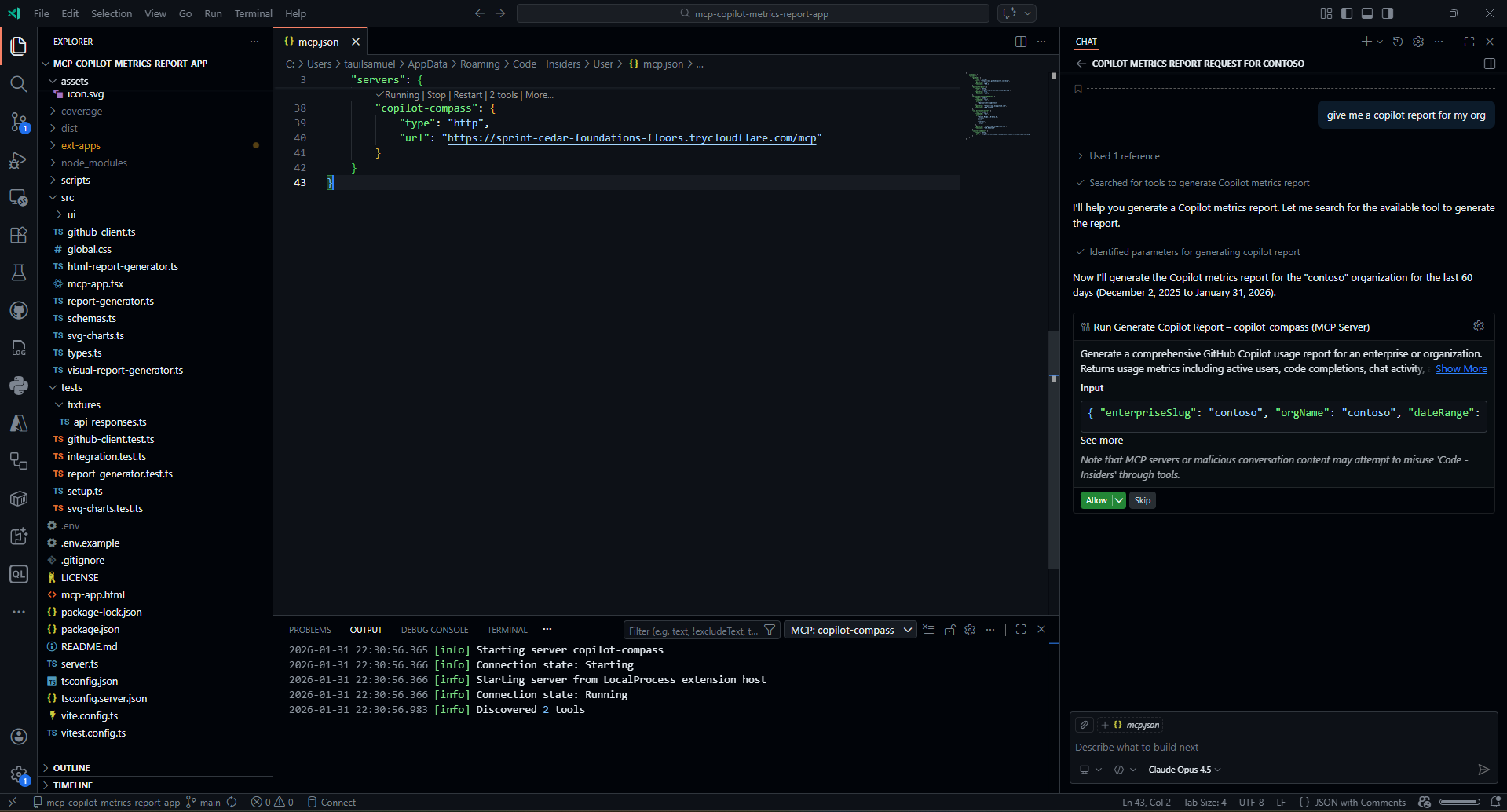
The default uses `localhost:3001`. If using a tunnel (cloudflared, ngrok), edit `.vscode/mcp.json` to use your tunnel URL:
```json
{
"servers": {
"copilot-compass": {
"type": "http",
"url": "https://your-tunnel-url.trycloudflare.com/mcp"
}
}
}
```
> **Note:** `.vscode/mcp.json` is gitignored so your local config won't be overwritten.
### Run in GitHub Codespaces
> ⚠️ **Important:** MCP Apps SDK (interactive dashboard UI) currently requires **VS Code Insiders**. The Codespaces web editor uses stable VS Code. To use the full dashboard UI, you must connect from VS Code Insiders on your local machine.
>
> 📌 **Note:** MCP Apps SDK support is expected to ship in VS Code Stable in a future release. See the [official MCP Apps documentation](https://code.visualstudio.com/docs/copilot/chat/mcp-servers#_use-mcp-server-resources-to-enrich-ai-responses) and the [MCP Apps SDK repository](https://github.com/modelcontextprotocol/ext-apps) for the latest updates.
#### Option A: Connect from VS Code Insiders Desktop (Full UI)
This gives you the complete MCP Apps experience with the interactive dashboard.
1. Install [VS Code Insiders](https://code.visualstudio.com/insiders/) locally
2. Install the [GitHub Codespaces extension](https://marketplace.visualstudio.com/items?itemName=GitHub.codespaces) in VS Code Insiders
3. Create a Codespace at [github.com/samueltauil/copilot-compass](https://github.com/samueltauil/copilot-compass)
4. In the Codespace web view, click the hamburger menu (≡) → **Open in VS Code Desktop**
5. When prompted, choose **Visual Studio Code Insiders**
#### Option B: Use Codespaces Web Editor (Tools Only)
If you just need the MCP **tools** (not the visual dashboard), the web editor works fine:
[](https://codespaces.new/samueltauil/copilot-compass?quickstart=1)
**Or manually:**
1. Go to [github.com/samueltauil/copilot-compass](https://github.com/samueltauil/copilot-compass)
2. Click **Code** → **Codespaces** → **Create codespace on main**
3. Wait for the container to build (~2 minutes)
#### What Happens Automatically
When your Codespace starts:
1. ✅ Dependencies are installed and project is built
2. ✅ MCP server starts automatically in the background on port 3001
3. ✅ Port 3001 is made public with HTTPS
4. ✅ MCP config is created at `/home/codespace/.vscode-remote/data/Machine/mcp.json`
5. ✅ MCP settings are enabled (`chat.mcp.enabled`, `chat.mcp.discovery.enabled`)
The MCP server URL is: `http://localhost:3001/mcp` (via port forwarding)
#### Configure GitHub Token (Optional)
For live Copilot metrics (instead of demo data), add your GitHub token as a Codespaces secret:
1. Go to [github.com/settings/codespaces](https://github.com/settings/codespaces)
2. Click **New secret**
3. Name: `GITHUB_TOKEN`
4. Value: Your PAT with `manage_billing:copilot`, `read:enterprise`, `read:org` scopes
5. Repository access: Select the repository where you're running the Codespace
6. Apply the secret to your Codespace:
- **If Codespace is not running yet**: Just create it — the secret will be available automatically
- **If Codespace is already running**: Go to [github.com/codespaces](https://github.com/codespaces), click the `...` menu on your Codespace → **Stop**, then **Start** again
- **Quick restart from terminal**: Press `Ctrl+Shift+P` → "Codespaces: Stop Current Codespace", then reopen
Alternatively, create a `.env` file in the Codespace terminal:
```bash
echo "GITHUB_TOKEN=your-token-here" > .env
npm start # Restart the server
```
#### Verify It's Working
1. The MCP server starts automatically in the background. Check the logs:
```bash
cat /tmp/mcp-server.log
```
You should see:
```
🧭 Copilot Compass - Codespaces Setup
✅ Codespaces detected: your-codespace-name
✅ MCP config written to: ~/.vscode-server/data/User/mcp.json
🚀 Starting MCP server...
✅ Port 3001 is now public
```
2. Open the **Ports** tab and verify port 3001 shows **Public** visibility
- If it shows **Private**, right-click the port → **Port Visibility** → **Public**
- Or run: `gh codespace ports visibility 3001:public -c $CODESPACE_NAME`
3. The MCP server is now ready! Use it from Copilot Chat — MCP discovery is enabled automatically.
#### Manual Start (If Needed)
If the server stops or you need to restart:
```bash
# Quick restart
npm start
# Full setup with config
nohup bash .devcontainer/setup.sh > /tmp/mcp-server.log 2>&1 &
```
> **Tip**: The Codespaces URL persists as long as your Codespace is running. For long-term use, consider keeping the Codespace alive or using a dedicated VM.
### Public Access via Tunnel (Local Development)
To expose your local MCP server to the internet (useful for sharing, mobile access, or cloud-based MCP clients), you can use a tunneling service.
#### Option 1: Cloudflare Tunnel (Recommended)
[Cloudflared](https://developers.cloudflare.com/cloudflare-one/connections/connect-networks/get-started/) provides free, secure tunnels with automatic HTTPS.
```bash
# Install cloudflared (Windows)
winget install cloudflare.cloudflared
# Install cloudflared (macOS)
brew install cloudflared
# Install cloudflared (Linux)
curl -L https://github.com/cloudflare/cloudflared/releases/latest/download/cloudflared-linux-amd64 -o cloudflared
chmod +x cloudflared
```
**Start the tunnel:**
```bash
# In one terminal, start the MCP server
npm start
# In another terminal, create the tunnel
cloudflared tunnel --url http://localhost:3001
```
Cloudflared outputs a public URL like `https://random-words.trycloudflare.com`. Use this in your MCP client config:
```json
{
"mcpServers": {
"copilot-compass": {
"type": "http",
"url": "https://random-words.trycloudflare.com/mcp"
}
}
}
```
> **Note**: The free `trycloudflare.com` URL changes each time you restart the tunnel. For a persistent URL, set up a [named tunnel](https://developers.cloudflare.com/cloudflare-one/connections/connect-networks/get-started/create-local-tunnel/) with your own domain.
#### Option 2: ngrok
[ngrok](https://ngrok.com/) is another popular tunneling option with a free tier.
```bash
# Install ngrok
npm install -g ngrok
# Or download from https://ngrok.com/download
```
**Start the tunnel:**
```bash
# Start the MCP server
npm start
# In another terminal
ngrok http 3001
```
ngrok provides a URL like `https://abc123.ngrok.io`. Update your MCP config accordingly.
#### Option 3: Tailscale Funnel
If you use [Tailscale](https://tailscale.com/), you can use [Funnel](https://tailscale.com/kb/1223/funnel/) to expose services.
```bash
tailscale funnel 3001
```
### Running as a Background Service
For production or persistent deployments:
**Using PM2 (Node.js process manager):**
```bash
# Install PM2
npm install -g pm2
# Start the server
pm2 start dist/server.js --name copilot-compass
# View logs
pm2 logs copilot-compass
# Stop the server
pm2 stop copilot-compass
# Auto-start on system boot
pm2 startup
pm2 save
```
**Using systemd (Linux):**
Create `/etc/systemd/system/copilot-compass.service`:
```ini
[Unit]
Description=Copilot Compass MCP Server
After=network.target
[Service]
Type=simple
User=your-user
WorkingDirectory=/path/to/copilot-compass
ExecStart=/usr/bin/node dist/server.js
Restart=on-failure
Environment=GITHUB_TOKEN=your-token
Environment=PORT=3001
[Install]
WantedBy=multi-user.target
```
Then:
```bash
sudo systemctl daemon-reload
sudo systemctl enable copilot-compass
sudo systemctl start copilot-compass
```
## Architecture
```mermaid
flowchart TB
subgraph Host["MCP Host (VS Code, Claude Desktop)"]
User([User]) --> Model[AI Model]
Model -->|Tool Call| Server
Server -->|JSON Report| Model
Model -->|Summary| Response([Response])
subgraph Dashboard["React Dashboard"]
useApp["useApp() hook"]
Charts["Chart.js Visualizations"]
end
end
subgraph Server["Copilot Compass Server"]
Tools["registerAppTool()
• generate_copilot_report
• refresh_report"]
Resources["registerAppResource()
• ui://copilot-metrics/mcp-app.html"]
Tools --> Resources
end
Resources -->|HTML Bundle| Dashboard
Server -->|ontoolresult| useApp
subgraph GitHub["GitHub API"]
API["/enterprises/{slug}/copilot/metrics"]
end
Server -->|Fetch| API
API -->|Metrics Data| Server
```
### Data Flow
```mermaid
sequenceDiagram
participant User
participant Model as AI Model
participant Server as MCP Server
participant API as GitHub API
participant UI as React Dashboard
User->>Model: "Generate Copilot report for acme-corp"
Model->>Server: generate_copilot_report(enterpriseSlug, dateRange)
Server->>API: GET /enterprises/acme-corp/copilot/metrics
API-->>Server: CopilotUsageMetrics[]
Server->>Server: Transform to CopilotReport
Server-->>Model: JSON Report
Server-->>UI: ontoolresult(report)
UI->>UI: Render charts & tables
Model-->>User: Summary with insights
```
## MCP Integration
### Tools
#### `generate_copilot_report`
Generate a comprehensive Copilot usage report with interactive dashboard.
| Parameter | Type | Required | Description |
|-----------|------|----------|-------------|
| `enterpriseSlug` | string | Yes | Enterprise identifier |
| `orgName` | string | No | Organization within enterprise |
| `dateRange.from` | string | Yes | Start date (YYYY-MM-DD) |
| `dateRange.to` | string | Yes | End date (YYYY-MM-DD) |
**Example prompt:**
```text
Generate a Copilot report for enterprise "acme-corp" from 2024-01-01 to 2024-01-31
```
#### `refresh_report` (App-Only)
Same parameters as above, but with `visibility: ["app"]` — hidden from AI, invocable only by the UI for refresh actions.
### Resources
| URI | Description |
|-----|-------------|
| `ui://copilot-metrics/mcp-app.html` | Interactive React dashboard |
## Usage Examples
Here are some common prompts to get the most out of Copilot Compass:
📸 See example prompt
### Basic Report Generation
```text
Generate a Copilot report for enterprise "acme-corp" from 2024-01-01 to 2024-01-31
```
### Monthly Adoption Analysis
```text
Show me Copilot usage for "my-enterprise" for the last 30 days and highlight adoption trends
```
### Organization-Specific Metrics
```text
Generate a Copilot report for organization "engineering-team" within enterprise "acme-corp" for Q4 2024
```
### Comparing Time Periods
```text
Generate Copilot reports for enterprise "acme-corp" for January and February 2024 and compare the adoption rates
```
### Deep Dive Analysis
```text
Analyze the Copilot report for "acme-corp" and tell me:
1. Which languages have the highest acceptance rates?
2. What's the trend in daily active users?
3. Which editors are most popular?
4. How is Copilot Chat being used?
```
### Dashboard Insights
The AI model can analyze the report data and provide insights like:
- **Adoption Health**: Are active users growing, stable, or declining?
- **Language Hotspots**: Which languages benefit most from Copilot?
- **Feature Usage**: Balance between code completions, chat, and PR summaries
- **Editor Preferences**: Which IDEs your team prefers for Copilot interactions
## Project Structure
```text
copilot-compass/
├── server.ts # MCP server entry (tools + resources)
├── src/
│ ├── types.ts # TypeScript interfaces
│ ├── github-client.ts # GitHub API client with caching
│ ├── report-generator.ts # Report generation + mock data
│ ├── html-report-generator.ts # Standalone HTML export
│ ├── svg-charts.ts # Inline SVG for markdown
│ ├── visual-report-generator.ts # Markdown report with charts
│ ├── mcp-app.tsx # React dashboard entry
│ └── global.css # Dashboard styles
├── mcp-app.html # Vite entry point
├── assets/
│ └── icon.svg # Compass icon
├── dist/ # Build output
├── .env.example # Sample environment variables
├── vite.config.ts # Vite config (singlefile plugin)
├── tsconfig.json # TypeScript config (React)
└── tsconfig.server.json # TypeScript config (Node.js)
```
## Configuration
Copy the sample environment file and configure your settings:
```bash
cp .env.example .env
```
### Environment Variables
| Variable | Description | Default |
|----------|-------------|---------|
| `GITHUB_TOKEN` | GitHub PAT with Copilot metrics access | — |
| `PORT` | Server port | `3001` |
| `MCP_SERVER_PORT` | Alternative port variable | `3001` |
| `CACHE_TTL_SECONDS` | API response cache duration | `300` |
### GitHub Token Scopes
| Scope | Purpose |
|-------|---------|
| `manage_billing:copilot` | Required for metrics access |
| `read:enterprise` | Enterprise-level queries |
| `read:org` | Organization-level queries |
## Development
```bash
# Watch mode for UI development
npm run dev
# Build for production
npm run build
# Run server (requires build first)
npm start
# Type checking
npx tsc --noEmit
```
## Testing
The project includes a comprehensive test suite using [Vitest](https://vitest.dev/).
### Running Tests
```bash
# Run all tests
npm test
# Run tests in watch mode (re-runs on file changes)
npm run test:watch
# Run tests with coverage report
npm run test:coverage
```
### Test Coverage
| Module | Coverage | Description |
|--------|----------|-------------|
| `github-client.ts` | 98% | API client, caching, error handling |
| `report-generator.ts` | 98% | Report generation, mock data, aggregation |
| `svg-charts.ts` | 100% | SVG chart generation functions |
| `schemas.ts` | 100% | Zod schema validation |
### Test Structure
```text
tests/
├── setup.ts # Global test setup and mocks
├── github-client.test.ts # API client tests (15 tests)
├── report-generator.test.ts # Report generator tests (18 tests)
├── svg-charts.test.ts # Chart generation tests (40 tests)
├── integration.test.ts # End-to-end pipeline tests (37 tests)
└── fixtures/
└── api-responses.ts # Realistic GitHub API response fixtures
```
**Total: 110 tests**
### What's Tested
- **GitHub API Client**: Token validation, enterprise/org endpoints, caching behavior, error handling
- **Report Generator**: Live data transformation, mock data fallback, summary aggregation, edge cases
- **SVG Charts**: Bar, line, donut, horizontal bar, and sparkline chart generation
- **Schema Validation**: Zod schema parsing, API response validation, error formatting
- **Integration Pipeline**: End-to-end data flow with realistic fixtures for both enterprise and organization metrics
### API Response Validation
The project uses Zod schemas to validate GitHub API responses at runtime, ensuring data integrity:
```typescript
// Validation is automatic - errors are thrown if API response is malformed
const metrics = await client.getEnterpriseMetrics('my-enterprise', dateRange);
```
Validation can be disabled for performance (not recommended):
```bash
VALIDATE_API_RESPONSES=false npm start
```
## Troubleshooting
### Common Issues
#### "GitHub API error (403): Resource not accessible"
**Cause**: Your GitHub token lacks the required scopes.
**Solution**: Create a new PAT with these scopes:
- `manage_billing:copilot` (required)
- `read:enterprise` for enterprise metrics
- `read:org` for organization metrics
#### "GitHub API error (404): Not Found"
**Cause**: The enterprise slug or organization name doesn't exist, or you don't have access.
**Solution**:
1. Verify the enterprise/org name in GitHub settings
2. Ensure your account has Copilot Business/Enterprise access
3. Check that you're a member of the organization
#### Dashboard shows "Demo Data" / Mock Data
**Cause**: The GitHub API call failed, so the app falls back to demo data.
**Solution**:
1. Check the server logs for API error messages
2. Verify your `GITHUB_TOKEN` environment variable is set
3. Ensure the token has the correct scopes
4. Try a shorter date range (API returns max 28 days per request)
#### Server won't start / Port already in use
**Solution**:
```bash
# Find and kill the process using port 3001
npx kill-port 3001
# Or use a different port
PORT=3002 npm start
```
#### "Tool not found" in MCP client
**Cause**: The MCP client hasn't connected to the server or needs a refresh.
**Solution**:
1. Restart the MCP server
2. Reload/restart your MCP client (VS Code, Claude Desktop)
3. Check the server URL in your MCP configuration
#### TypeScript compilation errors
**Solution**:
```bash
# Clean build artifacts and rebuild
rm -rf dist && npm run build
```
### Debug Mode
Enable verbose logging to diagnose issues:
```bash
DEBUG=* npm start
```
## FAQ
### What GitHub Copilot plans are supported?
Copilot Compass works with:
- **Copilot Business** — Organization-level access
- **Copilot Enterprise** — Enterprise + organization-level access
Individual Copilot Pro subscriptions do not have access to the metrics API.
### How far back can I query data?
The GitHub API returns up to **28 days of data per request**. For longer periods, the app automatically handles pagination. Historical data is available from when Copilot was enabled for your organization.
### Is the API response cached?
Yes, responses are cached for **5 minutes** (configurable via `CACHE_TTL_SECONDS`). This reduces API calls during repeated queries or dashboard refreshes.
### Can I run this without a GitHub token?
Yes, for demos. The app falls back to realistic mock data if no token is provided or the API fails. Look for `dataSource: "mock"` in the report.
### What's the difference between enterprise and organization reports?
- **Enterprise**: Aggregated metrics across ALL organizations in your enterprise
- **Organization**: Metrics for a specific organization only
### How do I interpret acceptance rate?
- **≥40%**: Excellent — Copilot is significantly boosting productivity
- **25-40%**: Good — Developers are finding value in suggestions
- **<25%**: Review — Consider training or language-specific tuning
### Can I export the data?
The JSON report returned by the tool contains all metrics. The AI model can format this into Markdown, CSV, or other formats on request.
### Does this work with GitHub Enterprise Server (GHES)?
Currently, only GitHub Cloud (github.com) is supported. GHES support would require modifying the API base URL.
## Tech Stack
- **Runtime**: Node.js 18+ with native ES modules
- **Framework**: MCP Apps SDK (`@modelcontextprotocol/ext-apps`)
- **UI**: React 19 + Chart.js 4 + react-chartjs-2
- **Build**: Vite 6 + vite-plugin-singlefile (bundles to one HTML)
- **Transport**: Streamable HTTP (stateless mode)
- **Validation**: Zod schemas for tool inputs
## Contributing
1. Fork the repository
2. Create a feature branch (`git checkout -b feature/amazing-feature`)
3. Commit your changes (`git commit -m 'Add amazing feature'`)
4. Push to the branch (`git push origin feature/amazing-feature`)
5. Open a Pull Request
## Related Resources
### GitHub Copilot Documentation
- [Copilot Metrics API Reference](https://docs.github.com/en/rest/copilot/copilot-metrics) — Official API documentation
- [About GitHub Copilot Metrics](https://docs.github.com/en/copilot/rolling-out-github-copilot-at-scale/viewing-copilot-metrics) — Understanding the metrics
- [Copilot Business vs Enterprise](https://docs.github.com/en/copilot/copilot-business/about-github-copilot-business) — Plan comparison
### MCP Resources
- [MCP Apps SDK](https://github.com/modelcontextprotocol/ext-apps) — SDK for building MCP apps with UIs
- [Model Context Protocol](https://modelcontextprotocol.io/) — Protocol specification
- [MCP Servers Repository](https://github.com/modelcontextprotocol/servers) — Community MCP servers
### Technologies Used
- [Chart.js](https://www.chartjs.org/) — Charting library
- [Zod](https://zod.dev/) — TypeScript-first schema validation
- [Vite](https://vitejs.dev/) — Frontend build tool
- [Vitest](https://vitest.dev/) — Unit test framework
## License
MIT - [Samuel Tauil](https://github.com/samueltauil)
---