# yabridge
[](https://github.com/robbert-vdh/yabridge/actions?query=workflow%3A%22Automated+builds%22+branch%3Amaster)
[](https://discord.gg/pyNeweqadf)
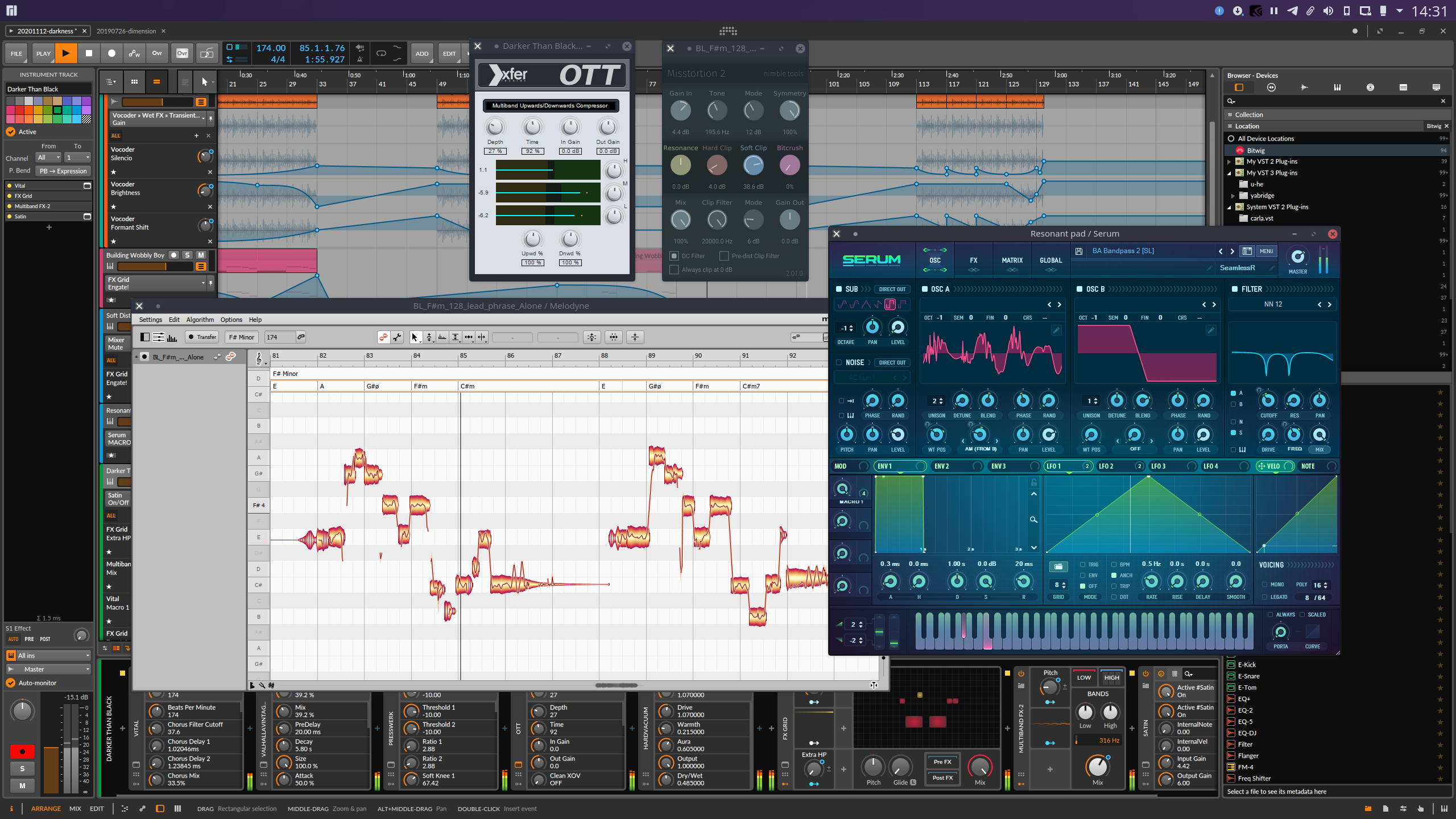
Yet Another way to use Windows audio plugins on Linux. Yabridge seamlessly
supports using both 32-bit and 64-bit Windows VST2, VST3, and CLAP plugins in
64-bit Linux plugin hosts as if they were native plugins, with optional support
for [plugin groups](#plugin-groups) to enable inter-plugin communication for
VST2 plugins and quick startup times. Its modern concurrent architecture and
focus on transparency allows yabridge to be both fast and highly compatible,
while also staying easy to debug and maintain.
### Table of contents
- [Tested with](#tested-with)
- [**Usage**](#usage)
- [Bitbridge](#bitbridge)
- [Wine prefixes](#wine-prefixes)
- [Using different Wine versions](#using-different-wine-versions)
- [Drag-and-drop](#drag-and-drop)
- [Input focus grabbing](#input-focus-grabbing)
- [Downgrading Wine](#downgrading-wine)
- [Installing a development build](#installing-a-development-build)
- [Configuration](#configuration)
- [Plugin groups](#plugin-groups)
- [Compatibility options](#compatibility-options)
- [Example](#example)
- [**Known issues and fixes**](#known-issues-and-fixes)
- [**Troubleshooting common issues**](#troubleshooting-common-issues)
- [**Performance tuning**](#performance-tuning)
- [Environment configuration](#environment-configuration)
- [Building](#building)
- [32-bit bitbridge](#32-bit-bitbridge)
- [32-bit libraries](#32-bit-libraries)
- [Debugging](#debugging)
- [Attaching a debugger](#attaching-a-debugger)
## Tested with
Yabridge has been tested under the following hosts using Wine Staging 9.21. See
the [common issues](#troubleshooting-common-issues) section for instructions on
how to use yabridge with later versions of Wine.
> [!IMPORTANT]
> yabridge doesn't work with `flatpak` packages. Please use native packages (.deb, .rpm, AUR etc) of the DAWs listed below.
| Host | VST2 | VST3 | CLAP |
| ----------------- | ------------------ | ----------------------------------------------------------- | ---------------------------------------------------- |
| Bitwig Studio 6.0 | :heavy_check_mark: | :heavy_check_mark: | :heavy_check_mark: |
| REAPER 7.12 | :heavy_check_mark: | :heavy_check_mark: | :heavy_check_mark: |
| Carla 2.5.5 | :heavy_check_mark: | :heavy_check_mark: | Does not support CLAP |
| Qtractor 0.9.29 | :heavy_check_mark: | :warning: VST3 editor windows may not have the correct size | :warning: Qtractor may not support every CLAP plugin |
| Renoise 3.4.3 | :heavy_check_mark: | :heavy_check_mark: | Does not support CLAP |
| Waveform 12.1.3 | :heavy_check_mark: | :heavy_check_mark: | Does not support CLAP |
| Ardour 8.1 | :heavy_check_mark: | :warning: Some plugins may cause Ardour 7.3-8.1 to freeze | Does not support CLAP |
| Mixbus 7.0.140 | :heavy_check_mark: | :heavy_check_mark: | Does not support CLAP |
Please let me know if there are any issues with other hosts.
## Usage
0. First of all, yabridge requires a recent-ish version of Wine (Staging). Users
of Debian, Ubuntu, Linux Mint and Pop!\_OS should install Wine Staging from
the [WineHQ repositories](https://wiki.winehq.org/Download) as the Wine
versions provided by those distro's repositories may be too old to be used
with yabridge. On other distros you should be able to just install
`wine-staging` using your distro's package manager.
For a general overview on how to use Wine to install Windows applications,
check out Wine's [user
guide](https://wiki.winehq.org/Wine_User%27s_Guide#Using_Wine).
1. Depending on your distro you can install yabridge and its yabridgectl
companion utility through your distro's package manager or by using
a binary archive from the GitHub releases page. Keep in mind that the distro
packages mentioned below may not always be up to date, and some may also not
be compiled with support for 32-bit plugins.
 - On **Arch** and **Manjaro**, yabridge and yabridgectl can be installed from
the official repositories using the
[`yabridge`](https://archlinux.org/packages/multilib/x86_64/yabridge/) and
[`yabridgectl`](https://archlinux.org/packages/multilib/x86_64/yabridgectl/)
packages.
- On **Fedora**, you can install yabridge and yabridgectl from a
[COPR](https://copr.fedorainfracloud.org/coprs/patrickl/wine-tkg/).
- On the **OpenSUSE** distros, yabridge and yabridgectl are packaged by
[GeekosDAW](https://geekosdaw.tuxfamily.org/en/).
- On **NixOS**, yabridge and yabridgectl are in the repositories.
- On **Ubuntu**, **Debian**, **Linux Mint**, **Pop!\_OS**, and any other
distro, you can simply download and install a prebuilt version of yabridge:
1. First download the latest version of yabridge from the [releases
page](https://github.com/robbert-vdh/yabridge/releases). These binaries
currently target Ubuntu 20.04, and should work on any other distro
that's newer than that.
2. Extract the contents of the downloaded archive to `~/.local/share`, such
that the file `~/.local/share/yabridge/yabridgectl` exists after
extracting. You can extract an archive here from the command line with
`tar -C ~/.local/share -xavf yabridge-x.y.z.tar.gz`. If you're
extracting the archive using a GUI file manager or archive tool, then
make sure that hidden files and directories are visible by pressing
Ctrl+H. You should also double check that your archive
extraction tool didn't create an additional subdirectory in
`~/.local/share`. Dragging and dropping the `yabridge` directory from
the archive directly to `~/.local/share` is the best way to make sure
this doesn't happen.
3. **Whenever any step after this mentions running `yabridgectl `,
then you should run `~/.local/share/yabridge/yabridgectl `
instead.**
Alternatively, you can also add that directory to your shell's search
path. That way you can run `yabridgectl` directly. If you don't know
what that means, then add `export PATH="$PATH:$HOME/.local/share/yabridge"`
to the end of `~/.bashrc` and reopen your terminal.
2. Setting up and updating yabridge for your plugins is done though the
`yabridgectl` command line utility. The basic idea is that you first install
your Windows plugins to their default locations within a Wine prefix just
like you would on regular Windows. and yabridgectl then manages those plugin
directories for you. You then tell yabridgectl where it can find those
plugins so it can manage them for you. That way you only ever need to run a
single command whenever you install or remove a plugin. Both yabridge and
yabridgectl will automatically detect your yabridge installation if you used
one of the installation methods from step 1.
To tell yabridgectl where it can find your Windows VST2, VST3, and CLAP
plugins, you can use yabridgectl's `add`, `rm` and `list` commands to add,
remove, and list the plugin directories yabridgectl is managing for you. You
can also use `yabridgectl status` to get an overview of the current settings
and the installation status for all of your plugins.
1. To add the most common VST2 plugin directory in the default Wine prefix, use
`yabridgectl add "$HOME/.wine/drive_c/Program Files/Steinberg/VstPlugins"`.
This directory may be capitalized as `VSTPlugins` on your system, and some
plugins may also install themselves to a similar directory directly inside
of Program Files.
2. VST3 plugins under Windows are always installed to
`C:\Program Files\Common Files\VST3`, and you can use
`yabridgectl add "$HOME/.wine/drive_c/Program Files/Common Files/VST3"` to
add that directory to yabridge.
3. CLAP plugins under Windows are always installed to
`C:\Program Files\Common Files\CLAP`, and you can use
`yabridgectl add "$HOME/.wine/drive_c/Program Files/Common Files/CLAP"` to
add that directory to yabridge.
3. Finally, you'll need to run `yabridgectl sync` to finish setting up yabridge
for all of your plugins. After doing so, your VST2, VST3, and CLAP plugins
will be set up in `~/.vst/yabridge`, `~/.vst3/yabridge`, and
`~/.clap/yabridge` respectively. Make sure your DAW searches `~/.vst`,
`~/.vst3`, and `~/.clap` for VST2, VST3, and CLAP plugins and you will be
good to go.
### Bitbridge
Yabridge can also load 32-bit Windows plugins so you can use them in your 64-bit
Linux DAW. Yabridge will automatically detect whether a plugin is 32-bit or
64-bit on startup and it will handle it accordingly. If you've installed
yabridge through a distro package, then it may be possible that your distro has
disabled this feature.
### Wine prefixes
It is also possible to use yabridge with multiple Wine prefixes at the same
time. Yabridge will automatically detect and use the Wine prefix the Windows
plugin's `.dll`, `.vst3`, or `.clap` file is located in. Alternatively, you can
set the `WINEPREFIX` environment variable to override the Wine prefix for _all
yabridge plugins_.
### Using different Wine versions
If the `WINELOADER` environment variable is set, then yabridge will use that
binary to run Wine. Otherwise it will use whatever `wine` binary is available on
the search path instead.
See
[`yabridge-bottles-wineloader`](https://github.com/microfortnight/yabridge-bottles-wineloader)
for a community project to integrate yabridge with
[Bottles](https://usebottles.com/).
### Drag-and-drop
Yabridge supports drag-and-drop both from a native (X11) Linux application to
plugins running under yabridge, as well as from yabridge plugins to native X11
applications like your DAW or your file browser. When dragging things from a
plugin to your DAW, then depending on which DAW you're using it may look like
the drop is going to fail while you're still holding down the left mouse button.
That's expected, since yabridge's and Wine's own drag-and-drop systems are
active at the same time. If you're using yabridge in _REAPER_ or _Carla_, then
you may need to enable a [compatibility option](#compatibility-options) to
prevent those hosts from stealing the drop.
### Input focus grabbing
Yabridge tries to be clever about the way grabbing and releasing input focus for
a plugin works. One important detail here is that when grabbing input focus,
yabridge will always focus the _parent window_ passed by the host for the plugin
to embed itself into. This means that hosts like Bitwig Studio can still process
common key bindings like Space for play/pause even while you are
interacting with a plugin's GUI. The downside of this approach is that this also
means that in those hosts you simply cannot type a space character, as the key
will always go to the host.
For the very specific situations where you may want to focus the plugin's editor
directly so that all keyboard input goes to Wine, you can hold down the
Shift key while entering the plugin's GUI with your mouse. This will
let you type spaces in text fields in **Bitwig Studio**, type text into the
settings and license dialogs in **Voxengo** plugins, and it will also allow you
to navigate dropdowns with the keyboard.
### Downgrading Wine
If you run into software or a plugin that does not work correctly with the
current version of Wine Staging, then you may want to try downgrading to an
earlier version of Wine. This can be done as follows:
- On Debian, Ubuntu, Linux Mint and other apt-based distros, you can use the
command below to install Wine Staging 9.21 after you add the WineHQ
repositories linked above. This command is a bit cryptic because on these
distros the Wine package is split up into multiple smaller packages, and the
package versions include the distros codename (e.g. `focal`, or `buster`) as
well as some numeric suffix. Change the version to whatever version of Wine
you want to install, and then run these commands under Bash:
```shell
version=9.21
variant=staging
codename=$(shopt -s nullglob; awk '/^deb https:\/\/dl\.winehq\.org/ { print $3; exit 0 } END { exit 1 }' /etc/apt/sources.list /etc/apt/sources.list.d/*.list || awk '/^Suites:/ { print $2; exit }' /etc/apt/sources.list /etc/apt/sources.list.d/wine*.sources)
suffix=$(dpkg --compare-versions "$version" ge 6.1 && ((dpkg --compare-versions "$version" eq 6.17 && echo "-2") || echo "-1"))
sudo apt install --install-recommends {"winehq-$variant","wine-$variant","wine-$variant-amd64","wine-$variant-i386"}="$version~$codename$suffix"
```
If you want to prevent these packages from being updated automatically, then
you can do so with:
```shell
sudo apt-mark hold winehq-staging
```
Running the same command with `unhold` instead of `hold` will enable updates
again.
- On Arch and Manjaro, you can install the
[downgrade](https://aur.archlinux.org/packages/downgrade/) tool from the repos
or the AUR, then run:
```shell
sudo env DOWNGRADE_FROM_ALA=1 downgrade wine-staging
```
Then select the package for the wine-staging version you want to isntall from
the list. After installing downgrade will ask if you want to add the package
to `IgnorePkg`. If you select `yes`, the package will be added to the
`IgnorePkg` field in `/etc/pacman.conf` and it won't be updated again
automatically.
### Installing a development build
If you want to try to a development version of yabridge, then you can do so as
follows:
- On Arch and Manjaro, you can install the latest master branch version of
yabridge by installing the
[yabridge-git](https://aur.archlinux.org/packages/yabridge-git/) and
[yabridgectl-git](https://aur.archlinux.org/packages/yabridgectl-git/) AUR
packages.
- Otherwise, you can find development builds on the [automated build
page](https://github.com/robbert-vdh/yabridge/actions?query=workflow%3A%22Automated+builds%22+branch%3Amaster).
Before you can download these files, you need log in to GitHub. Then simply
select the latest commit with a green checkmark next to it, scroll down the
build page, and download the latest yabridge and yabridgectl binaries that
match your system. You can also access the very latest build from [this
page](https://nightly.link/robbert-vdh/yabridge/workflows/build/master)
without logging in to GitHub. You'll need to extract these files twice, since
GitHub automatically puts the tarball inside of a .zip archive. Then simply
overwrite the existing files in `~/.local/share/yabridge` with the ones from
the `yabridge` directory, and replace `~/.local/share/yabridge/yabridgectl`
with the new `yabridgectl/yabridgectl` binary. It's also possible to use these
builds if you're using a distro package, but then you should remove the
package first in order to avoid conflicts.
After updating yabridge's files, you will need to rerun `yabridgectl sync` to
finish the upgrade.
## Configuration
Yabridge can be configured on a per plugin basis to host multiple plugins within
a single process using [plugin groups](#plugin-groups), and there are also a
number of [compatibility options](#compatibility-options) available to improve
compatibility with certain hosts and plugins.
Configuring yabridge is done by creating a `yabridge.toml` file located in
either the same directory as the bridged plugin `.so` or `.clap` file you're
trying to configure, or in any of its parent directories. In most cases, this
file should be created as either `~/.vst/yabridge/yabridge.toml`,
`~/.vst3/yabridge/yabridge.toml`, or `~/.clap/yabridge/yabridge.toml` depending
on the type of plugin you want to configure.
Configuration files contain several _sections_. Each section can match one or
more plugins using case sensitive
[glob](https://www.man7.org/linux/man-pages/man7/glob.7.html) patterns that
match paths to yabridge `.so` and `.clap` files relative to the `yabridge.toml`
file, as well as a list of options to apply to the matched plugins. These glob
patterns can also match entire directories, in which case the settings are
applied to all plugins under that directory or one of its subdirectories. To
avoid confusion, only the first `yabridge.toml` file found and only the first
matching glob pattern within that file will be considered. See below for an
[example](#example) of a `yabridge.toml` file. To make debugging easier,
yabridge will print the used `yabridge.toml` file and the matched section within
it on startup, as well as all of the options that have been set.
### Plugin groups
| Option | Values | Description |
| ------- | ----------------- | ---------------------------------------------------------------------- |
| `group` | `{"",""}` | Defaults to `""`, meaning that the plugin will be hosted individually. |
Some plugins have the ability to communicate with other instances of that same
plugin or even with other plugins made by the same manufacturer. This is often
used in mixing plugins to allow different tracks to reference each other without
having to route audio between them. Examples of plugins that do this are
FabFilter Pro-Q 3, MMultiAnalyzer and the iZotope mixing plugins. In order for
this to work, all instances of a particular plugin will have to be hosted in the
same process.
Yabridge has the concept of _plugin groups_, which are user defined groups of
plugins that will all be hosted inside of a single process. Plugins groups can
be configured for a plugin by setting the `group` option of that plugin to some
name. All plugins with the same group name will be hosted within a single
process. Of course, plugin groups with the same name but in different Wine
prefixes and with different architectures will be run independently of each
other. See below for an [example](#example) of how these groups can be set up.
_Note that because of the way VST3 and CLAP work, multiple instances of a single
VST3 or CLAP plugin will always be hosted in a single process regardless of
whether you have enabled plugin groups or not._ _The only reason to use plugin
groups with those plugins is to get slightly lower loading times the first time
you load a new plugin._
### Compatibility options
| Option | Values | Description |
| ----------------------------- | ----------------------- | ----------------------------------------------------------------------------------------------------------------------------------------------------------------------------------------------------------------------------------------------------------------------------------------------------------------------------------------------------------------------------------------------------------------------------------------------------------------------------------- |
| `disable_pipes` | `{true,false,}` | When this option is enabled, yabridge will redirect the Wine plugin host's output streams to a file without any further processing. See the [known issues](#known-issues-and-fixes) section for a list of plugins where this may be useful. This can be set to a boolean, in which case the output will be written to `$XDG_RUNTIME_DIR/yabridge-plugin-output.log`, or to an absolute path (with no expansion for tildes or environment variables). Defaults to `false`. |
| `editor_disable_host_scaling` | `{true,false}` | Disable host-driven HiDPI scaling for VST3 and CLAP plugins. Wine currently does not have proper fractional HiDPI support, so you might have to enable this option if you're using a HiDPI display. In most cases setting the font DPI in `winecfg`'s graphics tab to 192 will cause plugins to scale correctly at 200% size. Defaults to `false`. |
| `editor_force_dnd` | `{true,false}` | This option forcefully enables drag-and-drop support in _REAPER_. Because REAPER's FX window supports drag-and-drop itself, dragging a file onto a plugin editor will cause the drop to be intercepted by the FX window. This makes it impossible to drag files onto plugins in REAPER under normal circumstances. Setting this option to `true` will strip drag-and-drop support from the FX window, thus allowing files to be dragged onto the plugin again. Defaults to `false`. |
| `frame_rate` | `` | The rate at which Win32 events are being handled and usually also the refresh rate of a plugin's editor GUI. When using plugin groups all plugins share the same event handling loop, so in those the last loaded plugin will set the refresh rate. Defaults to `60`. |
| `hide_daw` | `{true,false}` | Don't report the name of the actual DAW to the plugin. See the [known issues](#known-issues-and-fixes) section for a list of situations where this may be useful. This affects VST2, VST3, and CLAP plugins. Defaults to `false`. |
| `vst3_prefer_32bit` | `{true,false}` | Use the 32-bit version of a VST3 plugin instead the 64-bit version if both are installed and they're in the same VST3 bundle inside of `~/.vst3/yabridge`. You likely won't need this. |
These options are workarounds for issues mentioned in the [known
issues](#known-issues-and-fixes) section. Depending on the hosts
and plugins you use you might want to enable some of them.
### Example
All of the paths used here are relative to the `yabridge.toml` file. A
configuration file for VST2 plugins might look a little something like this:
```toml
# ~/.vst/yabridge/yabridge.toml
["FabFilter Pro-Q 3.so"]
group = "fabfilter"
["MeldaProduction/Tools/MMultiAnalyzer.so"]
group = "melda"
# Matches an entire directory and all files inside it, make sure to not include
# a trailing slash
["ToneBoosters"]
group = "toneboosters"
["Chromaphone 3.so"]
hide_daw = true
["sforzando VST_x64.so"]
editor_force_dnd = true
frame_rate = 24
["Loopcloud*"]
disable_pipes = true
# Simple glob patterns can be used to avoid unneeded repetition
["iZotope*/Neutron *"]
group = "izotope"
# Since this file has already been matched by the above glob pattern, this won't
# do anything
["iZotope7/Neutron 2 Mix Tap.so"]
group = "This will be ignored!"
# Of course, you can also add multiple plugins to the same group by hand
["iZotope7/Insight 2.so"]
group = "izotope"
# This would cause all plugins to be hosted within a single process. Doing so
# greatly reduces the loading time of individual plugins, with the caveat being
# that plugins are no longer sandboxed from each other.
#
# ["*"]
# group = "all"
```
For VST3 plugins you should just match the directory instead of the `.so` file
deep within in, like this:
```toml
# ~/.vst3/yabridge/yabridge.toml
["FabFilter*.vst3"]
group = "fabfilter"
editor_disable_host_scaling = true
["Chromaphone 3.vst3"]
hide_daw = true
["Misstortion2.vst3"]
editor_disable_host_scaling = true
["*/*Spectral*.vst3"]
vst3_prefer_32bit = true
# These options would be applied to all plugins that do not already have their
# own configuration set
["*"]
editor_force_dnd = true
editor_disable_host_scaling = true
```
With CLAP plugins, you match on the Linux `.clap` plugin file, just like
matching on `.so` files for a VST2 config file:
```toml
# ~/.clap/yabridge/yabridge.toml
["fb799964.clap"]
hide_daw = true
```
## Known issues and fixes
Any plugin should function out of the box, although some plugins will need some
additional dependencies for their GUIs to work correctly. Notable examples
include:
- If plugins have missing, invisible, or misaligned text, then installing
`corefonts` or `allfonts` through `winetricks` may help.
- If a plugin seems to work fine except for the fact that the GUI never seems to
update when you interact with it, then try installing
[DXVK](https://github.com/doitsujin/dxvk). Many recent JUCE-based plugins
don't redraw anymore when using WineD3D. Make sure you also install Vulkan
drivers if you don't already have those set up.
- **Serum 1** requires you to disable `d2d1.dll` in `winecfg` and to install
`gdiplus` through `winetricks`. You may also want to disable the tooltips by
going to the global settings tab, unchecking 'Show help tooltips', and
clicking on the save icon next to 'Preferences'.
- **Native Instruments** plugins work, but the latest version of Native Access
needs some extra work to run under wine. See the [wineHQ page](https://appdb.winehq.org/objectManager.php?sClass=version&iId=41820)
for information on how to get it running.
The legacy version `1.X` still can be installed directly. You can find it on the
[legacy installers](https://support.native-instruments.com/hc/en-us/articles/360000407909-Native-Access-1-Legacy-Installers-for-Older-Operating-Systems)
page on Native Instruments' website. To get the installer to finish correctly,
open `winecfg` and set the reported Windows version to Windows 10. Otherwise
the installer will be stuck on installing an ISO driver. To work around this
you can open the .iso file downloaded to your downloads directory and run the
installer directly.
Some plugins or sound libraries will install as expected, but if you get an
'Error while mounting disk image' installation failure, then you will need to
install the plugin or sound library manually. You will find a .iso file in
your downloads directory that you can mount and then run the installer from.
However some of those Native Instruments .iso files contain hidden files, and
the installer on the .iso file will fail to install unless you mount the .iso
file with the correct mounting options to unhide those files. To do this,
first run `udisksctl loop-setup -f ~/Downloads/.iso` to load the
.iso file, and then use `udisksctl mount -t udf -o unhide -b /dev/loopX` where
`/dev/loopX` corresponds to the loop device printed by the `loop-setup`
command to mount the .iso file to a directory in `/run/media`.
If you're using an older distro and you're getting a
`Mount option 'unhide' is not allowed` error when trying to mount the file,
then you may need to manually create or edit `/etc/udisks2/mount_options.conf`
first, adding the following to the file:
```conf
[defaults]
udf_allow=uid=$UID,gid=$GID,iocharset,utf8,umask,mode,dmode,unhide,undelete
```
- If **Spitfire Audio** plugins like **BBC Symphony Orchestra** and **LABS** are
unable to load their sample libraries (_Error #X: Something went wrong_), then
you can try reinstalling those plugins to a new, clean Wine prefix. To avoid
potential confusion, make sure to uninstall the Spitfire software along with
the VST2 and VST3 plugins from your main Wine prefix first.
- Several **JUCE** based plugins have an issue under Wine where the mouse cursor
will disappear after interacting with certain UI elements. This can usually be
fixed by mousing over the resize handle in the bottom right corner.
- Several (JUCE-based) plugins like **Arturia**'s plugins, Sonic Academy's
**Kick 2** and Cytomic's **The Drop** have an issue where the GUI freezes when
it's trying to display a tooltip. This can be fixed by enabling the '_Hide
Wine version from applications_' option in the Staging tab of winecfg. If a
plugin seems to function normally but then freezes when clicking on something,
then try enabling this option.
- The GUI in **Sforzando** may appear to not respond to mouse clicks depending
on your Wine and system configuration. This is actually a redrawing issue, and
the GUI will still be updated even if it doesn't look that way. Dragging the
window around or just clicking anywhere in the GUI will force a redraw and
make the GUI render correctly again.
- **MeldaProduction** plugins have minor rendering issues when GPU acceleration
is enabled. This can be fixed by disabling GPU acceleration in the plugin
settings. I'm not sure whether this is an issue with Wine or the plugins
themselves. Notable issues here are missing redraws and incorrect positioning
when the window gets dragged offscreen on the top and left sides of the screen.
- Knobs in **Tokyo Dawn Records** plugins may not behave as expected when
dragging long distances. Setting the 'Continuous Drag' option in the plugin's
options to 'Linear' fixes the issue.
- Similarly, the knobs in **Voxengo** plugins behave better when you enable the
'Radial knob mode' setting in the global settings.
- If **Scaler 2**'s interface lags, blacks out, or otherwise renders poorly,
then you can try enabling [software
rendering](https://forum.scalerplugin.com/t/scaler-2-black-empty-window/3540/8)
to fix these issues.
- **ujam** plugins and other plugins made with the Gorilla Engine, such as the
**LoopCloud** plugins, will throw a `JS_EXEC_FAILED` error when trying to load
the plugin. Enabling the `disable_pipes` [compatibility
option](#compatibility-options) for those plugins will fix this.
- Plugins by **KiloHearts** have file descriptor leaks when _esync_ is enabled,
causing Wine and yabridge to eventually stop working after the system hits the
open file limit. To fix this, either unset `WINEESYNC` while using yabridge or
switch to using [_fsync_](#performance-tuning) instead.
- **PSPaudioware** and **Soundtoys** plugins with expandable GUIs, such as E27
and Crystallizer, may have their GUI appear in the wrong location after the
GUI has been expanded. You can enable an alternative [editor hosting
mode](#compatibility-options) to fix this.
- When using recent _Applied Acoustics_ plugins like **Chromaphone 3** under
_Bitwig Studio_, text entry will cause the plugin to crash because Chromaphone
uses a different text entry method when it detects Bitwig. You can use the
`hide_daw` [compatibility option](#compatibility-options) to work around this.
- VST2 plugins like **FabFilter Pro-Q 3** that can share data between different
instances of the same plugin plugins have to be hosted within a single process
for that functionality to work. See the [plugin groups](#plugin-groups)
section for instructions on how to set this up. This is not necessary for VST3
plugins, as multiple instances of those plugins will always be hosted in a
single process by design.
- Some hosts, particularly _Ardour_, _REAPER_, _Qtractor_, will by default not
unload VST3 modules after you close the last plugin. This means that the
associated `yabridge-host.exe` process will keep running until you close the
project. For REAPER there's an option called
`Allow complete unload of VST plug-ins` in the `VST` tab of the settings
dialog to disable this behaviour.
- _Drag-and-drop_ to the plugin window under **REAPER** doesn't work because of
a long standing issue in REAPER's FX window implementation. You can use a
compatibility option to [force drag-and-drop](#compatibility-options) to work
around this limitation.
Aside from that, these are some known caveats:
- **iZotope** plugins can't be authorized because of missing functionality in
Wine's crypt32 implementation.
- **D16 Group** plugins also can't be authorized in current versions of Wine as
they don't recall their authorization status correctly.
- **Waves** V13 VST3 plugins have memory issues, at least under Wine. They will
likely randomly crash at some point. If you can avoid Waves, that would be for
the best. Otherwise, try the V12 versions of the plugins if you still have a
license for them.
- MIDI key labels for VST2 plugins (commonly used for drum machines and
multisamplers) will not be updated after the host first asks for them since
VST 2.4 has no way to let the host know that those labels have been updated.
Deactivating and reactivating the plugin will cause these labels to be updated
again for the current patch.
There are also some (third party) plugin API extensions for that have not been
implemented yet. See the [roadmap](./ROADMAP.md) for a list of future plans.
## Troubleshooting common issues
If your problem is not listed here, then feel free to post on the [issue
tracker](https://github.com/robbert-vdh/yabridge/issues) or to ask about it in
the yabridge [Discord](https://discord.gg/pyNeweqadf). Also check the [known
issues and fixes](#known-issues-and-fixes) section above for help with
plugin-specific issues.
- Wine 9.22 and Wine 10.x currently don't work with yabridge 5.1.1 or belong.
You will either have to [downgrade to Wine 9.21](#downgrading-wine) for the
time being, or install a [development build](#installing-a-development-build)
of yabridge.
- Both yabridgectl and yabridge try to diagnose many common issues for you. If
you're running into crashes or other issues, then try launching your DAW from
a terminal and reading the log output for any clues. Bitwig Studio writes
plugin output to `~/.BitwigStudio/log/engine.log`, so you may need to look
there instead.
- Try to use a clean Wine prefix when testing misbehaving plugins. Either
temporarily rename `~/.wine` to something else, or set the `WINEPREFIX`
environment variable to a directory path to have Wine use that as a prefix.
Don't forget to unset it before starting your DAW or all plugins will use that
prefix.
- If you have the `WINEPREFIX` environment variable set and you _don't_ want all
of your plugins to use that specific Wine prefix, then you should unset it to
allow yabridge to automatically detect Wine prefixes for you.
- If you get a warning about a low `RLIMIT_RTTIME` value of 200000 microseconds,
then your DAW is running in an environment where _rtkit_ is active. Rtkit is
used to grant realtime scheduling privileges to applications in environments
where users can't do that themselves, but it also imposes severe limitations
on what those applications can do. Applications known for doing this are:
- **PipeWire**. With PipeWire versions above 0.3.44, you simply need to make
sure your user has realtime priviliges. Follow the instructions from the
section below to enable this and then reboot your system.
- **GNOME 45+**. Recent GNOME shell versions started using rtkit in the shell
itself. As far as I'm aware, this happens unconditionally, and masking the
rtkit service to prevent it from running is the only workaround. Make sure
your user has realtime priviliges set up according to the instructions from
the section below, and then run `sudo systemctl mask rtkit-daemon.service`.
The warning should disappear after rebooting. Please let me know if anyone
knows a better solution for this problem!
- If yabridge prints errors or warnings about memory locking limits, then that
means that you have not yet set up realtime privileges for your user. Setting
the memlock limit to unlimited (or -1) is usually part of this process. How
you should do this will depend on your distro. On _Arch_ and _Manjaro_, you
will need to install the `realtime-privileges` package, add your user to the
`realtime` group with `sudo gpasswd -a "$USER" realtime`, and then reboot.
_Fedora_ does the same thing with their `realtime-setup` package, which also
sets up a `realtime` group that you will need to add your user to. On
_Debian_, _Ubuntu_, and distros based on those, the `jackd2` package usually
sets this up for the `audio` group instead. If
`/etc/security/limits.d/audio.conf` exists, then you can simply add yourself
to the `audio` group and reboot. In any other case you may need to [set this
up yourself](https://jackaudio.org/faq/linux_rt_config.html).
- If you're seeing errors related to Wine either when running `yabridgectl sync`
or when trying to load a plugin, then it can be that your installed version of
Wine is much older than the version that yabridge has been compiled for.
Yabridgectl will automatically check for this when you run `yabridgectl sync`
after updating Wine or yabridge. You can also manually verify that Wine is
working correctly by running one of the Wine plugin host applications.
Assuming that yabridge is installed under `~/.local/share/yabridge`, then
running `~/.local/share/yabridge/yabridge-host.exe` directly (so _not_
`wine ~/.local/share/yabridge/yabridge-host.exe`, that won't work) in a terminal
should print a few messages related to Wine's startup process followed by the
following line:
```
Usage: yabridge-host.exe
```
If you're seeing a `002b:err:module:__wine_process_init` error instead, then
your version of Wine is too old for this version of yabridge and you'll have
to upgrade your Wine version. Instructions for how to do this on Ubuntu can be
found on the [WineHQ website](https://wiki.winehq.org/Ubuntu).
If you're getting a `0024:err:process:exec_process` error, then your Wine
prefix is set to 32-bit only and it won't be possible to run 64-bit
applications like `yabridge-host.exe`.
- Sometimes left over Wine processes can cause problems. Run `wineserver -k` to
terminate Wine related in the current or default Wine prefix.
- If plugin windows show up as a large overlay over the entire screen, covering
up other windows and making it impossible to interact with anything else
without Alt+Tabbing to them, then make sure the 'Allow the window manager to
control the windows' checkbox in winecfg's Graphics tab is checked.
- If you're using a _lot_ of plugins and you're unable to load any new plugins,
then you may be running into Xorg's limit of 256 clients. The exact number of
plugins it takes for this to happen will depend on your system and the other
applications running in the background. An easy way to check if this is the
case would be to try and run `wine cmd.exe` from a terminal. If this prints a
message about the maximum number of clients being reached (or if you are not
able to open the terminal at all), then you might want to consider using
[plugin groups](#plugin-groups) to run multiple instances of your most
frequently used plugins within a single process. And if you're using many
instances of a single VST2 plugin, using the VST3 or CLAP version of that
plugin may also help since they'll share a single process.
Alternatively you can try increasing Xorg's limit itself.
First, check what your current limit is:
In a terminal, run: `less /var/log/Xorg.0.1` (or use any other text editor)
Search for a line containing "MaxClients". This then states the currently set
limit.
Then check if higher values are supported:
In a terminal, run: `/usr/lib/Xorg -maxclients 9999`
This should give an error message and show some information like this:
> maxclients must be one of 64, 128, 256, 512, 1024 or 2048
Let's say we pick 1024. Here's how to apply it.
Create this file (will require sudo): `/etc/X11/xorg.conf.d/99-maxclients.conf`
Add this content:
```
Section "ServerFlags"
Option "MaxClients" "1024"
EndSection
```
Save and reboot your system. Once you are logged back in, you can verify that
the setting has been applied by using the same approach for checking the
previously set limit (see above). Now it should be less likely to run into the
previous issue regarding "too many clients" when opening lots of plugins.
- If you're using a `WINELOADER` that runs the Wine process under a separate
namespace while the host is not sandboxed, then you'll have to use the
`YABRIDGE_NO_WATCHDOG` environment variable to disable the watchdog timer. If
you know what this means then you probably know what you're doing. In that
case, you may also want to use `YABRIDGE_TEMP_DIR` to choose a different
directory for yabridge to store its sockets and other temporary files in.
## Performance tuning
Running Windows plugins under Wine should have a minimal performance overhead,
but you may still notice an increase in latency spikes and overall DSP load.
Luckily there are a few things you can do to get rid of most or all of these
negative side effects:
- First of all, you'll want to make sure that you can run programs with realtime
scheduling. Note that on Arch and Manjaro this does not necessarily require a
realtime kernel as they include the `PREEMPT` patch set in their regular
kernels. You can verify that this is working correctly by running `chrt -f 10 whoami`,
which should print your username, and running `uname -a` should print
something that contains `PREEMPT` in the output.
If the `uname -a` output contains `PREEMPT_DYNAMIC`, then run either
`zgrep PREEMPT /proc/config.gz` or `grep PREEMPT "/boot/config-$(uname -r)"`
depending on your distro. If `CONFIG_PREEMPT` is not set, then either add the
`preempt=full` kernel parameter or better yet, switch to a kernel that's
optimized for low latencies.
- You can also try enabling the `threadirqs` kernel parameter and using which
can in some situations help with xruns. After enabling this, you can use
[rtirq](https://github.com/rncbc/rtirq#rtirq) to increase the priority of
interrupts for your sound card.
- Make sure that you're using the performance frequency scaling governor, as
changing clock speeds in the middle of a real time workload can cause latency
spikes. Since Linux 5.9 it's possible to do this by setting the
`cpufreq.default_governor=performance` to the kernel's command line in your
boot loader configuration.
- The last but perhaps the most important thing you can do is to use a build of
Wine compiled with Proton's fsync or FUTEX2 patches. This can improve
performance significantly when using certain multithreaded plugins. If you are
running Arch or Manjaro, then you can use [Tk-Glitch's Wine
fork](https://github.com/Frogging-Family/wine-tkg-git) for a customizable
version of Wine with the fsync patches included. Make sure to follow the
instructions in the readme to build a version of wine-tkg using the default
profile and don't try to use the prebuilt releases as they will have fshack
enabled which tends to break many plugins that use Direct3D for their
rendering. You'll also want to make sure you're running Linux kernel 5.16 or
newer as those include support the `_fsync_futex_waitv` option that's enabled
by default though wine-tkg's `customization.cfg`. Finally, you'll have to set
the `WINEFSYNC` environment variable to `1` to enable fsync. See the
[environment configuration](#environment-configuration) section below for more
information on where to set this environment variable so that it gets picked
up when you start your DAW.
- If you have the choice, the VST3 version of a plugin will likely perform
better than the VST2 version. And if there is a CLAP version, then that may
perform even better.
- If the plugin doesn't have a VST3 or CLAP version, then [plugin
groups](#plugin-groups) can also greatly improve performance when many
instances of same VST2 plugin. _VST3 and CLAP plugins have similar
functionality built in by design_. Some plugins, like the BBC Spitfire
plugins, can share a lot of resources between different instances of the
plugin. Hosting all instances of the same plugin in a single process can in
those cases greatly reduce overall CPU usage and get rid of latency spikes.
### Environment configuration
This section is relevant if you want to configure environment variables in such
a way that they will be set when you launch your DAW from the GUI instead of
from a terminal. You may want to enable `WINEFSYNC` for fsync support with a
compatible Wine version and kernel, or you may want to change your search `PATH`
to allow yabridge to find the `yabridge-*.exe` binaries if you're using yabridge
directly from the `build` directory. To do this you'll need to change your
_login shell's_ profile, which is different from the configuration loaded during
interactive sessions. And some display manager override your login shell to
always use `/bin/sh`, so you need to be careful to modify the correct file or
else these changes won't work. You can find out your current login shell by
running `echo $SHELL` in a terminal.
- First of all, if you're using GDM, LightDM or LXDM as your display manager
(for instance if you're using GNOME, XFCE or LXDE), then your display manager
won't respect your login shell and it will always use `/bin/sh`. In that case
you will need to add the following line to `~/.profile` to enable fsync:
```shell
export WINEFSYNC=1
```
- If you are using the default **Bash** shell and you're not using any of the
above display managers, then you will want to add the following line to
`~/.bash_profile` (or `~/.profile` if the former does not exist):
```shell
export WINEFSYNC=1
```
- If you are using **Zsh**, then you can add the following line to `~/.zprofile`
(`~/.zshenv` should also work, but some distros such as Arch Linux overwrite
the environment after this file has been read):
```shell
export WINEFSYNC=1
```
- If you are using **fish**, then you can add the following line to either
`~/.config/fish/config.fish` or some file in `~/.config/fish/conf.d/`:
```shell
set -gx WINEFSYNC 1
# Or if you're changing your PATH:
set -gp fish_user_paths ~/directory/with/yabridge/binaries
```
_Make sure to log out and log back in again to ensure that all applications pick
up the new changes._
## Building
To compile yabridge, you'll need [Meson](https://mesonbuild.com/index.html) and
the following dependencies:
- GCC 10+
- A Wine installation with `winegcc` and the development headers. The latest
commits contain a workaround for a winelib [compilation
issue](https://bugs.winehq.org/show_bug.cgi?id=49138) with Wine 5.7+.
- libxcb
The following dependencies are included in the repository as a Meson wrap:
- [Asio](http://think-async.com/Asio/)
- [bitsery](https://github.com/fraillt/bitsery)
- [function2](https://github.com/Naios/function2)
- [`ghc::filesystem`](https://github.com/gulrak/filesystem)
- [tomlplusplus](https://github.com/marzer/tomlplusplus)
- Version 3.7.7 of the [VST3 SDK](https://github.com/robbert-vdh/vst3sdk) with
some [patches](https://github.com/robbert-vdh/yabridge/blob/master/tools/patch-vst3-sdk.sh)
to allow Winelib compilation
- Version 1.1.9 of the [CLAP headers](https://github.com/free-audio/clap).
The project can then be compiled with the command below. You can remove or
change the unity size argument if building takes up too much RAM, or you can
disable unity builds completely by getting rid of `--unity=on` at the cost of
slightly longer build times.
```shell
meson setup build --buildtype=release --cross-file=cross-wine.conf --unity=on --unity-size=1000
ninja -C build
```
After you've finished building you can follow the instructions under the
[usage](#usage) section on how to set up yabridge.
### 32-bit bitbridge
**The bitbridge functionality is not compatible and likely will never be compatible with Wine's new WoW64 build mode ([Wine #58377](https://bugs.winehq.org/show_bug.cgi?id=58377)).** If your Wine distribution does not come with a `wine64` binary, then yabridge's bitbridge will likely not work.
It is also possible to compile a host application for yabridge that's compatible
with 32-bit plugins such as old SynthEdit plugins. This will allow yabridge to
act as a bitbridge, allowing you to run old 32-bit only Windows plugins in a
modern 64-bit Linux plugin host. For this you'll need to have installed the 32
bit versions of the XCB library. This can then be set up as follows:
```shell
# Enable the bitbridge on an existing build
meson configure build -Dbitbridge=true
# Or configure a new build from scratch
meson setup build --buildtype=release --cross-file cross-wine.conf -Dbitbridge=true
ninja -C build
```
This will produce a second plugin host binary called `yabridge-host-32.exe`.
Yabridge will detect whether the plugin you're trying to load is 32-bit or
64-bit, and will run either the regular version or the `*-32.exe` variant
accordingly.
## Debugging
Wine's error messages and warning are usually very helpful whenever a plugin
doesn't work right away. However, with some hosts it can be hard read a plugin's
output. To make it easier to debug malfunctioning plugins, yabridge offers these
two environment variables to control yabridge's logging facilities:
- `YABRIDGE_DEBUG_FILE=` allows you to write yabridge's debug messages as
well as all output produced by the plugin and by Wine itself to a file. For
instance, you could launch your DAW with
`env YABRIDGE_DEBUG_FILE=/tmp/yabridge.log `, and then use
`tail -F /tmp/yabridge.log` to keep track of the output. If this option is not
present then yabridge will write all of its debug output to STDERR instead.
- `YABRIDGE_DEBUG_LEVEL={0,1,2}{,+editor}` allows you to set the verbosity of
the debug information. You can set a debug level, optionally followed by
`+editor` to also get more debug output related to the editor window handling.
Each level increases the amount of debug information printed:
- A value of `0` (the default) means that yabridge will only log the output
from the Wine process and some basic information about the
environment, the configuration and the plugin being loaded.
- A value of `1` will log detailed information about most events and function
calls sent between the plugin host and the plugin. This filters out some
noisy events such as `effEditIdle()` and `audioMasterGetTime()` since those
are sent multiple times per second by for every plugin.
- A value of `2` will cause all of the events to be logged without any
filtering. This is very verbose but it can be crucial for debugging
plugin-specific problems.
More detailed information about these debug levels can be found in
`src/common/logging.h`.
See the [bug report
template](https://github.com/robbert-vdh/yabridge/blob/master/.github/ISSUE_TEMPLATE/bug_report.yml)
for an example of how to use this.
Wine's own [logging facilities](https://wiki.winehq.org/Debug_Channels) can also
be very helpful when diagnosing problems. In particular the `+message`,
`+module` and `+relay` channels are very useful to trace the execution path
within the loaded plugin itself.
### Attaching a debugger
To debug the plugin, you can just attach gdb to the host. Debugging the Wine
plugin host is a bit trickier. Wine comes with a GDB proxy for winedbg, but it
requires a little bit of additional setup and it expects the command line
arguments to be a valid Win32 command line. You'll also need to launch winedbg
in a seperate detached terminal emulator so it doesn't terminate together with
the plugin, and winedbg can be a bit picky about the arguments it accepts. I've
already set this up behind a feature flag for use in KDE Plasma. Other desktop
environments and window managers will require some slight modifications in
`src/plugin/host-process.cpp`. To enable this, simply run the follow and then
rebuild yabridge:
```shell
meson configure build --buildtype=debug -Dwinedbg=true
```
- On **Arch** and **Manjaro**, yabridge and yabridgectl can be installed from
the official repositories using the
[`yabridge`](https://archlinux.org/packages/multilib/x86_64/yabridge/) and
[`yabridgectl`](https://archlinux.org/packages/multilib/x86_64/yabridgectl/)
packages.
- On **Fedora**, you can install yabridge and yabridgectl from a
[COPR](https://copr.fedorainfracloud.org/coprs/patrickl/wine-tkg/).
- On the **OpenSUSE** distros, yabridge and yabridgectl are packaged by
[GeekosDAW](https://geekosdaw.tuxfamily.org/en/).
- On **NixOS**, yabridge and yabridgectl are in the repositories.
- On **Ubuntu**, **Debian**, **Linux Mint**, **Pop!\_OS**, and any other
distro, you can simply download and install a prebuilt version of yabridge:
1. First download the latest version of yabridge from the [releases
page](https://github.com/robbert-vdh/yabridge/releases). These binaries
currently target Ubuntu 20.04, and should work on any other distro
that's newer than that.
2. Extract the contents of the downloaded archive to `~/.local/share`, such
that the file `~/.local/share/yabridge/yabridgectl` exists after
extracting. You can extract an archive here from the command line with
`tar -C ~/.local/share -xavf yabridge-x.y.z.tar.gz`. If you're
extracting the archive using a GUI file manager or archive tool, then
make sure that hidden files and directories are visible by pressing
Ctrl+H. You should also double check that your archive
extraction tool didn't create an additional subdirectory in
`~/.local/share`. Dragging and dropping the `yabridge` directory from
the archive directly to `~/.local/share` is the best way to make sure
this doesn't happen.
3. **Whenever any step after this mentions running `yabridgectl `,
then you should run `~/.local/share/yabridge/yabridgectl `
instead.**
Alternatively, you can also add that directory to your shell's search
path. That way you can run `yabridgectl` directly. If you don't know
what that means, then add `export PATH="$PATH:$HOME/.local/share/yabridge"`
to the end of `~/.bashrc` and reopen your terminal.
2. Setting up and updating yabridge for your plugins is done though the
`yabridgectl` command line utility. The basic idea is that you first install
your Windows plugins to their default locations within a Wine prefix just
like you would on regular Windows. and yabridgectl then manages those plugin
directories for you. You then tell yabridgectl where it can find those
plugins so it can manage them for you. That way you only ever need to run a
single command whenever you install or remove a plugin. Both yabridge and
yabridgectl will automatically detect your yabridge installation if you used
one of the installation methods from step 1.
To tell yabridgectl where it can find your Windows VST2, VST3, and CLAP
plugins, you can use yabridgectl's `add`, `rm` and `list` commands to add,
remove, and list the plugin directories yabridgectl is managing for you. You
can also use `yabridgectl status` to get an overview of the current settings
and the installation status for all of your plugins.
1. To add the most common VST2 plugin directory in the default Wine prefix, use
`yabridgectl add "$HOME/.wine/drive_c/Program Files/Steinberg/VstPlugins"`.
This directory may be capitalized as `VSTPlugins` on your system, and some
plugins may also install themselves to a similar directory directly inside
of Program Files.
2. VST3 plugins under Windows are always installed to
`C:\Program Files\Common Files\VST3`, and you can use
`yabridgectl add "$HOME/.wine/drive_c/Program Files/Common Files/VST3"` to
add that directory to yabridge.
3. CLAP plugins under Windows are always installed to
`C:\Program Files\Common Files\CLAP`, and you can use
`yabridgectl add "$HOME/.wine/drive_c/Program Files/Common Files/CLAP"` to
add that directory to yabridge.
3. Finally, you'll need to run `yabridgectl sync` to finish setting up yabridge
for all of your plugins. After doing so, your VST2, VST3, and CLAP plugins
will be set up in `~/.vst/yabridge`, `~/.vst3/yabridge`, and
`~/.clap/yabridge` respectively. Make sure your DAW searches `~/.vst`,
`~/.vst3`, and `~/.clap` for VST2, VST3, and CLAP plugins and you will be
good to go.
### Bitbridge
Yabridge can also load 32-bit Windows plugins so you can use them in your 64-bit
Linux DAW. Yabridge will automatically detect whether a plugin is 32-bit or
64-bit on startup and it will handle it accordingly. If you've installed
yabridge through a distro package, then it may be possible that your distro has
disabled this feature.
### Wine prefixes
It is also possible to use yabridge with multiple Wine prefixes at the same
time. Yabridge will automatically detect and use the Wine prefix the Windows
plugin's `.dll`, `.vst3`, or `.clap` file is located in. Alternatively, you can
set the `WINEPREFIX` environment variable to override the Wine prefix for _all
yabridge plugins_.
### Using different Wine versions
If the `WINELOADER` environment variable is set, then yabridge will use that
binary to run Wine. Otherwise it will use whatever `wine` binary is available on
the search path instead.
See
[`yabridge-bottles-wineloader`](https://github.com/microfortnight/yabridge-bottles-wineloader)
for a community project to integrate yabridge with
[Bottles](https://usebottles.com/).
### Drag-and-drop
Yabridge supports drag-and-drop both from a native (X11) Linux application to
plugins running under yabridge, as well as from yabridge plugins to native X11
applications like your DAW or your file browser. When dragging things from a
plugin to your DAW, then depending on which DAW you're using it may look like
the drop is going to fail while you're still holding down the left mouse button.
That's expected, since yabridge's and Wine's own drag-and-drop systems are
active at the same time. If you're using yabridge in _REAPER_ or _Carla_, then
you may need to enable a [compatibility option](#compatibility-options) to
prevent those hosts from stealing the drop.
### Input focus grabbing
Yabridge tries to be clever about the way grabbing and releasing input focus for
a plugin works. One important detail here is that when grabbing input focus,
yabridge will always focus the _parent window_ passed by the host for the plugin
to embed itself into. This means that hosts like Bitwig Studio can still process
common key bindings like Space for play/pause even while you are
interacting with a plugin's GUI. The downside of this approach is that this also
means that in those hosts you simply cannot type a space character, as the key
will always go to the host.
For the very specific situations where you may want to focus the plugin's editor
directly so that all keyboard input goes to Wine, you can hold down the
Shift key while entering the plugin's GUI with your mouse. This will
let you type spaces in text fields in **Bitwig Studio**, type text into the
settings and license dialogs in **Voxengo** plugins, and it will also allow you
to navigate dropdowns with the keyboard.
### Downgrading Wine
If you run into software or a plugin that does not work correctly with the
current version of Wine Staging, then you may want to try downgrading to an
earlier version of Wine. This can be done as follows:
- On Debian, Ubuntu, Linux Mint and other apt-based distros, you can use the
command below to install Wine Staging 9.21 after you add the WineHQ
repositories linked above. This command is a bit cryptic because on these
distros the Wine package is split up into multiple smaller packages, and the
package versions include the distros codename (e.g. `focal`, or `buster`) as
well as some numeric suffix. Change the version to whatever version of Wine
you want to install, and then run these commands under Bash:
```shell
version=9.21
variant=staging
codename=$(shopt -s nullglob; awk '/^deb https:\/\/dl\.winehq\.org/ { print $3; exit 0 } END { exit 1 }' /etc/apt/sources.list /etc/apt/sources.list.d/*.list || awk '/^Suites:/ { print $2; exit }' /etc/apt/sources.list /etc/apt/sources.list.d/wine*.sources)
suffix=$(dpkg --compare-versions "$version" ge 6.1 && ((dpkg --compare-versions "$version" eq 6.17 && echo "-2") || echo "-1"))
sudo apt install --install-recommends {"winehq-$variant","wine-$variant","wine-$variant-amd64","wine-$variant-i386"}="$version~$codename$suffix"
```
If you want to prevent these packages from being updated automatically, then
you can do so with:
```shell
sudo apt-mark hold winehq-staging
```
Running the same command with `unhold` instead of `hold` will enable updates
again.
- On Arch and Manjaro, you can install the
[downgrade](https://aur.archlinux.org/packages/downgrade/) tool from the repos
or the AUR, then run:
```shell
sudo env DOWNGRADE_FROM_ALA=1 downgrade wine-staging
```
Then select the package for the wine-staging version you want to isntall from
the list. After installing downgrade will ask if you want to add the package
to `IgnorePkg`. If you select `yes`, the package will be added to the
`IgnorePkg` field in `/etc/pacman.conf` and it won't be updated again
automatically.
### Installing a development build
If you want to try to a development version of yabridge, then you can do so as
follows:
- On Arch and Manjaro, you can install the latest master branch version of
yabridge by installing the
[yabridge-git](https://aur.archlinux.org/packages/yabridge-git/) and
[yabridgectl-git](https://aur.archlinux.org/packages/yabridgectl-git/) AUR
packages.
- Otherwise, you can find development builds on the [automated build
page](https://github.com/robbert-vdh/yabridge/actions?query=workflow%3A%22Automated+builds%22+branch%3Amaster).
Before you can download these files, you need log in to GitHub. Then simply
select the latest commit with a green checkmark next to it, scroll down the
build page, and download the latest yabridge and yabridgectl binaries that
match your system. You can also access the very latest build from [this
page](https://nightly.link/robbert-vdh/yabridge/workflows/build/master)
without logging in to GitHub. You'll need to extract these files twice, since
GitHub automatically puts the tarball inside of a .zip archive. Then simply
overwrite the existing files in `~/.local/share/yabridge` with the ones from
the `yabridge` directory, and replace `~/.local/share/yabridge/yabridgectl`
with the new `yabridgectl/yabridgectl` binary. It's also possible to use these
builds if you're using a distro package, but then you should remove the
package first in order to avoid conflicts.
After updating yabridge's files, you will need to rerun `yabridgectl sync` to
finish the upgrade.
## Configuration
Yabridge can be configured on a per plugin basis to host multiple plugins within
a single process using [plugin groups](#plugin-groups), and there are also a
number of [compatibility options](#compatibility-options) available to improve
compatibility with certain hosts and plugins.
Configuring yabridge is done by creating a `yabridge.toml` file located in
either the same directory as the bridged plugin `.so` or `.clap` file you're
trying to configure, or in any of its parent directories. In most cases, this
file should be created as either `~/.vst/yabridge/yabridge.toml`,
`~/.vst3/yabridge/yabridge.toml`, or `~/.clap/yabridge/yabridge.toml` depending
on the type of plugin you want to configure.
Configuration files contain several _sections_. Each section can match one or
more plugins using case sensitive
[glob](https://www.man7.org/linux/man-pages/man7/glob.7.html) patterns that
match paths to yabridge `.so` and `.clap` files relative to the `yabridge.toml`
file, as well as a list of options to apply to the matched plugins. These glob
patterns can also match entire directories, in which case the settings are
applied to all plugins under that directory or one of its subdirectories. To
avoid confusion, only the first `yabridge.toml` file found and only the first
matching glob pattern within that file will be considered. See below for an
[example](#example) of a `yabridge.toml` file. To make debugging easier,
yabridge will print the used `yabridge.toml` file and the matched section within
it on startup, as well as all of the options that have been set.
### Plugin groups
| Option | Values | Description |
| ------- | ----------------- | ---------------------------------------------------------------------- |
| `group` | `{"",""}` | Defaults to `""`, meaning that the plugin will be hosted individually. |
Some plugins have the ability to communicate with other instances of that same
plugin or even with other plugins made by the same manufacturer. This is often
used in mixing plugins to allow different tracks to reference each other without
having to route audio between them. Examples of plugins that do this are
FabFilter Pro-Q 3, MMultiAnalyzer and the iZotope mixing plugins. In order for
this to work, all instances of a particular plugin will have to be hosted in the
same process.
Yabridge has the concept of _plugin groups_, which are user defined groups of
plugins that will all be hosted inside of a single process. Plugins groups can
be configured for a plugin by setting the `group` option of that plugin to some
name. All plugins with the same group name will be hosted within a single
process. Of course, plugin groups with the same name but in different Wine
prefixes and with different architectures will be run independently of each
other. See below for an [example](#example) of how these groups can be set up.
_Note that because of the way VST3 and CLAP work, multiple instances of a single
VST3 or CLAP plugin will always be hosted in a single process regardless of
whether you have enabled plugin groups or not._ _The only reason to use plugin
groups with those plugins is to get slightly lower loading times the first time
you load a new plugin._
### Compatibility options
| Option | Values | Description |
| ----------------------------- | ----------------------- | ----------------------------------------------------------------------------------------------------------------------------------------------------------------------------------------------------------------------------------------------------------------------------------------------------------------------------------------------------------------------------------------------------------------------------------------------------------------------------------- |
| `disable_pipes` | `{true,false,}` | When this option is enabled, yabridge will redirect the Wine plugin host's output streams to a file without any further processing. See the [known issues](#known-issues-and-fixes) section for a list of plugins where this may be useful. This can be set to a boolean, in which case the output will be written to `$XDG_RUNTIME_DIR/yabridge-plugin-output.log`, or to an absolute path (with no expansion for tildes or environment variables). Defaults to `false`. |
| `editor_disable_host_scaling` | `{true,false}` | Disable host-driven HiDPI scaling for VST3 and CLAP plugins. Wine currently does not have proper fractional HiDPI support, so you might have to enable this option if you're using a HiDPI display. In most cases setting the font DPI in `winecfg`'s graphics tab to 192 will cause plugins to scale correctly at 200% size. Defaults to `false`. |
| `editor_force_dnd` | `{true,false}` | This option forcefully enables drag-and-drop support in _REAPER_. Because REAPER's FX window supports drag-and-drop itself, dragging a file onto a plugin editor will cause the drop to be intercepted by the FX window. This makes it impossible to drag files onto plugins in REAPER under normal circumstances. Setting this option to `true` will strip drag-and-drop support from the FX window, thus allowing files to be dragged onto the plugin again. Defaults to `false`. |
| `frame_rate` | `` | The rate at which Win32 events are being handled and usually also the refresh rate of a plugin's editor GUI. When using plugin groups all plugins share the same event handling loop, so in those the last loaded plugin will set the refresh rate. Defaults to `60`. |
| `hide_daw` | `{true,false}` | Don't report the name of the actual DAW to the plugin. See the [known issues](#known-issues-and-fixes) section for a list of situations where this may be useful. This affects VST2, VST3, and CLAP plugins. Defaults to `false`. |
| `vst3_prefer_32bit` | `{true,false}` | Use the 32-bit version of a VST3 plugin instead the 64-bit version if both are installed and they're in the same VST3 bundle inside of `~/.vst3/yabridge`. You likely won't need this. |
These options are workarounds for issues mentioned in the [known
issues](#known-issues-and-fixes) section. Depending on the hosts
and plugins you use you might want to enable some of them.
### Example
All of the paths used here are relative to the `yabridge.toml` file. A
configuration file for VST2 plugins might look a little something like this:
```toml
# ~/.vst/yabridge/yabridge.toml
["FabFilter Pro-Q 3.so"]
group = "fabfilter"
["MeldaProduction/Tools/MMultiAnalyzer.so"]
group = "melda"
# Matches an entire directory and all files inside it, make sure to not include
# a trailing slash
["ToneBoosters"]
group = "toneboosters"
["Chromaphone 3.so"]
hide_daw = true
["sforzando VST_x64.so"]
editor_force_dnd = true
frame_rate = 24
["Loopcloud*"]
disable_pipes = true
# Simple glob patterns can be used to avoid unneeded repetition
["iZotope*/Neutron *"]
group = "izotope"
# Since this file has already been matched by the above glob pattern, this won't
# do anything
["iZotope7/Neutron 2 Mix Tap.so"]
group = "This will be ignored!"
# Of course, you can also add multiple plugins to the same group by hand
["iZotope7/Insight 2.so"]
group = "izotope"
# This would cause all plugins to be hosted within a single process. Doing so
# greatly reduces the loading time of individual plugins, with the caveat being
# that plugins are no longer sandboxed from each other.
#
# ["*"]
# group = "all"
```
For VST3 plugins you should just match the directory instead of the `.so` file
deep within in, like this:
```toml
# ~/.vst3/yabridge/yabridge.toml
["FabFilter*.vst3"]
group = "fabfilter"
editor_disable_host_scaling = true
["Chromaphone 3.vst3"]
hide_daw = true
["Misstortion2.vst3"]
editor_disable_host_scaling = true
["*/*Spectral*.vst3"]
vst3_prefer_32bit = true
# These options would be applied to all plugins that do not already have their
# own configuration set
["*"]
editor_force_dnd = true
editor_disable_host_scaling = true
```
With CLAP plugins, you match on the Linux `.clap` plugin file, just like
matching on `.so` files for a VST2 config file:
```toml
# ~/.clap/yabridge/yabridge.toml
["fb799964.clap"]
hide_daw = true
```
## Known issues and fixes
Any plugin should function out of the box, although some plugins will need some
additional dependencies for their GUIs to work correctly. Notable examples
include:
- If plugins have missing, invisible, or misaligned text, then installing
`corefonts` or `allfonts` through `winetricks` may help.
- If a plugin seems to work fine except for the fact that the GUI never seems to
update when you interact with it, then try installing
[DXVK](https://github.com/doitsujin/dxvk). Many recent JUCE-based plugins
don't redraw anymore when using WineD3D. Make sure you also install Vulkan
drivers if you don't already have those set up.
- **Serum 1** requires you to disable `d2d1.dll` in `winecfg` and to install
`gdiplus` through `winetricks`. You may also want to disable the tooltips by
going to the global settings tab, unchecking 'Show help tooltips', and
clicking on the save icon next to 'Preferences'.
- **Native Instruments** plugins work, but the latest version of Native Access
needs some extra work to run under wine. See the [wineHQ page](https://appdb.winehq.org/objectManager.php?sClass=version&iId=41820)
for information on how to get it running.
The legacy version `1.X` still can be installed directly. You can find it on the
[legacy installers](https://support.native-instruments.com/hc/en-us/articles/360000407909-Native-Access-1-Legacy-Installers-for-Older-Operating-Systems)
page on Native Instruments' website. To get the installer to finish correctly,
open `winecfg` and set the reported Windows version to Windows 10. Otherwise
the installer will be stuck on installing an ISO driver. To work around this
you can open the .iso file downloaded to your downloads directory and run the
installer directly.
Some plugins or sound libraries will install as expected, but if you get an
'Error while mounting disk image' installation failure, then you will need to
install the plugin or sound library manually. You will find a .iso file in
your downloads directory that you can mount and then run the installer from.
However some of those Native Instruments .iso files contain hidden files, and
the installer on the .iso file will fail to install unless you mount the .iso
file with the correct mounting options to unhide those files. To do this,
first run `udisksctl loop-setup -f ~/Downloads/.iso` to load the
.iso file, and then use `udisksctl mount -t udf -o unhide -b /dev/loopX` where
`/dev/loopX` corresponds to the loop device printed by the `loop-setup`
command to mount the .iso file to a directory in `/run/media`.
If you're using an older distro and you're getting a
`Mount option 'unhide' is not allowed` error when trying to mount the file,
then you may need to manually create or edit `/etc/udisks2/mount_options.conf`
first, adding the following to the file:
```conf
[defaults]
udf_allow=uid=$UID,gid=$GID,iocharset,utf8,umask,mode,dmode,unhide,undelete
```
- If **Spitfire Audio** plugins like **BBC Symphony Orchestra** and **LABS** are
unable to load their sample libraries (_Error #X: Something went wrong_), then
you can try reinstalling those plugins to a new, clean Wine prefix. To avoid
potential confusion, make sure to uninstall the Spitfire software along with
the VST2 and VST3 plugins from your main Wine prefix first.
- Several **JUCE** based plugins have an issue under Wine where the mouse cursor
will disappear after interacting with certain UI elements. This can usually be
fixed by mousing over the resize handle in the bottom right corner.
- Several (JUCE-based) plugins like **Arturia**'s plugins, Sonic Academy's
**Kick 2** and Cytomic's **The Drop** have an issue where the GUI freezes when
it's trying to display a tooltip. This can be fixed by enabling the '_Hide
Wine version from applications_' option in the Staging tab of winecfg. If a
plugin seems to function normally but then freezes when clicking on something,
then try enabling this option.
- The GUI in **Sforzando** may appear to not respond to mouse clicks depending
on your Wine and system configuration. This is actually a redrawing issue, and
the GUI will still be updated even if it doesn't look that way. Dragging the
window around or just clicking anywhere in the GUI will force a redraw and
make the GUI render correctly again.
- **MeldaProduction** plugins have minor rendering issues when GPU acceleration
is enabled. This can be fixed by disabling GPU acceleration in the plugin
settings. I'm not sure whether this is an issue with Wine or the plugins
themselves. Notable issues here are missing redraws and incorrect positioning
when the window gets dragged offscreen on the top and left sides of the screen.
- Knobs in **Tokyo Dawn Records** plugins may not behave as expected when
dragging long distances. Setting the 'Continuous Drag' option in the plugin's
options to 'Linear' fixes the issue.
- Similarly, the knobs in **Voxengo** plugins behave better when you enable the
'Radial knob mode' setting in the global settings.
- If **Scaler 2**'s interface lags, blacks out, or otherwise renders poorly,
then you can try enabling [software
rendering](https://forum.scalerplugin.com/t/scaler-2-black-empty-window/3540/8)
to fix these issues.
- **ujam** plugins and other plugins made with the Gorilla Engine, such as the
**LoopCloud** plugins, will throw a `JS_EXEC_FAILED` error when trying to load
the plugin. Enabling the `disable_pipes` [compatibility
option](#compatibility-options) for those plugins will fix this.
- Plugins by **KiloHearts** have file descriptor leaks when _esync_ is enabled,
causing Wine and yabridge to eventually stop working after the system hits the
open file limit. To fix this, either unset `WINEESYNC` while using yabridge or
switch to using [_fsync_](#performance-tuning) instead.
- **PSPaudioware** and **Soundtoys** plugins with expandable GUIs, such as E27
and Crystallizer, may have their GUI appear in the wrong location after the
GUI has been expanded. You can enable an alternative [editor hosting
mode](#compatibility-options) to fix this.
- When using recent _Applied Acoustics_ plugins like **Chromaphone 3** under
_Bitwig Studio_, text entry will cause the plugin to crash because Chromaphone
uses a different text entry method when it detects Bitwig. You can use the
`hide_daw` [compatibility option](#compatibility-options) to work around this.
- VST2 plugins like **FabFilter Pro-Q 3** that can share data between different
instances of the same plugin plugins have to be hosted within a single process
for that functionality to work. See the [plugin groups](#plugin-groups)
section for instructions on how to set this up. This is not necessary for VST3
plugins, as multiple instances of those plugins will always be hosted in a
single process by design.
- Some hosts, particularly _Ardour_, _REAPER_, _Qtractor_, will by default not
unload VST3 modules after you close the last plugin. This means that the
associated `yabridge-host.exe` process will keep running until you close the
project. For REAPER there's an option called
`Allow complete unload of VST plug-ins` in the `VST` tab of the settings
dialog to disable this behaviour.
- _Drag-and-drop_ to the plugin window under **REAPER** doesn't work because of
a long standing issue in REAPER's FX window implementation. You can use a
compatibility option to [force drag-and-drop](#compatibility-options) to work
around this limitation.
Aside from that, these are some known caveats:
- **iZotope** plugins can't be authorized because of missing functionality in
Wine's crypt32 implementation.
- **D16 Group** plugins also can't be authorized in current versions of Wine as
they don't recall their authorization status correctly.
- **Waves** V13 VST3 plugins have memory issues, at least under Wine. They will
likely randomly crash at some point. If you can avoid Waves, that would be for
the best. Otherwise, try the V12 versions of the plugins if you still have a
license for them.
- MIDI key labels for VST2 plugins (commonly used for drum machines and
multisamplers) will not be updated after the host first asks for them since
VST 2.4 has no way to let the host know that those labels have been updated.
Deactivating and reactivating the plugin will cause these labels to be updated
again for the current patch.
There are also some (third party) plugin API extensions for that have not been
implemented yet. See the [roadmap](./ROADMAP.md) for a list of future plans.
## Troubleshooting common issues
If your problem is not listed here, then feel free to post on the [issue
tracker](https://github.com/robbert-vdh/yabridge/issues) or to ask about it in
the yabridge [Discord](https://discord.gg/pyNeweqadf). Also check the [known
issues and fixes](#known-issues-and-fixes) section above for help with
plugin-specific issues.
- Wine 9.22 and Wine 10.x currently don't work with yabridge 5.1.1 or belong.
You will either have to [downgrade to Wine 9.21](#downgrading-wine) for the
time being, or install a [development build](#installing-a-development-build)
of yabridge.
- Both yabridgectl and yabridge try to diagnose many common issues for you. If
you're running into crashes or other issues, then try launching your DAW from
a terminal and reading the log output for any clues. Bitwig Studio writes
plugin output to `~/.BitwigStudio/log/engine.log`, so you may need to look
there instead.
- Try to use a clean Wine prefix when testing misbehaving plugins. Either
temporarily rename `~/.wine` to something else, or set the `WINEPREFIX`
environment variable to a directory path to have Wine use that as a prefix.
Don't forget to unset it before starting your DAW or all plugins will use that
prefix.
- If you have the `WINEPREFIX` environment variable set and you _don't_ want all
of your plugins to use that specific Wine prefix, then you should unset it to
allow yabridge to automatically detect Wine prefixes for you.
- If you get a warning about a low `RLIMIT_RTTIME` value of 200000 microseconds,
then your DAW is running in an environment where _rtkit_ is active. Rtkit is
used to grant realtime scheduling privileges to applications in environments
where users can't do that themselves, but it also imposes severe limitations
on what those applications can do. Applications known for doing this are:
- **PipeWire**. With PipeWire versions above 0.3.44, you simply need to make
sure your user has realtime priviliges. Follow the instructions from the
section below to enable this and then reboot your system.
- **GNOME 45+**. Recent GNOME shell versions started using rtkit in the shell
itself. As far as I'm aware, this happens unconditionally, and masking the
rtkit service to prevent it from running is the only workaround. Make sure
your user has realtime priviliges set up according to the instructions from
the section below, and then run `sudo systemctl mask rtkit-daemon.service`.
The warning should disappear after rebooting. Please let me know if anyone
knows a better solution for this problem!
- If yabridge prints errors or warnings about memory locking limits, then that
means that you have not yet set up realtime privileges for your user. Setting
the memlock limit to unlimited (or -1) is usually part of this process. How
you should do this will depend on your distro. On _Arch_ and _Manjaro_, you
will need to install the `realtime-privileges` package, add your user to the
`realtime` group with `sudo gpasswd -a "$USER" realtime`, and then reboot.
_Fedora_ does the same thing with their `realtime-setup` package, which also
sets up a `realtime` group that you will need to add your user to. On
_Debian_, _Ubuntu_, and distros based on those, the `jackd2` package usually
sets this up for the `audio` group instead. If
`/etc/security/limits.d/audio.conf` exists, then you can simply add yourself
to the `audio` group and reboot. In any other case you may need to [set this
up yourself](https://jackaudio.org/faq/linux_rt_config.html).
- If you're seeing errors related to Wine either when running `yabridgectl sync`
or when trying to load a plugin, then it can be that your installed version of
Wine is much older than the version that yabridge has been compiled for.
Yabridgectl will automatically check for this when you run `yabridgectl sync`
after updating Wine or yabridge. You can also manually verify that Wine is
working correctly by running one of the Wine plugin host applications.
Assuming that yabridge is installed under `~/.local/share/yabridge`, then
running `~/.local/share/yabridge/yabridge-host.exe` directly (so _not_
`wine ~/.local/share/yabridge/yabridge-host.exe`, that won't work) in a terminal
should print a few messages related to Wine's startup process followed by the
following line:
```
Usage: yabridge-host.exe
```
If you're seeing a `002b:err:module:__wine_process_init` error instead, then
your version of Wine is too old for this version of yabridge and you'll have
to upgrade your Wine version. Instructions for how to do this on Ubuntu can be
found on the [WineHQ website](https://wiki.winehq.org/Ubuntu).
If you're getting a `0024:err:process:exec_process` error, then your Wine
prefix is set to 32-bit only and it won't be possible to run 64-bit
applications like `yabridge-host.exe`.
- Sometimes left over Wine processes can cause problems. Run `wineserver -k` to
terminate Wine related in the current or default Wine prefix.
- If plugin windows show up as a large overlay over the entire screen, covering
up other windows and making it impossible to interact with anything else
without Alt+Tabbing to them, then make sure the 'Allow the window manager to
control the windows' checkbox in winecfg's Graphics tab is checked.
- If you're using a _lot_ of plugins and you're unable to load any new plugins,
then you may be running into Xorg's limit of 256 clients. The exact number of
plugins it takes for this to happen will depend on your system and the other
applications running in the background. An easy way to check if this is the
case would be to try and run `wine cmd.exe` from a terminal. If this prints a
message about the maximum number of clients being reached (or if you are not
able to open the terminal at all), then you might want to consider using
[plugin groups](#plugin-groups) to run multiple instances of your most
frequently used plugins within a single process. And if you're using many
instances of a single VST2 plugin, using the VST3 or CLAP version of that
plugin may also help since they'll share a single process.
Alternatively you can try increasing Xorg's limit itself.
First, check what your current limit is:
In a terminal, run: `less /var/log/Xorg.0.1` (or use any other text editor)
Search for a line containing "MaxClients". This then states the currently set
limit.
Then check if higher values are supported:
In a terminal, run: `/usr/lib/Xorg -maxclients 9999`
This should give an error message and show some information like this:
> maxclients must be one of 64, 128, 256, 512, 1024 or 2048
Let's say we pick 1024. Here's how to apply it.
Create this file (will require sudo): `/etc/X11/xorg.conf.d/99-maxclients.conf`
Add this content:
```
Section "ServerFlags"
Option "MaxClients" "1024"
EndSection
```
Save and reboot your system. Once you are logged back in, you can verify that
the setting has been applied by using the same approach for checking the
previously set limit (see above). Now it should be less likely to run into the
previous issue regarding "too many clients" when opening lots of plugins.
- If you're using a `WINELOADER` that runs the Wine process under a separate
namespace while the host is not sandboxed, then you'll have to use the
`YABRIDGE_NO_WATCHDOG` environment variable to disable the watchdog timer. If
you know what this means then you probably know what you're doing. In that
case, you may also want to use `YABRIDGE_TEMP_DIR` to choose a different
directory for yabridge to store its sockets and other temporary files in.
## Performance tuning
Running Windows plugins under Wine should have a minimal performance overhead,
but you may still notice an increase in latency spikes and overall DSP load.
Luckily there are a few things you can do to get rid of most or all of these
negative side effects:
- First of all, you'll want to make sure that you can run programs with realtime
scheduling. Note that on Arch and Manjaro this does not necessarily require a
realtime kernel as they include the `PREEMPT` patch set in their regular
kernels. You can verify that this is working correctly by running `chrt -f 10 whoami`,
which should print your username, and running `uname -a` should print
something that contains `PREEMPT` in the output.
If the `uname -a` output contains `PREEMPT_DYNAMIC`, then run either
`zgrep PREEMPT /proc/config.gz` or `grep PREEMPT "/boot/config-$(uname -r)"`
depending on your distro. If `CONFIG_PREEMPT` is not set, then either add the
`preempt=full` kernel parameter or better yet, switch to a kernel that's
optimized for low latencies.
- You can also try enabling the `threadirqs` kernel parameter and using which
can in some situations help with xruns. After enabling this, you can use
[rtirq](https://github.com/rncbc/rtirq#rtirq) to increase the priority of
interrupts for your sound card.
- Make sure that you're using the performance frequency scaling governor, as
changing clock speeds in the middle of a real time workload can cause latency
spikes. Since Linux 5.9 it's possible to do this by setting the
`cpufreq.default_governor=performance` to the kernel's command line in your
boot loader configuration.
- The last but perhaps the most important thing you can do is to use a build of
Wine compiled with Proton's fsync or FUTEX2 patches. This can improve
performance significantly when using certain multithreaded plugins. If you are
running Arch or Manjaro, then you can use [Tk-Glitch's Wine
fork](https://github.com/Frogging-Family/wine-tkg-git) for a customizable
version of Wine with the fsync patches included. Make sure to follow the
instructions in the readme to build a version of wine-tkg using the default
profile and don't try to use the prebuilt releases as they will have fshack
enabled which tends to break many plugins that use Direct3D for their
rendering. You'll also want to make sure you're running Linux kernel 5.16 or
newer as those include support the `_fsync_futex_waitv` option that's enabled
by default though wine-tkg's `customization.cfg`. Finally, you'll have to set
the `WINEFSYNC` environment variable to `1` to enable fsync. See the
[environment configuration](#environment-configuration) section below for more
information on where to set this environment variable so that it gets picked
up when you start your DAW.
- If you have the choice, the VST3 version of a plugin will likely perform
better than the VST2 version. And if there is a CLAP version, then that may
perform even better.
- If the plugin doesn't have a VST3 or CLAP version, then [plugin
groups](#plugin-groups) can also greatly improve performance when many
instances of same VST2 plugin. _VST3 and CLAP plugins have similar
functionality built in by design_. Some plugins, like the BBC Spitfire
plugins, can share a lot of resources between different instances of the
plugin. Hosting all instances of the same plugin in a single process can in
those cases greatly reduce overall CPU usage and get rid of latency spikes.
### Environment configuration
This section is relevant if you want to configure environment variables in such
a way that they will be set when you launch your DAW from the GUI instead of
from a terminal. You may want to enable `WINEFSYNC` for fsync support with a
compatible Wine version and kernel, or you may want to change your search `PATH`
to allow yabridge to find the `yabridge-*.exe` binaries if you're using yabridge
directly from the `build` directory. To do this you'll need to change your
_login shell's_ profile, which is different from the configuration loaded during
interactive sessions. And some display manager override your login shell to
always use `/bin/sh`, so you need to be careful to modify the correct file or
else these changes won't work. You can find out your current login shell by
running `echo $SHELL` in a terminal.
- First of all, if you're using GDM, LightDM or LXDM as your display manager
(for instance if you're using GNOME, XFCE or LXDE), then your display manager
won't respect your login shell and it will always use `/bin/sh`. In that case
you will need to add the following line to `~/.profile` to enable fsync:
```shell
export WINEFSYNC=1
```
- If you are using the default **Bash** shell and you're not using any of the
above display managers, then you will want to add the following line to
`~/.bash_profile` (or `~/.profile` if the former does not exist):
```shell
export WINEFSYNC=1
```
- If you are using **Zsh**, then you can add the following line to `~/.zprofile`
(`~/.zshenv` should also work, but some distros such as Arch Linux overwrite
the environment after this file has been read):
```shell
export WINEFSYNC=1
```
- If you are using **fish**, then you can add the following line to either
`~/.config/fish/config.fish` or some file in `~/.config/fish/conf.d/`:
```shell
set -gx WINEFSYNC 1
# Or if you're changing your PATH:
set -gp fish_user_paths ~/directory/with/yabridge/binaries
```
_Make sure to log out and log back in again to ensure that all applications pick
up the new changes._
## Building
To compile yabridge, you'll need [Meson](https://mesonbuild.com/index.html) and
the following dependencies:
- GCC 10+
- A Wine installation with `winegcc` and the development headers. The latest
commits contain a workaround for a winelib [compilation
issue](https://bugs.winehq.org/show_bug.cgi?id=49138) with Wine 5.7+.
- libxcb
The following dependencies are included in the repository as a Meson wrap:
- [Asio](http://think-async.com/Asio/)
- [bitsery](https://github.com/fraillt/bitsery)
- [function2](https://github.com/Naios/function2)
- [`ghc::filesystem`](https://github.com/gulrak/filesystem)
- [tomlplusplus](https://github.com/marzer/tomlplusplus)
- Version 3.7.7 of the [VST3 SDK](https://github.com/robbert-vdh/vst3sdk) with
some [patches](https://github.com/robbert-vdh/yabridge/blob/master/tools/patch-vst3-sdk.sh)
to allow Winelib compilation
- Version 1.1.9 of the [CLAP headers](https://github.com/free-audio/clap).
The project can then be compiled with the command below. You can remove or
change the unity size argument if building takes up too much RAM, or you can
disable unity builds completely by getting rid of `--unity=on` at the cost of
slightly longer build times.
```shell
meson setup build --buildtype=release --cross-file=cross-wine.conf --unity=on --unity-size=1000
ninja -C build
```
After you've finished building you can follow the instructions under the
[usage](#usage) section on how to set up yabridge.
### 32-bit bitbridge
**The bitbridge functionality is not compatible and likely will never be compatible with Wine's new WoW64 build mode ([Wine #58377](https://bugs.winehq.org/show_bug.cgi?id=58377)).** If your Wine distribution does not come with a `wine64` binary, then yabridge's bitbridge will likely not work.
It is also possible to compile a host application for yabridge that's compatible
with 32-bit plugins such as old SynthEdit plugins. This will allow yabridge to
act as a bitbridge, allowing you to run old 32-bit only Windows plugins in a
modern 64-bit Linux plugin host. For this you'll need to have installed the 32
bit versions of the XCB library. This can then be set up as follows:
```shell
# Enable the bitbridge on an existing build
meson configure build -Dbitbridge=true
# Or configure a new build from scratch
meson setup build --buildtype=release --cross-file cross-wine.conf -Dbitbridge=true
ninja -C build
```
This will produce a second plugin host binary called `yabridge-host-32.exe`.
Yabridge will detect whether the plugin you're trying to load is 32-bit or
64-bit, and will run either the regular version or the `*-32.exe` variant
accordingly.
## Debugging
Wine's error messages and warning are usually very helpful whenever a plugin
doesn't work right away. However, with some hosts it can be hard read a plugin's
output. To make it easier to debug malfunctioning plugins, yabridge offers these
two environment variables to control yabridge's logging facilities:
- `YABRIDGE_DEBUG_FILE=` allows you to write yabridge's debug messages as
well as all output produced by the plugin and by Wine itself to a file. For
instance, you could launch your DAW with
`env YABRIDGE_DEBUG_FILE=/tmp/yabridge.log `, and then use
`tail -F /tmp/yabridge.log` to keep track of the output. If this option is not
present then yabridge will write all of its debug output to STDERR instead.
- `YABRIDGE_DEBUG_LEVEL={0,1,2}{,+editor}` allows you to set the verbosity of
the debug information. You can set a debug level, optionally followed by
`+editor` to also get more debug output related to the editor window handling.
Each level increases the amount of debug information printed:
- A value of `0` (the default) means that yabridge will only log the output
from the Wine process and some basic information about the
environment, the configuration and the plugin being loaded.
- A value of `1` will log detailed information about most events and function
calls sent between the plugin host and the plugin. This filters out some
noisy events such as `effEditIdle()` and `audioMasterGetTime()` since those
are sent multiple times per second by for every plugin.
- A value of `2` will cause all of the events to be logged without any
filtering. This is very verbose but it can be crucial for debugging
plugin-specific problems.
More detailed information about these debug levels can be found in
`src/common/logging.h`.
See the [bug report
template](https://github.com/robbert-vdh/yabridge/blob/master/.github/ISSUE_TEMPLATE/bug_report.yml)
for an example of how to use this.
Wine's own [logging facilities](https://wiki.winehq.org/Debug_Channels) can also
be very helpful when diagnosing problems. In particular the `+message`,
`+module` and `+relay` channels are very useful to trace the execution path
within the loaded plugin itself.
### Attaching a debugger
To debug the plugin, you can just attach gdb to the host. Debugging the Wine
plugin host is a bit trickier. Wine comes with a GDB proxy for winedbg, but it
requires a little bit of additional setup and it expects the command line
arguments to be a valid Win32 command line. You'll also need to launch winedbg
in a seperate detached terminal emulator so it doesn't terminate together with
the plugin, and winedbg can be a bit picky about the arguments it accepts. I've
already set this up behind a feature flag for use in KDE Plasma. Other desktop
environments and window managers will require some slight modifications in
`src/plugin/host-process.cpp`. To enable this, simply run the follow and then
rebuild yabridge:
```shell
meson configure build --buildtype=debug -Dwinedbg=true
```