


DotRun transforms scattered scripts, complex command sequences, and tribal knowledge into a unified, searchable, and shareable toolkit that works across all your projects.
## The Problem
Developers waste countless hours on repetitive tasks:
- **Searching Slack** for that deployment command someone shared last month
- **Copy-pasting** complex Git workflows from documentation
- **Re-creating** environment setup scripts for each new project
- **Remembering** which parameters go with which tools
You know the solution exists somewhere, but finding and using it is the hard part.
## The Solution
DotRun gives you instant access to any script from anywhere:
```bash
# Instead of this complexity...
git fetch --all && git branch -vv | awk '/: gone]/{print $1}' | xargs git branch -d
# Just run this
dr git/cleanup
```
**One command replaces dozens of scattered scripts, aliases, and copy-paste workflows.**
## 30-Second Demo
Install and run your first script in 30 seconds:
```bash
# 1. Install DotRun
bash <(curl -fsSL https://raw.githubusercontent.com/jvPalma/dotrun/master/install.sh)
# 2. Create a script
dr set deploy
# 3. Run it from anywhere
cd ~/any-project && dr deploy
```
## Before vs After
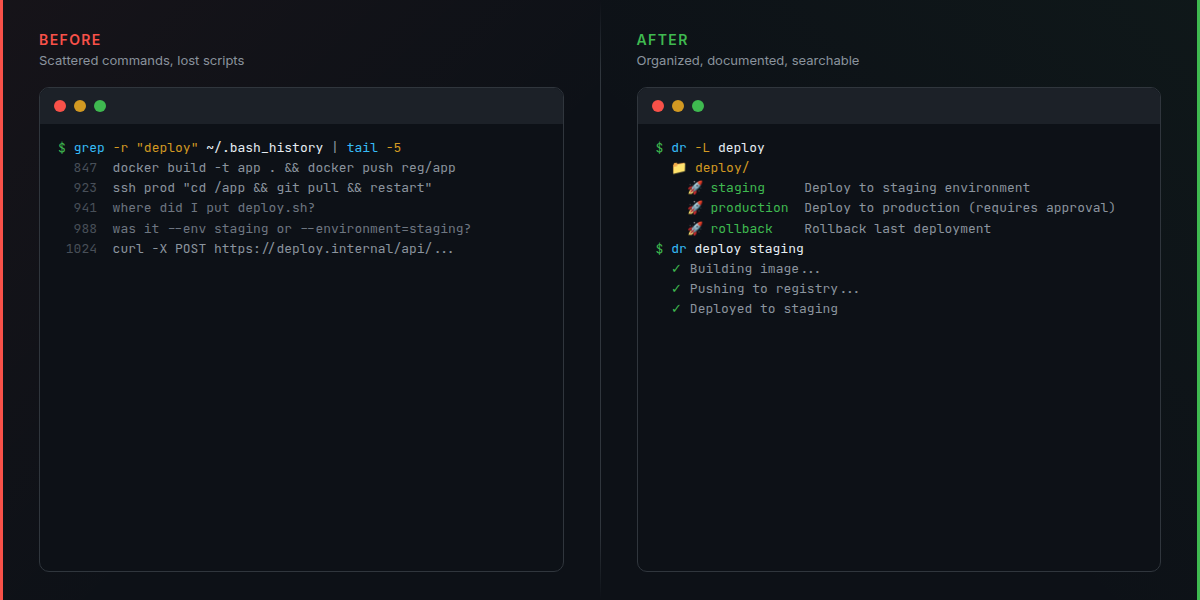
View as text (accessibility fallback)
**Before DotRun:**
```bash
# Deployment scattered across multiple places
grep -r "deploy" ~/.bash_history | tail -5
# Copy from Slack: docker build -t app . && docker push...
# Find that script: where did I put deploy.sh?
# Remember parameters: was it --env staging or --environment=staging?
```
**After DotRun:**
```bash
# Everything in one place, documented, and searchable
dr -L deploy # List all deployment scripts
dr help deploy # Show documentation
dr deploy staging # Run with confidence
```
## Why DotRun?
**vs Individual Scripts:** Unified access, automatic documentation, team sharing
**vs Aliases:** Cross-shell support, parameter handling, self-documenting
**vs Makefiles:** Project-independent, globally accessible, language-agnostic
**vs README lists:** Executable, searchable, with built-in help
## Key Features
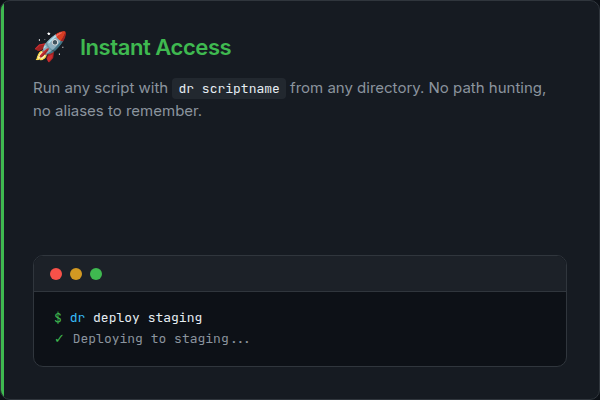
- **🚀 Instant Access** - Run any script with `dr scriptname` from anywhere
- **📚 Self-Documenting** - Every script includes usage examples and help text
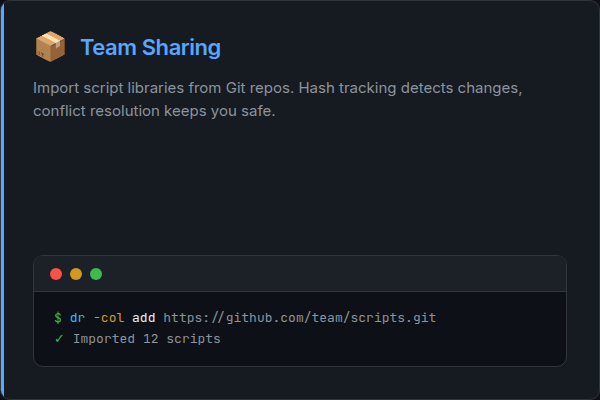
- **👥 Team Sharing** - Import/export collections while keeping personal scripts separate
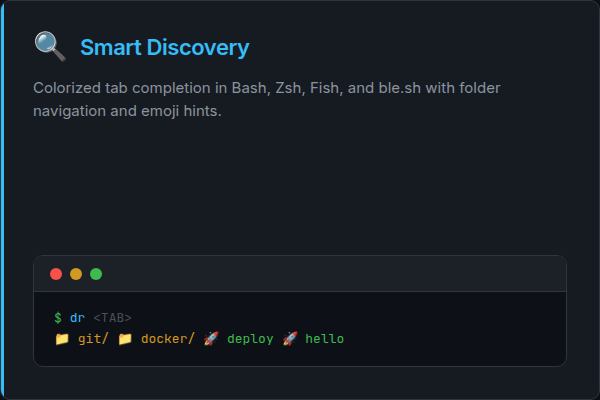
- **🔍 Smart Discovery** - Find scripts by name, category, or description with intelligent tab completion
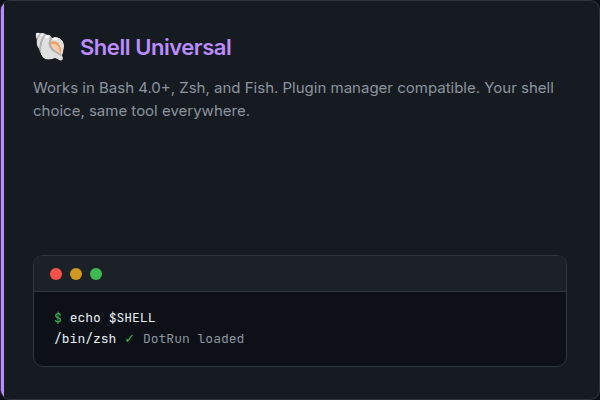
- **🐚 Shell Universal** - Works in Bash, Zsh, and Fish with colorized completion
- **⚙️ File-Based Config** - Manage aliases and environment variables in organized files
- **🔄 Smart Updates** - Collection system tracks modifications and handles conflicts
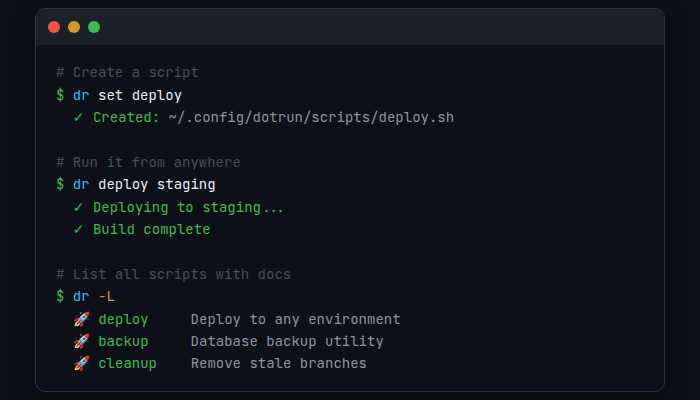
## Quick Preview
## Installation
```bash
bash <(curl -fsSL https://raw.githubusercontent.com/jvPalma/dotrun/master/install.sh)
```
Installs to `~/.local/bin/dr` with workspace in `~/.config/dotrun/`
## Quick Start
### Create Your First Script
```bash
dr set hello
# Opens editor with documentation template
# Add: echo "Hello from anywhere!"
dr hello # Run from any directory
```
### Organize with Namespaces
```bash
# Script management
dr -s set deploy # Create script (or: dr scripts set deploy)
dr -s list git/ # Browse by folder
# Alias management (file-based, multiple aliases per file)
dr -a set 01-git # Opens editor: ~/.config/dotrun/aliases/01-git.aliases
dr -a list # View all alias files
# Config management (file-based, multiple exports per file)
dr -c set api/keys # Opens editor: ~/.config/dotrun/configs/api/keys.config
dr -c list --category api # View configs by category
```
### Install Example Collections
```bash
# Install collection from GitHub
dr -col add https://github.com/jvPalma/dotrun.git
# Select which scripts/aliases/helpers to import
# Browse and run
dr -L # List all scripts
dr git/cleanup # Run imported script
# Keep collections updated
dr -col sync # Check for updates
dr -col update dotrun # Update with conflict resolution
```
### Install AI Agent Skill
```bash
# Install DotRun skill for Claude Code or other AI agents
npx skills add https://github.com/jvpalma/dotrun --skill dr-cli
```
This gives AI coding agents deep knowledge of DotRun's script system, enabling them to create, manage, and migrate scripts following best practices.
### Explore with Tab Completion
```bash
# Zsh: Colorized hierarchical navigation
dr # See folders (yellow), scripts (cyan), special commands (green)
dr git/ # Navigate into folders
dr -s # Script commands (green)
dr -a # Alias commands (purple)
dr -c # Config commands (red)
# All shells support namespace commands
dr scripts set deploy # Same as: dr -s set deploy
dr aliases set 01-git # Opens alias file editor
dr config set api/keys # Opens config file editor
```
## Core Workflow
1. **Create:** `dr set scriptname` - Creates or edits script with documentation template
2. **Document:** Add `### DOC` sections for usage examples and help
3. **Run:** `dr scriptname` - Execute from anywhere with tab completion
4. **Discover:** `dr -L` - Browse all scripts with descriptions
5. **Share:** Collections for team scripts, keep personal scripts separate
## Collections System
Share script libraries with your team while maintaining full control over updates and local modifications.
**Collections** are git repositories containing reusable scripts, aliases, helpers, and configs. When you install a collection, resources are copied to your local workspace with hash tracking for smart updates.
```bash
# Install collection
dr -col add https://github.com/user/dotrun-scripts.git
# Browse installed collections
dr -col list
# Check for updates
dr -col sync
# Update with conflict resolution
dr -col update my-collection
```
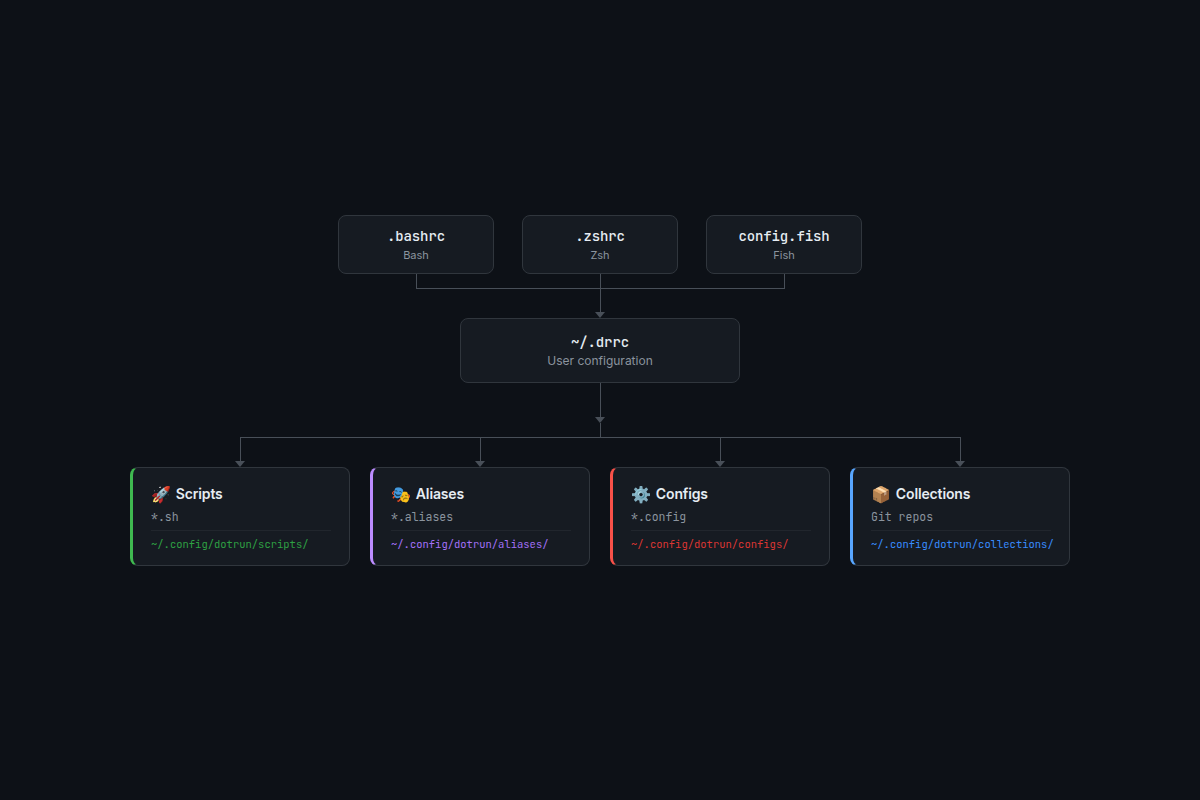
## Architecture
## Documentation
**📚 [Complete Documentation](https://github.com/jvPalma/dotrun/wiki)**
| Guide | Description |
| ---------------------------------------------------------------------------------------- | ------------------------------------- |
| **[Installation](https://github.com/jvPalma/dotrun/wiki/Installation-Guide)** | One-command setup for all platforms |
| **[Quick Start](https://github.com/jvPalma/dotrun/wiki/Quick-Start-Tutorial)** | Your first 5 minutes with DotRun |
| **[Scripts](https://github.com/jvPalma/dotrun/wiki/Script-Management)** | Create, organize, and run scripts |
| **[Collections](https://github.com/jvPalma/dotrun/wiki/Collection-Management-Advanced)** | Share script libraries with your team |
| **[FAQ](https://github.com/jvPalma/dotrun/wiki/FAQ)** | Common questions and troubleshooting |
### Quick Reference
| Feature | Create/Edit | List | Run |
| --------------- | ------------------- | -------------- | --------------------- |
| **Scripts** | `dr set name` | `dr -L` | `dr name` |
| **Aliases** | `dr -a name` | `dr -a list` | _(auto-loaded)_ |
| **Configs** | `dr -c name` | `dr -c list` | _(auto-loaded)_ |
| **Collections** | `dr -col add ` | `dr -col list` | _(scripts available)_ |
## Requirements
- **OS:** Linux, macOS, Windows (WSL)
- **Shell:** Bash 4.0+, Zsh, or Fish
- **Dependencies:** Git (required), ShellCheck (optional), glow (optional)
## Get Started
```bash
# 1. Install
bash <(curl -fsSL https://raw.githubusercontent.com/jvPalma/dotrun/master/install.sh)
# 2. Verify (restart terminal first)
dr --version
# 3. Create your first script
dr set hello
# Add: echo "Hello from DotRun!"
# 4. Run it from anywhere
dr hello
```
**[Full Quick Start Tutorial](https://github.com/jvPalma/dotrun/wiki/Quick-Start-Tutorial)** | **[Browse all documentation](https://github.com/jvPalma/dotrun/wiki)**
---
**Transform your development workflow from scattered scripts to unified productivity.**
_Questions? [Open an issue](https://github.com/jvPalma/dotrun/issues) or check our [FAQ](https://github.com/jvPalma/dotrun/wiki/FAQ)_