
# RhinoMCP
**Control Rhino 3D and Grasshopper with AI, in plain language.**
RhinoMCP connects Rhino to AI agents through the [Model Context Protocol](https://modelcontextprotocol.io),
so assistants like Claude and Cursor can model geometry, read your document, and build
Grasshopper definitions for you, just by chatting.
[](https://pypi.org/project/rhinomcp/)
[](https://www.rhino3d.com/)
[](https://www.python.org/)
[](https://modelcontextprotocol.io/)
[](LICENSE)
[Quick start](#quick-start) · [What it can do](#what-it-can-do) · [Usage](#usage) · [Examples](#example-prompts) · [Tool reference](#tool-reference)
**English** · [简体中文](README.zh-CN.md)
---
## Highlights
- Describe what you want and the assistant builds it in Rhino.
- It reads your document and can capture the viewport, so it works from what is actually on screen.
- It scripts Grasshopper for you: finding components, wiring them, setting sliders, and solving.
- A single plugin and a single config entry cover both Rhino and Grasshopper.
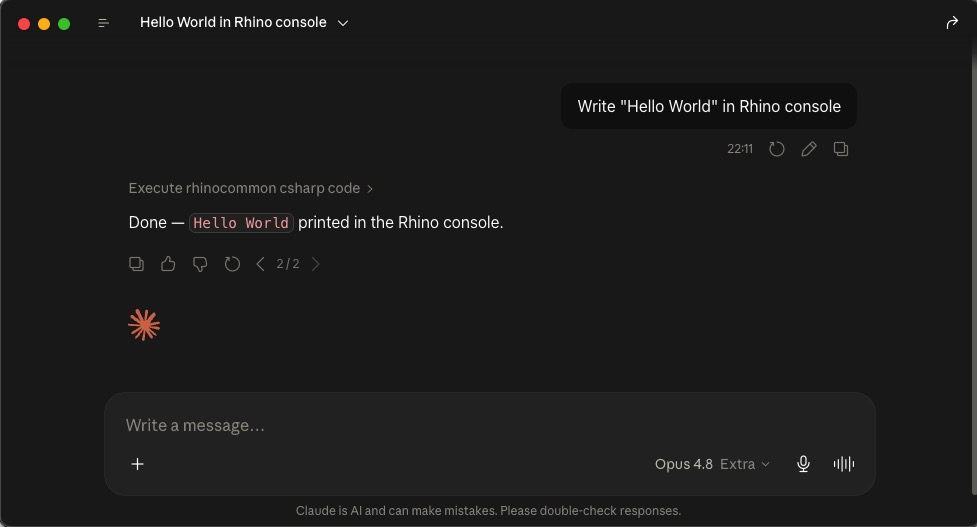
- When you need more control, it can run native Rhino commands, RhinoScript-Python, or RhinoCommon C#.
> [!NOTE]
> RhinoMCP targets **Rhino 8** on Windows and macOS.
## Demos
 Rhino
| Area | What the AI can do |
| ------------------- | -------------------------------------------------------------------------------------------------------------------------------------- |
| Create geometry | Points, lines, polylines, circles, arcs, ellipses, curves, boxes, spheres, cones, cylinders, and surfaces, one at a time or in batches |
| Transform & edit | Move, rotate, scale, recolor, rename, and delete objects |
| Advanced modeling | Loft, extrude, sweep, offset, pipe; boolean union, difference, and intersection |
| Curve operations | Project, intersect, and split curves |
| Layers & attributes | Create, delete, and switch layers; read and write object attributes |
| Inspect & select | Document summaries, object info, and filtered selection (by name, color, or category, with AND / OR logic) |
| See the model | Capture the viewport so the AI gets visual feedback |
| Analyze | Measure length, area, volume, bounding boxes, and more |
| Go deeper | Run any Rhino command, execute RhinoScript-Python, or run RhinoCommon C#, with built-in RhinoScript docs lookup |
###
Rhino
| Area | What the AI can do |
| ------------------- | -------------------------------------------------------------------------------------------------------------------------------------- |
| Create geometry | Points, lines, polylines, circles, arcs, ellipses, curves, boxes, spheres, cones, cylinders, and surfaces, one at a time or in batches |
| Transform & edit | Move, rotate, scale, recolor, rename, and delete objects |
| Advanced modeling | Loft, extrude, sweep, offset, pipe; boolean union, difference, and intersection |
| Curve operations | Project, intersect, and split curves |
| Layers & attributes | Create, delete, and switch layers; read and write object attributes |
| Inspect & select | Document summaries, object info, and filtered selection (by name, color, or category, with AND / OR logic) |
| See the model | Capture the viewport so the AI gets visual feedback |
| Analyze | Measure length, area, volume, bounding boxes, and more |
| Go deeper | Run any Rhino command, execute RhinoScript-Python, or run RhinoCommon C#, with built-in RhinoScript docs lookup |
###  Grasshopper
| Area | What the AI can do |
| ----------------- | ----------------------------------------------------------------------------------------------------- |
| Find components | Search the installed component library and inspect a component's inputs and outputs before placing it |
| Build canvases | Add, position, lay out, update, and delete components |
| Wire it up | Connect and disconnect parameters between components |
| Set & read values | Drive sliders, toggles, panels, and value lists; read structured data back out of outputs |
| Solve | Run the solution and surface runtime warnings and errors |
| Build in one shot | Construct and wire a whole graph, or mutate an existing one, in a single batched operation |
## Quick start
Three steps: install the Rhino plugin, connect your AI client, then start the bridge in Rhino.
### 1. Install the Rhino plugin
In Rhino, open **Tools → Package Manager**, search for **`rhinomcp`**, and click **Install**. Restart Rhino.
### 2. Connect your AI client
#### Option A: ask your AI assistant to install it (recommended)
If you use an agentic assistant (Codex, Claude Code, Cursor, Cline, and the like), paste this prompt:
```
Please install https://github.com/jingcheng-chen/rhinomcp as a local MCP server named `rhino`.
```
#### Option B: Install the mcp server or manually edit the config yourself
**Codex**, in one command:
```bash
codex mcp add rhino --env RHINO_MCP_HOST=127.0.0.1 -- uvx rhinomcp
```
**Claude Code**, in one command:
```bash
claude mcp add rhino -- uvx rhinomcp
```
**ChatGPT:** use Codex for the local setup above. ChatGPT apps/MCP connectors currently connect
to remote MCP servers, not local stdio commands like `uvx rhinomcp`. If you want to build a
ChatGPT app around RhinoMCP, use ChatGPT developer mode with a remote or tunneled MCP endpoint.
You can also manually edit the config yourself:
```json
{
"mcpServers": {
"rhino": {
"command": "uvx",
"args": ["rhinomcp"],
"env": {
"RHINO_MCP_HOST": "127.0.0.1"
}
}
}
}
```
> [!IMPORTANT]
> The launcher `uvx` comes from [**uv**](https://docs.astral.sh/uv/). If you don't have it yet:
> macOS `brew install uv` · Windows `powershell -c "irm https://astral.sh/uv/install.ps1 | iex"`
>
> Run **only one** RhinoMCP server at a time (Codex, Claude, Cursor, etc. — not several at once).
Grasshopper
| Area | What the AI can do |
| ----------------- | ----------------------------------------------------------------------------------------------------- |
| Find components | Search the installed component library and inspect a component's inputs and outputs before placing it |
| Build canvases | Add, position, lay out, update, and delete components |
| Wire it up | Connect and disconnect parameters between components |
| Set & read values | Drive sliders, toggles, panels, and value lists; read structured data back out of outputs |
| Solve | Run the solution and surface runtime warnings and errors |
| Build in one shot | Construct and wire a whole graph, or mutate an existing one, in a single batched operation |
## Quick start
Three steps: install the Rhino plugin, connect your AI client, then start the bridge in Rhino.
### 1. Install the Rhino plugin
In Rhino, open **Tools → Package Manager**, search for **`rhinomcp`**, and click **Install**. Restart Rhino.
### 2. Connect your AI client
#### Option A: ask your AI assistant to install it (recommended)
If you use an agentic assistant (Codex, Claude Code, Cursor, Cline, and the like), paste this prompt:
```
Please install https://github.com/jingcheng-chen/rhinomcp as a local MCP server named `rhino`.
```
#### Option B: Install the mcp server or manually edit the config yourself
**Codex**, in one command:
```bash
codex mcp add rhino --env RHINO_MCP_HOST=127.0.0.1 -- uvx rhinomcp
```
**Claude Code**, in one command:
```bash
claude mcp add rhino -- uvx rhinomcp
```
**ChatGPT:** use Codex for the local setup above. ChatGPT apps/MCP connectors currently connect
to remote MCP servers, not local stdio commands like `uvx rhinomcp`. If you want to build a
ChatGPT app around RhinoMCP, use ChatGPT developer mode with a remote or tunneled MCP endpoint.
You can also manually edit the config yourself:
```json
{
"mcpServers": {
"rhino": {
"command": "uvx",
"args": ["rhinomcp"],
"env": {
"RHINO_MCP_HOST": "127.0.0.1"
}
}
}
}
```
> [!IMPORTANT]
> The launcher `uvx` comes from [**uv**](https://docs.astral.sh/uv/). If you don't have it yet:
> macOS `brew install uv` · Windows `powershell -c "irm https://astral.sh/uv/install.ps1 | iex"`
>
> Run **only one** RhinoMCP server at a time (Codex, Claude, Cursor, etc. — not several at once).

 For Grasshopper, you only need Rhino open with `mcpstart` running. The assistant can open or create
the Grasshopper document itself, then build the definition. For example: _"create a point attractor
pattern with cylinders that have different heights."_
## Example prompts
> Create 6×6×6 boxes on a 10-unit grid from the origin, sizes ramping from 1 to 5,
> with a blue-to-red gradient color based on size. Use RhinoScript Python.
> Make a Rhinoceros animal out of cubic blocks in cartoon colors. Then change its head to red,
> and rotate the selected object 90° around the Z axis.
> Create a point attractor pattern in Grasshopper: a grid of cylinders whose heights change with
> their distance from an attractor point, with a slider to move the point.
## Tool reference
For Grasshopper, you only need Rhino open with `mcpstart` running. The assistant can open or create
the Grasshopper document itself, then build the definition. For example: _"create a point attractor
pattern with cylinders that have different heights."_
## Example prompts
> Create 6×6×6 boxes on a 10-unit grid from the origin, sizes ramping from 1 to 5,
> with a blue-to-red gradient color based on size. Use RhinoScript Python.
> Make a Rhinoceros animal out of cubic blocks in cartoon colors. Then change its head to red,
> and rotate the selected object 90° around the Z axis.
> Create a point attractor pattern in Grasshopper: a grid of cylinders whose heights change with
> their distance from an attractor point, with a slider to move the point.
## Tool reference