# realvirtual Unity MCP Package
**Give AI agents full control over your Unity Editor - scenes, GameObjects, components, simulation, digital twins, and more.**
This open-source Unity package implements a [Model Context Protocol (MCP)](https://modelcontextprotocol.io) server that lets AI agents like Claude, Cursor, or any MCP-compatible client interact with Unity in real time. Built for **any Unity project** - including industrial digital twins, robotics simulation, and virtual commissioning.
### Why This MCP Server Is Different
Most MCP servers for Unity require you to **edit Python code** every time you add a new tool. This one doesn't. You define tools entirely in C# with a simple attribute - the Python server discovers them automatically:
```csharp
[McpTool("Spawn an enemy at position")]
public static string SpawnEnemy(
[McpParam("Prefab name")] string prefab,
[McpParam("X position")] float x,
[McpParam("Z position")] float z)
{
// Your Unity code here - runs on main thread
}
```
That's it. No Python changes, no server restart, no tool registration. Just recompile in Unity and the AI agent sees your new tool.
**Key advantages:**
- **Works with any Unity project** - Not tied to a specific framework or asset. Install it in any project and start adding AI-controllable tools
- **Zero Python knowledge needed** - Define tools in C#, the language you're already using
- **Auto-discovery** - Tools are found via reflection, no manual registration
- **60+ built-in tools** - Scene, GameObjects, components, transforms, simulation, screenshots, prefabs, and more
- **Extensible in minutes** - Add `[McpTool]` to any static method and it's available to AI agents
- **Self-contained** - Ships with embedded Python 3.12, no system Python required
- **One-click setup** - Download Python + configure Claude from the Unity toolbar
- **Survives domain reloads** - Auto-reconnects after Unity recompiles scripts
- **Multi-instance support** - Run multiple Unity instances, each with its own MCP server
### Digital Twin Tools with realvirtual
This MCP package works standalone with any Unity project. When combined with the [**realvirtual**](https://realvirtual.io) framework ([Unity Asset Store](https://assetstore.unity.com/packages/tools/integration/realvirtual-io-digital-twin-professional-6-301340)), you get additional MCP tools purpose-built for **industrial digital twins and virtual commissioning**:
- **Drives** - Control motors, actuators, conveyors: `drive_to`, `drive_jog_forward`, `drive_stop`, `drive_set_speed`
- **Sensors** - Read industrial sensors: `sensor_list`, `sensor_get`, `sensor_get_occupied`
- **PLC Signals** - Read/write PLC I/O: `signal_set_bool`, `signal_set_int`, `signal_set_float`
- **Robot IK** - Inverse kinematics control: `ik_get_state`, `ik_solve_target`, `ik_verify_fk`
This enables AI agents to operate complete virtual factory simulations - move robots, control conveyors, read sensors, and interact with PLC programs in real time.
```
AI Agent (Claude Desktop / Claude Code / Cursor)
|
| MCP Protocol (stdio or SSE)
v
Python MCP Server --> github.com/game4automation/realvirtual-MCP
|
| WebSocket (JSON, Port 18711)
v
This Unity Package (C# WebSocket server + tool registry)
```
## Installation
### Via Unity Package Manager (Git URL)
1. Open Unity **Window > Package Manager**
2. Click **+ > Add package from git URL**
3. Enter: `https://github.com/game4automation/io.realvirtual.mcp.git`
### Updating
Unity caches git packages by commit hash. To get the latest version:
1. Open **Window > Package Manager**
2. Select **realvirtual MCP Server**
3. Click **Update** (if available)
If no update button appears, remove the lock entry for `io.realvirtual.mcp` from `Packages/packages-lock.json` and reopen Unity.
### Requirements
- Unity 6000.0+
- Newtonsoft JSON (`com.unity.nuget.newtonsoft-json`)
- Unity Recorder (`com.unity.recorder`, installed automatically from the Unity Package Registry)
- **git** must be installed and available in PATH (for Python server download/update) — [git-scm.com](https://git-scm.com)
## Setup
### Automated Setup (recommended)
After installing the Unity package:
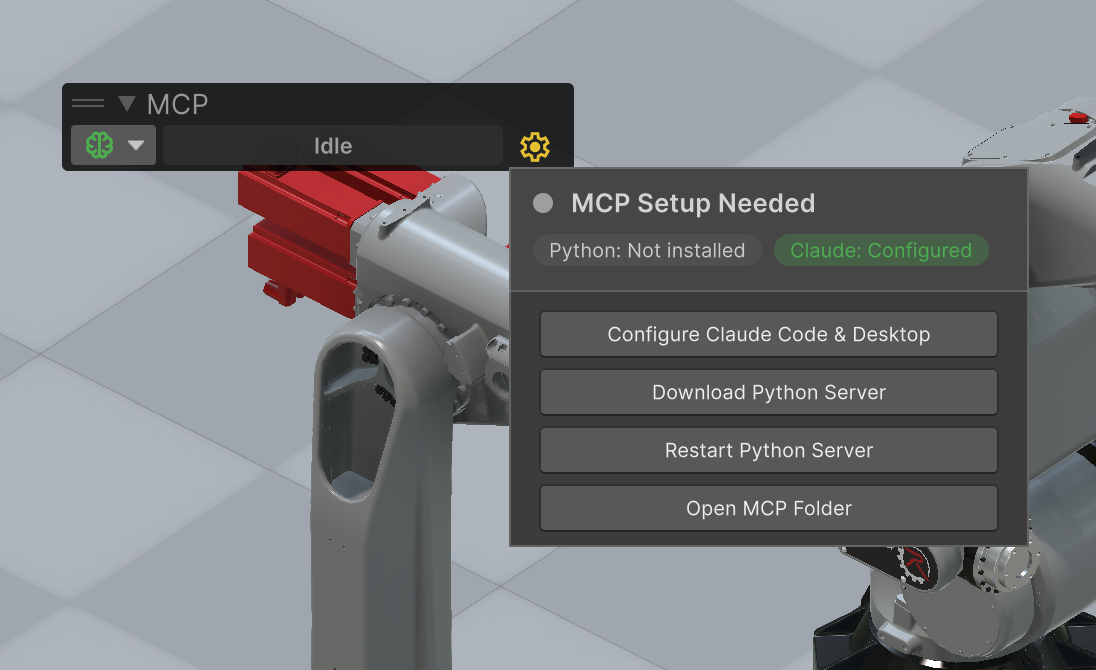
1. A **brain icon** appears in the Unity toolbar - this is the MCP status indicator
2. Click the **gear icon** next to it to open the setup popup
3. Click **Clone Python Server** - this runs `git clone` to download the Python server (~70 MB) into `Assets/StreamingAssets/realvirtual-MCP/`
4. Click **Configure Claude** - this writes the MCP configuration to Claude Desktop and/or Claude Code
To update later, click **Update Python Server (git pull)** in the same popup.
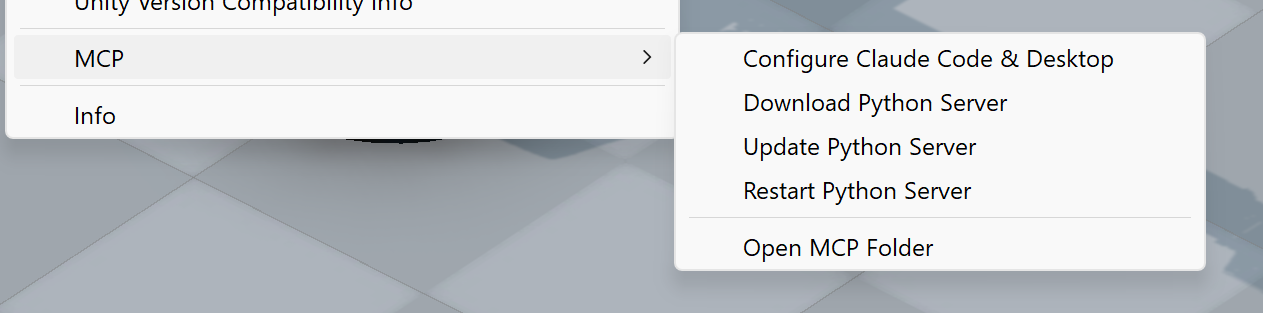
 You can also access setup via the Unity menu: **Tools > realvirtual > MCP**
 ### Manual Setup
If you prefer to set up manually or the automated setup doesn't work:
1. Clone the Python server repository:
```bash
cd /Assets/StreamingAssets
git clone https://github.com/game4automation/realvirtual-MCP.git
```
2. To update later:
```bash
cd /Assets/StreamingAssets/realvirtual-MCP
git pull
```
3. Copy a ready-to-use configuration from **Tools > realvirtual > MCP > Copy MCP JSON**. You can paste it into any MCP-compatible client after the Python server has been installed.
Alternatively, copy the following `MCP.json` and replace `` with the absolute path to your Unity project (use forward slashes, including on Windows):
```json
{
"mcpServers": {
"UnityMCP": {
"command": "/Assets/StreamingAssets/realvirtual-MCP/python/python.exe",
"args": [
"/Assets/StreamingAssets/realvirtual-MCP/unity_mcp_server.py"
]
}
}
}
```
Some clients use a different configuration filename or wrap server entries differently. The generated command and arguments remain the same.
The Python MCP server is available separately at **[github.com/game4automation/realvirtual-MCP](https://github.com/game4automation/realvirtual-MCP)**.
## How It Works
This package runs a **WebSocket server** inside the Unity Editor. When an AI agent sends a tool call, the Python MCP server forwards it over WebSocket to Unity, which executes it on the main thread and returns the result.
**Key components:**
- **McpWebSocketHandler** - WebSocket server (port 18711, auto-increments if busy)
- **McpToolRegistry** - Discovers all `[McpTool]` methods via reflection at startup
- **McpMainThreadDispatcher** - Bridges WebSocket threads to Unity's main thread
- **McpEditorBridge** - Auto-starts the server when Unity opens (`[InitializeOnLoad]`)
- **McpToolbarButton** - Status indicator with color-coded connection state
## Built-in Tools
### Manual Setup
If you prefer to set up manually or the automated setup doesn't work:
1. Clone the Python server repository:
```bash
cd /Assets/StreamingAssets
git clone https://github.com/game4automation/realvirtual-MCP.git
```
2. To update later:
```bash
cd /Assets/StreamingAssets/realvirtual-MCP
git pull
```
3. Copy a ready-to-use configuration from **Tools > realvirtual > MCP > Copy MCP JSON**. You can paste it into any MCP-compatible client after the Python server has been installed.
Alternatively, copy the following `MCP.json` and replace `` with the absolute path to your Unity project (use forward slashes, including on Windows):
```json
{
"mcpServers": {
"UnityMCP": {
"command": "/Assets/StreamingAssets/realvirtual-MCP/python/python.exe",
"args": [
"/Assets/StreamingAssets/realvirtual-MCP/unity_mcp_server.py"
]
}
}
}
```
Some clients use a different configuration filename or wrap server entries differently. The generated command and arguments remain the same.
The Python MCP server is available separately at **[github.com/game4automation/realvirtual-MCP](https://github.com/game4automation/realvirtual-MCP)**.
## How It Works
This package runs a **WebSocket server** inside the Unity Editor. When an AI agent sends a tool call, the Python MCP server forwards it over WebSocket to Unity, which executes it on the main thread and returns the result.
**Key components:**
- **McpWebSocketHandler** - WebSocket server (port 18711, auto-increments if busy)
- **McpToolRegistry** - Discovers all `[McpTool]` methods via reflection at startup
- **McpMainThreadDispatcher** - Bridges WebSocket threads to Unity's main thread
- **McpEditorBridge** - Auto-starts the server when Unity opens (`[InitializeOnLoad]`)
- **McpToolbarButton** - Status indicator with color-coded connection state
## Built-in Tools
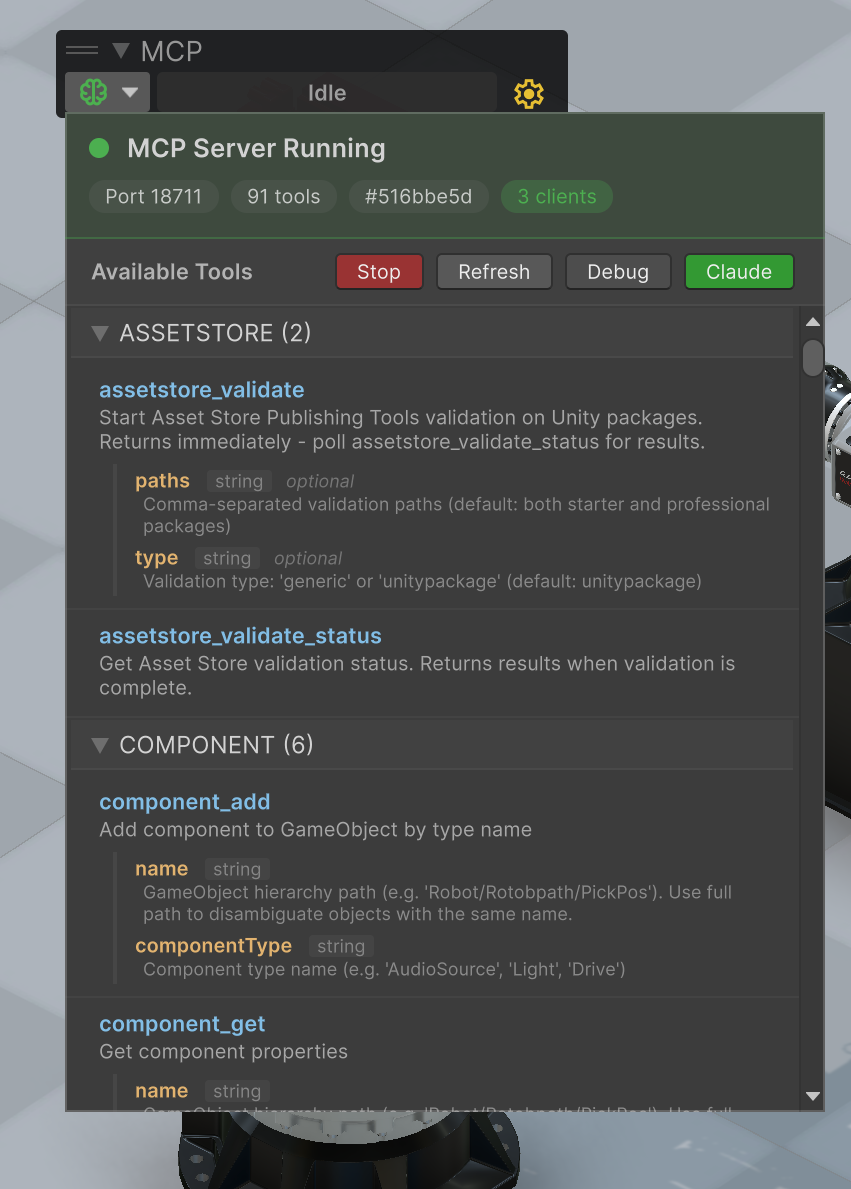 The package includes 60+ tools organized by category:
| Category | Examples |
|----------|----------|
| **Simulation** | `sim_play`, `sim_stop`, `sim_pause`, `sim_status` |
| **Scene** | `scene_hierarchy`, `scene_find`, `scene_get_info` |
| **GameObjects** | `game_object_create`, `game_object_destroy`, `game_object_rename` |
| **Components** | `component_get`, `component_set`, `component_add`, `component_remove` |
| **Transforms** | `transform_set_position`, `transform_set_rotation`, `transform_set_scale` |
| **Materials** | `material_set_color`, `material_get_color` |
| **Physics** | `physics_add_rigidbody`, `physics_add_collider` |
| **Prefabs** | `prefab_instantiate`, `prefab_find`, `prefab_open`, `prefab_save` |
| **Editor** | `editor_recompile`, `editor_read_log`, `editor_save_scene`, `editor_wait_ready` |
| **Screenshots** | `screenshot_editor`, `screenshot_game`, `screenshot_scene` |
When used with the [realvirtual](https://assetstore.unity.com/packages/tools/integration/realvirtual-io-digital-twin-professional-6-301340) framework, additional tools are available:
| Category | Examples |
|----------|----------|
| **Drives** | `drive_list`, `drive_to`, `drive_jog_forward`, `drive_stop` |
| **Sensors** | `sensor_list`, `sensor_get`, `sensor_get_occupied` |
| **Signals** | `signal_list`, `signal_set_bool`, `signal_set_int`, `signal_set_float` |
| **IK** | `ik_get_state`, `ik_solve_target`, `ik_verify_fk` |
## Creating Custom Tools
Add `[McpTool]` to any `public static string` method. Tools are discovered automatically via reflection - no registration needed.
```csharp
using realvirtual.MCP;
public static class MyTools
{
[McpTool("Get current time")]
public static string GetTime()
{
return $"{{\"time\":\"{System.DateTime.Now}\"}}";
}
[McpTool("Add two numbers")]
public static string Add(
[McpParam("First number")] float a,
[McpParam("Second number")] float b)
{
return $"{{\"result\":{a + b}}}";
}
}
```
**Rules:**
- Method must be `public static` and return `string` (JSON)
- Tool names auto-convert from PascalCase to snake_case (`GetTime` -> `get_time`)
- Use `[McpParam("description")]` on parameters for AI agent context
- Optional parameters need default values
- Use `ToolHelpers.FindGameObject()`, `ToolHelpers.Ok()`, `ToolHelpers.Error()` for common patterns
## Toolbar Status
The toolbar brain icon shows connection state:
| Color | Meaning |
|-------|---------|
| Gray | Server stopped |
| Yellow | Server running, no clients connected |
| Green | Client(s) connected |
| Orange | Unity compiling scripts |
The activity label next to it shows the currently executing tool with elapsed time.
## Troubleshooting
### Process Control: Frozen Unity Editor
The Python sidecar provides rescue tools that work **even when the Unity Editor is completely frozen or dead** - they run purely OS-side, without any Unity connection:
- **`unity_kill`** - Force-kills the Unity Editor process of *this* project. Process-selective: only `Unity.exe` processes whose `-projectpath` command line matches the project are killed (including asset import workers). Other Unity instances and the Python server itself are never touched. Returns the killed PIDs.
- **`unity_restart`** - Kills the editor (same matching), waits until the PIDs are gone (max 15 s), then starts Unity again detached with `-projectpath`. The Unity exe path is remembered from the killed process; fallback is the Unity Hub installation matching `ProjectSettings/ProjectVersion.txt`. Follow up with `editor_wait_ready`.
Honest editor status while the main thread hangs (the WebSocket heartbeat alone stays green because it is answered on a background thread):
- **`unity_status`** reports `main_thread_inactive_s` and `main_thread_alive` (main thread pump inactivity, reported by the Unity heartbeat)
- **`editor_wait_ready`** returns `{"status": "blocked", "main_thread_inactive_s": ..., "hint": "use unity_kill or unity_restart"}` instead of `ready` when the main thread stays blocked
Typical rescue flow after a freeze ("Hold on" dialog, tools timing out):
```
unity_status -> main_thread_alive: false
unity_restart -> kills + restarts the editor
editor_wait_ready -> wait until Unity is back
```
**Known issue:** the tool schema cache (`tool_schema_cache.json`) lives under `Assets/StreamingAssets/realvirtual-MCP/`. It is only rewritten when the tool schemas actually change, so reconnect loops no longer trigger Unity asset refresh cascades.
### Common Issues
**Server not starting**
- Check Unity Console for `[MCP]` log entries
- Toggle debug mode via the gear popup for verbose logging
**Tools not discovered**
- Ensure methods are `public static string` with `[McpTool]` attribute
- Check for compile errors in Unity Console
- Click "Refresh" in the toolbar popup
**Timeouts during play mode**
- Unity throttles editor updates in play mode - tool calls may be slower
- Some operations (`component_set`) don't work during play mode
## Python MCP Server
The Python server that bridges MCP clients to this Unity package is maintained separately:
**[github.com/game4automation/realvirtual-MCP](https://github.com/game4automation/realvirtual-MCP)**
It ships with an embedded Python 3.12 runtime and can be downloaded directly from the Unity toolbar popup.
## Support
This package is provided **as-is** with no support or service included.
For commercial customers of [realvirtual](https://realvirtual.io), we offer professional services for **digital twin development**, **virtual commissioning**, and **LLM/AI agent integration**. Contact us at https://realvirtual.io for details.
## License
MIT License - Copyright (c) 2026 realvirtual GmbH
See [LICENSE.md](LICENSE.md) for full text.
## Links
- Website: https://realvirtual.io
- Documentation: https://doc.realvirtual.io/extensions/mcp-server
- Python MCP Server: https://github.com/game4automation/realvirtual-MCP
- Unity Asset Store (MCP Server): https://assetstore.unity.com/preview/361912/1260684
- Unity Asset Store (Starter): https://assetstore.unity.com/packages/tools/integration/realvirtual-io-digital-twin-starter-6-303030
- Unity Asset Store (Professional): https://assetstore.unity.com/packages/tools/integration/realvirtual-io-digital-twin-professional-6-301340
The package includes 60+ tools organized by category:
| Category | Examples |
|----------|----------|
| **Simulation** | `sim_play`, `sim_stop`, `sim_pause`, `sim_status` |
| **Scene** | `scene_hierarchy`, `scene_find`, `scene_get_info` |
| **GameObjects** | `game_object_create`, `game_object_destroy`, `game_object_rename` |
| **Components** | `component_get`, `component_set`, `component_add`, `component_remove` |
| **Transforms** | `transform_set_position`, `transform_set_rotation`, `transform_set_scale` |
| **Materials** | `material_set_color`, `material_get_color` |
| **Physics** | `physics_add_rigidbody`, `physics_add_collider` |
| **Prefabs** | `prefab_instantiate`, `prefab_find`, `prefab_open`, `prefab_save` |
| **Editor** | `editor_recompile`, `editor_read_log`, `editor_save_scene`, `editor_wait_ready` |
| **Screenshots** | `screenshot_editor`, `screenshot_game`, `screenshot_scene` |
When used with the [realvirtual](https://assetstore.unity.com/packages/tools/integration/realvirtual-io-digital-twin-professional-6-301340) framework, additional tools are available:
| Category | Examples |
|----------|----------|
| **Drives** | `drive_list`, `drive_to`, `drive_jog_forward`, `drive_stop` |
| **Sensors** | `sensor_list`, `sensor_get`, `sensor_get_occupied` |
| **Signals** | `signal_list`, `signal_set_bool`, `signal_set_int`, `signal_set_float` |
| **IK** | `ik_get_state`, `ik_solve_target`, `ik_verify_fk` |
## Creating Custom Tools
Add `[McpTool]` to any `public static string` method. Tools are discovered automatically via reflection - no registration needed.
```csharp
using realvirtual.MCP;
public static class MyTools
{
[McpTool("Get current time")]
public static string GetTime()
{
return $"{{\"time\":\"{System.DateTime.Now}\"}}";
}
[McpTool("Add two numbers")]
public static string Add(
[McpParam("First number")] float a,
[McpParam("Second number")] float b)
{
return $"{{\"result\":{a + b}}}";
}
}
```
**Rules:**
- Method must be `public static` and return `string` (JSON)
- Tool names auto-convert from PascalCase to snake_case (`GetTime` -> `get_time`)
- Use `[McpParam("description")]` on parameters for AI agent context
- Optional parameters need default values
- Use `ToolHelpers.FindGameObject()`, `ToolHelpers.Ok()`, `ToolHelpers.Error()` for common patterns
## Toolbar Status
The toolbar brain icon shows connection state:
| Color | Meaning |
|-------|---------|
| Gray | Server stopped |
| Yellow | Server running, no clients connected |
| Green | Client(s) connected |
| Orange | Unity compiling scripts |
The activity label next to it shows the currently executing tool with elapsed time.
## Troubleshooting
### Process Control: Frozen Unity Editor
The Python sidecar provides rescue tools that work **even when the Unity Editor is completely frozen or dead** - they run purely OS-side, without any Unity connection:
- **`unity_kill`** - Force-kills the Unity Editor process of *this* project. Process-selective: only `Unity.exe` processes whose `-projectpath` command line matches the project are killed (including asset import workers). Other Unity instances and the Python server itself are never touched. Returns the killed PIDs.
- **`unity_restart`** - Kills the editor (same matching), waits until the PIDs are gone (max 15 s), then starts Unity again detached with `-projectpath`. The Unity exe path is remembered from the killed process; fallback is the Unity Hub installation matching `ProjectSettings/ProjectVersion.txt`. Follow up with `editor_wait_ready`.
Honest editor status while the main thread hangs (the WebSocket heartbeat alone stays green because it is answered on a background thread):
- **`unity_status`** reports `main_thread_inactive_s` and `main_thread_alive` (main thread pump inactivity, reported by the Unity heartbeat)
- **`editor_wait_ready`** returns `{"status": "blocked", "main_thread_inactive_s": ..., "hint": "use unity_kill or unity_restart"}` instead of `ready` when the main thread stays blocked
Typical rescue flow after a freeze ("Hold on" dialog, tools timing out):
```
unity_status -> main_thread_alive: false
unity_restart -> kills + restarts the editor
editor_wait_ready -> wait until Unity is back
```
**Known issue:** the tool schema cache (`tool_schema_cache.json`) lives under `Assets/StreamingAssets/realvirtual-MCP/`. It is only rewritten when the tool schemas actually change, so reconnect loops no longer trigger Unity asset refresh cascades.
### Common Issues
**Server not starting**
- Check Unity Console for `[MCP]` log entries
- Toggle debug mode via the gear popup for verbose logging
**Tools not discovered**
- Ensure methods are `public static string` with `[McpTool]` attribute
- Check for compile errors in Unity Console
- Click "Refresh" in the toolbar popup
**Timeouts during play mode**
- Unity throttles editor updates in play mode - tool calls may be slower
- Some operations (`component_set`) don't work during play mode
## Python MCP Server
The Python server that bridges MCP clients to this Unity package is maintained separately:
**[github.com/game4automation/realvirtual-MCP](https://github.com/game4automation/realvirtual-MCP)**
It ships with an embedded Python 3.12 runtime and can be downloaded directly from the Unity toolbar popup.
## Support
This package is provided **as-is** with no support or service included.
For commercial customers of [realvirtual](https://realvirtual.io), we offer professional services for **digital twin development**, **virtual commissioning**, and **LLM/AI agent integration**. Contact us at https://realvirtual.io for details.
## License
MIT License - Copyright (c) 2026 realvirtual GmbH
See [LICENSE.md](LICENSE.md) for full text.
## Links
- Website: https://realvirtual.io
- Documentation: https://doc.realvirtual.io/extensions/mcp-server
- Python MCP Server: https://github.com/game4automation/realvirtual-MCP
- Unity Asset Store (MCP Server): https://assetstore.unity.com/preview/361912/1260684
- Unity Asset Store (Starter): https://assetstore.unity.com/packages/tools/integration/realvirtual-io-digital-twin-starter-6-303030
- Unity Asset Store (Professional): https://assetstore.unity.com/packages/tools/integration/realvirtual-io-digital-twin-professional-6-301340