

## Summary
* [Description](#description)
* [Demo server](#demo)
* [Command line](#cmd)
* [Examples](#examples)
* [Release](#release)
* [Note](#note)
* [Benchmark](#bench)
* [How to build](#build)
## Description
Most of the time when you are using a public network, you are behind some kind of firewall or proxy. One of their
purpose is to constrain you to only use certain kind of protocols and consult only a subset of the web. Nowadays, the
most widespread protocol is http and is de facto allowed by third party equipment.
Wstunnel uses the websocket protocol which is compatible with http in order to bypass firewalls and proxies. Wstunnel
allows you to tunnel whatever traffic you want and access whatever resources/site you need.
My inspiration came from [this project](https://www.npmjs.com/package/wstunnel) but as I don't want to install npm and
nodejs to use this tool, I remade it in ~~Haskell~~ Rust and improved it.
**What to expect:**
* Easy to use
* Good error messages and debug information
* Static forward (reverse) tunneling (TCP, UDP, Unix socket, Stdio)
* Dynamic (reverse) tunneling (Socks5 proxy, HTTP proxy and Transparent Proxy)
* Support for using http proxy (when behind one) as gateway
* Support of proxy protocol
* Support for tls/https server with certificates auto-reload (with embedded self-signed certificate, or your own)
* Support of mTLS with certificates auto-reload - [documentation here](https://github.com/erebe/wstunnel/blob/main/docs/using_mtls.md)
* Support IPv6
* Support for Websocket, HTTP2 and WebTransport as transport protocol (websocket is more performant)
* **Standalone binaries** (so just cp it where you want) [here](https://github.com/erebe/wstunnel/releases)
## Sponsors
Part of Wstunnel development has been sponsored by

## Note
v7.0.0 is a complete rewrite of wstunnel in Rust and is not compatible with previous version.
Previous code in Haskell can be found on branch https://github.com/erebe/wstunnel/tree/haskell
What to expect from previous version:
* More throughput and less jitter due to Haskell GC. Most of you will not care, as it was performant enough already. But
you can now saturate a gigabit ethernet card with a single connection
* Command line is more homogeneous/has better UX. All tunnel can be specified multiple times
* Tunnel protocol tries to look like normal traffic, to avoid being flagged
* Support of reverse tunneling
* New bug, it is a rewrite (╯'□')╯︵ ┻━┻ ¯\\_(ツ)_/¯
* Mainly for me to ease the maintenance of the project. I don't do a lot of haskell nowadays and it was harder for me to
keep maintening the project over time, as I get lost in touch of the Haskell ecosystem and new release.
* Armv7 build (aka raspberry pi), as new version of GHC (Haskell compiler) dropped its support
## Demo server
If you just want to try out that you can bypass your proxy/firewall.
You can give it a try with wstunnel demo server.
```bash
# In a terminal start wstunnel client
# You can set as tls-sni-override whatever domain you want. The tunnel is the only one that is going to be allowed.
wstunnel client -L 'tcp://4443:10.43.0.11:444' -P demo --tls-sni-override=google.fr wss://49.13.58.9
# on another terminal, run curl and it should return you this greetings
curl -k https://localhost:4443
> Memento mori !
```
## Command line
```
Usage: wstunnel client [OPTIONS]
Arguments:
Address of the wstunnel server
You can use websocket, http2 or webtransport as transport protocol. Use websocket if you are unsure.
Example: For websocket with TLS wss://wstunnel.example.com or without ws://wstunnel.example.com
For http2 with TLS https://wstunnel.example.com or without http://wstunnel.example.com
For webtransport wts://wstunnel.example.com (always TLS)
*WARNING* HTTP2 as transport protocol is harder to make it works because:
- If you are behind a (reverse) proxy/CDN they are going to buffer the whole request before forwarding it to the server
Obviously, this is not going to work for tunneling traffic
- if you have wstunnel behind a reverse proxy, most of them (i.e: nginx) are going to turn http2 request into http1
This is not going to work, because http1 does not support streaming naturally
- The only way to make it works with http2 is to have wstunnel directly exposed to the internet without any reverse proxy in front of it
*WARNING* WEBTRANSPORT (wts://) runs on HTTP/3 over QUIC, so:
- It needs UDP to be reachable end to end on that port. Firewalls and container port
mappings that only forward TCP make the handshake time out after 10s. This is by far
the most common cause of a wts:// tunnel not connecting
- The server must be started with --enable-webtransport (or with the wts:// scheme)
- TLS is always used, as QUIC mandates TLS 1.3. There is no cleartext variant
- --http-proxy, --tls-sni-disable and --tls-ech-enable are not supported with it
Options:
-L, --local-to-remote <{tcp,udp,socks5,stdio,unix}://[BIND:]PORT:HOST:PORT>
Listen on local and forwards traffic from remote. Can be specified multiple times
examples:
'tcp://1212:google.com:443' => listen locally on tcp on port 1212 and forward to google.com on port 443
'tcp://2:n.lan:4?proxy_protocol' => listen locally on tcp on port 2 and forward to n.lan on port 4
Send a proxy protocol header v2 when establishing connection to n.lan
'udp://1212:1.1.1.1:53' => listen locally on udp on port 1212 and forward to cloudflare dns 1.1.1.1 on port 53
'udp://1212:1.1.1.1:53?timeout_sec=10' timeout_sec on udp force close the tunnel after 10sec. Set it to 0 to disable the timeout [default: 30]
'socks5://[::1]:1212' => listen locally with socks5 on port 1212 and forward dynamically requested tunnel
'socks5://[::1]:1212?login=admin&password=admin' => listen locally with socks5 on port 1212 and only accept connection with login=admin and password=admin
'http://[::1]:1212' => start a http proxy on port 1212 and forward dynamically requested tunnel
'http://[::1]:1212?login=admin&password=admin' => start a http proxy on port 1212 and only accept connection with login=admin and password=admin
'tproxy+tcp://[::1]:1212' => listen locally on tcp on port 1212 as a *transparent proxy* and forward dynamically requested tunnel
'tproxy+udp://[::1]:1212?timeout_sec=10' listen locally on udp on port 1212 as a *transparent proxy* and forward dynamically requested tunnel
linux only and requires sudo/CAP_NET_ADMIN
'stdio://google.com:443' => listen for data from stdio, mainly for `ssh -o ProxyCommand="wstunnel client -L stdio://%h:%p ws://localhost:8080" my-server`
'unix:///tmp/wstunnel.sock:g.com:443' => listen for data from unix socket of path /tmp/wstunnel.sock and forward to g.com:443
-R, --remote-to-local <{tcp,udp,socks5,unix}://[BIND:]PORT:HOST:PORT>
Listen on remote and forwards traffic from local. Can be specified multiple times. Only tcp is supported
examples:
'tcp://1212:google.com:443' => listen on server for incoming tcp cnx on port 1212 and forward to google.com on port 443 from local machine
'udp://1212:1.1.1.1:53' => listen on server for incoming udp on port 1212 and forward to cloudflare dns 1.1.1.1 on port 53 from local machine
'socks5://[::1]:1212' => listen on server for incoming socks5 request on port 1212 and forward dynamically request from local machine (login/password is supported)
'http://[::1]:1212' => listen on server for incoming http proxy request on port 1212 and forward dynamically request from local machine (login/password is supported)
'unix://wstunnel.sock:g.com:443' => listen on server for incoming data from unix socket of path wstunnel.sock and forward to g.com:443 from local machine
--no-color
Disable color output in logs
[env: NO_COLOR=1]
--socket-so-mark
(linux only) Mark network packet with SO_MARK sockoption with the specified value.
You need to use {root, sudo, capabilities} to run wstunnel when using this option
-c, --connection-min-idle
Client will maintain a pool of open connection to the server, in order to speed up the connection process.
This option set the maximum number of connection that will be kept open.
This is useful if you plan to create/destroy a lot of tunnel (i.e: with socks5 to navigate with a browser)
It will avoid the latency of doing tcp + tls handshake with the server
[default: 0]
--nb-worker-threads
*WARNING* The flag does nothing, you need to set the env variable *WARNING*
Control the number of threads that will be used.
By default, it is equal the number of cpus
[env: TOKIO_WORKER_THREADS=]
--connection-retry-max-backoff
The maximum of time in seconds while we are going to try to connect to the server before failing the connection/tunnel request
[default: 5m]
--log-lvl
Control the log verbosity. i.e: TRACE, DEBUG, INFO, WARN, ERROR, OFF
for more details: https://docs.rs/tracing-subscriber/latest/tracing_subscriber/filter/struct.EnvFilter.html#example-syntax
[env: RUST_LOG=]
[default: INFO]
--reverse-tunnel-connection-retry-max-backoff
When using reverse tunnel, the client will try to always keep a connection to the server to await for new tunnels
This delay is the maximum of time the client will wait before trying to reconnect to the server in case of failure.
The client follows an exponential backoff strategy until it reaches this maximum delay
By default, the client tries to reconnect every 1 second
[default: 1s]
--tls-sni-override
Domain name that will be used as SNI during TLS handshake
Warning: If you are behind a CDN (i.e: Cloudflare) you must set this domain also in the http HOST header.
or it will be flagged as fishy and your request rejected
--tls-sni-disable
Disable sending SNI during TLS handshake
Warning: Most reverse proxies rely on it
--tls-ech-enable
Enable ECH (encrypted sni) during TLS handshake to wstunnel server.
Warning: Ech DNS config is not refreshed over time. It is retrieved only once at startup of the program
--tls-verify-certificate
Enable TLS certificate verification.
Disabled by default. The client will happily connect to any server with self-signed certificate.
-p, --http-proxy
If set, will use this http proxy to connect to the server
[env: HTTP_PROXY=]
--http-proxy-login
If set, will use this login to connect to the http proxy. Override the one from --http-proxy
[env: WSTUNNEL_HTTP_PROXY_LOGIN=]
--http-proxy-password
If set, will use this password to connect to the http proxy. Override the one from --http-proxy
[env: WSTUNNEL_HTTP_PROXY_PASSWORD=]
-P, --http-upgrade-path-prefix
Use a specific prefix that will show up in the http path during the upgrade request.
Useful if you need to route requests server side but don't have vhosts
When using mTLS this option overrides the default behavior of using the common name of the
client's certificate. This will likely result in the wstunnel server rejecting the connection.
[env: WSTUNNEL_HTTP_UPGRADE_PATH_PREFIX=]
[default: v1]
--http-upgrade-credentials
Pass authorization header with basic auth credentials during the upgrade request.
If you need more customization, you can use the http_headers option.
--websocket-ping-frequency
Frequency at which the client will send websocket pings to the server.
Set to zero to disable.
[default: 30s]
--websocket-mask-frame
Enable the masking of websocket frames. Default is false
Enable this option only if you use unsecure (non TLS) websocket server, and you see some issues. Otherwise, it is just overhead.
-H, --http-headers
Send custom headers in the upgrade request
Can be specified multiple time
--http-headers-file
Send custom headers in the upgrade request reading them from a file.
It overrides http_headers specified from command line.
File is read everytime and file format must contain lines with `HEADER_NAME: HEADER_VALUE`
--tls-certificate
[Optional] Certificate (pem) to present to the server when connecting over TLS (HTTPS).
Used when the server requires clients to authenticate themselves with a certificate (i.e. mTLS).
Unless overridden, the HTTP upgrade path will be configured to be the common name (CN) of the certificate.
The certificate will be automatically reloaded if it changes
--tls-private-key
[Optional] The private key for the corresponding certificate used with mTLS.
The certificate will be automatically reloaded if it changes
--dns-resolver
Dns resolver to use to lookup ips of domain name. Can be specified multiple time
Example:
dns://1.1.1.1 for using udp
dns+https://1.1.1.1?sni=cloudflare-dns.com for using dns over HTTPS
dns+tls://8.8.8.8?sni=dns.google for using dns over TLS
For Dns over HTTPS/TLS if an HTTP proxy is configured, it will be used also
To use libc resolver, use
system://0.0.0.0
**WARN** On windows you may want to specify explicitly the DNS resolver to avoid excessive DNS queries
--dns-resolver-prefer-ipv4
Enable if you prefer the dns resolver to prioritize IPv4 over IPv6
This is useful if you have a broken IPv6 connection, and want to avoid the delay of trying to connect to IPv6
If you don't have any IPv6 this does not change anything.
[env: WSTUNNEL_DNS_PREFER_IPV4=]
-h, --help
Print help (see a summary with '-h')
```
```
SERVER
Usage: wstunnel server [OPTIONS]
Arguments:
Address of the wstunnel server to bind to
Example: With TLS wss://0.0.0.0:8080 or without ws://[::]:8080
The server is capable of detecting by itself if the request is websocket or http2. So you don't need to specify it.
Use wts://0.0.0.0:8080 to additionally serve WebTransport. It is equivalent to
wss://0.0.0.0:8080 --enable-webtransport: the TCP listener still serves websocket and http2.
Options:
--enable-webtransport
Also serve WebTransport (HTTP/3 over QUIC), by binding UDP on the same port as the TCP listener.
One server then serves websocket, http2 and webtransport clients at the same time.
Requires TLS (wss://), as QUIC mandates TLS 1.3. Implied by the wts:// scheme.
*WARNING* This opens a UDP port. Make sure your firewall and, if containerized, your port
mapping forward UDP as well as TCP, else wts:// clients time out during the handshake.
--socket-so-mark
(linux only) Mark network packet with SO_MARK sockoption with the specified value.
You need to use {root, sudo, capabilities} to run wstunnel when using this option
--no-color
Disable color output in logs
[env: NO_COLOR=1]
--websocket-ping-frequency
Frequency at which the server will send websocket ping to client.
Set to zero to disable.
[default: 30s]
--nb-worker-threads
*WARNING* The flag does nothing, you need to set the env variable *WARNING*
Control the number of threads that will be used.
By default, it is equal the number of cpus
[env: TOKIO_WORKER_THREADS=]
--websocket-mask-frame
Enable the masking of websocket frames. Default is false
Enable this option only if you use unsecure (non TLS) websocket server, and you see some issues. Otherwise, it is just overhead.
--dns-resolver
Dns resolver to use to lookup ips of domain name
This option is not going to work if you use transparent proxy
Can be specified multiple time
Example:
dns://1.1.1.1 for using udp
dns+https://1.1.1.1?sni=cloudflare-dns.com for using dns over HTTPS
dns+tls://8.8.8.8?sni=dns.google for using dns over TLS
To use libc resolver, use
system://0.0.0.0
--log-lvl
Control the log verbosity. i.e: TRACE, DEBUG, INFO, WARN, ERROR, OFF
for more details: https://docs.rs/tracing-subscriber/latest/tracing_subscriber/filter/struct.EnvFilter.html#example-syntax
[env: RUST_LOG=]
[default: INFO]
--dns-resolver-prefer-ipv4
Enable if you prefer the dns resolver to prioritize IPv4 over IPv6
This is useful if you have a broken IPv6 connection, and want to avoid the delay of trying to connect to IPv6
If you don't have any IPv6 this does not change anything.
[env: WSTUNNEL_DNS_PREFER_IPV4=]
--restrict-to
Server will only accept connection from the specified tunnel information.
Can be specified multiple time
Example: --restrict-to "google.com:443" --restrict-to "localhost:22"
-r, --restrict-http-upgrade-path-prefix
Server will only accept connection from if this specific path prefix is used during websocket upgrade.
Useful if you specify in the client a custom path prefix, and you want the server to only allow this one.
The path prefix act as a secret to authenticate clients
Disabled by default. Accept all path prefix. Can be specified multiple time
[env: WSTUNNEL_RESTRICT_HTTP_UPGRADE_PATH_PREFIX=]
--restrict-config
Path to the location of the restriction yaml config file.
Restriction file is automatically reloaded if it changes
--tls-certificate
[Optional] Use custom certificate (pem) instead of the default embedded self-signed certificate.
The certificate will be automatically reloaded if it changes
--tls-private-key
[Optional] Use a custom tls key (pem, ec, rsa) that the server will use instead of the default embedded one
The private key will be automatically reloaded if it changes
--tls-client-ca-certs
[Optional] Enables mTLS (client authentication with certificate). Argument must be PEM file
containing one or more certificates of CA's of which the certificate of clients needs to be signed with.
The ca will be automatically reloaded if it changes
-p, --http-proxy
If set, will use this http proxy to connect to the client
[env: HTTP_PROXY=]
--http-proxy-login
If set, will use this login to connect to the http proxy. Override the one from --http-proxy
[env: WSTUNNEL_HTTP_PROXY_LOGIN=]
--http-proxy-password
If set, will use this password to connect to the http proxy. Override the one from --http-proxy
[env: WSTUNNEL_HTTP_PROXY_PASSWORD=]
--remote-to-local-server-idle-timeout
Configure how much time a remote-to-local server is going to wait idle (without any new ws clients) before unbinding itself/stopping the server
Default is 190 seconds/3min
[default: 3m]
-h, --help
Print help (see a summary with '-h')
```
## Release
Static binaries are available in [release section](https://github.com/erebe/wstunnel/releases)
docker image are available at https://github.com/erebe/wstunnel/pkgs/container/wstunnel
```bash
docker pull ghcr.io/erebe/wstunnel:latest
```
## Examples
* [Understand command line syntax](#syntax)
* [Simplest one with socks5 - Good for browsing internet](#simple)
* [Proxy SSH](#ssh)
* [Bypass a corporate proxy](#corporate)
* [Proxy Wireguard traffic](#wireguard)
* [Android](#android)
* [Proxy easily any traffic with transparent proxy (linux only)](#tproxy)
* [Reverse tunneling](#reverse)
* [How to secure access of your wstunnel server](#secure)
* [Use HTTP2 instead of websocket for transport protocol](#http2)
* [Use WebTransport instead of websocket for transport protocol](#webtransport)
* [Maximize your stealthiness/Make your traffic discrete](#stealth)
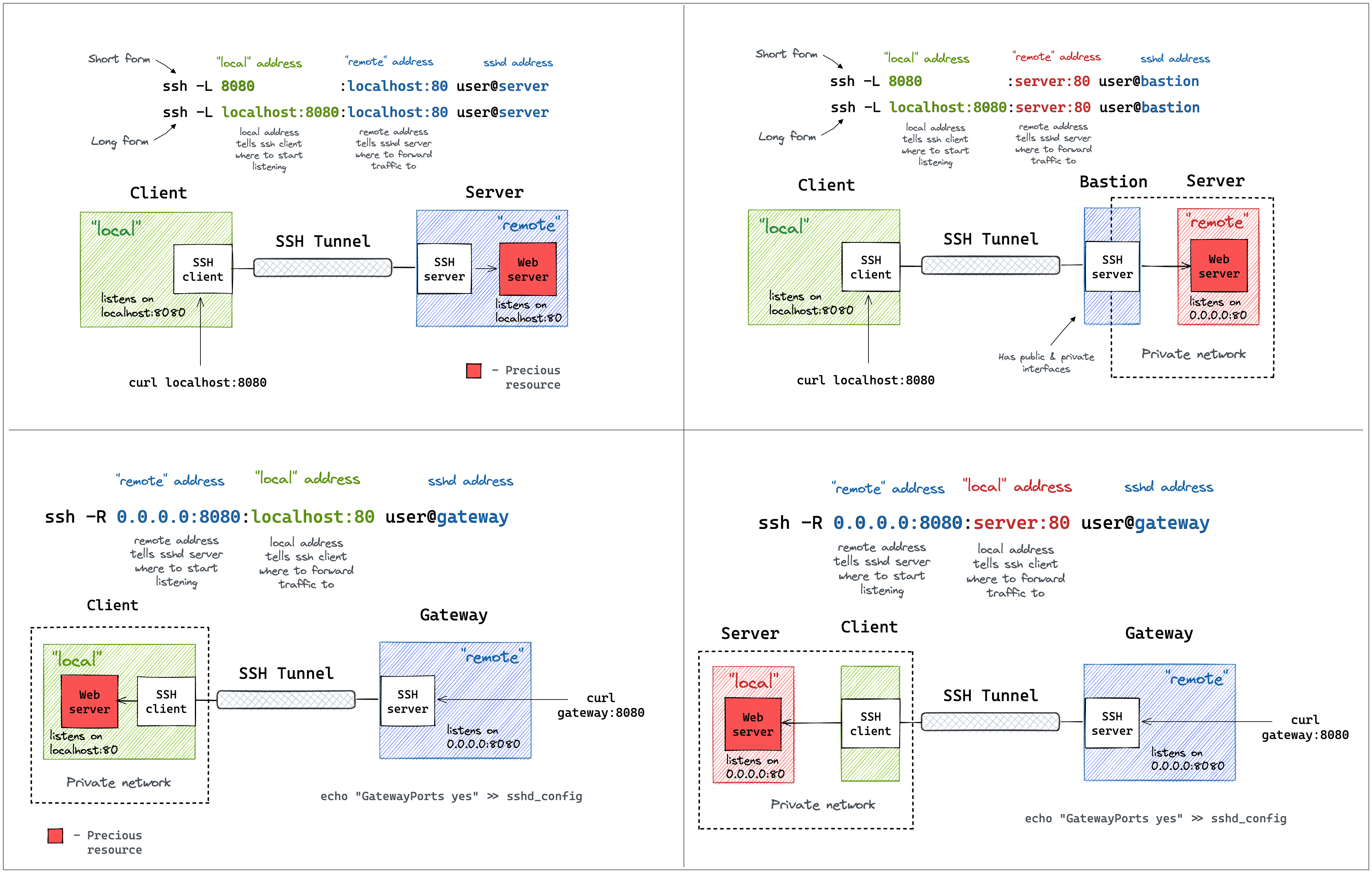
### Understand command line syntax
Wstunnel command line mimic ssh tunnel syntax.
You can take reference to [this article](https://iximiuz.com/en/posts/ssh-tunnels/), or this diagram to understand
 ---
### Simplest one
On your remote host, start the wstunnel's server by typing this command in your terminal
```bash
wstunnel server wss://[::]:8080
```
This will create a websocket server listening on any interface on port 8080.
On the client side use this command to forward traffic through the websocket tunnel
```bash
wstunnel client -L socks5://127.0.0.1:8888 --connection-min-idle 5 wss://myRemoteHost:8080
```
This command will create a socks5 server listening on port 8888 of the loopback interface and will forward traffic
dynamically.
`connection-min-idle 10` is going an optimization to create a pool of 10 connection connected to the server, to speed-up
the establishement of new tunnels.
With firefox you can setup a proxy using this tunnel, by setting in networking preferences 127.0.0.1:8888 and selecting
socks5 proxy.
Be sure to check the option `Proxy DNS when using SOCKS v5` for the server to resolve DNS name and not your local
machine.
or with curl
```bash
curl -x socks5h://127.0.0.1:8888 http://google.com/
#Please note h after the 5, it is to avoid curl resolving DNS name locally
```
---
### As proxy command for SSH
You can specify `stdio` as source port on the client side if you wish to use wstunnel as part of a proxy command for ssh
```bash
ssh -o ProxyCommand="wstunnel client --log-lvl=off -L stdio://%h:%p ws://myRemoteHost:8080" my-server
```
---
### When behind a corporate proxy
An other useful example is when you want to bypass an http proxy (a corporate proxy for example)
The most reliable way to do it is to use wstunnel as described below
Start your wstunnel server with tls activated
```bash
wstunnel server wss://[::]:443 --restrict-to 127.0.0.1:22
```
The server will listen on any interface using port 443 (https) and restrict traffic to be forwarded only to the ssh
daemon.
**Be aware that the server will use self signed certificate with weak cryptographic algorithm.
It was made in order to add the least possible overhead while still being compliant with tls.**
**Do not rely on wstunnel to protect your privacy, if it is one of your concerns, you should only forwards traffic that
is already secure by design (ie: https or vpn traffic)**
Now on the client side start the client with
```bash
wstunnel client -L tcp://9999:127.0.0.1:22 -p http://mycorporateproxy:8080 wss://myRemoteHost:443
```
It will start a tcp server on port 9999 that will contact the corporate proxy, negotiate a tls connection with the
remote host and forward traffic to the ssh daemon on the remote host.
You may now access your server from your local machine on ssh by using
```bash
ssh -p 9999 login@127.0.0.1
```
---
### Wireguard and wstunnel
You can find a full [tutorial](https://community.hetzner.com/tutorials/obfuscating-wireguard-using-wstunnel) that explain how to setup wstunnel and wireguard at [here](https://community.hetzner.com/tutorials/obfuscating-wireguard-using-wstunnel)
For a quick explanation see below.
You have a working wireguard client configuration called `wg0.conf`. Let's say
```
[Interface]
Address = 10.200.0.2/32, fd00:cafe::2/128
PrivateKey = xxxxxxxxxxxxxxxxxxxxxxxxxxxxxxxxxxxxxxxxxxx=
[Peer]
PublicKey = 9iicV7Stdl/U0RH1BNf3VvlVjaa4Eus6QPEfEz6cR0c=
AllowedIPs = 0.0.0.0/0, ::/0
Endpoint = my.server.com:51820
```
Start wstunnel server on my.server.com like this
```
wstunnel server --restrict-to localhost:51820 wss://[::]:443
```
on your local machine start the client like this
```
wstunnel client -L 'udp://51820:localhost:51820?timeout_sec=0' wss://my.server.com:443
```
change your wireguard client config to something
```
[Interface]
Address = 10.200.0.2/32, fd00:cafe::2/128
PrivateKey = xxxxxxxxxxxxxxxxxxxxxxxxxxxxxxxxxxxxxxxxxxx=
# Replace by a dns your server has access to
dns = 8.8.8.8
# https://github.com/nitred/nr-wg-mtu-finder to find best mtu for you
MTU = 1400
[Peer]
PublicKey = 9iicV7Stdl/U0RH1BNf3VvlVjaa4Eus6QPEfEz6cR0c=
AllowedIPs = 0.0.0.0/0, ::/0
# Should target port where wstunnel client is listenning to
Endpoint = localhost:51820
# Should not be necessary if you enable wstunnel client websocket ping
PersistentKeepalive = 20
```
Add a default route to your server, as your AllowedIps are catch-all, it is to avoid the traffic looping.
```bash
sudo ip route add ip.of.my.server.com dev eth0 via 192.168.0.1
# replace eth0 (interface) and 192.168.0.1 (router gateway) by the one given by `ip route get ip.of.my.server.com`
```
start your wireguard, and it should be working
```
sudo wg-quick up wg0
ping 10.200.0.1 # ping another ip of your vpn network
```
FAQ
- Disable default udp tunnel timeout that will auto-close it after 30sec. `i.e: udp://1212:127.0.0.1:5201?timeout_sec=0`
- If you see some throughput issue, be sure to lower the MTU of your wireguard interface (you can do it via config file)
to something like 1300 or you will endup fragmenting udp packet (due to overhead of other layer) which is always
causing issues
- If wstunnel cannot connect to server while wireguard is on, be sure you have added a static route via your main
gateway for the ip of wstunnel server.
Else if you forward all the traffic without putting a static route, you will endup looping your traffic wireguard
interface -> wstunnel client -> wireguard interface
- If you have trouble making it works on windows, please check this issue
https://github.com/erebe/wstunnel/issues/252
---
### Android
You can use the android binary and use termux to run it on your phone.
If you want a guide regarding how to use wstunnel on Android, you can follow this [guide](https://community.hetzner.com/tutorials/obfuscating-wireguard-using-wstunnel)
---
### Transparent proxy (linux only)
Transparent proxy allows to easily proxy any program.
Start wstunnel with
```
sudo wstunnel client -L 'tproxy+tcp://1080' -L 'tproxy+udp://1080' wss://my.server.com:443
```
use this project to route traffic seamlessly https://github.com/NOBLES5E/cproxy. It works with any program
```
cproxy --port 1080 --mode tproxy -- curl https://google.com
```
You can even start a new shell, were all your commands will be proxyfied
```
cproxy --port 1080 --mode tproxy -- bash
```
---
### Reverse tunneling
Start wstunnel with
```
sudo wstunnel client -R 'tcp://[::]:8000:localhost:8000' wss://my.server.com:443
```
In another terminal, start a simple webserver on your local machine
```
python3 -m http.server
```
From your my.server.com machine/network you can now do
```
curl http://localhost:8000
```
---
### How to secure the access of your wstunnel server
Generate a secret, let's say `h3GywpDrP6gJEdZ6xbJbZZVFmvFZDCa4KcRd`
Now start you server with the following command
```bash
wstunnel server --restrict-http-upgrade-path-prefix h3GywpDrP6gJEdZ6xbJbZZVFmvFZDCa4KcRd wss://[::]:443
```
And start your client with
```bash
wstunnel client --http-upgrade-path-prefix h3GywpDrP6gJEdZ6xbJbZZVFmvFZDCa4KcRd ... wss://myRemoteHost
```
Now your wstunnel server, will only accept connection if the client specify the correct path prefix during the upgrade
request.
If you need more customization, you can use a config file to specify specific rules with `--restrict-config`.
You can find examples of restriction rules [there](https://github.com/erebe/wstunnel/blob/main/restrictions.yaml)
---
### Use HTTP2 instead of websocket for the transport protocol
Use this only if websocket is blocked by your firewall/proxy. Otherwise, it is less performant than websocket.
Start your wstunnel server as usual with
```bash
wstunnel server wss://[::]:8080
```
On the client the only difference is to specify https:// instead of wss://
```bash
wstunnel client -L socks5://127.0.0.1:8888 https://myRemoteHost:8080
```
**WARNING** HTTP2 as transport protocol is harder to make it works because:
- If you are behind a (reverse) proxy/CDN they may buffer the whole request before forwarding it to the server.
Cloudflare is doing that, and obviously, this is not going to work for tunneling traffic
- if you have wstunnel behind a reverse proxy, most of them (i.e: nginx) are going to turn http2 request into http1
This is not going to work, because http1 does not support streaming naturally
The only way to make it works with HTTP2 is to have wstunnel server directly exposed to the internet without any reverse
proxy in front of it
In addition, you may also want to play with the request headers (i.e: content-length and content-type) to make it looks
like normal traffic to bypass your firewall/proxy.
Some firewall may not like to see request with content-length not set, or with content-type set to
application/octet-stream
### Use WebTransport instead of websocket for the transport protocol
WebTransport runs on HTTP/3, which runs on QUIC, which runs on UDP. Use it if TCP is throttled or blocked on
your network but UDP is not, or if your connection suffers from TCP head-of-line blocking (lossy links, mobile).
The server does not serve it by default, because it needs a UDP socket. Enable it with `--enable-webtransport`,
and it will listen on UDP on the same port as its TCP listener:
```bash
wstunnel server --enable-webtransport wss://[::]:8080
```
The `wts://` scheme is a shorthand for the same thing:
```bash
wstunnel server wts://[::]:8080
```
Either way the TCP listener keeps running, so a single server serves websocket, http2 and webtransport clients at
the same time. On the client, the only difference is to specify wts:// instead of wss://
```bash
wstunnel client -L socks5://127.0.0.1:8888 wts://myRemoteHost:8080
```
**WARNING** Things to know before using WebTransport:
- UDP must be reachable end to end on that port. If your firewall, security group, or `docker -p` mapping only
forwards TCP, the handshake times out after 10s with `timed out ... Is UDP reachable on that port?`.
This is by far the most common cause of "it does not connect"
- TLS is always used, as QUIC mandates TLS 1.3. There is no cleartext variant, hence no `wt://`
- `--http-proxy` does not work: an HTTP CONNECT proxy tunnels TCP, and QUIC is UDP. Use `wss://` or `https://`
if you must go through a proxy
- `--tls-sni-disable` and `--tls-ech-enable` are not supported either. `--tls-sni-override` does work
- A reverse proxy in front of wstunnel must forward QUIC/UDP, not terminate HTTP/3. Most do not, so as with
http2 you generally want the server directly exposed
mTLS, path prefix restrictions, restriction rules, and server certificate auto-reload all behave as they do
over websocket.
### Maximize your stealthiness/Make your traffic discrete
* Use wstunnel with TLS activated (wss://) and use your own certificate
* Embedded certificate is self-signed and are the same for everyone, so can be easily fingerprinted/flagged
* Use valid certificate (i.e: with Let's Encrypt), self-signed certificate are suspicious
* Use a custom http path prefix (see `--http-upgrade-path-prefix` option)
* To avoid having the same url than every other wstunnel user
* Change your tls-sni-override to a domain is known to be allowed (i.e: google.com, baidu.com, etc...)
* this will not work if your wstunnel server is behind a reverse proxy (i.e: Nginx, Cloudflare, HAProxy, ...)
## Benchmark

## How to Build
Install the Rust https://www.rust-lang.org/tools/install or if you are a believer
```
curl --proto '=https' --tlsv1.2 -sSf https://sh.rustup.rs | sh
```
and run those commands at the root of the project
```
cargo build --package wstunnel-cli
target/debug/wstunnel ...
```
---
### Simplest one
On your remote host, start the wstunnel's server by typing this command in your terminal
```bash
wstunnel server wss://[::]:8080
```
This will create a websocket server listening on any interface on port 8080.
On the client side use this command to forward traffic through the websocket tunnel
```bash
wstunnel client -L socks5://127.0.0.1:8888 --connection-min-idle 5 wss://myRemoteHost:8080
```
This command will create a socks5 server listening on port 8888 of the loopback interface and will forward traffic
dynamically.
`connection-min-idle 10` is going an optimization to create a pool of 10 connection connected to the server, to speed-up
the establishement of new tunnels.
With firefox you can setup a proxy using this tunnel, by setting in networking preferences 127.0.0.1:8888 and selecting
socks5 proxy.
Be sure to check the option `Proxy DNS when using SOCKS v5` for the server to resolve DNS name and not your local
machine.
or with curl
```bash
curl -x socks5h://127.0.0.1:8888 http://google.com/
#Please note h after the 5, it is to avoid curl resolving DNS name locally
```
---
### As proxy command for SSH
You can specify `stdio` as source port on the client side if you wish to use wstunnel as part of a proxy command for ssh
```bash
ssh -o ProxyCommand="wstunnel client --log-lvl=off -L stdio://%h:%p ws://myRemoteHost:8080" my-server
```
---
### When behind a corporate proxy
An other useful example is when you want to bypass an http proxy (a corporate proxy for example)
The most reliable way to do it is to use wstunnel as described below
Start your wstunnel server with tls activated
```bash
wstunnel server wss://[::]:443 --restrict-to 127.0.0.1:22
```
The server will listen on any interface using port 443 (https) and restrict traffic to be forwarded only to the ssh
daemon.
**Be aware that the server will use self signed certificate with weak cryptographic algorithm.
It was made in order to add the least possible overhead while still being compliant with tls.**
**Do not rely on wstunnel to protect your privacy, if it is one of your concerns, you should only forwards traffic that
is already secure by design (ie: https or vpn traffic)**
Now on the client side start the client with
```bash
wstunnel client -L tcp://9999:127.0.0.1:22 -p http://mycorporateproxy:8080 wss://myRemoteHost:443
```
It will start a tcp server on port 9999 that will contact the corporate proxy, negotiate a tls connection with the
remote host and forward traffic to the ssh daemon on the remote host.
You may now access your server from your local machine on ssh by using
```bash
ssh -p 9999 login@127.0.0.1
```
---
### Wireguard and wstunnel
You can find a full [tutorial](https://community.hetzner.com/tutorials/obfuscating-wireguard-using-wstunnel) that explain how to setup wstunnel and wireguard at [here](https://community.hetzner.com/tutorials/obfuscating-wireguard-using-wstunnel)
For a quick explanation see below.
You have a working wireguard client configuration called `wg0.conf`. Let's say
```
[Interface]
Address = 10.200.0.2/32, fd00:cafe::2/128
PrivateKey = xxxxxxxxxxxxxxxxxxxxxxxxxxxxxxxxxxxxxxxxxxx=
[Peer]
PublicKey = 9iicV7Stdl/U0RH1BNf3VvlVjaa4Eus6QPEfEz6cR0c=
AllowedIPs = 0.0.0.0/0, ::/0
Endpoint = my.server.com:51820
```
Start wstunnel server on my.server.com like this
```
wstunnel server --restrict-to localhost:51820 wss://[::]:443
```
on your local machine start the client like this
```
wstunnel client -L 'udp://51820:localhost:51820?timeout_sec=0' wss://my.server.com:443
```
change your wireguard client config to something
```
[Interface]
Address = 10.200.0.2/32, fd00:cafe::2/128
PrivateKey = xxxxxxxxxxxxxxxxxxxxxxxxxxxxxxxxxxxxxxxxxxx=
# Replace by a dns your server has access to
dns = 8.8.8.8
# https://github.com/nitred/nr-wg-mtu-finder to find best mtu for you
MTU = 1400
[Peer]
PublicKey = 9iicV7Stdl/U0RH1BNf3VvlVjaa4Eus6QPEfEz6cR0c=
AllowedIPs = 0.0.0.0/0, ::/0
# Should target port where wstunnel client is listenning to
Endpoint = localhost:51820
# Should not be necessary if you enable wstunnel client websocket ping
PersistentKeepalive = 20
```
Add a default route to your server, as your AllowedIps are catch-all, it is to avoid the traffic looping.
```bash
sudo ip route add ip.of.my.server.com dev eth0 via 192.168.0.1
# replace eth0 (interface) and 192.168.0.1 (router gateway) by the one given by `ip route get ip.of.my.server.com`
```
start your wireguard, and it should be working
```
sudo wg-quick up wg0
ping 10.200.0.1 # ping another ip of your vpn network
```
FAQ
- Disable default udp tunnel timeout that will auto-close it after 30sec. `i.e: udp://1212:127.0.0.1:5201?timeout_sec=0`
- If you see some throughput issue, be sure to lower the MTU of your wireguard interface (you can do it via config file)
to something like 1300 or you will endup fragmenting udp packet (due to overhead of other layer) which is always
causing issues
- If wstunnel cannot connect to server while wireguard is on, be sure you have added a static route via your main
gateway for the ip of wstunnel server.
Else if you forward all the traffic without putting a static route, you will endup looping your traffic wireguard
interface -> wstunnel client -> wireguard interface
- If you have trouble making it works on windows, please check this issue
https://github.com/erebe/wstunnel/issues/252
---
### Android
You can use the android binary and use termux to run it on your phone.
If you want a guide regarding how to use wstunnel on Android, you can follow this [guide](https://community.hetzner.com/tutorials/obfuscating-wireguard-using-wstunnel)
---
### Transparent proxy (linux only)
Transparent proxy allows to easily proxy any program.
Start wstunnel with
```
sudo wstunnel client -L 'tproxy+tcp://1080' -L 'tproxy+udp://1080' wss://my.server.com:443
```
use this project to route traffic seamlessly https://github.com/NOBLES5E/cproxy. It works with any program
```
cproxy --port 1080 --mode tproxy -- curl https://google.com
```
You can even start a new shell, were all your commands will be proxyfied
```
cproxy --port 1080 --mode tproxy -- bash
```
---
### Reverse tunneling
Start wstunnel with
```
sudo wstunnel client -R 'tcp://[::]:8000:localhost:8000' wss://my.server.com:443
```
In another terminal, start a simple webserver on your local machine
```
python3 -m http.server
```
From your my.server.com machine/network you can now do
```
curl http://localhost:8000
```
---
### How to secure the access of your wstunnel server
Generate a secret, let's say `h3GywpDrP6gJEdZ6xbJbZZVFmvFZDCa4KcRd`
Now start you server with the following command
```bash
wstunnel server --restrict-http-upgrade-path-prefix h3GywpDrP6gJEdZ6xbJbZZVFmvFZDCa4KcRd wss://[::]:443
```
And start your client with
```bash
wstunnel client --http-upgrade-path-prefix h3GywpDrP6gJEdZ6xbJbZZVFmvFZDCa4KcRd ... wss://myRemoteHost
```
Now your wstunnel server, will only accept connection if the client specify the correct path prefix during the upgrade
request.
If you need more customization, you can use a config file to specify specific rules with `--restrict-config`.
You can find examples of restriction rules [there](https://github.com/erebe/wstunnel/blob/main/restrictions.yaml)
---
### Use HTTP2 instead of websocket for the transport protocol
Use this only if websocket is blocked by your firewall/proxy. Otherwise, it is less performant than websocket.
Start your wstunnel server as usual with
```bash
wstunnel server wss://[::]:8080
```
On the client the only difference is to specify https:// instead of wss://
```bash
wstunnel client -L socks5://127.0.0.1:8888 https://myRemoteHost:8080
```
**WARNING** HTTP2 as transport protocol is harder to make it works because:
- If you are behind a (reverse) proxy/CDN they may buffer the whole request before forwarding it to the server.
Cloudflare is doing that, and obviously, this is not going to work for tunneling traffic
- if you have wstunnel behind a reverse proxy, most of them (i.e: nginx) are going to turn http2 request into http1
This is not going to work, because http1 does not support streaming naturally
The only way to make it works with HTTP2 is to have wstunnel server directly exposed to the internet without any reverse
proxy in front of it
In addition, you may also want to play with the request headers (i.e: content-length and content-type) to make it looks
like normal traffic to bypass your firewall/proxy.
Some firewall may not like to see request with content-length not set, or with content-type set to
application/octet-stream
### Use WebTransport instead of websocket for the transport protocol
WebTransport runs on HTTP/3, which runs on QUIC, which runs on UDP. Use it if TCP is throttled or blocked on
your network but UDP is not, or if your connection suffers from TCP head-of-line blocking (lossy links, mobile).
The server does not serve it by default, because it needs a UDP socket. Enable it with `--enable-webtransport`,
and it will listen on UDP on the same port as its TCP listener:
```bash
wstunnel server --enable-webtransport wss://[::]:8080
```
The `wts://` scheme is a shorthand for the same thing:
```bash
wstunnel server wts://[::]:8080
```
Either way the TCP listener keeps running, so a single server serves websocket, http2 and webtransport clients at
the same time. On the client, the only difference is to specify wts:// instead of wss://
```bash
wstunnel client -L socks5://127.0.0.1:8888 wts://myRemoteHost:8080
```
**WARNING** Things to know before using WebTransport:
- UDP must be reachable end to end on that port. If your firewall, security group, or `docker -p` mapping only
forwards TCP, the handshake times out after 10s with `timed out ... Is UDP reachable on that port?`.
This is by far the most common cause of "it does not connect"
- TLS is always used, as QUIC mandates TLS 1.3. There is no cleartext variant, hence no `wt://`
- `--http-proxy` does not work: an HTTP CONNECT proxy tunnels TCP, and QUIC is UDP. Use `wss://` or `https://`
if you must go through a proxy
- `--tls-sni-disable` and `--tls-ech-enable` are not supported either. `--tls-sni-override` does work
- A reverse proxy in front of wstunnel must forward QUIC/UDP, not terminate HTTP/3. Most do not, so as with
http2 you generally want the server directly exposed
mTLS, path prefix restrictions, restriction rules, and server certificate auto-reload all behave as they do
over websocket.
### Maximize your stealthiness/Make your traffic discrete
* Use wstunnel with TLS activated (wss://) and use your own certificate
* Embedded certificate is self-signed and are the same for everyone, so can be easily fingerprinted/flagged
* Use valid certificate (i.e: with Let's Encrypt), self-signed certificate are suspicious
* Use a custom http path prefix (see `--http-upgrade-path-prefix` option)
* To avoid having the same url than every other wstunnel user
* Change your tls-sni-override to a domain is known to be allowed (i.e: google.com, baidu.com, etc...)
* this will not work if your wstunnel server is behind a reverse proxy (i.e: Nginx, Cloudflare, HAProxy, ...)
## Benchmark

## How to Build
Install the Rust https://www.rust-lang.org/tools/install or if you are a believer
```
curl --proto '=https' --tlsv1.2 -sSf https://sh.rustup.rs | sh
```
and run those commands at the root of the project
```
cargo build --package wstunnel-cli
target/debug/wstunnel ...
```