## 一、vscode简介
### 1. 官网在哪里?
[Visual Studio Code - Code Editing. Redefined](https://code.visualstudio.com/):
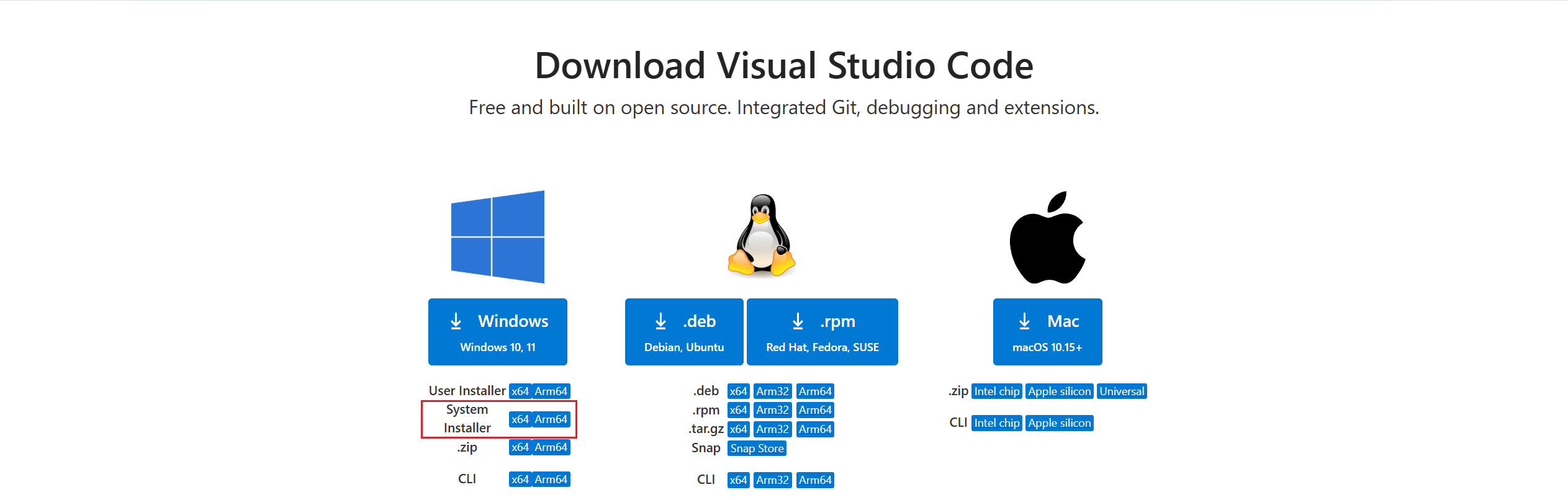 怎么安装?直接主页点击下载即可,或者通过以下链接([Visual Studio Code FAQ](https://code.visualstudio.com/docs/supporting/faq#_previous-release-versions)):
```shell
# Windows x64 System installer
https://update.code.visualstudio.com/{version}/win32-x64/stable
# Windows x64 User installer
https://update.code.visualstudio.com/{version}/win32-x64-user/stable
```
### 2. 这个笔记基于什么版本?
目前用的是这个版本:[VSCodeSetup-x64-1.100.2.exe(System Installer)](https://vscode.download.prss.microsoft.com/dbazure/download/stable/848b80aeb52026648a8ff9f7c45a9b0a80641e2e/VSCodeSetup-x64-1.100.2.exe)
怎么安装?直接主页点击下载即可,或者通过以下链接([Visual Studio Code FAQ](https://code.visualstudio.com/docs/supporting/faq#_previous-release-versions)):
```shell
# Windows x64 System installer
https://update.code.visualstudio.com/{version}/win32-x64/stable
# Windows x64 User installer
https://update.code.visualstudio.com/{version}/win32-x64-user/stable
```
### 2. 这个笔记基于什么版本?
目前用的是这个版本:[VSCodeSetup-x64-1.100.2.exe(System Installer)](https://vscode.download.prss.microsoft.com/dbazure/download/stable/848b80aeb52026648a8ff9f7c45a9b0a80641e2e/VSCodeSetup-x64-1.100.2.exe)
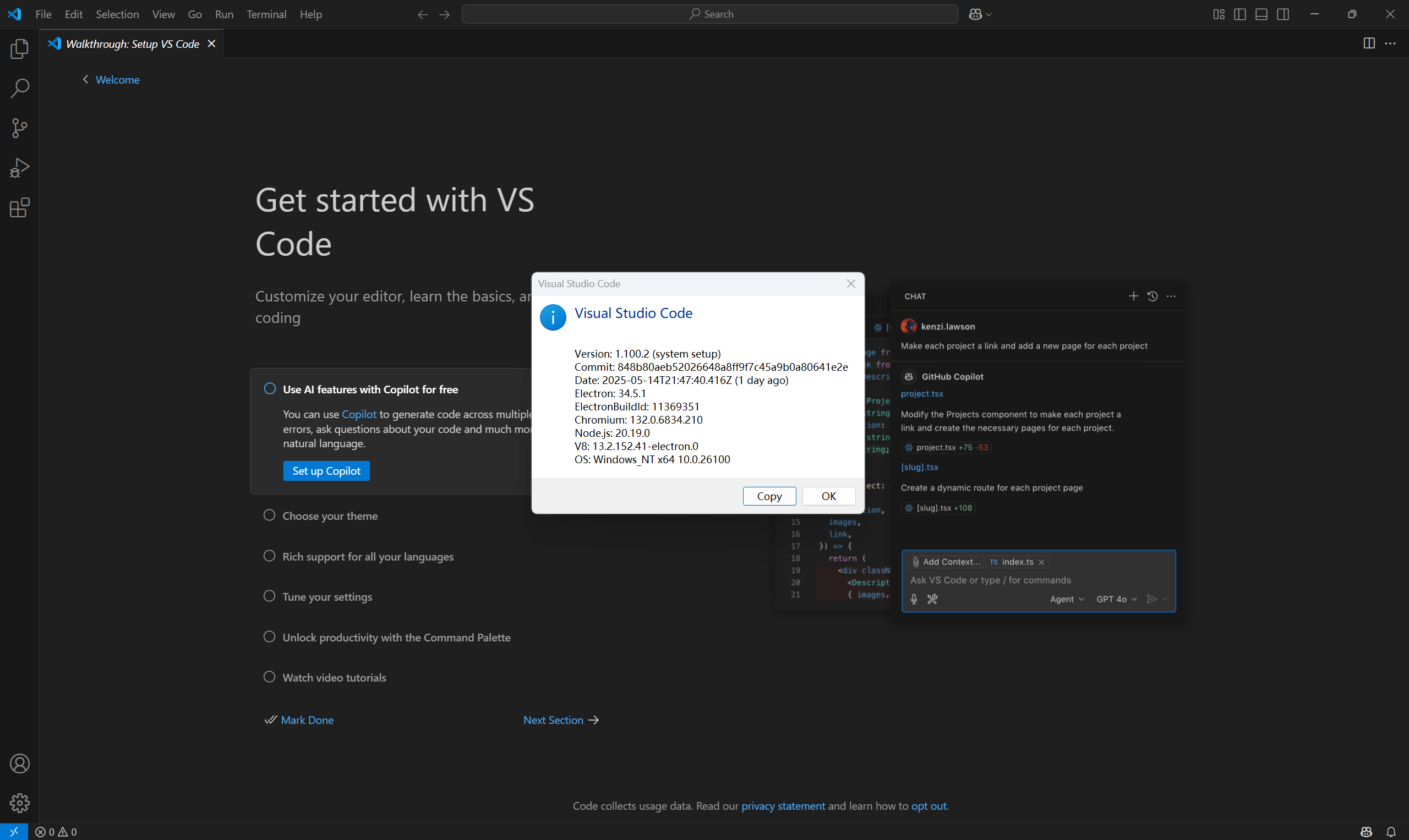 版本信息:
```shell
版本: 1.100.2 (user setup)
提交: 848b80aeb52026648a8ff9f7c45a9b0a80641e2e
日期: 2025-05-14T21:47:40.416Z
Electron: 34.5.1
ElectronBuildId: 11369351
Chromium: 132.0.6834.210
Node.js: 20.19.0
V8: 13.2.152.41-electron.0
OS: Windows_NT x64 10.0.19044
```
> Tips:版本限制?
>
> Microsoft ended support and is no longer providing security updates for [Windows 7](https://learn.microsoft.com/lifecycle/products/windows-7), [Windows 8, and Windows 8.1](https://learn.microsoft.com/en-us/lifecycle/announcements/windows-8-1-end-support-january-2023). VS Code desktop versions starting with 1.71 (August 2022) no longer run on Windows 7 and starting with 1.80 (June 2023) will no longer run on Windows 8 and 8.1. You will need to upgrade to a newer Windows version to use later versions of VS Code.
>
> VS Code will no longer provide product updates or security fixes on old Windows versions. VS Code [version 1.70.3](https://code.visualstudio.com/updates/v1_70) is the last available release for Windows 7 users and version 1.79 will be the last available release for Windows 8 and 8.1 users. You can learn more about upgrading your Windows version at [support.microsoft.com](https://support.microsoft.com/windows/windows-7-support-ended-on-january-14-2020-b75d4580-2cc7-895a-2c9c-1466d9a53962).
>
> Additionally, 32-bit OEM support has been dropped with Windows 10, version 2004. The last stable VS Code version to support Windows 32-bit is 1.83 (September 2023). You will need to update to the 64-bit release.
>
> ——[Visual Studio Code FAQ](https://code.visualstudio.com/Docs/supporting/FAQ#_can-i-run-vs-code-on-older-windows-versions)
所以可以知道Win7最后一个支持的版本是1.71(2022年8月),Win8/8.1最后一个支持的版本是1.80(2023年6月)
### 3. 记录一下相关目录?
主要是是在windows下开发,所以这里主要关注一下windows中vscode相关的目录
- 临时文件、配置文件等
```shell
%USERPROFILE%\AppData\Roaming\Code\
# 即
C:\Users\\AppData\Roaming\Code\
```
- 插件目录
```shell
%USERPROFILE%\.vscode\extensions
# 即
C:\Users\\.vscode\extensions
```
> Tops:卸载的时候目录中的文件不会被删除。
### 4. 参考文档
- 中文:[https://vscode.js.cn/docs](https://vscode.js.cn/docs)
- 英文:[https://code.visualstudio.com/docs](https://code.visualstudio.com/docs)
## 二、怎么安装插件?
### 1. 插件安装位置
- windows
```shell
%USERPROFILE%\.vscode\extensions
# 即
C:\Users\\.vscode\extensions
```
- linux
```shell
/home//.vscode/extensions
```
### 2. 插件安装
#### 2.1 插件市场安装
版本信息:
```shell
版本: 1.100.2 (user setup)
提交: 848b80aeb52026648a8ff9f7c45a9b0a80641e2e
日期: 2025-05-14T21:47:40.416Z
Electron: 34.5.1
ElectronBuildId: 11369351
Chromium: 132.0.6834.210
Node.js: 20.19.0
V8: 13.2.152.41-electron.0
OS: Windows_NT x64 10.0.19044
```
> Tips:版本限制?
>
> Microsoft ended support and is no longer providing security updates for [Windows 7](https://learn.microsoft.com/lifecycle/products/windows-7), [Windows 8, and Windows 8.1](https://learn.microsoft.com/en-us/lifecycle/announcements/windows-8-1-end-support-january-2023). VS Code desktop versions starting with 1.71 (August 2022) no longer run on Windows 7 and starting with 1.80 (June 2023) will no longer run on Windows 8 and 8.1. You will need to upgrade to a newer Windows version to use later versions of VS Code.
>
> VS Code will no longer provide product updates or security fixes on old Windows versions. VS Code [version 1.70.3](https://code.visualstudio.com/updates/v1_70) is the last available release for Windows 7 users and version 1.79 will be the last available release for Windows 8 and 8.1 users. You can learn more about upgrading your Windows version at [support.microsoft.com](https://support.microsoft.com/windows/windows-7-support-ended-on-january-14-2020-b75d4580-2cc7-895a-2c9c-1466d9a53962).
>
> Additionally, 32-bit OEM support has been dropped with Windows 10, version 2004. The last stable VS Code version to support Windows 32-bit is 1.83 (September 2023). You will need to update to the 64-bit release.
>
> ——[Visual Studio Code FAQ](https://code.visualstudio.com/Docs/supporting/FAQ#_can-i-run-vs-code-on-older-windows-versions)
所以可以知道Win7最后一个支持的版本是1.71(2022年8月),Win8/8.1最后一个支持的版本是1.80(2023年6月)
### 3. 记录一下相关目录?
主要是是在windows下开发,所以这里主要关注一下windows中vscode相关的目录
- 临时文件、配置文件等
```shell
%USERPROFILE%\AppData\Roaming\Code\
# 即
C:\Users\\AppData\Roaming\Code\
```
- 插件目录
```shell
%USERPROFILE%\.vscode\extensions
# 即
C:\Users\\.vscode\extensions
```
> Tops:卸载的时候目录中的文件不会被删除。
### 4. 参考文档
- 中文:[https://vscode.js.cn/docs](https://vscode.js.cn/docs)
- 英文:[https://code.visualstudio.com/docs](https://code.visualstudio.com/docs)
## 二、怎么安装插件?
### 1. 插件安装位置
- windows
```shell
%USERPROFILE%\.vscode\extensions
# 即
C:\Users\\.vscode\extensions
```
- linux
```shell
/home//.vscode/extensions
```
### 2. 插件安装
#### 2.1 插件市场安装
 #### 2.2 官网安装
[Extensions for Visual Studio family of products | Visual Studio Marketplace](https://marketplace.visualstudio.com/):
#### 2.2 官网安装
[Extensions for Visual Studio family of products | Visual Studio Marketplace](https://marketplace.visualstudio.com/):
 #### 2.3 vsix安装
> Tips:vscode的插件好像可以跨平台,我下载的vsix,既可以在windows下使用,也能上传到linux服务器使用。
#### 2.3 vsix安装
> Tips:vscode的插件好像可以跨平台,我下载的vsix,既可以在windows下使用,也能上传到linux服务器使用。
 #### 2.4 直接安装
还有一种方式,就是直接把已安装好的插件的目录打包压缩,放到要安装的地方去:
#### 2.4 直接安装
还有一种方式,就是直接把已安装好的插件的目录打包压缩,放到要安装的地方去:
 windows下可以在文件资源管理器输入以下路径打开插件安装目录:
```shell
%USERPROFILE%\.vscode\extensions
```
### 3. VSIX下载
#### 3.1 [Open VSX Registry](https://open-vsx.org/?search=office&sortBy=relevance&sortOrder=desc)
[Open VSX Registry](https://open-vsx.org/?search=office&sortBy=relevance&sortOrder=desc):
windows下可以在文件资源管理器输入以下路径打开插件安装目录:
```shell
%USERPROFILE%\.vscode\extensions
```
### 3. VSIX下载
#### 3.1 [Open VSX Registry](https://open-vsx.org/?search=office&sortBy=relevance&sortOrder=desc)
[Open VSX Registry](https://open-vsx.org/?search=office&sortBy=relevance&sortOrder=desc):
 #### 3.2 [Visual Studio Marketplace](https://marketplace.visualstudio.com/)
还有一个地方就是官网,之前还是有vsix文件下载的地方的,但是后来就没了,是直接安装到vscode了,但是没网的环境就没办法了,但是还是可以通过下面的方式获取到下载链接,以 One Dark Pro 为例。
##### 3.2.1 获取插件信息
- 在有网的环境下安装 One Dark Pro 插件,然后获取插件信息:
#### 3.2 [Visual Studio Marketplace](https://marketplace.visualstudio.com/)
还有一个地方就是官网,之前还是有vsix文件下载的地方的,但是后来就没了,是直接安装到vscode了,但是没网的环境就没办法了,但是还是可以通过下面的方式获取到下载链接,以 One Dark Pro 为例。
##### 3.2.1 获取插件信息
- 在有网的环境下安装 One Dark Pro 插件,然后获取插件信息:
 就会得到以下内容:
```shell
名称: One Dark Pro
ID: zhuangtongfa.material-theme
说明: Atom's iconic One Dark theme for Visual Studio Code
版本: 3.19.0
发布者: binaryify
VS Marketplace 链接: https://marketplace.visualstudio.com/items?itemName=zhuangtongfa.Material-theme
```
或者也可以不安装,直接去vscode插件市场或者官网的插件市场搜这个插件,可以看上图,图中右侧安装部分就有这些信息:
```shell
安装
标识符 zhuangtongfa.material-theme
版本 3.19.0
上次更新时间 2025-05-16, 14:09:29
源 VSIX
大小 1.40 MB
```
##### 3.2.2 下载链接
其实vscode之前的vsix下载链接格式是:
```shell
https://marketplace.visualstudio.com/_apis/public/gallery/publishers/{发布者}/vsextensions/{插件名}/{版本号}/vspackage
```
以上面的 One Dark Pro为例就是:
```shell
发布者: zhuangtongfa
插件名: Material-theme
版本号: 3.19.0
```
最后得到的下载链接就是 [One Dark Pro 3.19.0](https://marketplace.visualstudio.com/_apis/public/gallery/publishers/zhuangtongfa/vsextensions/Material-theme/3.19.0/vspackage):
```shell
https://marketplace.visualstudio.com/_apis/public/gallery/publishers/zhuangtongfa/vsextensions/Material-theme/3.19.0/vspackage
```
## 三、常用基础扩展
### 1. 主题相关扩展
| 扩展名称 | 说明 |
| -------------------- | ------------------------------------------------------------ |
| One Dark Pro | VScode主题:[GitHub - Binaryify/OneDark-Pro: Atom's iconic One Dark theme for Visual Studio Code · GitHub](https://github.com/Binaryify/OneDark-Pro) |
| Material Icon Theme | 侧边栏目录树图标主题:[GitHub - material-extensions/vscode-material-icon-theme: Material Design icons for VS Code · GitHub](https://github.com/material-extensions/vscode-material-icon-theme) |
| Chinese (Simplified) | 中文主题包,虽然中文很好,但是,对有些插件不是很友好,比如后面经常要用的ssh remote,在内网,也就是服务器和windows都无法联网的时候,有这个中文界面的情况下,就是会花费好久才能连接到服务器,也不知道是不是因为没网?还是因为中文化浪费时间,具体原因没有深究。这种情况下,卸载它,然后重新连,嘎嘎快!!!也许是我使用方式不对吧,但是个人感觉,这个软件配置并不复杂,所以有没有中文语言包都差不多。 |
| background-cover | vscode背景插件,可以设置背景图片,还有一个background的插件,功能好像更强大,但这个background-cover插件安装完好像就几百K,而且基本功能够用了。github仓库为:[GitHub - AShujiao/vscode-background-cover: vscode扩展,添加一张你喜欢的图片铺满整个vscode .. · GitHub](https://github.com/AShujiao/vscode-background-cover) |
### 2. 文件查看
| 扩展名称 | 说明 |
| ---------- | ------------------------------------------------------------ |
| Hex Editor | 提供了一个十六进制编辑器,用于以原始十六进制形式查看和操作文件:[GitHub - microsoft/vscode-hexeditor: VS Code Hex Editor · GitHub](https://github.com/microsoft/vscode-hexeditor) |
### 3. 语法高亮工具
这个一般来说打开了对应的文件,vscode会自动弹出语法高亮扩展的或者相关扩展的建议:
| 扩展名称 | 说明 |
| -------------------- | ------------------------------------------------------------ |
| Makefile Tools | [GitHub - microsoft/vscode-makefile-tools](https://github.com/microsoft/vscode-makefile-tools) |
| DeviceTree | [GitHub - plorefice/vscode-devicetree: Language syntax for DeviceTree · GitHub](https://github.com/plorefice/vscode-devicetree) |
| stylus | [GitHub - d4rkr00t/language-stylus: Stylus language support for Visual Studio Code · GitHub](https://github.com/d4rkr00t/language-stylus) |
| GNU Linker Map files | [GitHub - trond-snekvik/vscode-gnu-map: VS Code extension for GNU Linker Map files · GitHub](https://github.com/trond-snekvik/vscode-gnu-map) |
| LinkerScript | [GitHub - TheNetAdmin/vscode-linkerscript: GNU linker script language support for vscode. · GitHub](https://github.com/TheNetAdmin/vscode-linkerscript) |
| Arm Assembly | [GitHub - dan-c-underwood/vscode-arm: Arm® Syntax highlighting for VSCode · GitHub](https://github.com/dan-c-underwood/vscode-arm) |
| Nunjucks | [GitHub - ronnidc/vscode-nunjucks: Nunjucks for Visual Studio Code · GitHub](https://github.com/ronnidc/vscode-nunjucks) |
| highlight-words | [GitHub - rsbondi/highlight-words: vscode extension to highlight all occurrences of words or expression · GitHub](https://github.com/rsbondi/highlight-words) |
### 4. shell脚本开发
| 扩展名称 | 说明 |
| --------- | ------------------------------------------------------------ |
| shell man | 自动补全:[GitHub - yousefvand/shellman · GitHub](https://github.com/yousefvand/shellman) |
| Bash IDE | 以识别shell脚本中的函数,可以在右侧大纲视图显示,另外也可以进行一些变量的跳转。[GitHub - bash-lsp/bash-language-server: A language server for Bash · GitHub](https://github.com/bash-lsp/bash-language-server) |
就会得到以下内容:
```shell
名称: One Dark Pro
ID: zhuangtongfa.material-theme
说明: Atom's iconic One Dark theme for Visual Studio Code
版本: 3.19.0
发布者: binaryify
VS Marketplace 链接: https://marketplace.visualstudio.com/items?itemName=zhuangtongfa.Material-theme
```
或者也可以不安装,直接去vscode插件市场或者官网的插件市场搜这个插件,可以看上图,图中右侧安装部分就有这些信息:
```shell
安装
标识符 zhuangtongfa.material-theme
版本 3.19.0
上次更新时间 2025-05-16, 14:09:29
源 VSIX
大小 1.40 MB
```
##### 3.2.2 下载链接
其实vscode之前的vsix下载链接格式是:
```shell
https://marketplace.visualstudio.com/_apis/public/gallery/publishers/{发布者}/vsextensions/{插件名}/{版本号}/vspackage
```
以上面的 One Dark Pro为例就是:
```shell
发布者: zhuangtongfa
插件名: Material-theme
版本号: 3.19.0
```
最后得到的下载链接就是 [One Dark Pro 3.19.0](https://marketplace.visualstudio.com/_apis/public/gallery/publishers/zhuangtongfa/vsextensions/Material-theme/3.19.0/vspackage):
```shell
https://marketplace.visualstudio.com/_apis/public/gallery/publishers/zhuangtongfa/vsextensions/Material-theme/3.19.0/vspackage
```
## 三、常用基础扩展
### 1. 主题相关扩展
| 扩展名称 | 说明 |
| -------------------- | ------------------------------------------------------------ |
| One Dark Pro | VScode主题:[GitHub - Binaryify/OneDark-Pro: Atom's iconic One Dark theme for Visual Studio Code · GitHub](https://github.com/Binaryify/OneDark-Pro) |
| Material Icon Theme | 侧边栏目录树图标主题:[GitHub - material-extensions/vscode-material-icon-theme: Material Design icons for VS Code · GitHub](https://github.com/material-extensions/vscode-material-icon-theme) |
| Chinese (Simplified) | 中文主题包,虽然中文很好,但是,对有些插件不是很友好,比如后面经常要用的ssh remote,在内网,也就是服务器和windows都无法联网的时候,有这个中文界面的情况下,就是会花费好久才能连接到服务器,也不知道是不是因为没网?还是因为中文化浪费时间,具体原因没有深究。这种情况下,卸载它,然后重新连,嘎嘎快!!!也许是我使用方式不对吧,但是个人感觉,这个软件配置并不复杂,所以有没有中文语言包都差不多。 |
| background-cover | vscode背景插件,可以设置背景图片,还有一个background的插件,功能好像更强大,但这个background-cover插件安装完好像就几百K,而且基本功能够用了。github仓库为:[GitHub - AShujiao/vscode-background-cover: vscode扩展,添加一张你喜欢的图片铺满整个vscode .. · GitHub](https://github.com/AShujiao/vscode-background-cover) |
### 2. 文件查看
| 扩展名称 | 说明 |
| ---------- | ------------------------------------------------------------ |
| Hex Editor | 提供了一个十六进制编辑器,用于以原始十六进制形式查看和操作文件:[GitHub - microsoft/vscode-hexeditor: VS Code Hex Editor · GitHub](https://github.com/microsoft/vscode-hexeditor) |
### 3. 语法高亮工具
这个一般来说打开了对应的文件,vscode会自动弹出语法高亮扩展的或者相关扩展的建议:
| 扩展名称 | 说明 |
| -------------------- | ------------------------------------------------------------ |
| Makefile Tools | [GitHub - microsoft/vscode-makefile-tools](https://github.com/microsoft/vscode-makefile-tools) |
| DeviceTree | [GitHub - plorefice/vscode-devicetree: Language syntax for DeviceTree · GitHub](https://github.com/plorefice/vscode-devicetree) |
| stylus | [GitHub - d4rkr00t/language-stylus: Stylus language support for Visual Studio Code · GitHub](https://github.com/d4rkr00t/language-stylus) |
| GNU Linker Map files | [GitHub - trond-snekvik/vscode-gnu-map: VS Code extension for GNU Linker Map files · GitHub](https://github.com/trond-snekvik/vscode-gnu-map) |
| LinkerScript | [GitHub - TheNetAdmin/vscode-linkerscript: GNU linker script language support for vscode. · GitHub](https://github.com/TheNetAdmin/vscode-linkerscript) |
| Arm Assembly | [GitHub - dan-c-underwood/vscode-arm: Arm® Syntax highlighting for VSCode · GitHub](https://github.com/dan-c-underwood/vscode-arm) |
| Nunjucks | [GitHub - ronnidc/vscode-nunjucks: Nunjucks for Visual Studio Code · GitHub](https://github.com/ronnidc/vscode-nunjucks) |
| highlight-words | [GitHub - rsbondi/highlight-words: vscode extension to highlight all occurrences of words or expression · GitHub](https://github.com/rsbondi/highlight-words) |
### 4. shell脚本开发
| 扩展名称 | 说明 |
| --------- | ------------------------------------------------------------ |
| shell man | 自动补全:[GitHub - yousefvand/shellman · GitHub](https://github.com/yousefvand/shellman) |
| Bash IDE | 以识别shell脚本中的函数,可以在右侧大纲视图显示,另外也可以进行一些变量的跳转。[GitHub - bash-lsp/bash-language-server: A language server for Bash · GitHub](https://github.com/bash-lsp/bash-language-server) |