---
title: LV07-Webview
date: 2025-08-02 07:48:58
icon: famicons:logo-markdown
index: true
tags:
categories:
---
# [Webview API](https://vscode.js.cn/api/extension-guides/webview)
Webview API 允许扩展在 Visual Studio Code 中创建完全可定制的视图。例如,内置的 Markdown 扩展使用 webview 来渲染 Markdown 预览。Webview 也可以用于构建超出 VS Code 原生 API 支持的复杂用户界面。
可以将 webview 视为 VS Code 中由你的扩展控制的 `iframe`。Webview 可以在此框架中渲染几乎任何 HTML 内容,并使用消息传递与扩展通信。这种自由使 webview 变得极其强大,并开辟了全新的扩展可能性。
Webview 在多个 VS Code API 中使用
- 通过使用 `createWebviewPanel` 创建的 Webview 面板。在这种情况下,Webview 面板在 VS Code 中作为独立的编辑器显示。这使得它们适用于显示自定义 UI 和自定义可视化。
- 作为[自定义编辑器](https://vscode.js.cn/api/extension-guides/custom-editors)的视图。自定义编辑器允许扩展为工作区中的任何文件提供自定义 UI 进行编辑。自定义编辑器 API 还允许你的扩展挂钩到编辑器事件,例如撤销和重做,以及文件事件,例如保存。
- 在侧边栏或面板区域渲染的[Webview 视图](https://vscode.js.cn/api/references/vscode-api#WebviewView)中。有关更多详细信息,请参阅[webview 视图示例扩展](https://github.com/microsoft/vscode-extension-samples/tree/main/webview-view-sample)。
本页重点介绍基本的 webview 面板 API,尽管这里涵盖的几乎所有内容也适用于自定义编辑器和 webview 视图中使用的 webview。即使你对这些 API 更感兴趣,我们也建议你先通读本页,熟悉 webview 的基础知识。
## [链接](https://vscode.js.cn/api/extension-guides/webview#links)
- [Webview 示例](https://github.com/microsoft/vscode-extension-samples/blob/main/webview-sample/README.md)
- [自定义编辑器文档](https://vscode.js.cn/api/extension-guides/custom-editors)
- [Webview 视图示例](https://github.com/microsoft/vscode-extension-samples/tree/main/webview-view-sample)
### [VS Code API 用法](https://vscode.js.cn/api/extension-guides/webview#vs-code-api-usage)
- [`window.createWebviewPanel`](https://vscode.js.cn/api/references/vscode-api#window.createWebviewPanel)
- [`window.registerWebviewPanelSerializer`](https://vscode.js.cn/api/references/vscode-api#window.registerWebviewPanelSerializer)
## [我应该使用 Webview 吗?](https://vscode.js.cn/api/extension-guides/webview#should-i-use-a-webview)
Webview 非常棒,但它们也应该谨慎使用,并且只在 VS Code 的原生 API 不足时才使用。Webview 资源消耗大,并且与普通扩展在不同的上下文中运行。设计不佳的 webview 也很容易在 VS Code 中显得格格不入。
在使用 webview 之前,请考虑以下事项
- 此功能真的需要在 VS Code 内运行吗?作为独立的应用程序或网站会更好吗?
- Webview 是实现你的功能的唯一方式吗?你能否使用常规的 VS Code API 替代?
- 你的 webview 是否能增加足够的Although `retainContextWhenHidden` may be appealing, keep in mind that this has high memory overhead and should only be used when other persistence techniques will not work.用户价值以证明其高资源成本?
记住:仅仅因为你可以用 webview 做某事,并不意味着你应该这样做。但是,如果你确信需要使用 webview,那么本文将为你提供帮助。让我们开始吧。
## [Webview API 基础](https://vscode.js.cn/api/extension-guides/webview#webviews-api-basics)
为了解释 webview API,我们将构建一个名为 **Cat Coding** 的简单扩展。此扩展将使用 webview 来显示一只猫编写代码(可能是在 VS Code 中)的 gif。在学习 API 的过程中,我们将继续向扩展添加功能,包括一个跟踪猫编写了多少行源代码的计数器,以及在猫引入 bug 时通知用户的通知。
以下是 **Cat Coding** 扩展第一个版本的 `package.json`。你可以在[这里](https://github.com/microsoft/vscode-extension-samples/blob/main/webview-sample/README.md)找到示例应用程序的完整代码。我们扩展的第一个版本[贡献了一个名为 `catCoding.start` 的命令](https://vscode.js.cn/api/references/contribution-points#contributes.commands)。当用户调用此命令时,我们将显示一个简单的 webview,其中包含我们的猫。用户可以从**命令面板**调用此命令,例如**Cat Coding: Start new cat coding session**,如果他们愿意,甚至可以为其创建键盘快捷键。
```json
{
"name": "cat-coding",
"description": "Cat Coding",
"version": "0.0.1",
"publisher": "bierner",
"engines": {
"vscode": "^1.74.0"
},
"activationEvents": [],
"main": "./out/extension.js",
"contributes": {
"commands": [
{
"command": "catCoding.start",
"title": "Start new cat coding session",
"category": "Cat Coding"
}
]
},
"scripts": {
"vscode:prepublish": "tsc -p ./",
"compile": "tsc -watch -p ./",
"postinstall": "node ./node_modules/vscode/bin/install"
},
"dependencies": {
"vscode": "*"
},
"devDependencies": {
"@types/node": "^9.4.6",
"typescript": "^2.8.3"
}
}
```
> **注意**:如果你的扩展针对的是 1.74 之前的 VS Code 版本,则必须在 `activationEvents` 中明确列出 `onCommand:catCoding.start`。
现在让我们实现 `catCoding.start` 命令。在我们的扩展主文件中,我们注册 `catCoding.start` 命令并用它来显示一个基本的 webview
```typescript
import * as vscode from 'vscode';
export function activate(context: vscode.ExtensionContext) {
context.subscriptions.push(
vscode.commands.registerCommand('catCoding.start', () => {
// Create and show a new webview
const panel = vscode.window.createWebviewPanel(
'catCoding', // Identifies the type of the webview. Used internally
'Cat Coding', // Title of the panel displayed to the user
vscode.ViewColumn.One, // Editor column to show the new webview panel in.
{} // Webview options. More on these later.
);
})
);
}
```
`vscode.window.createWebviewPanel` 函数在编辑器中创建并显示一个 webview。如果你尝试运行当前状态的 `catCoding.start` 命令,你会看到以下内容

我们的命令打开了一个带有正确标题的新 webview 面板,但没有内容!要将我们的猫添加到新面板,我们还需要使用 `webview.html` 设置 webview 的 HTML 内容
```typescript
import * as vscode from 'vscode';
export function activate(context: vscode.ExtensionContext) {
context.subscriptions.push(
vscode.commands.registerCommand('catCoding.start', () => {
// Create and show panel
const panel = vscode.window.createWebviewPanel(
'catCoding',
'Cat Coding',
vscode.ViewColumn.One,
{}
);
// And set its HTML content
panel.webview.html = getWebviewContent();
})
);
}
function getWebviewContent() {
return `
Cat Coding
 `;
}
```
如果你再次运行该命令,现在 webview 看起来像这样
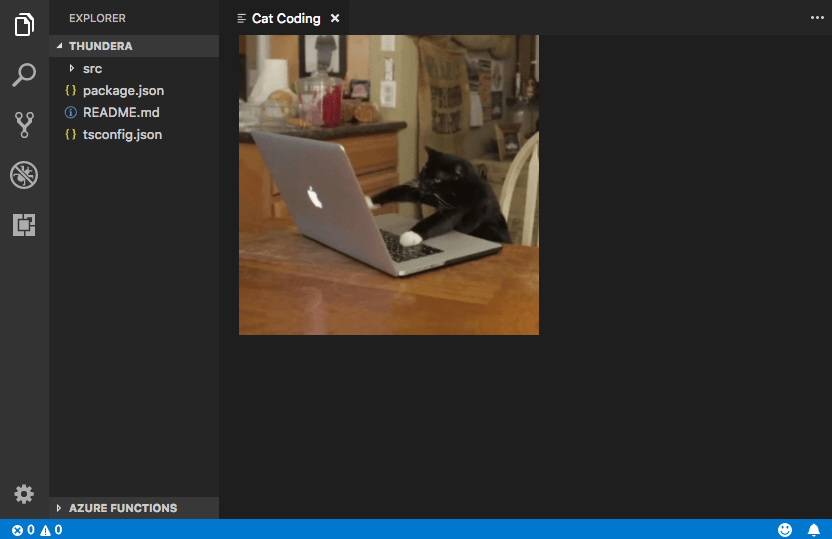
有进展!
`webview.html` 应始终是一个完整的 HTML 文档。HTML 片段或格式错误的 HTML 可能会导致意外行为。
### [更新 webview 内容](https://vscode.js.cn/api/extension-guides/webview#updating-webview-content)
`webview.html` 也可以在 webview 创建后更新其内容。让我们用这个来让 **Cat Coding** 更具动态性,引入猫的轮换
```typescript
import * as vscode from 'vscode';
const cats = {
'Coding Cat': 'https://media.giphy.com/media/JIX9t2j0ZTN9S/giphy.gif',
'Compiling Cat': 'https://media.giphy.com/media/mlvseq9yvZhba/giphy.gif'
};
export function activate(context: vscode.ExtensionContext) {
context.subscriptions.push(
vscode.commands.registerCommand('catCoding.start', () => {
const panel = vscode.window.createWebviewPanel(
'catCoding',
'Cat Coding',
vscode.ViewColumn.One,
{}
);
let iteration = 0;
const updateWebview = () => {
const cat = iteration++ % 2 ? 'Compiling Cat' : 'Coding Cat';
panel.title = cat;
panel.webview.html = getWebviewContent(cat);
};
// Set initial content
updateWebview();
// And schedule updates to the content every second
setInterval(updateWebview, 1000);
})
);
}
function getWebviewContent(cat: keyof typeof cats) {
return `
Cat Coding
`;
}
```
如果你再次运行该命令,现在 webview 看起来像这样

有进展!
`webview.html` 应始终是一个完整的 HTML 文档。HTML 片段或格式错误的 HTML 可能会导致意外行为。
### [更新 webview 内容](https://vscode.js.cn/api/extension-guides/webview#updating-webview-content)
`webview.html` 也可以在 webview 创建后更新其内容。让我们用这个来让 **Cat Coding** 更具动态性,引入猫的轮换
```typescript
import * as vscode from 'vscode';
const cats = {
'Coding Cat': 'https://media.giphy.com/media/JIX9t2j0ZTN9S/giphy.gif',
'Compiling Cat': 'https://media.giphy.com/media/mlvseq9yvZhba/giphy.gif'
};
export function activate(context: vscode.ExtensionContext) {
context.subscriptions.push(
vscode.commands.registerCommand('catCoding.start', () => {
const panel = vscode.window.createWebviewPanel(
'catCoding',
'Cat Coding',
vscode.ViewColumn.One,
{}
);
let iteration = 0;
const updateWebview = () => {
const cat = iteration++ % 2 ? 'Compiling Cat' : 'Coding Cat';
panel.title = cat;
panel.webview.html = getWebviewContent(cat);
};
// Set initial content
updateWebview();
// And schedule updates to the content every second
setInterval(updateWebview, 1000);
})
);
}
function getWebviewContent(cat: keyof typeof cats) {
return `
Cat Coding
 `;
}
```

设置 `webview.html` 会替换整个 webview 内容,类似于重新加载 iframe。一旦开始在 webview 中使用脚本,记住这一点很重要,因为它意味着设置 `webview.html` 也会重置脚本的状态。
上面的例子还使用 `webview.title` 更改编辑器中显示的文档标题。设置标题不会导致 webview 重新加载。
### [生命周期](https://vscode.js.cn/api/extension-guides/webview#lifecycle)
Webview 面板归创建它们的扩展所有。扩展必须持有从 `createWebviewPanel` 返回的 webview 引用。如果你的扩展失去此引用,它将无法再次访问该 webview,即使该 webview 将继续在 VS Code 中显示。
与文本编辑器一样,用户也可以随时关闭 webview 面板。当用户关闭 webview 面板时,webview 本身会被销毁。尝试使用已销毁的 webview 会抛出异常。这意味着上面使用 `setInterval` 的示例实际上有一个重要的 bug:如果用户关闭面板,`setInterval` 将继续触发,这将尝试更新 `panel.webview.html`,这当然会抛出异常。猫讨厌异常。让我们修复它!
当 webview 被销毁时,会触发 `onDidDispose` 事件。我们可以使用此事件来取消进一步的更新并清理 webview 的资源
```typescript
import * as vscode from 'vscode';
const cats = {
'Coding Cat': 'https://media.giphy.com/media/JIX9t2j0ZTN9S/giphy.gif',
'Compiling Cat': 'https://media.giphy.com/media/mlvseq9yvZhba/giphy.gif'
};
export function activate(context: vscode.ExtensionContext) {
context.subscriptions.push(
vscode.commands.registerCommand('catCoding.start', () => {
const panel = vscode.window.createWebviewPanel(
'catCoding',
'Cat Coding',
vscode.ViewColumn.One,
{}
);
let iteration = 0;
const updateWebview = () => {
const cat = iteration++ % 2 ? 'Compiling Cat' : 'Coding Cat';
panel.title = cat;
panel.webview.html = getWebviewContent(cat);
};
updateWebview();
const interval = setInterval(updateWebview, 1000);
panel.onDidDispose(
() => {
// When the panel is closed, cancel any future updates to the webview content
clearInterval(interval);
},
null,
context.subscriptions
);
})
);
}
```
扩展还可以通过调用 `dispose()` 以编程方式关闭 webview。例如,如果我们想将猫的工作日限制在五秒内
```typescript
export function activate(context: vscode.ExtensionContext) {
context.subscriptions.push(
vscode.commands.registerCommand('catCoding.start', () => {
const panel = vscode.window.createWebviewPanel(
'catCoding',
'Cat Coding',
vscode.ViewColumn.One,
{}
);
panel.webview.html = getWebviewContent('Coding Cat');
// After 5sec, programmatically close the webview panel
const timeout = setTimeout(() => panel.dispose(), 5000);
panel.onDidDispose(
() => {
// Handle user closing panel before the 5sec have passed
clearTimeout(timeout);
},
null,
context.subscriptions
);
})
);
}
```
### [可见性和移动](https://vscode.js.cn/api/extension-guides/webview#visibility-and-moving)
当 webview 面板移至后台选项卡时,它会变为隐藏。但它不会被销毁。当面板再次带到前台时,VS Code 将自动从 `webview.html` 恢复 webview 的内容

`.visible` 属性告诉你 webview 面板当前是否可见。
扩展可以通过调用 `reveal()` 以编程方式将 webview 面板带到前台。此方法接受一个可选的目标视图列以显示面板。一个 webview 面板一次只能显示在一个编辑器列中。调用 `reveal()` 或将 webview 面板拖到新编辑器列会将其移动到该新列。

让我们更新我们的扩展,使其一次只允许存在一个 webview。如果面板在后台,则 `catCoding.start` 命令会将其带到前台
```typescript
export function activate(context: vscode.ExtensionContext) {
// Track the current panel with a webview
let currentPanel: vscode.WebviewPanel | undefined = undefined;
context.subscriptions.push(
vscode.commands.registerCommand('catCoding.start', () => {
const columnToShowIn = vscode.window.activeTextEditor
? vscode.window.activeTextEditor.viewColumn
: undefined;
if (currentPanel) {
// If we already have a panel, show it in the target column
currentPanel.reveal(columnToShowIn);
} else {
// Otherwise, create a new panel
currentPanel = vscode.window.createWebviewPanel(
'catCoding',
'Cat Coding',
columnToShowIn || vscode.ViewColumn.One,
{}
);
currentPanel.webview.html = getWebviewContent('Coding Cat');
// Reset when the current panel is closed
currentPanel.onDidDispose(
() => {
currentPanel = undefined;
},
null,
context.subscriptions
);
}
})
);
}
```
这是新扩展的实际操作

每当 webview 的可见性发生变化,或 webview 移动到新列时,都会触发 `onDidChangeViewState` 事件。我们的扩展可以使用此事件根据 webview 显示的列来更改猫咪
```typescript
const cats = {
'Coding Cat': 'https://media.giphy.com/media/JIX9t2j0ZTN9S/giphy.gif',
'Compiling Cat': 'https://media.giphy.com/media/mlvseq9yvZhba/giphy.gif',
'Testing Cat': 'https://media.giphy.com/media/3oriO0OEd9QIDdllqo/giphy.gif'
};
export function activate(context: vscode.ExtensionContext) {
context.subscriptions.push(
vscode.commands.registerCommand('catCoding.start', () => {
const panel = vscode.window.createWebviewPanel(
'catCoding',
'Cat Coding',
vscode.ViewColumn.One,
{}
);
panel.webview.html = getWebviewContent('Coding Cat');
// Update contents based on view state changes
panel.onDidChangeViewState(
e => {
const panel = e.webviewPanel;
switch (panel.viewColumn) {
case vscode.ViewColumn.One:
updateWebviewForCat(panel, 'Coding Cat');
return;
case vscode.ViewColumn.Two:
updateWebviewForCat(panel, 'Compiling Cat');
return;
case vscode.ViewColumn.Three:
updateWebviewForCat(panel, 'Testing Cat');
return;
}
},
null,
context.subscriptions
);
})
);
}
function updateWebviewForCat(panel: vscode.WebviewPanel, catName: keyof typeof cats) {
panel.title = catName;
panel.webview.html = getWebviewContent(catName);
}
```

### [检查和调试 webview](https://vscode.js.cn/api/extension-guides/webview#inspecting-and-debugging-webviews)
**Developer: Toggle Developer Tools** 命令会打开一个[开发者工具](https://developer.chrome.com/docs/devtools/)窗口,你可以使用它来调试和检查你的 webview。
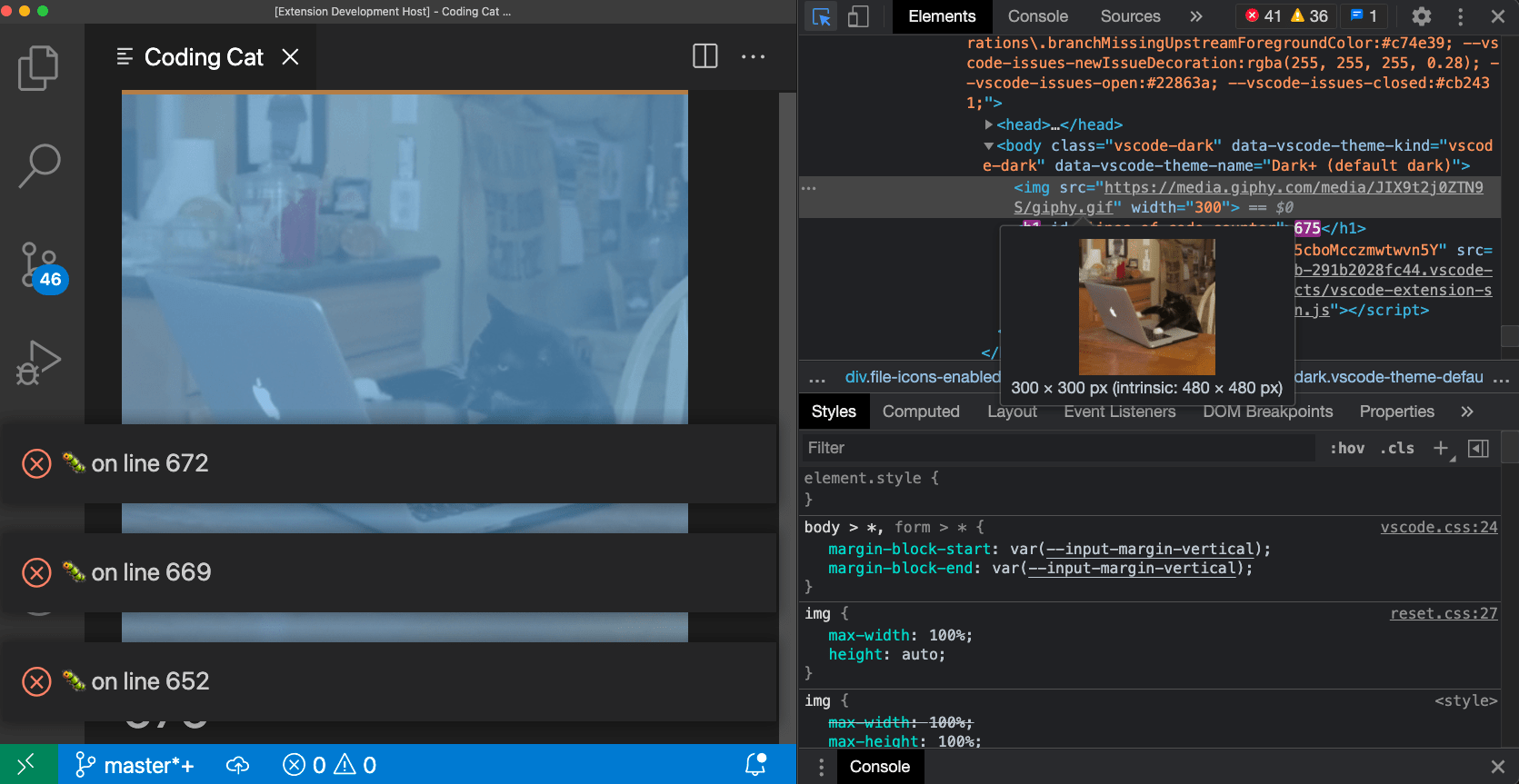
请注意,如果你使用的 VS Code 版本低于 1.56,或者你正在尝试调试一个设置了 `enableFindWidget` 的 webview,则必须改用 **Developer: Open Webview Developer Tools** 命令。此命令会为每个 webview 打开一个专用的开发者工具页面,而不是使用所有 webview 和编辑器本身共享的开发者工具页面。
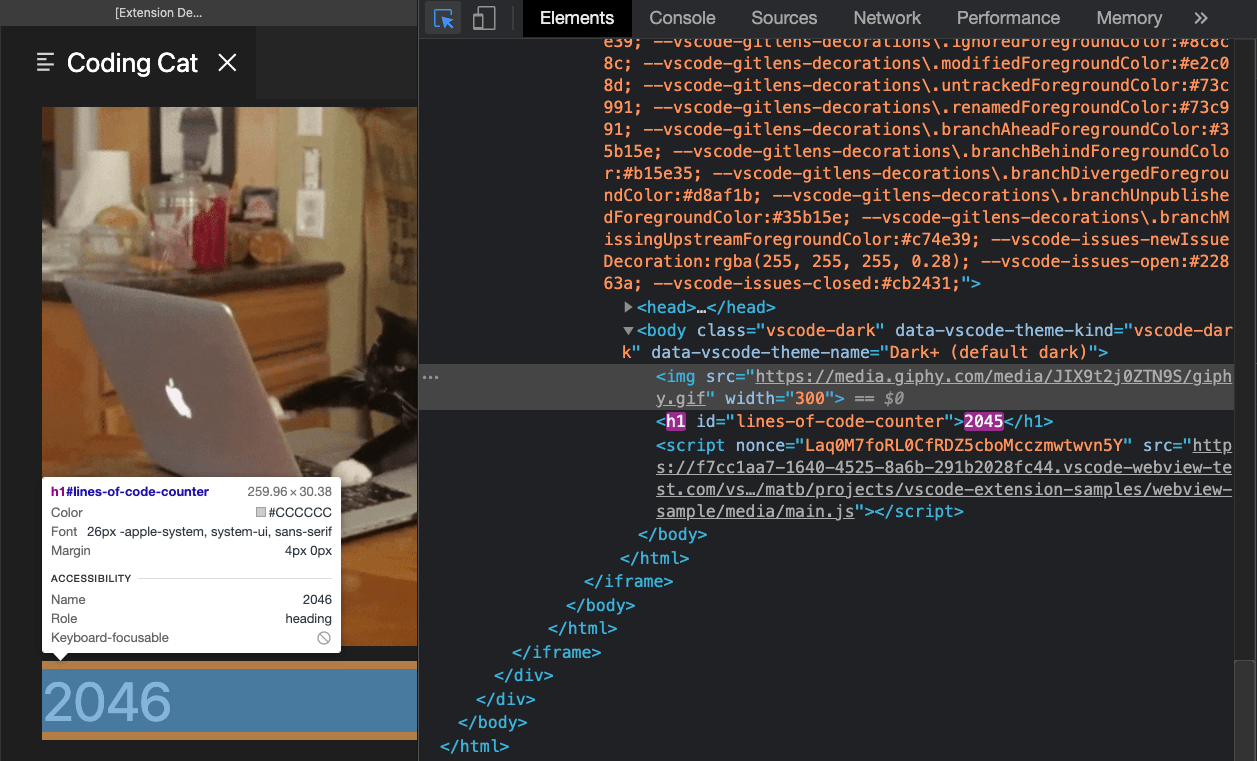
从开发者工具中,你可以使用开发者工具窗口左上角的检查工具开始检查 webview 的内容
你还可以在开发者工具控制台中查看 webview 的所有错误和日志
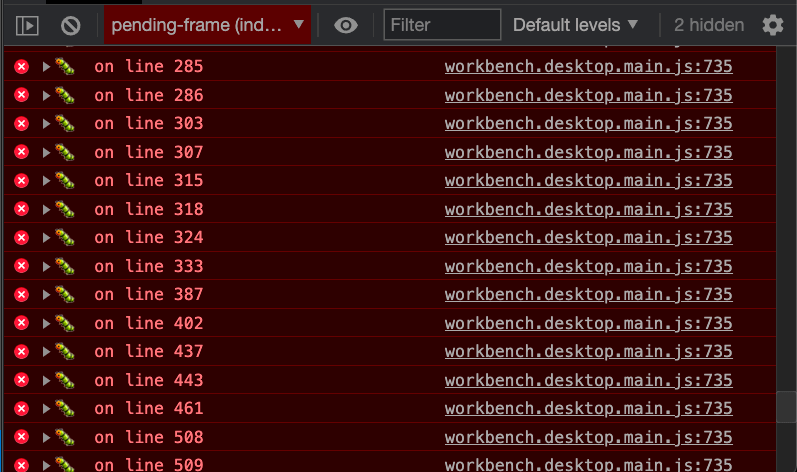
要在 webview 的上下文中评估表达式,请务必从开发者工具控制台面板左上角的下拉菜单中选择**active frame**环境
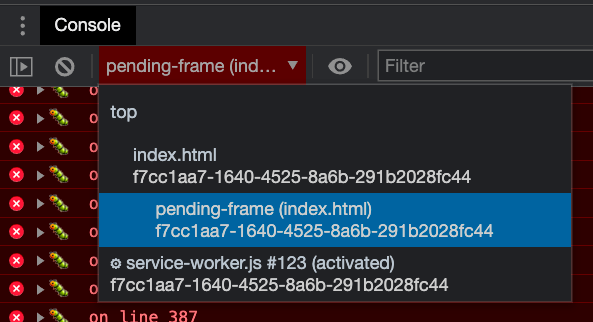
**活动帧**环境是 webview 脚本本身执行的地方。
此外,**Developer: Reload Webview** 命令会重新加载所有活动的 webview。如果你需要重置 webview 的状态,或者磁盘上某些 webview 内容已更改并且你希望加载新内容,这会很有帮助。
## [加载本地内容](https://vscode.js.cn/api/extension-guides/webview#loading-local-content)
Webview 在隔离的上下文中运行,无法直接访问本地资源。这是出于安全原因。这意味着为了从你的扩展中加载图像、样式表和其他资源,或者加载用户当前工作区中的任何内容,你必须使用 `Webview.asWebviewUri` 函数将本地 `file:` URI 转换为 VS Code 可以用来加载本地资源子集的特殊 URI。
想象一下,我们想开始将猫咪 GIF 打包到我们的扩展中,而不是从 Giphy 获取它们。为此,我们首先创建一个指向磁盘上文件的 URI,然后将这些 URI 通过 `asWebviewUri` 函数传递
```typescript
import * as vscode from 'vscode';
export function activate(context: vscode.ExtensionContext) {
context.subscriptions.push(
vscode.commands.registerCommand('catCoding.start', () => {
const panel = vscode.window.createWebviewPanel(
'catCoding',
'Cat Coding',
vscode.ViewColumn.One,
{}
);
// Get path to resource on disk
const onDiskPath = vscode.Uri.joinPath(context.extensionUri, 'media', 'cat.gif');
// And get the special URI to use with the webview
const catGifSrc = panel.webview.asWebviewUri(onDiskPath);
panel.webview.html = getWebviewContent(catGifSrc);
})
);
}
function getWebviewContent(catGifSrc: vscode.Uri) {
return `
Cat Coding
`;
}
```

设置 `webview.html` 会替换整个 webview 内容,类似于重新加载 iframe。一旦开始在 webview 中使用脚本,记住这一点很重要,因为它意味着设置 `webview.html` 也会重置脚本的状态。
上面的例子还使用 `webview.title` 更改编辑器中显示的文档标题。设置标题不会导致 webview 重新加载。
### [生命周期](https://vscode.js.cn/api/extension-guides/webview#lifecycle)
Webview 面板归创建它们的扩展所有。扩展必须持有从 `createWebviewPanel` 返回的 webview 引用。如果你的扩展失去此引用,它将无法再次访问该 webview,即使该 webview 将继续在 VS Code 中显示。
与文本编辑器一样,用户也可以随时关闭 webview 面板。当用户关闭 webview 面板时,webview 本身会被销毁。尝试使用已销毁的 webview 会抛出异常。这意味着上面使用 `setInterval` 的示例实际上有一个重要的 bug:如果用户关闭面板,`setInterval` 将继续触发,这将尝试更新 `panel.webview.html`,这当然会抛出异常。猫讨厌异常。让我们修复它!
当 webview 被销毁时,会触发 `onDidDispose` 事件。我们可以使用此事件来取消进一步的更新并清理 webview 的资源
```typescript
import * as vscode from 'vscode';
const cats = {
'Coding Cat': 'https://media.giphy.com/media/JIX9t2j0ZTN9S/giphy.gif',
'Compiling Cat': 'https://media.giphy.com/media/mlvseq9yvZhba/giphy.gif'
};
export function activate(context: vscode.ExtensionContext) {
context.subscriptions.push(
vscode.commands.registerCommand('catCoding.start', () => {
const panel = vscode.window.createWebviewPanel(
'catCoding',
'Cat Coding',
vscode.ViewColumn.One,
{}
);
let iteration = 0;
const updateWebview = () => {
const cat = iteration++ % 2 ? 'Compiling Cat' : 'Coding Cat';
panel.title = cat;
panel.webview.html = getWebviewContent(cat);
};
updateWebview();
const interval = setInterval(updateWebview, 1000);
panel.onDidDispose(
() => {
// When the panel is closed, cancel any future updates to the webview content
clearInterval(interval);
},
null,
context.subscriptions
);
})
);
}
```
扩展还可以通过调用 `dispose()` 以编程方式关闭 webview。例如,如果我们想将猫的工作日限制在五秒内
```typescript
export function activate(context: vscode.ExtensionContext) {
context.subscriptions.push(
vscode.commands.registerCommand('catCoding.start', () => {
const panel = vscode.window.createWebviewPanel(
'catCoding',
'Cat Coding',
vscode.ViewColumn.One,
{}
);
panel.webview.html = getWebviewContent('Coding Cat');
// After 5sec, programmatically close the webview panel
const timeout = setTimeout(() => panel.dispose(), 5000);
panel.onDidDispose(
() => {
// Handle user closing panel before the 5sec have passed
clearTimeout(timeout);
},
null,
context.subscriptions
);
})
);
}
```
### [可见性和移动](https://vscode.js.cn/api/extension-guides/webview#visibility-and-moving)
当 webview 面板移至后台选项卡时,它会变为隐藏。但它不会被销毁。当面板再次带到前台时,VS Code 将自动从 `webview.html` 恢复 webview 的内容

`.visible` 属性告诉你 webview 面板当前是否可见。
扩展可以通过调用 `reveal()` 以编程方式将 webview 面板带到前台。此方法接受一个可选的目标视图列以显示面板。一个 webview 面板一次只能显示在一个编辑器列中。调用 `reveal()` 或将 webview 面板拖到新编辑器列会将其移动到该新列。

让我们更新我们的扩展,使其一次只允许存在一个 webview。如果面板在后台,则 `catCoding.start` 命令会将其带到前台
```typescript
export function activate(context: vscode.ExtensionContext) {
// Track the current panel with a webview
let currentPanel: vscode.WebviewPanel | undefined = undefined;
context.subscriptions.push(
vscode.commands.registerCommand('catCoding.start', () => {
const columnToShowIn = vscode.window.activeTextEditor
? vscode.window.activeTextEditor.viewColumn
: undefined;
if (currentPanel) {
// If we already have a panel, show it in the target column
currentPanel.reveal(columnToShowIn);
} else {
// Otherwise, create a new panel
currentPanel = vscode.window.createWebviewPanel(
'catCoding',
'Cat Coding',
columnToShowIn || vscode.ViewColumn.One,
{}
);
currentPanel.webview.html = getWebviewContent('Coding Cat');
// Reset when the current panel is closed
currentPanel.onDidDispose(
() => {
currentPanel = undefined;
},
null,
context.subscriptions
);
}
})
);
}
```
这是新扩展的实际操作

每当 webview 的可见性发生变化,或 webview 移动到新列时,都会触发 `onDidChangeViewState` 事件。我们的扩展可以使用此事件根据 webview 显示的列来更改猫咪
```typescript
const cats = {
'Coding Cat': 'https://media.giphy.com/media/JIX9t2j0ZTN9S/giphy.gif',
'Compiling Cat': 'https://media.giphy.com/media/mlvseq9yvZhba/giphy.gif',
'Testing Cat': 'https://media.giphy.com/media/3oriO0OEd9QIDdllqo/giphy.gif'
};
export function activate(context: vscode.ExtensionContext) {
context.subscriptions.push(
vscode.commands.registerCommand('catCoding.start', () => {
const panel = vscode.window.createWebviewPanel(
'catCoding',
'Cat Coding',
vscode.ViewColumn.One,
{}
);
panel.webview.html = getWebviewContent('Coding Cat');
// Update contents based on view state changes
panel.onDidChangeViewState(
e => {
const panel = e.webviewPanel;
switch (panel.viewColumn) {
case vscode.ViewColumn.One:
updateWebviewForCat(panel, 'Coding Cat');
return;
case vscode.ViewColumn.Two:
updateWebviewForCat(panel, 'Compiling Cat');
return;
case vscode.ViewColumn.Three:
updateWebviewForCat(panel, 'Testing Cat');
return;
}
},
null,
context.subscriptions
);
})
);
}
function updateWebviewForCat(panel: vscode.WebviewPanel, catName: keyof typeof cats) {
panel.title = catName;
panel.webview.html = getWebviewContent(catName);
}
```

### [检查和调试 webview](https://vscode.js.cn/api/extension-guides/webview#inspecting-and-debugging-webviews)
**Developer: Toggle Developer Tools** 命令会打开一个[开发者工具](https://developer.chrome.com/docs/devtools/)窗口,你可以使用它来调试和检查你的 webview。

请注意,如果你使用的 VS Code 版本低于 1.56,或者你正在尝试调试一个设置了 `enableFindWidget` 的 webview,则必须改用 **Developer: Open Webview Developer Tools** 命令。此命令会为每个 webview 打开一个专用的开发者工具页面,而不是使用所有 webview 和编辑器本身共享的开发者工具页面。
从开发者工具中,你可以使用开发者工具窗口左上角的检查工具开始检查 webview 的内容

你还可以在开发者工具控制台中查看 webview 的所有错误和日志

要在 webview 的上下文中评估表达式,请务必从开发者工具控制台面板左上角的下拉菜单中选择**active frame**环境

**活动帧**环境是 webview 脚本本身执行的地方。
此外,**Developer: Reload Webview** 命令会重新加载所有活动的 webview。如果你需要重置 webview 的状态,或者磁盘上某些 webview 内容已更改并且你希望加载新内容,这会很有帮助。
## [加载本地内容](https://vscode.js.cn/api/extension-guides/webview#loading-local-content)
Webview 在隔离的上下文中运行,无法直接访问本地资源。这是出于安全原因。这意味着为了从你的扩展中加载图像、样式表和其他资源,或者加载用户当前工作区中的任何内容,你必须使用 `Webview.asWebviewUri` 函数将本地 `file:` URI 转换为 VS Code 可以用来加载本地资源子集的特殊 URI。
想象一下,我们想开始将猫咪 GIF 打包到我们的扩展中,而不是从 Giphy 获取它们。为此,我们首先创建一个指向磁盘上文件的 URI,然后将这些 URI 通过 `asWebviewUri` 函数传递
```typescript
import * as vscode from 'vscode';
export function activate(context: vscode.ExtensionContext) {
context.subscriptions.push(
vscode.commands.registerCommand('catCoding.start', () => {
const panel = vscode.window.createWebviewPanel(
'catCoding',
'Cat Coding',
vscode.ViewColumn.One,
{}
);
// Get path to resource on disk
const onDiskPath = vscode.Uri.joinPath(context.extensionUri, 'media', 'cat.gif');
// And get the special URI to use with the webview
const catGifSrc = panel.webview.asWebviewUri(onDiskPath);
panel.webview.html = getWebviewContent(catGifSrc);
})
);
}
function getWebviewContent(catGifSrc: vscode.Uri) {
return `
Cat Coding
 `;
}
```
如果调试此代码,我们会发现 `catGifSrc` 的实际值类似于
```typescript
vscode-resource:/Users/toonces/projects/vscode-cat-coding/media/cat.gif
```
VS Code 理解这个特殊的 URI,并将使用它从磁盘加载我们的 gif!
默认情况下,webview 只能访问以下位置的资源
- 在你的扩展安装目录内。
- 在用户当前活动的工作区内。
使用 `WebviewOptions.localResourceRoots` 允许访问其他本地资源。
你也可以始终使用数据 URI 将资源直接嵌入到 webview 中。
### [控制对本地资源的访问](https://vscode.js.cn/api/extension-guides/webview#controlling-access-to-local-resources)
Webview 可以使用 `localResourceRoots` 选项控制可以从用户机器加载哪些资源。`localResourceRoots` 定义了一组根 URI,可以从这些 URI 加载本地内容。
我们可以使用 `localResourceRoots` 将 **Cat Coding** webview 限制为只能从我们扩展中的 `media` 目录加载资源
```typescript
import * as vscode from 'vscode';
export function activate(context: vscode.ExtensionContext) {
context.subscriptions.push(
vscode.commands.registerCommand('catCoding.start', () => {
const panel = vscode.window.createWebviewPanel(
'catCoding',
'Cat Coding',
vscode.ViewColumn.One,
{
// Only allow the webview to access resources in our extension's media directory
localResourceRoots: [vscode.Uri.joinPath(context.extensionUri, 'media')]
}
);
const onDiskPath = vscode.Uri.joinPath(context.extensionUri, 'media', 'cat.gif');
const catGifSrc = panel.webview.asWebviewUri(onDiskPath);
panel.webview.html = getWebviewContent(catGifSrc);
})
);
}
```
要禁用所有本地资源,只需将 `localResourceRoots` 设置为 `[]`。
通常,webview 在加载本地资源时应尽可能严格。但是,请记住 `localResourceRoots` 本身并不能提供完整的安全保护。确保你的 webview 还遵循[安全最佳实践](https://vscode.js.cn/api/extension-guides/webview#security),并添加[内容安全策略](https://vscode.js.cn/api/extension-guides/webview#content-security-policy)以进一步限制可以加载的内容。
### [为 webview 内容设置主题](https://vscode.js.cn/api/extension-guides/webview#theming-webview-content)
Webview 可以使用 CSS 根据 VS Code 的当前主题更改其外观。VS Code 将主题分为三类,并向 `body` 元素添加一个特殊类来指示当前主题
- `vscode-light` - 浅色主题。
- `vscode-dark` - 深色主题。
- `vscode-high-contrast` - 高对比度主题。
以下 CSS 根据用户的当前主题更改 webview 的文本颜色
```css
body.vscode-light {
color: black;
}
body.vscode-dark {
color: white;
}
body.vscode-high-contrast {
color: red;
}
```
在开发 webview 应用程序时,请确保它适用于这三种类型的主题。并且始终在高对比度模式下测试你的 webview,以确保视障人士可以使用它。
Webview 还可以使用[CSS 变量](https://mdn.org.cn/docs/Web/CSS/Using_CSS_variables)访问 VS Code 主题颜色。这些变量名称以 `vscode` 为前缀,并将 `.` 替换为 `-`。例如,`editor.foreground` 变为 `var(--vscode-editor-foreground)`
```css
code {
color: var(--vscode-editor-foreground);
}
```
查阅[主题颜色参考](https://vscode.js.cn/api/references/theme-color)以获取可用的主题变量。[有一个扩展](https://marketplace.visualstudio.com/items?itemName=connor4312.css-theme-completions)提供这些变量的 IntelliSense 建议。
还定义了以下与字体相关的变量
- `--vscode-editor-font-family` - 编辑器字体家族(来自 `editor.fontFamily` 设置)。
- `--vscode-editor-font-weight` - 编辑器字体粗细(来自 `editor.fontWeight` 设置)。
- `--vscode-editor-font-size` - 编辑器字体大小(来自 `editor.fontSize` 设置)。
最后,对于需要编写针对单一主题的 CSS 的特殊情况,webview 的 body 元素有一个名为 `vscode-theme-id` 的数据属性,它存储当前活动主题的 ID。这允许你为 webview 编写主题特定的 CSS
```css
body[data-vscode-theme-id="One Dark Pro"] {
background: hotpink;
}
```
### [支持的媒体格式](https://vscode.js.cn/api/extension-guides/webview#supported-media-formats)
Webview 支持音频和视频,但并非所有媒体编解码器或媒体文件容器类型都受支持。
以下音频格式可在 Webview 中使用
- Wav
- Mp3
- Ogg
- Flac
以下视频格式可在 webview 中使用
- H.264
- VP8
对于视频文件,请确保视频和音频轨道的媒体格式都受支持。例如,许多 `.mp4` 文件使用 `H.264` 作为视频,`AAC` 作为音频。VS Code 将能够播放 `mp4` 的视频部分,但由于不支持 `AAC` 音频,因此不会有声音。相反,你需要将 `mp3` 用于音轨。
### [上下文菜单](https://vscode.js.cn/api/extension-guides/webview#context-menus)
高级 webview 可以自定义用户在 webview 内右键单击时显示的上下文菜单。这是通过[贡献点](https://vscode.js.cn/api/references/contribution-points)完成的,类似于 VS Code 的常规上下文菜单,因此自定义菜单与编辑器的其他部分完美契合。Webview 还可以为 webview 的不同部分显示自定义上下文菜单。
要向 webview 添加新的上下文菜单项,首先在 `menus` 下的新 `webview/context` 部分添加一个新条目。每个贡献都包含一个 `command`(也是项目标题的来源)和一个 `when` 子句。[when 子句](https://vscode.js.cn/api/references/when-clause-contexts)应包含 `webviewId == 'YOUR_WEBVIEW_VIEW_TYPE'`,以确保上下文菜单仅适用于你的扩展的 webview
```json
"contributes": {
"menus": {
"webview/context": [
{
"command": "catCoding.yarn",
"when": "webviewId == 'catCoding'"
},
{
"command": "catCoding.insertLion",
"when": "webviewId == 'catCoding' && webviewSection == 'editor'"
}
]
},
"commands": [
{
"command": "catCoding.yarn",
"title": "Yarn 🧶",
"category": "Cat Coding"
},
{
"command": "catCoding.insertLion",
"title": "Insert 🦁",
"category": "Cat Coding"
},
...
]
}
```
在 webview 内部,你还可以使用 `data-vscode-context` [数据属性](https://mdn.org.cn/docs/Learn/HTML/Howto/Use_data_attributes)(或在 JavaScript 中使用 `dataset.vscodeContext`)设置 HTML 特定区域的上下文。`data-vscode-context` 的值是一个 JSON 对象,它指定当用户右键单击元素时要设置的上下文。最终上下文是通过从文档根目录到单击的元素来确定的。
例如,考虑以下 HTML
```html
`;
}
```
如果调试此代码,我们会发现 `catGifSrc` 的实际值类似于
```typescript
vscode-resource:/Users/toonces/projects/vscode-cat-coding/media/cat.gif
```
VS Code 理解这个特殊的 URI,并将使用它从磁盘加载我们的 gif!
默认情况下,webview 只能访问以下位置的资源
- 在你的扩展安装目录内。
- 在用户当前活动的工作区内。
使用 `WebviewOptions.localResourceRoots` 允许访问其他本地资源。
你也可以始终使用数据 URI 将资源直接嵌入到 webview 中。
### [控制对本地资源的访问](https://vscode.js.cn/api/extension-guides/webview#controlling-access-to-local-resources)
Webview 可以使用 `localResourceRoots` 选项控制可以从用户机器加载哪些资源。`localResourceRoots` 定义了一组根 URI,可以从这些 URI 加载本地内容。
我们可以使用 `localResourceRoots` 将 **Cat Coding** webview 限制为只能从我们扩展中的 `media` 目录加载资源
```typescript
import * as vscode from 'vscode';
export function activate(context: vscode.ExtensionContext) {
context.subscriptions.push(
vscode.commands.registerCommand('catCoding.start', () => {
const panel = vscode.window.createWebviewPanel(
'catCoding',
'Cat Coding',
vscode.ViewColumn.One,
{
// Only allow the webview to access resources in our extension's media directory
localResourceRoots: [vscode.Uri.joinPath(context.extensionUri, 'media')]
}
);
const onDiskPath = vscode.Uri.joinPath(context.extensionUri, 'media', 'cat.gif');
const catGifSrc = panel.webview.asWebviewUri(onDiskPath);
panel.webview.html = getWebviewContent(catGifSrc);
})
);
}
```
要禁用所有本地资源,只需将 `localResourceRoots` 设置为 `[]`。
通常,webview 在加载本地资源时应尽可能严格。但是,请记住 `localResourceRoots` 本身并不能提供完整的安全保护。确保你的 webview 还遵循[安全最佳实践](https://vscode.js.cn/api/extension-guides/webview#security),并添加[内容安全策略](https://vscode.js.cn/api/extension-guides/webview#content-security-policy)以进一步限制可以加载的内容。
### [为 webview 内容设置主题](https://vscode.js.cn/api/extension-guides/webview#theming-webview-content)
Webview 可以使用 CSS 根据 VS Code 的当前主题更改其外观。VS Code 将主题分为三类,并向 `body` 元素添加一个特殊类来指示当前主题
- `vscode-light` - 浅色主题。
- `vscode-dark` - 深色主题。
- `vscode-high-contrast` - 高对比度主题。
以下 CSS 根据用户的当前主题更改 webview 的文本颜色
```css
body.vscode-light {
color: black;
}
body.vscode-dark {
color: white;
}
body.vscode-high-contrast {
color: red;
}
```
在开发 webview 应用程序时,请确保它适用于这三种类型的主题。并且始终在高对比度模式下测试你的 webview,以确保视障人士可以使用它。
Webview 还可以使用[CSS 变量](https://mdn.org.cn/docs/Web/CSS/Using_CSS_variables)访问 VS Code 主题颜色。这些变量名称以 `vscode` 为前缀,并将 `.` 替换为 `-`。例如,`editor.foreground` 变为 `var(--vscode-editor-foreground)`
```css
code {
color: var(--vscode-editor-foreground);
}
```
查阅[主题颜色参考](https://vscode.js.cn/api/references/theme-color)以获取可用的主题变量。[有一个扩展](https://marketplace.visualstudio.com/items?itemName=connor4312.css-theme-completions)提供这些变量的 IntelliSense 建议。
还定义了以下与字体相关的变量
- `--vscode-editor-font-family` - 编辑器字体家族(来自 `editor.fontFamily` 设置)。
- `--vscode-editor-font-weight` - 编辑器字体粗细(来自 `editor.fontWeight` 设置)。
- `--vscode-editor-font-size` - 编辑器字体大小(来自 `editor.fontSize` 设置)。
最后,对于需要编写针对单一主题的 CSS 的特殊情况,webview 的 body 元素有一个名为 `vscode-theme-id` 的数据属性,它存储当前活动主题的 ID。这允许你为 webview 编写主题特定的 CSS
```css
body[data-vscode-theme-id="One Dark Pro"] {
background: hotpink;
}
```
### [支持的媒体格式](https://vscode.js.cn/api/extension-guides/webview#supported-media-formats)
Webview 支持音频和视频,但并非所有媒体编解码器或媒体文件容器类型都受支持。
以下音频格式可在 Webview 中使用
- Wav
- Mp3
- Ogg
- Flac
以下视频格式可在 webview 中使用
- H.264
- VP8
对于视频文件,请确保视频和音频轨道的媒体格式都受支持。例如,许多 `.mp4` 文件使用 `H.264` 作为视频,`AAC` 作为音频。VS Code 将能够播放 `mp4` 的视频部分,但由于不支持 `AAC` 音频,因此不会有声音。相反,你需要将 `mp3` 用于音轨。
### [上下文菜单](https://vscode.js.cn/api/extension-guides/webview#context-menus)
高级 webview 可以自定义用户在 webview 内右键单击时显示的上下文菜单。这是通过[贡献点](https://vscode.js.cn/api/references/contribution-points)完成的,类似于 VS Code 的常规上下文菜单,因此自定义菜单与编辑器的其他部分完美契合。Webview 还可以为 webview 的不同部分显示自定义上下文菜单。
要向 webview 添加新的上下文菜单项,首先在 `menus` 下的新 `webview/context` 部分添加一个新条目。每个贡献都包含一个 `command`(也是项目标题的来源)和一个 `when` 子句。[when 子句](https://vscode.js.cn/api/references/when-clause-contexts)应包含 `webviewId == 'YOUR_WEBVIEW_VIEW_TYPE'`,以确保上下文菜单仅适用于你的扩展的 webview
```json
"contributes": {
"menus": {
"webview/context": [
{
"command": "catCoding.yarn",
"when": "webviewId == 'catCoding'"
},
{
"command": "catCoding.insertLion",
"when": "webviewId == 'catCoding' && webviewSection == 'editor'"
}
]
},
"commands": [
{
"command": "catCoding.yarn",
"title": "Yarn 🧶",
"category": "Cat Coding"
},
{
"command": "catCoding.insertLion",
"title": "Insert 🦁",
"category": "Cat Coding"
},
...
]
}
```
在 webview 内部,你还可以使用 `data-vscode-context` [数据属性](https://mdn.org.cn/docs/Learn/HTML/Howto/Use_data_attributes)(或在 JavaScript 中使用 `dataset.vscodeContext`)设置 HTML 特定区域的上下文。`data-vscode-context` 的值是一个 JSON 对象,它指定当用户右键单击元素时要设置的上下文。最终上下文是通过从文档根目录到单击的元素来确定的。
例如,考虑以下 HTML
```html
Cat Coding
```
如果用户右键单击 `textarea`,将设置以下上下文
- `webviewSection == 'editor'` - 这会覆盖父元素中的 `webviewSection`。
- `mouseCount == 4` - 这是从父元素继承的。
- `preventDefaultContextMenuItems == true` - 这是一个特殊上下文,它会隐藏 VS Code 通常添加到 webview 上下文菜单中的复制和粘贴条目。
如果用户在 `