
AgentPaint
A Rust CLI, APX/APXA pixel-art format, and cross-agent Skill for LLM-friendly exact-size pixel art.
中文文档
·
Install
·
中文安装
·
Examples
·
Skill Compatibility
The slime above is a transparent `16x16` APXA animation rendered at the exact source size, then point-upscaled to `512x512` only for README display. AgentPaint keeps artwork dimensions exact; previews are separate inspection assets.
## What It Is
AgentPaint gives coding agents a practical way to create pixel art without writing raw RGBA arrays.
- `agentpaint`: a Rust CLI for validation, import, rendering, patching, animation, previews, PSD export, and RGBA export.
- `APX`: a JSON pixel-art source format with palette symbols, text rows, local chunks, and Photoshop-style top-to-bottom layers.
- `APXA`: an animation format that reuses APX layers and applies frame-local patch operations before GIF export.
- `agent-paint-pixel-skills`: a portable `SKILL.md` workflow that tells compatible CLI/IDE agents how to author APX/APXA files and call the installed CLI from `PATH`.
The installed Skill does not need this source repository at runtime. It should write APX/APXA files in the current workspace and call `agentpaint` from `PATH`.
## Generated Examples
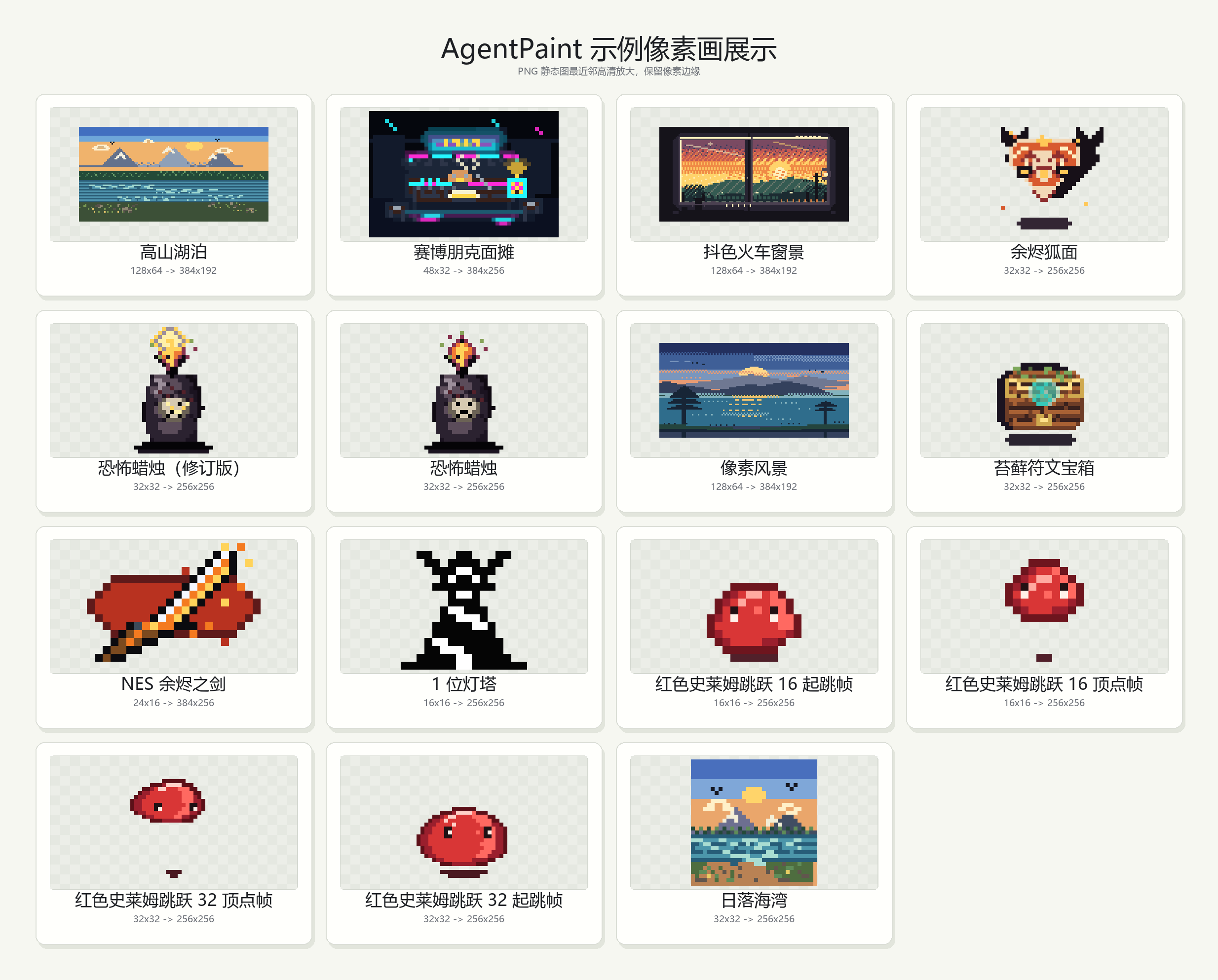
The example sources live in [examples](examples). Rendered PNG/GIF files are generated artifacts, except for README showcase files that are intentionally tracked.
## Quick Install
Install the CLI and the default universal/Codex-compatible Skill:
```bash
sh ./scripts/install.sh --update-path
```
Windows PowerShell:
```powershell
.\scripts\install.ps1 -UpdatePath
```
Verify:
```bash
agentpaint --help
```
For other CLI/IDE agents, install only the Skill to a target:
```bash
sh ./scripts/install.sh --skip-cli --skill-target claude-code
sh ./scripts/install.sh --skip-cli --skill-target cursor --project-skills
sh ./scripts/install.sh --skip-cli --all-skill-targets
```
Windows PowerShell:
```powershell
.\scripts\install.ps1 -SkipCli -SkillTargets claude-code
.\scripts\install.ps1 -SkipCli -ProjectSkills -SkillTargets cursor
.\scripts\install.ps1 -SkipCli -AllSkillTargets
```
See [docs/install.md](docs/install.md) or [docs/install.zh-CN.md](docs/install.zh-CN.md) for paths, supported targets, and update steps.
## CLI Usage
```bash
agentpaint validate
agentpaint inspect
agentpaint import-image --out
agentpaint render --out
agentpaint supersample --out
agentpaint patch --patch --out
agentpaint export-rgba --out
agentpaint export-psd --out
agentpaint validate-animation
agentpaint import-gif --out
agentpaint inspect-animation
agentpaint render-frame --frame 0 --out
agentpaint supersample-frame --frame 0 --out
agentpaint render-gif --out
```
`import-image` converts an existing raster image to a single-layer APX project without resizing. `import-gif` converts an existing GIF to APXA frames, preserving the source frame dimensions and durations. Both commands assign single-character palette symbols automatically.
Layer order matches Photoshop: `layers[0]` is the visual top/front layer, and the last layer is the visual bottom/back layer. PSD export preserves layer names, top-to-bottom order, visibility, opacity, and palette alpha.
For visual inspection, use `supersample` or `supersample-frame` and inspect the point-upscaled preview instead of the raw low-resolution render. Supersampling uses integer nearest-neighbor scaling and never changes the APX/APXA source dimensions.
GIF export uses the GIF format's practical transparency model. Fully transparent pixels stay transparent, but partial alpha such as soft shadows is quantized during GIF encoding; use PNG frames or APX/APXA source when semi-transparent pixels matter.
## APX Example
```json
{
"canvas": { "width": 4, "height": 4 },
"background": "#dfe8c8",
"palette": {
".": "transparent",
"K": "#171717",
"R": "#d93636"
},
"layers": [
{
"name": "paint",
"rows": [
"_",
"_RR_",
"_KK_",
"_"
]
}
]
}
```
Rules to remember:
- `.` is always transparent.
- `_` is reserved and must not be defined in `palette`.
- Without top-level `background`, `_` renders transparent.
- With top-level `background`, `_` renders as that background color.
- A full-canvas row that is exactly `"_"` expands to the full canvas width.
Full schemas:
- [schemas/apx-v0.schema.json](schemas/apx-v0.schema.json)
- [schemas/apx-patch-v0.schema.json](schemas/apx-patch-v0.schema.json)
- [schemas/apxa-v0.schema.json](schemas/apxa-v0.schema.json)
## Agent Skill
Source Skill:
```text
.agents/skills/agent-paint-pixel-skills
```
Distribution Skill mirror:
```text
skills/agent-paint-pixel-skills
```
Invoke it from a compatible agent:
```text
Use $agent-paint-pixel-skills to generate a 32x32 layered APX sprite, validate it, render it, and create a point-upscaled preview for inspection.
```
Supported installer targets include `universal`/`codex`, `claude-code`, `copilot`, `gemini`, `kiro`, `cline`, `roo-code`, `kilo-code`, `factory`, `goose`, `opencode`, `antigravity`, `cursor`, `windsurf`, `trae`, and `junie`.
Plugin/distribution metadata:
```text
.codex-plugin/plugin.json
.claude-plugin/plugin.json
.claude-plugin/marketplace.json
skill.json
```
## Documentation
- [中文项目指南](docs/README.zh-CN.md)
- [中文安装指南](docs/install.zh-CN.md)
- [Install AgentPaint CLI And Skills](docs/install.md)
- [APX/APXA CLI + Skill Spec](docs/agentpaint-cli-skill-spec.md)
- [LLM Pixel-Art Format Notes](docs/llm-pixel-art-format.md)
- [Pixel-Art Style Research](docs/pixel-art-style-research.md)
- [Skill Compatibility](docs/skill-compatibility.md)
- [Examples](docs/examples.md)
## Development
From this repository, `cargo run -- ` is equivalent to running the installed `agentpaint` binary:
```bash
cargo run -- validate examples/one-bit-lighthouse-16.apx
cargo test
cargo fmt --check
```
The repo-level skill source is `.agents/skills/agent-paint-pixel-skills`; the distributable mirror is `skills/agent-paint-pixel-skills`. Keep them synchronized with:
```bash
sh ./scripts/sync-skill-mirror.sh --check
sh ./scripts/sync-skill-mirror.sh
```
## License
MIT. See [LICENSE](LICENSE).