# AI Shell
## Setup
> The minimum supported version of Node.js is v14
1. Install _ai shell_:
```sh
npm install -g @builder.io/ai-shell
```
2. Retrieve your API key from [OpenAI](https://platform.openai.com/account/api-keys)
> Note: If you haven't already, you'll have to create an account and set up billing.
3. Set the key so ai-shell can use it:
```sh
ai config set OPENAI_KEY=
```
This will create a `.ai-shell` file in your home directory.
## Usage
```bash
ai
```
For example:
```bash
ai list all log files
```
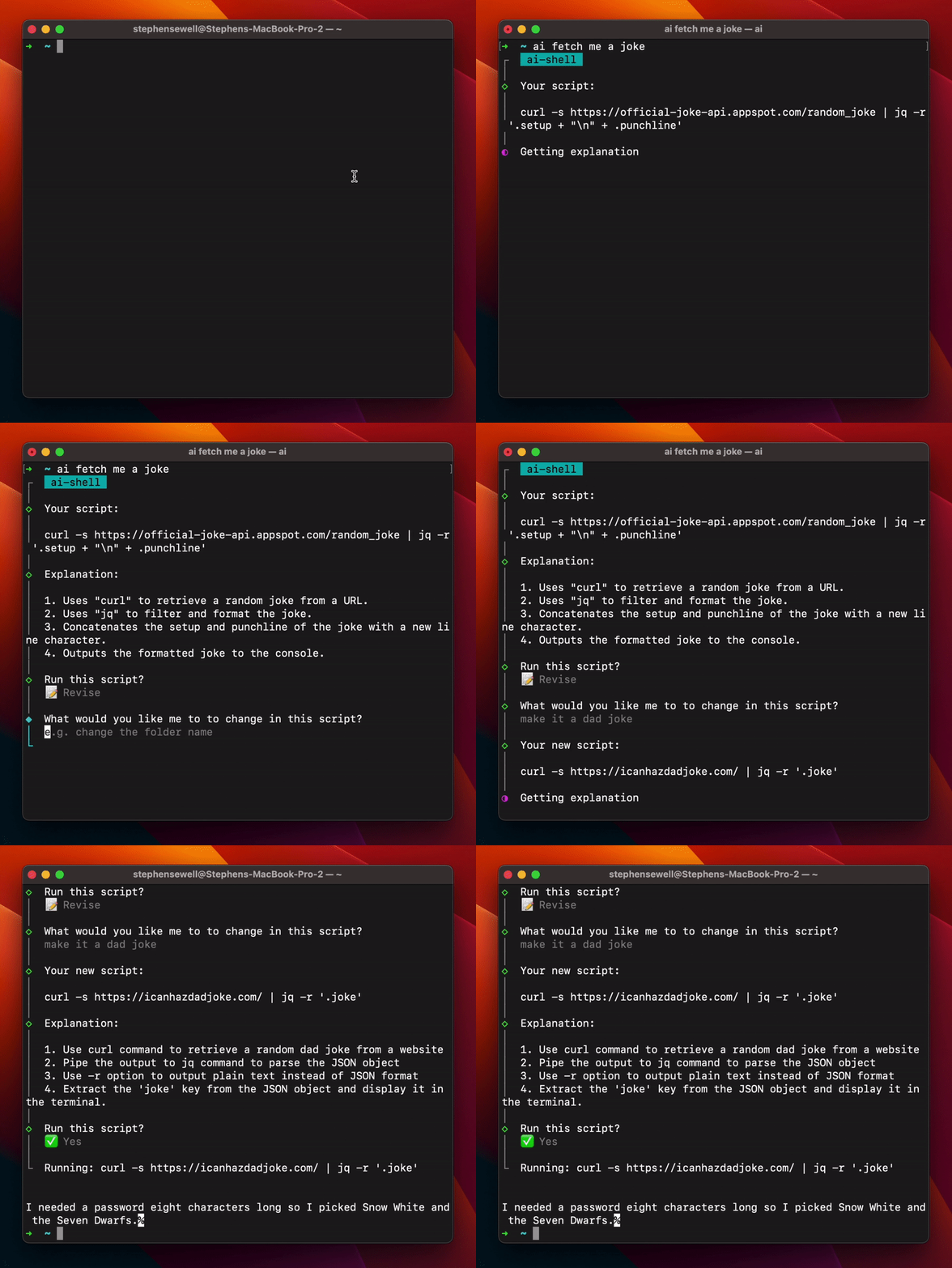
Then you will get an output like this, where you can choose to run the suggested command, revise the command via a prompt, or cancel:
```bash
◇ Your script:
│
│ find . -name "*.log"
│
◇ Explanation:
│
│ 1. Searches for all files with the extension ".log" in the current directory and any subdirectories.
│
◆ Run this script?
│ ● ✅ Yes (Lets go!)
│ ○ 📝 Revise
│ ○ ❌ Cancel
└
```
### Special characters
Note that some shells handle certain characters like the `?` or `*` or things that look like file paths specially. If you are getting strange behaviors, you can wrap the prompt in quotes to avoid issues, like below:
```bash
ai 'what is my ip address'
```
### Chat mode

```bash
ai chat
```
With this mode, you can engage in a conversation with the AI and receive helpful responses in a natural, conversational manner directly through the CLI:
```sh
┌ Starting new conversation
│
◇ You:
│ how do I serve a redirect in express
│
◇ AI Shell:
In Express, you can use the `redirect()` method to serve a redirect. The `redirect()` method takes one argument, which is the URL that you want to redirect to.
Here's an example:
\`\`\`js
app.get('/oldurl', (req, res) => {
res.redirect('/newurl');
});
\`\`\`
```
### Silent mode (skip explanations)
You can disable and skip the explanation section by using the flag `-s` or `--silent`
```bash
ai -s list all log files
```
or save the option as a preference using this command:
```bash
ai config set SILENT_MODE=true
```
### Custom API endpoint
You can custom OpenAI API endpoint to set OPENAI_API_ENDPOINT(default: `https://api.openai.com/v1`)
```sh
ai config set OPENAI_API_ENDPOINT=
```
### Set Language

The AI Shell's default language is English, but you can easily switch to your preferred language by using the corresponding language keys, as shown below:
| Language | Key |
| ------------------- | ------- |
| English | en |
| Simplified Chinese | zh-Hans |
| Traditional Chinese | zh-Hant |
| Spanish | es |
| Japanese | jp |
| Korean | ko |
| French | fr |
| German | de |
| Russian | ru |
| Ukrainian | uk |
| Vietnamese | vi |
| Arabic | ar |
| Portuguese | pt |
| Turkish | tr |
For instance, if you want to switch to Simplified Chinese, you can do so by setting the LANGUAGE value to zh-Hans:
```sh
ai config set LANGUAGE=zh-Hans
```
This will set your language to Simplified Chinese.
### Config UI
To use a more visual interface to view and set config options you can type:
```bash
ai config
```
To get an interactive UI like below:
```bash
◆ Set config:
│ ○ OpenAI Key
│ ○ OpenAI API Endpoint
│ ○ Silent Mode
│ ● Model (gpt-4o-mini)
│ ○ Language
│ ○ Cancel
└
```
### Upgrading
Check the installed version with:
```bash
ai --version
```
If it's not the [latest version](https://github.com/BuilderIO/ai-shell/tags), run:
```bash
npm update -g @builder.io/ai-shell
```
Or just use AI shell:
```bash
ai update
```
## Common Issues
### 429 error
Some users are reporting a 429 from OpenAI. This is due to incorrect billing setup or excessive quota usage. Please follow [this guide](https://help.openai.com/en/articles/6891831-error-code-429-you-exceeded-your-current-quota-please-check-your-plan-and-billing-details) to fix it.
You can activate billing at [this link](https://platform.openai.com/account/billing/overview). Make sure to add a payment method if not under an active grant from OpenAI.
## Motivation
I am not a bash wizard, and am dying for access to the copilot CLI, and got impatient.
## Contributing
If you want to help fix a bug or implement a feature in [Issues](https://github.com/BuilderIO/ai-shell/issues) (tip: look out for the `help wanted` label), checkout the [Contribution Guide](CONTRIBUTING.md) to learn how to setup the project.
## Credit
- Thanks to GitHub Copilot for their amazing tools and the idea for this.
- Thanks to Hassan and his work on [aicommits](https://github.com/Nutlope/aicommits), which inspired the workflow and some parts of the code and flows