# AI Engineer MCP 2025
This project hosts the AI Engineer Conference 2025 talk submission system and MCP server.
Thanks to @threepointone for help setting this up with Cloudflare! <3
 ## add this to your MCP Client
`https://ai-engineer-wf-2025.swyx-5de.workers.dev/sse`
```json
// for example .cursor/mcp.json
{
"mcpServers": {
"AIECONF": {
"url": "https://ai-engineer-wf-2025.swyx-5de.workers.dev/sse"
}
}
}
```
and then try "tell me about the conference" in your chat app that will then call the MCP server.
## Project Structure
The project is built as a Cloudflare Worker with the following key components:
- MCP server implementation in `src/index.ts`
- Application logic in `src/app.ts`
- Utility functions in `src/utils.ts`
- Static assets in `static/` directory
## Develop locally
```bash
# clone the repository
git clone git@github.com:cloudflare/ai.git
# install dependencies
cd ai
npm install
# run locally
npx wrangler dev
```
You should be able to open [`http://localhost:8787/`](http://localhost:8787/) in your browser
## Connect the MCP inspector to your server
To explore your new MCP api, you can use the [MCP Inspector](https://modelcontextprotocol.io/docs/tools/inspector).
- Start it with `npx @modelcontextprotocol/inspector`
- [Within the inspector](http://localhost:5173), switch the Transport Type to `SSE` and enter `http://localhost:8787/sse` as the URL of the MCP server to connect to, and click "Connect"
- You will navigate to a (mock) user/password login screen. Input any email and pass to login.
- You should be redirected back to the MCP Inspector and you can now list and call any defined tools!
## Connect Claude Desktop to your local MCP server
The MCP inspector is great, but we really want to connect this to Claude! Follow [Anthropic's Quickstart](https://modelcontextprotocol.io/quickstart/user) and within Claude Desktop go to Settings > Developer > Edit Config to find your configuration file.
Open the file in your text editor and replace it with this configuration:
```json
{
"mcpServers": {
"math": {
"command": "npx",
"args": [
"mcp-remote",
"http://localhost:8787/sse"
]
}
}
}
```
This will run a local proxy and let Claude talk to your MCP server over HTTP
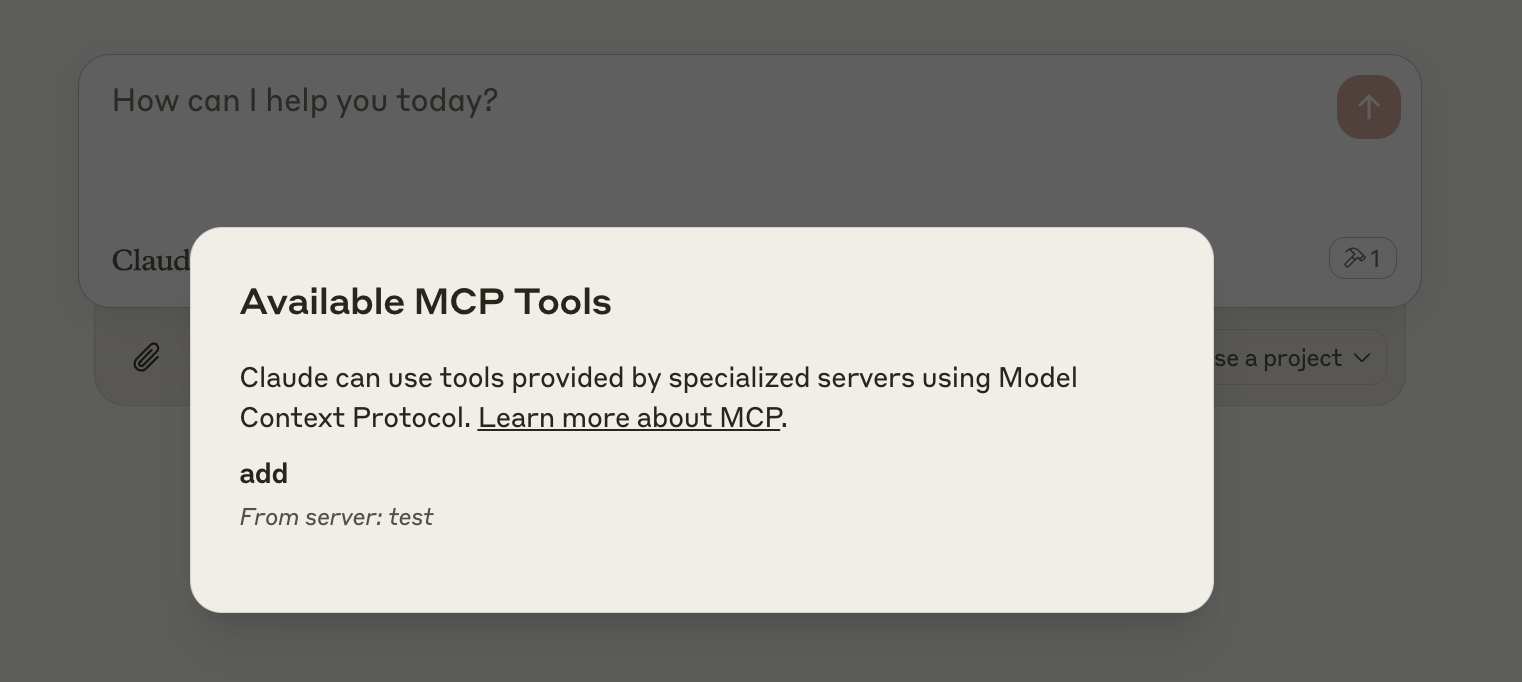
When you open Claude a browser window should open and allow you to login. You should see the tools available in the bottom right. Given the right prompt Claude should ask to call the tool.
## Deploy to Cloudflare
1. Make sure you have the following KV namespaces created:
- `OAUTH_KV` for authentication
- `AIEWFSUBMISSIONS` for talk submissions
2. Ensure your secrets store is configured with the `SECRETKEY`
3. Deploy using:
```bash
npm run deploy
```
## Call your newly deployed remote MCP server from a remote MCP client
Just like you did above in "Develop locally", run the MCP inspector:
`npx @modelcontextprotocol/inspector@latest`
Then enter the `workers.dev` URL (ex: `worker-name.account-name.workers.dev/sse`) of your Worker in the inspector as the URL of the MCP server to connect to, and click "Connect".
You've now connected to your MCP server from a remote MCP client.
## Connect Claude Desktop to your remote MCP server
Update the Claude configuration file to point to your `workers.dev` URL (ex: `worker-name.account-name.workers.dev/sse`) and restart Claude
```json
{
"mcpServers": {
"math": {
"command": "npx",
"args": [
"mcp-remote",
"https://worker-name.account-name.workers.dev/sse"
]
}
}
}
```
## Debugging
Should anything go wrong it can be helpful to restart Claude, or to try connecting directly to your
MCP server on the command line with the following command.
```bash
npx mcp-remote http://localhost:8787/sse
```
In some rare cases it may help to clear the files added to `~/.mcp-auth`
```bash
rm -rf ~/.mcp-auth
```
## add this to your MCP Client
`https://ai-engineer-wf-2025.swyx-5de.workers.dev/sse`
```json
// for example .cursor/mcp.json
{
"mcpServers": {
"AIECONF": {
"url": "https://ai-engineer-wf-2025.swyx-5de.workers.dev/sse"
}
}
}
```
and then try "tell me about the conference" in your chat app that will then call the MCP server.
## Project Structure
The project is built as a Cloudflare Worker with the following key components:
- MCP server implementation in `src/index.ts`
- Application logic in `src/app.ts`
- Utility functions in `src/utils.ts`
- Static assets in `static/` directory
## Develop locally
```bash
# clone the repository
git clone git@github.com:cloudflare/ai.git
# install dependencies
cd ai
npm install
# run locally
npx wrangler dev
```
You should be able to open [`http://localhost:8787/`](http://localhost:8787/) in your browser
## Connect the MCP inspector to your server
To explore your new MCP api, you can use the [MCP Inspector](https://modelcontextprotocol.io/docs/tools/inspector).
- Start it with `npx @modelcontextprotocol/inspector`
- [Within the inspector](http://localhost:5173), switch the Transport Type to `SSE` and enter `http://localhost:8787/sse` as the URL of the MCP server to connect to, and click "Connect"
- You will navigate to a (mock) user/password login screen. Input any email and pass to login.
- You should be redirected back to the MCP Inspector and you can now list and call any defined tools!
## Connect Claude Desktop to your local MCP server
The MCP inspector is great, but we really want to connect this to Claude! Follow [Anthropic's Quickstart](https://modelcontextprotocol.io/quickstart/user) and within Claude Desktop go to Settings > Developer > Edit Config to find your configuration file.
Open the file in your text editor and replace it with this configuration:
```json
{
"mcpServers": {
"math": {
"command": "npx",
"args": [
"mcp-remote",
"http://localhost:8787/sse"
]
}
}
}
```
This will run a local proxy and let Claude talk to your MCP server over HTTP
When you open Claude a browser window should open and allow you to login. You should see the tools available in the bottom right. Given the right prompt Claude should ask to call the tool.
## Deploy to Cloudflare
1. Make sure you have the following KV namespaces created:
- `OAUTH_KV` for authentication
- `AIEWFSUBMISSIONS` for talk submissions
2. Ensure your secrets store is configured with the `SECRETKEY`
3. Deploy using:
```bash
npm run deploy
```
## Call your newly deployed remote MCP server from a remote MCP client
Just like you did above in "Develop locally", run the MCP inspector:
`npx @modelcontextprotocol/inspector@latest`
Then enter the `workers.dev` URL (ex: `worker-name.account-name.workers.dev/sse`) of your Worker in the inspector as the URL of the MCP server to connect to, and click "Connect".
You've now connected to your MCP server from a remote MCP client.
## Connect Claude Desktop to your remote MCP server
Update the Claude configuration file to point to your `workers.dev` URL (ex: `worker-name.account-name.workers.dev/sse`) and restart Claude
```json
{
"mcpServers": {
"math": {
"command": "npx",
"args": [
"mcp-remote",
"https://worker-name.account-name.workers.dev/sse"
]
}
}
}
```
## Debugging
Should anything go wrong it can be helpful to restart Claude, or to try connecting directly to your
MCP server on the command line with the following command.
```bash
npx mcp-remote http://localhost:8787/sse
```
In some rare cases it may help to clear the files added to `~/.mcp-auth`
```bash
rm -rf ~/.mcp-auth
```