# slide-maker: turn a paper, a repo, a doc, or just a topic into a native PPTX you can present

<p align="center">
  <a href="README_CN.md"><strong>简体中文</strong></a>
</p>

<p align="center">
  <a href="LICENSE"><img alt="License: MIT" src="https://img.shields.io/badge/License-MIT-yellow.svg"></a>
  <img alt="Codex" src="https://img.shields.io/badge/Codex-supported-111827">
  <img alt="Claude Code" src="https://img.shields.io/badge/Claude_Code-supported-5b5bd6">
  <img alt="Output: editable PPTX" src="https://img.shields.io/badge/output-native_editable_PPTX-0f766e">
  <a href="https://skillhub.cloud.tencent.com/skills/slides-maker"><img alt="Tencent SkillHub" src="https://img.shields.io/badge/Tencent_SkillHub-get_it-2f6feb"></a>
  <a href="https://xiaping.coze.com/skill/c0136d99-50d0-4f05-909a-f78fa4be7104"><img alt="Coze" src="https://img.shields.io/badge/Coze-get_it-6653f5"></a>
</p>

<p align="center">
  <a href="https://clawhub.ai/dong845/skills/slide-maker"><img alt="ClawHub" src="docs/badges/clawhub.svg"></a>
  <a href="https://chatgpt.com/g/g-6a5b41f0a33881918be69e8b10f8b4ff-slide-maker-gpt"><img alt="ChatGPT GPT Store" src="https://img.shields.io/badge/GPT_Store-slide--maker_(addsum_studio)-10a37f"></a>
</p>

<p align="center"><sub>Free and open source, built by <a href="https://addsum.top/"><strong>Addsum</strong></a></sub></p>

> **The slide-maker that reads your actual work, never invents a number, ships fully-editable native PowerPoint, and won't hand it over until an independent critic signs off.**

Chat with it in Codex or Claude Code — or, with **zero install, in ChatGPT** via the [slide-maker (addsum studio)](https://chatgpt.com/g/g-6a5b41f0a33881918be69e8b10f8b4ff-slide-maker-gpt). It isn't one prompt guessing at slides: a small team of specialized agents reads your paper / repo / doc (or researches the topic when you have none), plans the story, designs each slide around it, builds a real `.pptx`, and puts it through an independent review before you ever see it.

Most AI-PPT tools race to look pretty in seconds. slide-maker optimizes for the four things that actually matter when the deck is *yours to defend*:

- 🔍 **Reads your source — doesn't invent it.** Every number and figure traces back to your material; it won't make up a statistic to fill a slide. (The failure mode of every "expand a topic" tool — one popular assistant printed *43% growth* where the real figure was *12%*.)
- ✏️ **A real PowerPoint, not a screenshot.** Every text box, shape, native chart and equation is a click-to-edit object — *nothing* flattened to an image. (Many "export to PPTX" tools quietly turn a third of your slides into uneditable pictures.)
- 🧑‍⚖️ **Reviewed before you see it.** A non-negotiable actor–critic loop: a *separate* critic tries to break the deck — cramped layout, weak contrast, a number that doesn't match the source — and sends fixes back. Not the author model grading its own homework.
- 🎨 **Designed around your content, in any language — on any canvas.** Composed slide by slide — matching your template or designing a clean one — for a research talk, a thesis defense, or a product pitch. Not your text poured into a stock layout. And not only 16:9: the same skill recomposes to 4:3, square 1:1, rednote (小红书) 3:4 cards, 9:16 story covers, and A4 print one-pagers, each with its own safe zones and layout logic.

Native-editable PPTX is now table stakes (several tools do it). What's rare is *editable **and** source-traced **and** critic-reviewed **and** bespoke* — together, in one file you own. Honest limits: no zero-setup cloud, no share links, no animated web backgrounds — it makes a **file**, run locally, that opens and edits cleanly in real PowerPoint/Keynote. See [what's different](#what-makes-slide-maker-different).

Recent updates: it now also reads **Word, Excel, CSV, images, and video/audio** (extraction-first — it never guesses a number off pixels), and handles a whole **book or very-long PDF** by triaging chapters around your deck's purpose instead of skimming.

<p align="center">
  <a href="https://slides.addsum.top/"><strong>Intro video</strong></a> ·
  <a href="#template-gallery"><strong>Templates</strong></a> ·
  <a href="#what-makes-slide-maker-different"><strong>What's different</strong></a> ·
  <a href="#how-it-works"><strong>How it works</strong></a> ·
  <a href="#quick-start"><strong>Quick start</strong></a> ·
  <a href="#troubleshooting"><strong>Troubleshooting</strong></a>
</p>


## Template gallery

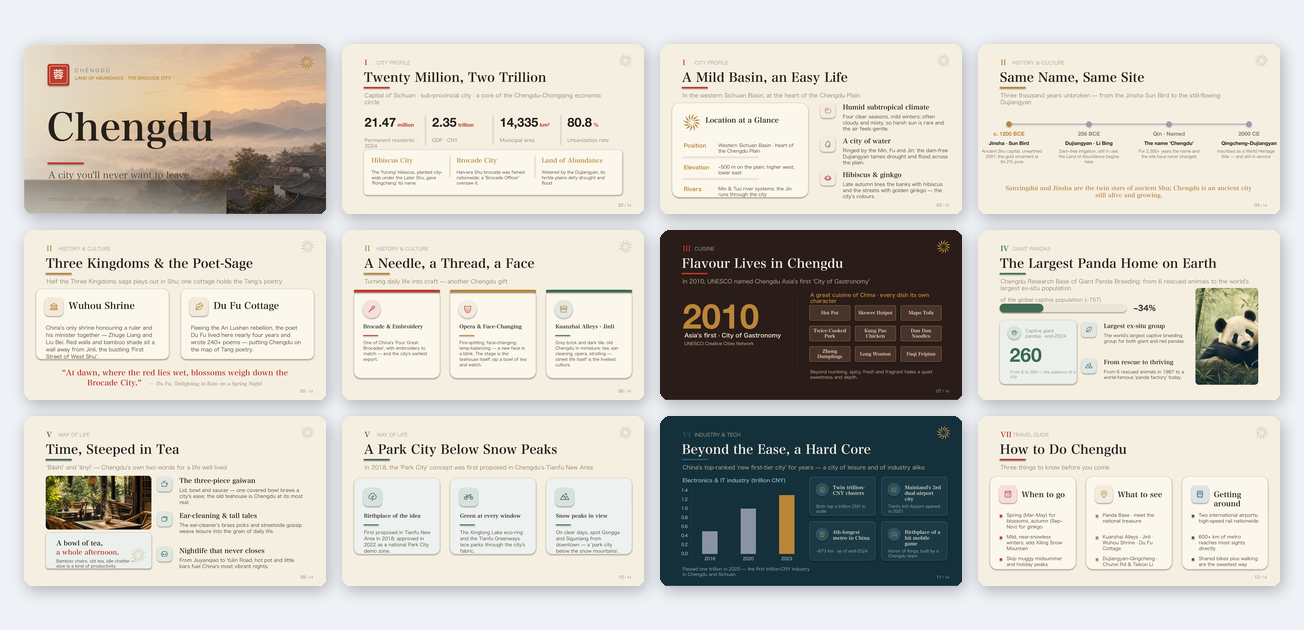
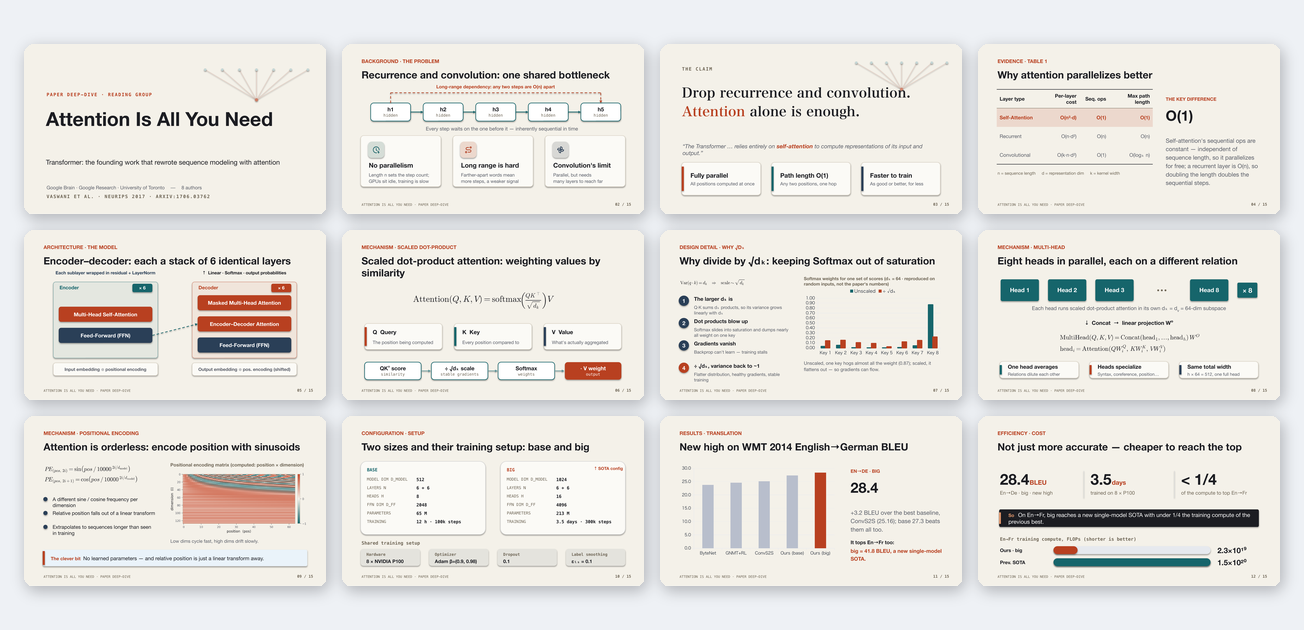
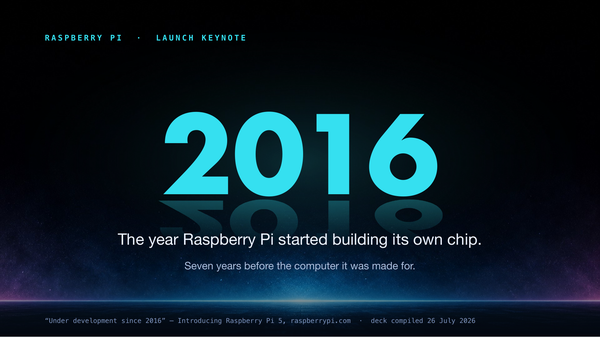
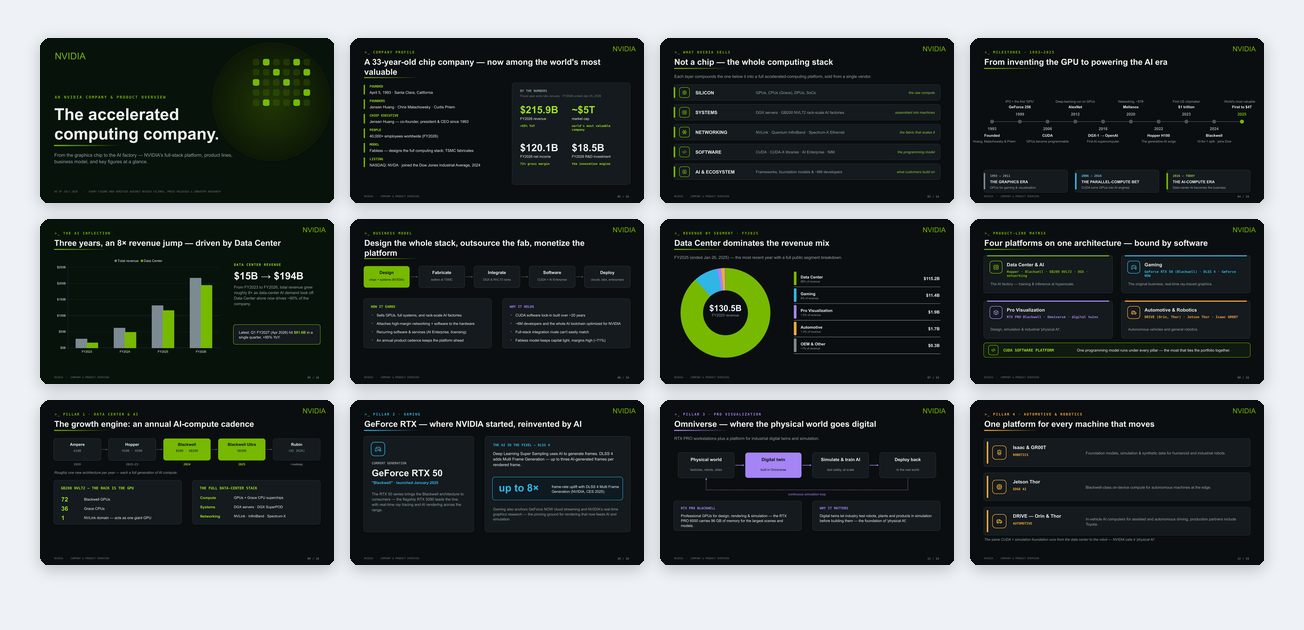
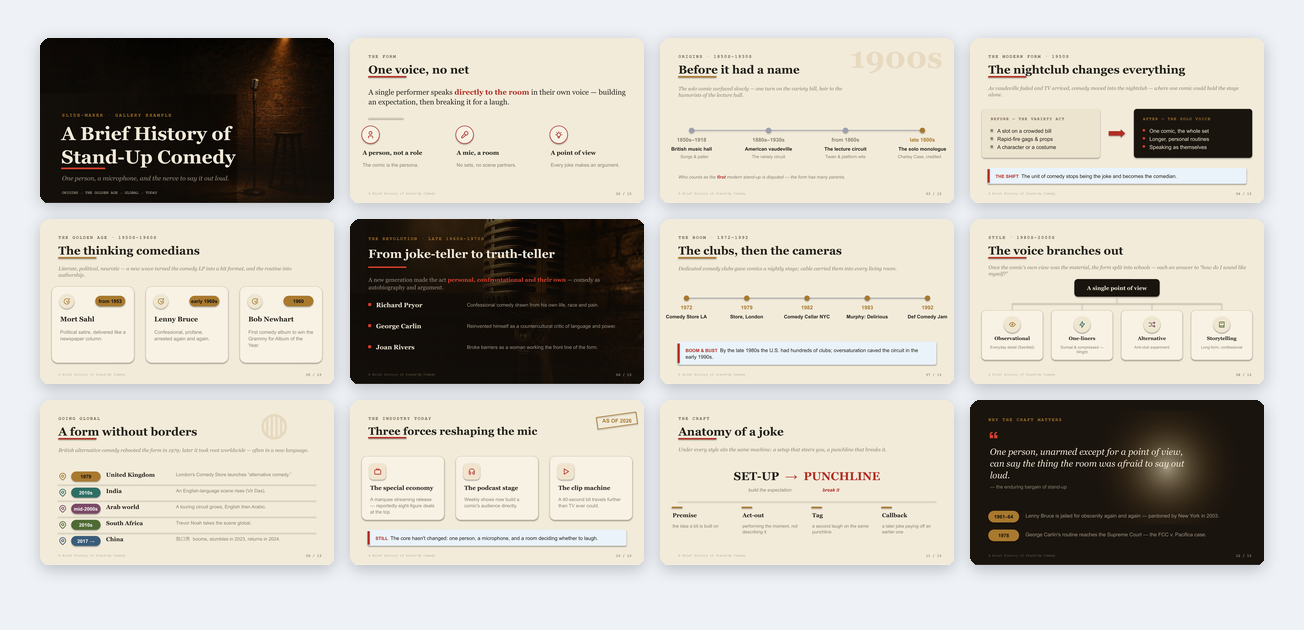
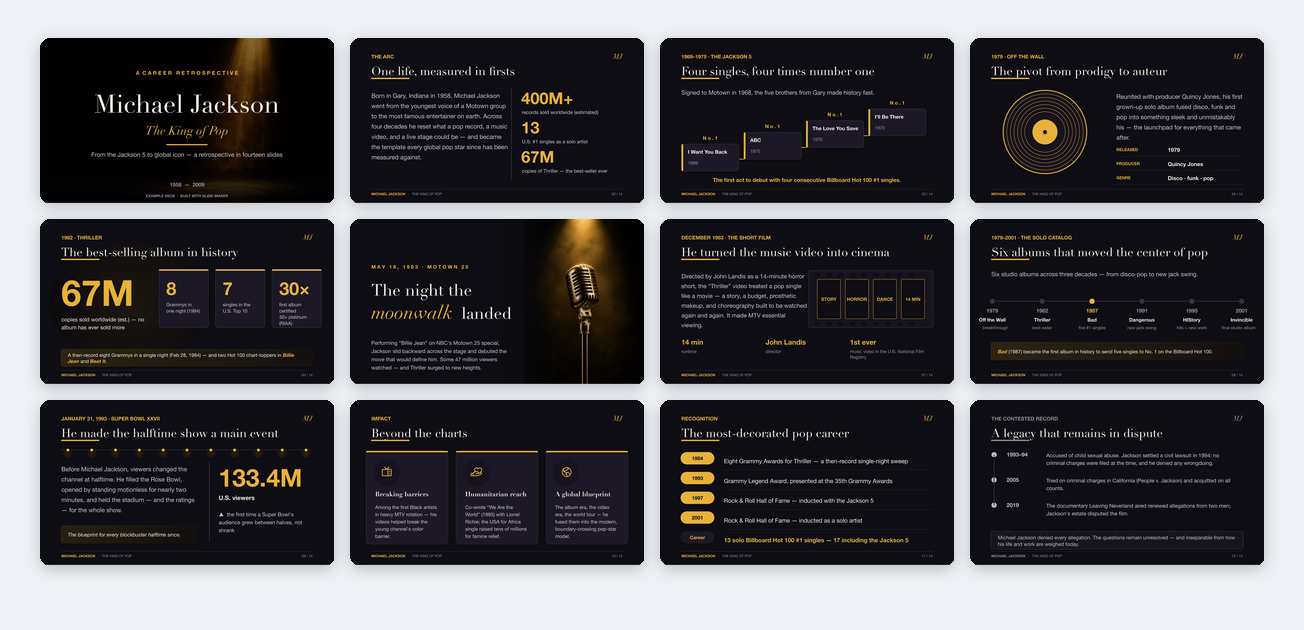
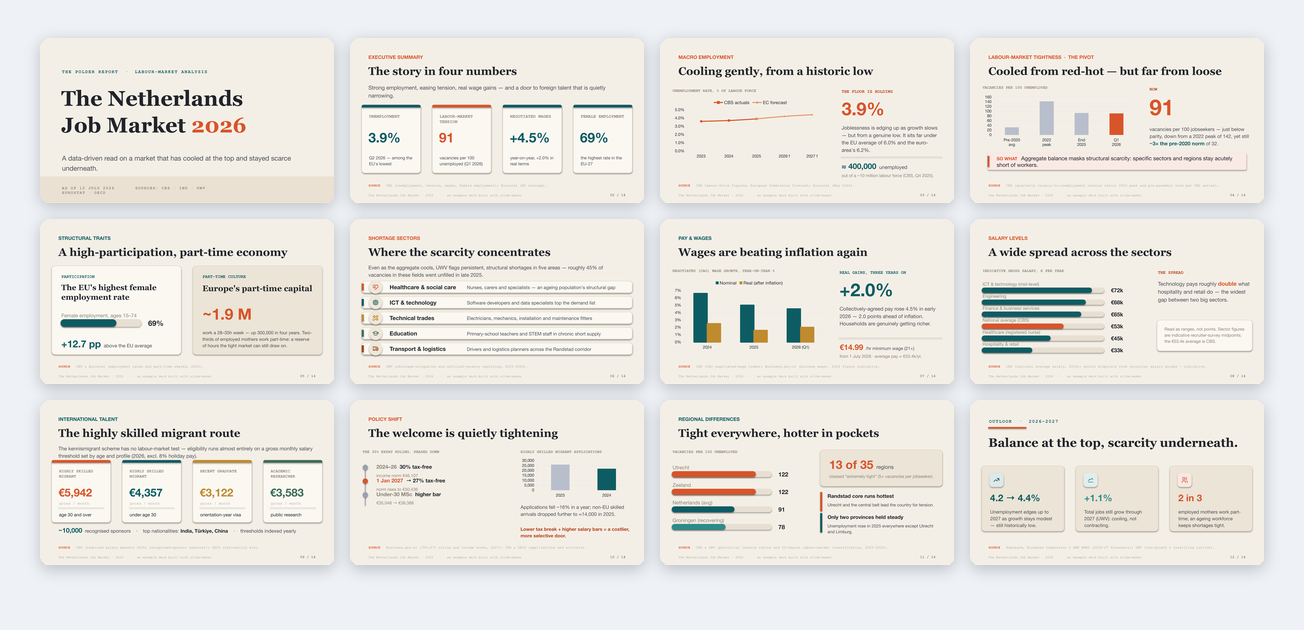
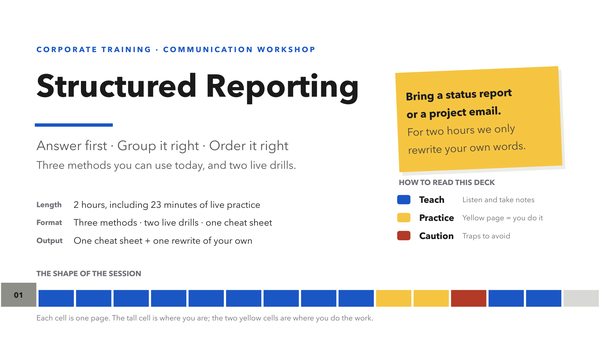
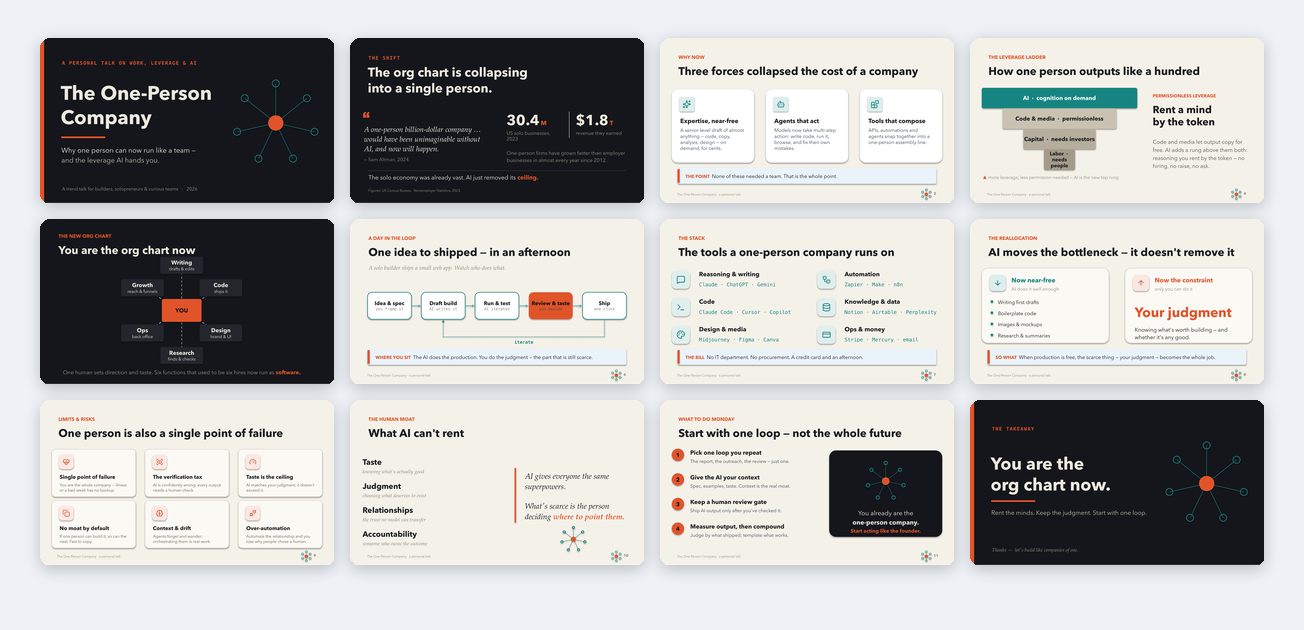
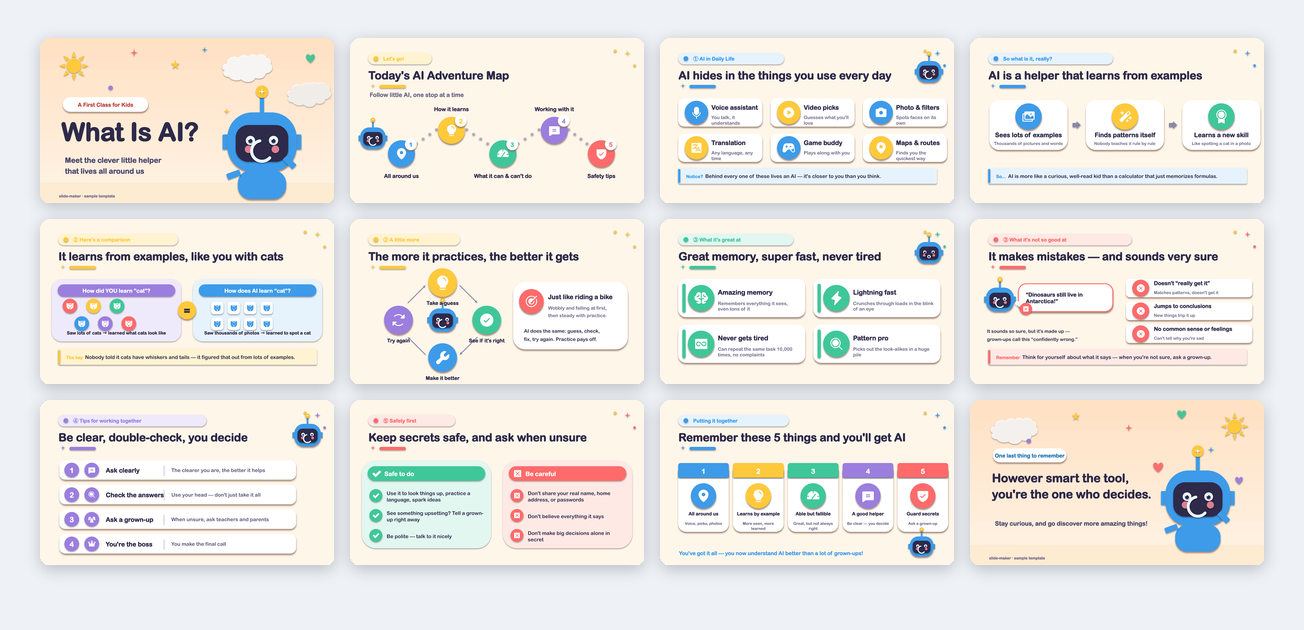
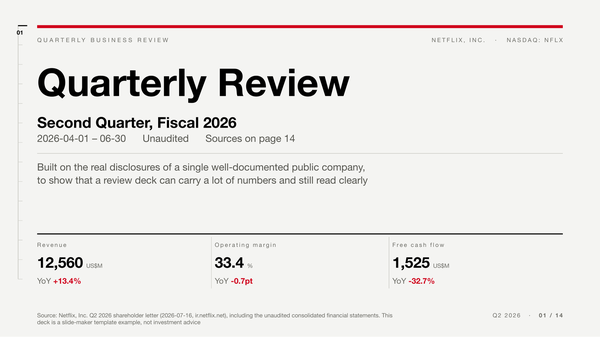
Twelve directions, one set in English and one in Chinese. Each is a complete example deck with real content, not empty placeholders.
<table>
  <tr>
    <td align="center" width="33%">
      <a href="https://slides.addsum.top/viewer.html?deck=en/quarterly-review"><img src="https://slides.addsum.top/docs/assets/screenshots/preview_en_quarterly-review.png" alt="Quarterly Review / Business Update template preview"></a><br/>
      <sub><strong>Quarterly Review / Business Update</strong><br/>quarterly review, business update, metrics dashboard, exec readout<br/>
      <a href="https://slides.addsum.top/viewer.html?deck=en/quarterly-review">Flip online</a> · <a href="https://slides.addsum.top/templates/decks/en/quarterly-review/template.pptx">Download .pptx</a></sub>
    </td>
    <td align="center" width="33%">
      <a href="https://slides.addsum.top/viewer.html?deck=en/chengdu"><img src="https://slides.addsum.top/docs/assets/screenshots/preview_en_chengdu.png" alt="Visual Storytelling / Culture template preview"></a><br/>
      <sub><strong>Visual Storytelling / Culture</strong><br/>city, culture, event, brand story<br/>
      <a href="https://slides.addsum.top/viewer.html?deck=en/chengdu">Flip online</a> · <a href="https://slides.addsum.top/templates/decks/en/chengdu/template.pptx">Download .pptx</a></sub>
    </td>
    <td align="center" width="33%">
      <a href="https://slides.addsum.top/viewer.html?deck=en/transformer-talk"><img src="https://slides.addsum.top/docs/assets/screenshots/preview_en_transformer-talk.png" alt="Lab Meeting / Paper Talk template preview"></a><br/>
      <sub><strong>Lab Meeting / Paper Talk</strong><br/>paper reading, lab meeting, method overview, experiment report<br/>
      <a href="https://slides.addsum.top/viewer.html?deck=en/transformer-talk">Flip online</a> · <a href="https://slides.addsum.top/templates/decks/en/transformer-talk/template.pptx">Download .pptx</a></sub>
    </td>
  </tr>
  <tr>
    <td align="center" width="33%">
      <a href="https://slides.addsum.top/viewer.html?deck=en/product-launch"><img src="https://slides.addsum.top/docs/assets/screenshots/preview_en_product-launch.png" alt="Product Launch / Keynote template preview"></a><br/>
      <sub><strong>Product Launch / Keynote</strong><br/>launch keynote, product reveal, spec walkthrough<br/>
      <a href="https://slides.addsum.top/viewer.html?deck=en/product-launch">Flip online</a> · <a href="https://slides.addsum.top/templates/decks/en/product-launch/template.pptx">Download .pptx</a></sub>
    </td>
    <td align="center" width="33%">
      <a href="https://slides.addsum.top/viewer.html?deck=en/nvidia-overview"><img src="https://slides.addsum.top/docs/assets/screenshots/preview_en_nvidia-overview.png" alt="Company / Product Intro template preview"></a><br/>
      <sub><strong>Company / Product Intro</strong><br/>company overview, product matrix, customer communication, fundraising intro<br/>
      <a href="https://slides.addsum.top/viewer.html?deck=en/nvidia-overview">Flip online</a> · <a href="https://slides.addsum.top/templates/decks/en/nvidia-overview/template.pptx">Download .pptx</a></sub>
    </td>
    <td align="center" width="33%">
      <a href="https://slides.addsum.top/viewer.html?deck=en/standup-history"><img src="https://slides.addsum.top/docs/assets/screenshots/preview_en_standup-history.png" alt="History / Evolution Narrative template preview"></a><br/>
      <sub><strong>History / Evolution Narrative</strong><br/>historical arc, industry evolution, timeline story<br/>
      <a href="https://slides.addsum.top/viewer.html?deck=en/standup-history">Flip online</a> · <a href="https://slides.addsum.top/templates/decks/en/standup-history/template.pptx">Download .pptx</a></sub>
    </td>
  </tr>
  <tr>
    <td align="center" width="33%">
      <a href="https://slides.addsum.top/viewer.html?deck=en/startup-pitch"><img src="https://slides.addsum.top/docs/assets/screenshots/preview_en_startup-pitch.png" alt="Startup Pitch / Fundraising template preview"></a><br/>
      <sub><strong>Startup Pitch / Fundraising</strong><br/>seed pitch, investor meeting, fundraising deck, demo day<br/>
      <a href="https://slides.addsum.top/viewer.html?deck=en/startup-pitch">Flip online</a> · <a href="https://slides.addsum.top/templates/decks/en/startup-pitch/template.pptx">Download .pptx</a></sub>
    </td>
    <td align="center" width="33%">
      <a href="https://slides.addsum.top/viewer.html?deck=en/michael-jackson-king-of-pop"><img src="https://slides.addsum.top/docs/assets/screenshots/preview_en_michael-jackson-king-of-pop.png" alt="Biography / Brand Story template preview"></a><br/>
      <sub><strong>Biography / Brand Story</strong><br/>public figure, brand archive, cultural retrospective<br/>
      <a href="https://slides.addsum.top/viewer.html?deck=en/michael-jackson-king-of-pop">Flip online</a> · <a href="https://slides.addsum.top/templates/decks/en/michael-jackson-king-of-pop/template.pptx">Download .pptx</a></sub>
    </td>
    <td align="center" width="33%">
      <a href="https://slides.addsum.top/viewer.html?deck=en/nl-job-market-2026"><img src="https://slides.addsum.top/docs/assets/screenshots/preview_en_nl-job-market-2026.png" alt="Data / Market Analysis template preview"></a><br/>
      <sub><strong>Data / Market Analysis</strong><br/>industry research, trend explanation, structured analysis<br/>
      <a href="https://slides.addsum.top/viewer.html?deck=en/nl-job-market-2026">Flip online</a> · <a href="https://slides.addsum.top/templates/decks/en/nl-job-market-2026/template.pptx">Download .pptx</a></sub>
    </td>
  </tr>
  <tr>
    <td align="center" width="33%">
      <a href="https://slides.addsum.top/viewer.html?deck=en/corporate-training"><img src="https://slides.addsum.top/docs/assets/screenshots/preview_en_corporate-training.png" alt="Corporate Training / Workshop template preview"></a><br/>
      <sub><strong>Corporate Training / Workshop</strong><br/>training deck, workshop, skills enablement, exercises<br/>
      <a href="https://slides.addsum.top/viewer.html?deck=en/corporate-training">Flip online</a> · <a href="https://slides.addsum.top/templates/decks/en/corporate-training/template.pptx">Download .pptx</a></sub>
    </td>
    <td align="center" width="33%">
      <a href="https://slides.addsum.top/viewer.html?deck=en/solo-company-talk"><img src="https://slides.addsum.top/docs/assets/screenshots/preview_en_solo-company-talk.png" alt="AI Trends / Solo Talk template preview"></a><br/>
      <sub><strong>AI Trends / Solo Talk</strong><br/>trend talk, personal presentation, startup story<br/>
      <a href="https://slides.addsum.top/viewer.html?deck=en/solo-company-talk">Flip online</a> · <a href="https://slides.addsum.top/templates/decks/en/solo-company-talk/template.pptx">Download .pptx</a></sub>
    </td>
    <td align="center" width="33%">
      <a href="https://slides.addsum.top/viewer.html?deck=en/kids-ai-explainer"><img src="https://slides.addsum.top/docs/assets/screenshots/preview_en_kids-ai-explainer.png" alt="Teaching / Knowledge Sharing template preview"></a><br/>
      <sub><strong>Teaching / Knowledge Sharing</strong><br/>class explanation, reading share, training material<br/>
      <a href="https://slides.addsum.top/viewer.html?deck=en/kids-ai-explainer">Flip online</a> · <a href="https://slides.addsum.top/templates/decks/en/kids-ai-explainer/template.pptx">Download .pptx</a></sub>
    </td>
  </tr>
</table>

<p align="center"><sub>Chinese versions live in <a href="https://github.com/addsumtech/slides_maker-site/tree/main/templates/decks/zh">templates/decks/zh/</a>, previewed in the <a href="README_CN.md">Chinese README</a>.</sub></p>

---

## How to use the templates

The gallery lives in the [slides_maker-site](https://github.com/addsumtech/slides_maker-site) repo under `templates/decks/`, English under `en/`, Chinese under `zh/`. Grab it once:

```bash
git clone --depth 1 https://github.com/addsumtech/slides_maker-site.git
```

Two ways to use a template:

**Option 1: point at it (simplest).** Put the template path in your request:

```text
Use slide-maker. Follow the style of slides_maker-site/templates/decks/en/nvidia-overview/template.pptx
and build a product intro from my product.md.
```

It parses the template's layout and visual system, then applies them to your content.

**Option 2: register it for repeated use.** Copy a template you like into the local template registry, and slide-maker will list it as an option every time:

```bash
# Claude Code users
cp -r slides_maker-site/templates/decks/en/nvidia-overview ~/.claude/slide-templates/nvidia-overview

# Codex users
cp -r slides_maker-site/templates/decks/en/nvidia-overview ~/.codex/slide-templates/nvidia-overview
```

Use `en/` templates for English decks and `zh/` for Chinese ones. The layouts match; only the copy language differs.


---

## What makes slide-maker different

AI presentation tools roughly fall into four categories. slide-maker only does the last one:

| Category | Output | Editable element by element in PowerPoint? |
| --- | --- | :---: |
| Template fill-in | Content poured into a fixed template | Partially, limited by the template |
| Image-based | One big picture per slide, packed into PPTX | No, each slide is a picture |
| HTML presentation | Slides in a browser | Not a PPTX |
| **Native editable (slide-maker)** | **Real text boxes, shapes, native charts** | **Yes, click anything and edit** |

That table is about the *format*. A handful of newer tools now also emit native-editable PPTX — so "editable" alone no longer sets anything apart. What sets slide-maker apart is **what it does with that format**: it reads your real material and refuses to invent, it puts the deck through an independent review before you see it, and it composes each slide to your content instead of pouring text into a template. The rest of this section is those three, in order.

### A small team of agents: separate jobs, separate incentives

slide-maker isn't one prompt doing everything. It's a set of **specialized agents**, each with a single role, deliberately kept independent so that no one mind both builds the deck and grades it:

- **Content-planner**: the lead editor. It does the reading nobody else did and decides what each slide *says* — the takeaway, the evidence, the narrative arc — with every number traced to a source and a coverage gate that guarantees no key point in your material gets silently dropped (each one either lands on a slide or is flagged as consciously cut). Because the whole story flows through one mind, the deck holds together as an argument instead of a pile of slides.
- **Slide-design (art director)**: a separate mind that decides how the approved story *looks* — each slide's visual form, the palette (one meaning per colour, deck-wide), typography, rhythm, icons, and where click-builds actually earn their place. It sketches each page from the content first and only then reaches for the component library, so decks come out designed, not templated.
- **Critic**: an independent reviewer who did not build the deck. It judges the rendered slides through two lenses — content fidelity (a number that doesn't match the source, a key point gone missing) and design (cramped layout, weak contrast, a deck that's compliant but dead) — and sends fixes back. Having no stake in the draft is exactly what makes it honest.
- **Arbiter**: for high-stakes decks, a second independent check that confirms a critic's finding is real before anything changes, so the loop fixes true problems, not noise.
- **Asset-prep**: a build-time executor that materializes the plan's assets (figure crops, equation images, generated plates, icons) in parallel once you've approved the design plan. It makes zero design decisions, so even large decks build fast.

The split is the point: a constructive planner proposes, independent judges dispose. That's why the deck you receive has already survived a review you never had to run.

On top of that, it does four things most tools skip:

- **It reads before it draws.** A paper gets read end to end, a repo starts from its README, and when you have no material it researches the topic online first. Every number and figure is traced back to a source, and you confirm a structure draft before any slide is drawn. It will not paste the abstract onto slide one and call it a day.
- **It gets reviewed before you see it.** After generation, every slide is rendered to an image and handed to the independent critic. Cramped layout, weak contrast, numbers that don't match the source: all get sent back for fixes. You receive the deck only after the critic signs off.
- **More than text stays editable.** Data charts default to native PowerPoint charts you can double-click and re-number. Formulas are typeset as editable native math text by default, not screenshots (only 2-D layouts like fractions and matrices fall back to a rendered image). Paper figures are cropped from the PDF as-is, never redrawn.
- **Script and motion come included.** Presentation decks carry a full per-slide script in speaker notes, and bullets are native PowerPoint click builds. You can walk on stage with it.

One more thing that matters if you iterate a lot: every deck is generated by a build script that ships next to the file. Change the focus, the slide count, or the template with one sentence, and it regenerates cleanly instead of you reworking slides by hand.

And it gets more *yours* over time. When you keep steering a preference the same way across decks — vivid data with quiet chrome, no template-y cards, typeset equations — it records that as a portable taste profile: a plain file you own at the registry root, which you can read, edit, or delete line by line. Future decks read it as a default so you stop re-teaching the same thing. It only ever *seeds* a choice — whatever you say on the current deck always wins — and a brand-new user starts with a clean slate, no assumed style.

To be plain about it: it does not promise a perfect deck in one shot. It promises to remove the expensive part (reading the material, planning the structure, laying out pages, making figures, writing the script) and to hand you a real file you can keep editing. The polish that remains is yours. That is exactly why the output is native PPTX.

---

## How it works

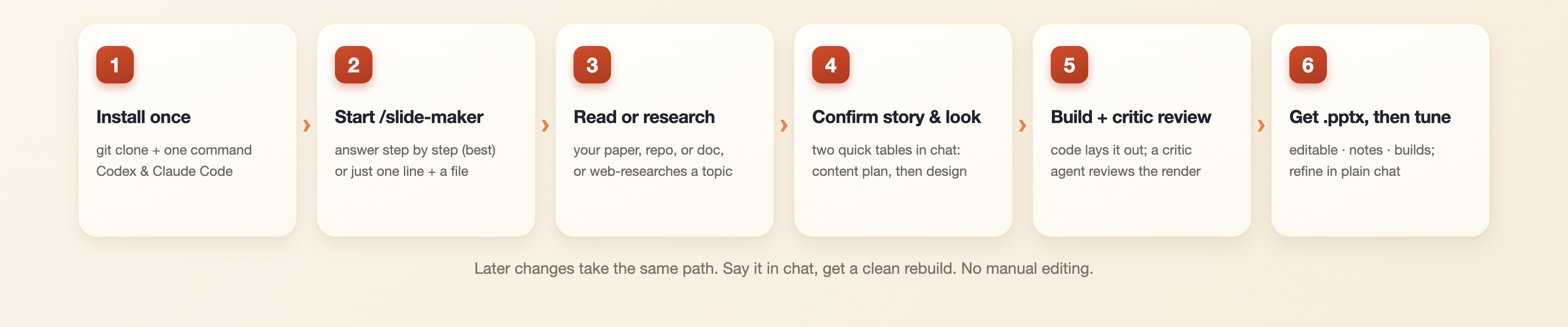
1. **It asks first.** Who is the audience, how long is the talk, live or self-read, what style. Short answers are enough. Say "you decide" if you are in a hurry — it then picks sensible answers itself and posts its picks before building, so a wrong guess costs you one glance, not a rebuild (only a missing topic or source still needs you). No material at all? Give it a topic and it will research online before anything else.
2. **It reads (or researches) the material.** Papers, docs, repos — and now Word / Excel / CSV / images / video, plus whole books via purpose-driven triage — are read faithfully: figures cropped from the PDF, key numbers verified line by line, nothing without a source on a slide. With only a topic, it researches current information online first, then works from that.
3. **You approve the story, then the look — right in the chat.** The content-planner posts a compact per-slide table (what each slide says, which figure carries it, how the deck flows); once you confirm the story, the art director posts the design plan (look, palette, per-slide form, motion) the same way. Two quick confirmations at the two cheapest moments to change direction — no plan files to open.
4. **It generates the PPTX.** Layout is guaranteed by code, with automatic layout checks both at build time and on the rendered output. Overflow, overlap, and font problems get caught there.
5. **An independent critic reviews it.** Rendered slides go to the critic agent (with an arbiter cross-checking on high-stakes decks), judged against presentation standards. Fixes land, the deck is re-checked, and only then is it delivered to `~/Downloads/<deck-name>/`. The PDF and the browser preview are generated at hand-off rather than on every build (a deck still being edited makes them stale immediately) — and they are **gated on a record that the review actually ran**, because the model that skips a check is the same model that would write the note claiming it didn't.
6. **You tune it in plain language.** Not perfect? Just say so in the chat ("turn slide 7 into a chart," "cut the intro," "warmer palette," "make it 10 slides," "shorten the notes") and it rebuilds cleanly from the same script. No dragging boxes by hand; keep refining until it's right.

**What it costs:** the tool is free; you pay only your AI usage. Reading, planning and building is the cheap part — **the independent review loop is where the tokens go**, so it is a dial you set with one word in the interview:

| `review:` | what runs | measured |
| --- | --- | --- |
| `fast` | 1 generalist critic, 1 round, top-5 claims fact-checked | ~6 subagents · ~250k tokens |
| `standard` *(default)* | 2 focused critics (content + design), 2 rounds, top-10 claims | ~12 · ~600k |
| `thorough` | multi-critic panel + arbiter cross-check, 3 rounds, every claim | ~32 · ~2M |

The default is **derived from your purpose**, so saying nothing is always safe: a lab meeting or status update gets `standard`, a defense or investor pitch gets `thorough`. `fast` is the only tier you have to ask for — collapsing to one critic and one round is a real drop in what gets caught, so it is never chosen for you.

**No tier removes the independent review**, and none of them touch the automatic layout checks, the pre-flight list, or the source-verification gate — the dial moves rounds, panel width and how many claims get fact-checked, never whether the deck is judged by someone other than its author. *(Figures measured on a 12-page research-sourced deck, July 2026; treat them as orders of magnitude — they move with the model and the deck.)*

---

## Quick start

<p align="center">
  <img src="https://slides.addsum.top/docs/assets/quickstart_en.png" alt="Quick start: install once, start /slide-maker, it reads or researches, confirm the plan, build + critic review, get the pptx then tune">
</p>

### Step 1: Install

> **⚡ Don't want to install anything? Use the [slide-maker (addsum studio)](https://chatgpt.com/g/g-6a5b41f0a33881918be69e8b10f8b4ff-slide-maker-gpt) in ChatGPT** — it inherits this skill's
> ability, so you can make slides right in ChatGPT: open the link or find it in the **GPT Store**.
> Zero setup; the local install below stays the full-power path.
>
> **Prefer a marketplace? slide-maker is also published on
> [Tencent SkillHub](https://skillhub.cloud.tencent.com/skills/slides-maker),
> [Coze](https://xiaping.coze.com/skill/c0136d99-50d0-4f05-909a-f78fa4be7104), and
> [ClawHub](https://clawhub.ai/dong845/skills/slide-maker) — the last one installs straight into
> [OpenClaw](https://openclaw.ai), so OpenClaw users get slide-maker too** —
> grab it there by following each page's install instructions, then come back for the runtime
> dependencies below (they apply however you install).

slide-maker relies on three system tools: **Python 3.9+**, **LibreOffice** (renders slide previews for the automatic layout checks), and **one SVG rasterizer** for icons (librsvg, cairosvg, or any Chrome-family browser). Install them for your OS:

| OS | LibreOffice | Icon rasterizer |
| --- | --- | --- |
| macOS | `brew install --cask libreoffice` | `brew install librsvg` |
| Linux | `sudo apt install libreoffice` | `sudo apt install librsvg2-bin` |
| Windows | `winget install TheDocumentFoundation.LibreOffice` | Chrome or Edge installed (used headless) |

(Windows works too; we just test it less, so if you hit an environment quirk, run `check_env.py` below to self-diagnose or open an issue with the error.)

**With those system tools in place, install slide-maker itself.** The four lines below clone the repo, install its Python packages, and register it as a skill:

```bash
git clone --depth 1 https://github.com/addsumtech/slides_maker.git
cd slides_maker
python3 -m pip install -r skills/slide-maker/requirements.txt
python3 skills/slide-maker/scripts/install_skill.py --target both
```

If you only use one tool, replace `both` with `codex` or `claude`. Not sure what's missing? The [check command](#troubleshooting) prints the exact fix.

**Prefer a one-liner? Install just the skill with [`npx skills`](https://github.com/vercel-labs/skills)** (no clone, about 1.1 MB):

```bash
npx skills add addsumtech/slides_maker
```

It prompts for the agent and scope. The skill lives under `skills/slide-maker/` and the repo carries no heavy assets (the gallery and demo site live in [slides_maker-site](https://github.com/addsumtech/slides_maker-site)), so the install stays small and fast. Add `-g` to install globally (all projects), `-a claude-code` (or `-a codex`) to skip the agent prompt, and `-y` for a fully non-interactive run. You still need the runtime dependencies above: LibreOffice, an SVG rasterizer, and `python3 -m pip install -r skills/slide-maker/requirements.txt`.

**On Claude Code, you can also add it as a plugin** so it stays updated with a normal plugin command:

```text
/plugin marketplace add addsumtech/slides_maker
/plugin install slide-maker@slides-maker
```

This is the same skill, just managed by Claude Code's plugin system instead of copied into your skills folder. The runtime dependencies above still apply.

### Step 2: Invoke it and answer the interview (the recommended path)

The best, most reliable result comes from **invoking the skill and answering its short interview step by step**:

```text
/slide-maker
```

The interview opens as a clickable, tabbed form (Topic · Template · Purpose & Audience · Style & Language): arrow keys to move, Enter to pick, and every question ships with ready-made options. Review effort rides along with Purpose & Audience, since your purpose is what sets its default. It recognizes returning users, too: saved templates and past topics show up as one "use one of my previous ones" choice beside the general options, expanding only if you pick it. **Answering each question is what makes the deck yours instead of generic**: audience, length, live-vs-self-read, density, language, look, and how hard you want it reviewed all steer the plan. Short answers are fine, and **"you decide" is always a valid answer**.

**In a hurry? A one-liner works too, but treat it as a shortcut, not the best path:**

```text
Use slide-maker to create a PPT from paper.pdf.
```

It starts straight from your file and skips the topic question, which is convenient. But every question you don't answer becomes an assumption the skill has to make, so you'll usually spend more time tuning afterward. **When the deck matters, answer the interview.** (In Codex there's no slash command; the same questions arrive as plain text. Fully supported, just less clicking. Claude Code is the smoother ride.)

Either way, what follows is a short conversation, not a prompt-writing exercise:

```text
It:   Before I build: which template? Who is the audience, how long,
      live or self-read? Is this PDF the only source?
      English or Chinese, visual-first or balanced?

You:  For my advisor and labmates, 12 minutes, live. Only paper.pdf.
      English, visual and concise. You pick the look.

It:   (after reading the paper) Here is the plan: 15 slides.
      Slide 4 places the paper's Figure 1 whole; the results page
      becomes a native chart you can re-number...
      Confirm the direction and I will build.
```

Two more things worth knowing:

- **"Show me a few style directions first"** gets you rendered style candidates to pick from before the full build.
- Put your material in the current project, or give a full path in the request. **No material at all?** Give it a topic; it researches online first, then agrees on a structure with you.

Other ways to open:

```text
Use slide-maker to create a technical presentation from this repository.
```

```text
I have a reference PPT: /path/ref.pptx. Use its visual style only, not its content,
and make a new English deck from paper.pdf.
```

### Optional: AI image generation

If you want a generated cover, page illustrations, or a full generated visual identity, say "use AI image generation" in the chat. Two ways to power it, either works: a Codex subscription uses its built-in image generation with no key, or set an OpenAI API key to go through the API. With neither, slide-maker still produces fully editable PPTX.

---

## Best-fit scenarios

Research talks are the home turf, because it parses the problem, method, results, figures, tables, and equations in a paper. But whenever material needs to be explained clearly (or when you have only a topic and no material yet), it can give you a first deck you can present and keep editing.

| What you have | What you can make |
| --- | --- |
| Papers, experiment results, paper figures | Lab meeting & paper reading, conference oral talk, poster, proposal, thesis defense, experiment report |
| Code repositories, README files, technical docs | Lab meeting, repo walkthrough, architecture talk, progress update, engineering recap |
| Course material, product docs, market data | Class talk, product introduction, market analysis, proposal |
| Nothing yet, just a topic in your head | Hand it a topic; the agents research current information online, agree on a structure with you, then build the deck from scratch |
| A reference PPT | New topic, new content, reorganized story: its look, your material |
| A story that needs to live beyond 16:9 | rednote (小红书) 3:4 image notes, square 1:1 posts, 9:16 story covers, 4:3 venue decks, A4 print one-pagers — same identity and components, recomposed per surface with platform safe zones |

---

## Troubleshooting

If generation or preview rendering fails, run the check for your environment. Most failures are missing Python dependencies or LibreOffice:

```bash
# Codex
python3 ~/.codex/skills/slide-maker/scripts/check_env.py

# Claude Code
python3 ~/.claude/skills/slide-maker/scripts/check_env.py
```

It prints the exact fix for anything missing.

For everything beyond the environment — build errors, lint findings and what they mean in plain language, render failures, image sourcing, CJK issues — there is a dedicated symptom → cause → fix page: [**Troubleshooting & FAQ**](skills/slide-maker/references/troubleshooting-faq.md). Failing lint runs print a pointer to it. If a problem isn't covered there, open an issue with the error output.

---

## Security

No credentials are stored or hardcoded anywhere in this repository, and CI scans every push — working tree *and* full history — for credential shapes rather than prefixes. If a scanner reported an `sk-` key here, it matched a CSS class name (`sk-body`, `sk-split`, `sk-rail` — `sk-` is short for *skeleton*); [**SECURITY.md**](SECURITY.md) shows how to confirm that in ten seconds, and how to report anything real.

---

## License

[MIT](LICENSE)