# 🎮 Unity MCP Sharp
**The C# implementation of Model Context Protocol for Unity Editor**
Unity MCP Sharp is a production-ready MCP server that enables AI assistants (Claude, Cursor, etc.) to directly interact with Unity Editor. Built with .NET 9.0 and the official MCP C# SDK, it provides 34 powerful tools for game development automation including scene manipulation, GameObject creation, prefab management, asset management, and real-time play mode control.
[](https://github.com/Abbabon/unity-mcp-sharp/actions/workflows/build-server.yml)
[](https://github.com/Abbabon/unity-mcp-sharp/actions/workflows/publish-docker.yml)
[](https://github.com/Abbabon/unity-mcp-sharp/actions/workflows/codeql.yml)
[](https://opensource.org/licenses/MIT)
[](https://github.com/Abbabon/unity-mcp-sharp/releases)
[](https://github.com/Abbabon/unity-mcp-sharp/graphs/commit-activity)
[](https://openupm.com/packages/com.mezookan.unity-mcp-sharp/)
[](https://openupm.com/packages/com.mezookan.unity-mcp-sharp/)
[](#contributors)

[🚀 Quick Start](#-quick-start) • [📦 Installation](#-installation) • [🛠️ MCP Tools](#-available-mcp-tools) • [📖 Docs](Documentation~/Installation.md) • [❓ Issues](https://github.com/Abbabon/unity-mcp-sharp/issues)
---
## 📋 Table of Contents
- [✨ Features](#-features)
- [🏗️ Architecture](#-architecture)
- [🚀 Quick Start](#-quick-start)
- [📦 Installation](#-installation)
- [🤖 Using with AI Assistants](#-using-with-ai-assistants)
- [🛠️ Available MCP Tools](#-available-mcp-tools)
- [🐳 Docker Image](#-docker-image)
- [💻 Development](#-development)
- [⚙️ Configuration](#-configuration)
- [🔧 Troubleshooting](#-troubleshooting)
- [🤝 Contributing](#-contributing)
- [📄 License](#-license)
---
## ✨ Features
🔌 WebSocket Communication (JSON-RPC 2.0)
- Real-time bidirectional communication with Unity Editor
- Extensible command/response pattern
- Support for Unity operations and queries
🛠️ 28 MCP Tools + 7 MCP Resources
| Category | Tools & Resources |
|----------|-------|
| **Resources (Read-Only)** | Project info, console logs, compilation status, play mode, active scene, scene objects, all scenes |
| **Multi-Editor** | List connected editors, select editor for session |
| **Console & Compilation** | Trigger compilation, refresh assets |
| **GameObjects** | Create, find, batch create, add components, set component fields, list scene objects |
| **Scenes** | List, open, close, save, get/set active scene |
| **Assets** | Create scripts, create assets with complex structures (ScriptableObjects, Materials, etc.) |
| **Play Mode** | Enter, exit, get play mode state |
| **System** | Run any Unity menu item programmatically |
🔀 Multi-Editor Support (v0.5.0+)
- **Multiple Unity Editors**: Connect multiple Unity Editor instances to a single MCP server
- **Per-Session Selection**: Each MCP client (LLM session) can select and work with different editors independently
- **Smart Auto-Selection**: Single editor scenarios work seamlessly without manual selection
- **Persistent Across Recompilations**: Editor selection survives Unity script compilation reconnects
- **Rich Metadata**: Each editor reports project name, scene, machine, process ID, Unity version
🤖 Optimized for LLM Interaction
- ✅ All tools return confirmation messages for reliable feedback
- 🔗 Tool descriptions include cross-references for chaining operations
- ⚠️ Side effects and warnings clearly documented
- 📝 Rich return descriptions help LLMs understand responses
- 📊 **Tool Profiles**: Reduce token usage with Minimal (12 tools), Standard (20), or Full (28)
📦 Unity Package (OpenUPM compatible)
- 🎨 UIToolkit-based dashboard with status monitoring
- 👁️ Visual feedback system with operation tracking
- 🐳 Docker container lifecycle management
- 🔄 Auto-connect and auto-start capabilities
- 🎯 Auto-focus: Automatically brings Unity to foreground when receiving MCP operations
- ⚙️ Configuration via ScriptableObject
🐳 Dockerized Server
- Built with .NET 9.0 and ASP.NET Core
- Published to GitHub Container Registry (ghcr.io)
- Multi-platform support (linux/amd64, linux/arm64)
- Full CI/CD pipeline with GitHub Actions
---
## 🏗️ Architecture
### Basic Flow
```
┌─────────────────┐ ┌──────────────────┐ ┌─────────────────┐
│ AI Assistant │ │ Unity Editor │ │ Unity Package │
│ (IDE/LLM) │◄────────┤ │◄────────┤ (OpenUPM) │
└────────┬────────┘ MCP │ │ Editor └────────┬────────┘
│ (HTTP) │ │ API │
│ └──────────────────┘ │
│ │
│ │
└────────────────┐ ┌─────────────────┘
│ │
▼ ▼ WebSocket
┌──────────────────────────────┐
│ Unity MCP Server │
│ (Docker Container) │
│ ┌────────────────────┐ │
│ │ ASP.NET Core │ │
│ │ - HTTP Endpoint │ │
│ │ - WebSocket │ │
│ │ - JSON-RPC 2.0 │ │
│ └────────────────────┘ │
└──────────────────────────────┘
```
### Multi-Editor Architecture (v0.5.0+)
```
┌──────────────┐ ┌──────────────┐ ┌──────────────┐
│ MCP Session │ │ MCP Session │ │ MCP Session │
│ A │ │ B │ │ C │
└──────┬───────┘ └──────┬───────┘ └──────┬───────┘
│ │ │
└────────┬────────┴────────┬────────┘
│ │
▼ ▼
┌─────────────────────────────┐
│ MCP Server │
│ ┌───────────────────────┐ │
│ │ EditorSessionManager │ │ Session → Editor Mapping
│ │ McpSessionMiddleware │ │ AsyncLocal Context
│ └───────────────────────┘ │
└─────────────────────────────┘
│ │ │
┌────────┘ │ └────────┐
▼ ▼ ▼
┌──────────────┐ ┌──────────────┐ ┌──────────────┐
│Unity Editor 1│ │Unity Editor 2│ │Unity Editor 3│
│ ProjectA │ │ ProjectB │ │ ProjectC │
│ SceneX │ │ SceneY │ │ SceneZ │
└──────────────┘ └──────────────┘ └──────────────┘
```
---
## 🚀 Quick Start
### Prerequisites
- **Unity** 2021.3 or later
- **Docker Desktop** installed and running
- **.NET 9.0 SDK** (for server development only)
### 3-Step Setup
1. **Install the package** (see [Installation](#-installation) below)
2. **Open Setup Wizard** in Unity: `Tools → Unity MCP Server → Setup Wizard`
3. **Start & Connect** via Dashboard: `Tools → Unity MCP Server → Dashboard`
✅ Done! You're ready to use AI assistants with Unity.
---
## 📦 Installation
Option 1: OpenUPM (Recommended) ⭐
```bash
openupm add com.mezookan.unity-mcp-sharp
```
Option 2: Git URL
1. Open Unity Package Manager
2. Click `+` → "Add package from git URL..."
3. Enter: `https://github.com/Abbabon/unity-mcp-sharp.git`
Option 3: Manual Installation
Add to `Packages/manifest.json`:
```json
{
"dependencies": {
"com.mezookan.unity-mcp-sharp": "https://github.com/Abbabon/unity-mcp-sharp.git"
}
}
```
### First-Time Setup
Click to expand setup steps
1. **Install Docker Desktop** (if not already installed)
- Download from [docker.com](https://www.docker.com/products/docker-desktop/)
- Start Docker Desktop
2. **Open the Setup Wizard**
- In Unity: `Tools → Unity MCP Server → Setup Wizard`
- Follow the on-screen instructions
3. **Start the Server**
- Go to `Tools → Unity MCP Server → Dashboard`
- Click **"Start Server"** (downloads Docker image on first run)
- Click **"Connect"** to establish WebSocket connection
4. **Verify Connection**
- Dashboard shows "Connected ✓" in green
- Console logs: "Unity MCP Server connected successfully"
---
## 🤖 Using with AI Assistants
Claude Code (CLI)
Add to your project's `.mcp.json` file in the project root:
```json
{
"mcpServers": {
"unity": {
"url": "http://localhost:3727/mcp"
}
}
}
```
Or add globally to `~/.claude.json`:
```json
{
"mcpServers": {
"unity": {
"url": "http://localhost:3727/mcp"
}
}
}
```
**Tip:** After adding the configuration, restart Claude Code or use `/mcp` to verify the server is connected.
VS Code / GitHub Copilot
Add to `.vscode/settings.json`:
```json
{
"mcpServers": {
"unity": {
"url": "http://localhost:3727/mcp",
"transport": "sse"
}
}
}
```
Cursor IDE
Add to `~/.cursor/config.json`:
```json
{
"mcpServers": {
"unity": {
"url": "http://localhost:3727/mcp",
"transport": "sse"
}
}
}
```
Claude Desktop
Add to your Claude Desktop MCP configuration:
```json
{
"mcpServers": {
"unity": {
"url": "http://localhost:3727/mcp",
"transport": "sse"
}
}
}
```
---
## 🛠️ Available MCP Tools & Resources
> **All tools are designed for optimal LLM interaction** with confirmation messages, tool chaining hints, and side effect warnings.
📚 MCP Resources (7 resources)
> **New in v0.4:** Resources are read-only, application-controlled data sources that provide fresh data on each access. They reduce LLM cognitive load by separating read operations from action-based tools.
### `unity://project/info`
Unity project metadata including name, version, active scene, paths, and editor state.
**Returns:** Project information with name, Unity version, active scene, data path, play/pause state
**💡 Tip:** Use this first when starting work on a project to understand the environment.
**🔄 Updates:** Automatically when scenes change or play mode changes
---
### `unity://console/logs`
Recent console logs from Unity Editor (errors, warnings, debug logs).
**Returns:** Console logs with type, message, and stack traces
**💡 Tip:** Check this after creating scripts, entering play mode, or when compilation fails.
**🔄 Updates:** Automatically when new log messages appear
---
### `unity://compilation/status`
Current compilation status and last compilation result.
**Returns:** Compilation status (idle/compiling) and success/failure state
**🔗 Related:** `unity_trigger_script_compilation`
**🔄 Updates:** Automatically when compilation starts or finishes
---
### `unity://editor/playmode`
Current play mode state of Unity Editor.
**Returns:** Play mode state (Playing, Paused, or Stopped)
**🔗 Related:** `unity_enter_play_mode`, `unity_exit_play_mode`
**🔄 Updates:** Automatically when play mode changes
---
### `unity://scenes/active`
Information about the currently active Unity scene.
**Returns:** Scene name, path, isDirty status, root GameObject count, loaded state
**💡 Tip:** If isDirty is true, use `unity_save_scene` to save changes.
**🔄 Updates:** Automatically when active scene changes or scenes are loaded
---
### `unity://scenes/active/objects`
Complete GameObject hierarchy of the active scene.
**Returns:** Hierarchical list with active/inactive state indicators
**🔗 Related:** `unity_find_game_object`, `unity_create_game_object`
**🔄 Updates:** Automatically when scenes change
---
### `unity://scenes/all`
List of all .unity scene files in the project.
**Returns:** List of scene paths relative to project root
**🔗 Related:** `unity_open_scene`, `unity_get_active_scene`
**🔄 Updates:** When asset database refreshes
🔍 System & Compilation (1 tool)
### `unity_trigger_script_compilation`
Force Unity to recompile all C# scripts.
**Returns:** Confirmation that compilation was triggered
**⚠️ Note:** Unity temporarily disconnects during compilation. Use `unity://compilation/status` resource after to verify success.
🎮 GameObjects (7 tools)
### `unity_create_game_object`
Create a new GameObject in the currently active scene.
**Parameters:**
- `name` (string, required): GameObject name
- `x`, `y`, `z` (float, default: 0): World position
- `components` (string, optional): Comma-separated components (e.g., "Rigidbody,BoxCollider")
- `parent` (string, optional): Parent GameObject name
**Returns:** Confirmation with name, position, components, and hierarchy location
**📌 Example:** Create a "Player" at position (0, 1, 0) with Rigidbody and CapsuleCollider
**🔗 Related:** `unity_find_game_object`, `unity_add_component_to_object`
---
### `unity_find_game_object`
Find a GameObject by name, tag, or path with detailed information.
**Parameters:**
- `name` (string, required): GameObject name
- `searchBy` (string, default: "name"): Search mode: "name", "tag", or "path"
**Returns:** Position, rotation, scale, active state, and all attached components
**🔗 Related:** `unity_list_scene_objects`, `unity_add_component_to_object`
---
### `unity_add_component_to_object`
Add a component to an existing GameObject.
**Parameters:**
- `gameObjectName` (string, required): Target GameObject
- `componentType` (string, required): Component type (e.g., "Rigidbody", "BoxCollider", custom scripts)
**Returns:** Confirmation that component was added
**💡 Tip:** Use `unity_find_game_object` first to verify the GameObject exists.
---
### `unity_set_component_field`
Set a field or property value on a component attached to a GameObject.
**Parameters:**
- `gameObjectName` (string, required): Name of the GameObject with the component
- `componentType` (string, required): Type of the component (e.g., "Transform", "Rigidbody", custom scripts)
- `fieldName` (string, required): Field or property name to set (e.g., "enabled", "mass", "config")
- `value` (string, required): Value to set (primitive, asset path, or GameObject name)
- `valueType` (string, default: "string"): Type of value: "string", "int", "float", "bool", "asset", "gameObject"
**Returns:** Confirmation that field was set
**📌 Example:** Set ScriptableObject reference: `valueType: "asset"`, `value: "Assets/Config/MyConfig.asset"`
**🔗 Related:** `unity_find_game_object`, `unity_add_component_to_object`
---
### `unity_list_scene_objects`
Get the complete GameObject hierarchy of the active scene.
**Returns:** Hierarchical list with active/inactive state indicators
**🔗 Related:** `unity_find_game_object`, `unity_create_game_object`
---
### `unity_batch_create_game_objects`
Create multiple GameObjects in a single operation (more efficient than one-by-one).
**Parameters:**
- `gameObjectsJson` (string, required): JSON array of GameObject specs
**Returns:** Confirmation that batch creation was initiated
---
### `unity_create_game_object_in_scene`
Create a GameObject in a specific scene (not necessarily the active one).
**Parameters:**
- `scenePath` (string, required): Scene path (e.g., "Scenes/Level1.unity")
- `name`, `x`, `y`, `z`, `components`, `parent`: Same as `unity_create_game_object`
**Returns:** Confirmation with scene path, name, and position
**⚠️ Note:** If scene is not loaded, it will be opened additively first.
📦 Prefabs (6 tools)
### `unity_create_prefab`
Create a prefab asset from an existing GameObject in the scene.
**Parameters:**
- `gameObjectName` (string, required): Name of the GameObject to convert to prefab
- `assetFolderPath` (string, required): Path within Assets folder (e.g., "Prefabs", "Prefabs/Characters")
- `prefabName` (string, optional): Name for the prefab file (defaults to GameObject name)
- `createVariant` (bool, default: false): Create a prefab variant instead of regular prefab
**Returns:** Confirmation with prefab path and source GameObject name
**📌 Example:** Convert "Player" GameObject to prefab in Assets/Prefabs/Characters/Player.prefab
**🔗 Related:** `unity_find_game_object`, `unity_get_prefab_info`, `unity_instantiate_prefab`
**💡 Tip:** Use `unity_find_game_object` first to verify the GameObject exists. Folder will be created if it doesn't exist.
---
### `unity_instantiate_prefab`
Instantiate (spawn) a prefab into the currently active scene.
**Parameters:**
- `prefabPath` (string, required): Path to prefab relative to Assets folder (e.g., "Prefabs/Character.prefab")
- `x`, `y`, `z` (float, default: 0): World position
- `rotationX`, `rotationY`, `rotationZ` (float, default: 0): Euler angles rotation
- `scaleX`, `scaleY`, `scaleZ` (float, default: 1): Scale multipliers
- `parent` (string, optional): Parent GameObject name
- `instanceName` (string, optional): Custom name for the spawned instance
**Returns:** Confirmation with instance name, position, and prefab source path
**📌 Example:** Spawn "Enemy" prefab at (10, 0, 5) with 90° Y rotation
**🔗 Related:** `unity_find_game_object`, `unity_list_scene_objects`
**💡 Tip:** Instances maintain connection to prefab asset and can receive updates when prefab is modified.
---
### `unity_get_prefab_info`
Get detailed information about a GameObject's prefab status and relationships.
**Parameters:**
- `gameObjectNameOrPath` (string, required): GameObject name in scene or prefab asset path
**Returns:** JSON object with prefab information:
- `isPrefabAsset`: Is this a prefab asset file
- `isPrefabInstance`: Is this a prefab instance in a scene
- `isPrefabVariant`: Is this a prefab variant
- `assetPath`: Path to the prefab asset
- `isModified`: Does the instance have overrides
- `prefabInstanceStatus`: Connection status to source prefab
**📌 Example:** Check if "Player" is a prefab instance with modifications
**🔗 Related:** `unity_create_prefab`, `unity_open_prefab`
**💡 Tip:** Use this before `unity_open_prefab` to understand prefab relationships.
---
### `unity_open_prefab`
Open a prefab asset in Prefab Mode (isolation mode) for editing.
**Parameters:**
- `prefabPath` (string, required): Path to prefab relative to Assets folder
- `inContext` (bool, default: false): Open in Context mode (shows scene context) vs. Isolation mode
**Returns:** Confirmation with prefab path and mode information
**📌 Example:** Open "Assets/Prefabs/Enemy.prefab" in isolation mode for editing
**🔗 Related:** `unity_save_prefab`, `unity_close_prefab_stage`
**⚠️ Important:** Only one prefab can be open in Prefab Mode at a time. Close current prefab before opening another.
**💡 Tip:** Use Isolation mode for focused editing, Context mode to see how prefab fits in scene.
---
### `unity_save_prefab`
Save changes made to a prefab currently open in Prefab Mode.
**Parameters:**
- `prefabPath` (string, optional): Specific prefab to save (if not provided, saves currently open prefab)
**Returns:** Confirmation indicating what was saved
**📌 Example:** Save modifications to the currently open prefab
**🔗 Related:** `unity_open_prefab`, `unity_close_prefab_stage`
**⚠️ Important:** Always call this after making changes in Prefab Mode to ensure changes are not lost.
**💡 Tip:** Can also apply overrides from prefab instances back to the source prefab asset.
---
### `unity_close_prefab_stage`
Close the currently open Prefab Mode and return to scene editing.
**Parameters:**
- `saveBeforeClosing` (bool, default: true): Save prefab before closing (false discards unsaved changes)
**Returns:** Confirmation indicating the Prefab Stage was closed
**📌 Example:** Close prefab editing mode and save changes
**🔗 Related:** `unity_open_prefab`, `unity_save_prefab`
**⚠️ Important:** Unsaved changes will be lost if `saveBeforeClosing` is false. Must close before opening another prefab.
**💡 Tip:** Set `saveBeforeClosing` to true (default) to avoid losing work.
🎬 Scenes (6 tools)
### `unity_list_scenes`
List all .unity scene files in the project.
**Returns:** List of scene paths relative to project root
**🔗 Related:** `unity_open_scene`, `unity_get_active_scene`
---
### `unity_get_active_scene`
Get information about the currently active scene.
**Returns:** Scene name, path, isDirty status, root GameObject count, loaded state
**💡 Tip:** Use `unity_save_scene` if isDirty is true to save changes.
---
### `unity_open_scene`
Open a Unity scene by path.
**Parameters:**
- `scenePath` (string, required): Path relative to Assets folder
- `additive` (bool, default: false): Keep other scenes open if true
**Returns:** Confirmation with scene path and mode (single/additive)
**🔗 Related:** `unity_list_scenes`, `unity_get_active_scene`
---
### `unity_close_scene`
Close a specific scene (only works with multiple scenes open).
**Parameters:**
- `sceneIdentifier` (string, required): Scene name or path
**Returns:** Confirmation that scene was closed
**⚠️ Note:** Cannot close the last open scene.
---
### `unity_save_scene`
Save the active scene or a specific scene.
**Parameters:**
- `scenePath` (string, optional): Specific scene to save (null = active)
- `saveAll` (bool, default: false): Save all open scenes
**Returns:** Confirmation of which scene(s) were saved
**⚠️ Important:** Always save after making changes, otherwise they'll be lost!
---
### `unity_set_active_scene`
Set which scene is active (where new GameObjects are created).
**Parameters:**
- `sceneIdentifier` (string, required): Scene name or path
**Returns:** Confirmation that scene is now active
**⚠️ Note:** Only works when multiple scenes are open.
📁 Assets & Scripts (3 tools)
### `unity_create_script`
Create a new C# MonoBehaviour script file.
**Parameters:**
- `scriptName` (string, required): Script name (without .cs)
- `folderPath` (string, required): Path within Assets (e.g., "Scripts/Player")
- `scriptContent` (string, required): Full C# class code
**Returns:** Confirmation with file path and recompilation notice
**🔗 Related:** `unity_get_compilation_status`, `unity_get_console_logs`
---
### `unity_create_asset`
Create any type of Unity asset with support for complex nested structures using SerializedObject API.
**Parameters:**
- `assetName` (string, required): Asset name (without extension)
- `folderPath` (string, required): Path within Assets
- `assetTypeName` (string, required): Full type name (e.g., "UnityEngine.Material", custom ScriptableObject)
- `propertiesJson` (string, optional): JSON properties to set (supports nested objects, arrays, Lists)
**Returns:** Confirmation with asset name, type, and path
**✨ New in v0.4:** Enhanced with SerializedObject support for complex nested structures!
**📌 Example properties:**
- **Material:** `{"shader":"Standard","color":"#FF0000"}`
- **Texture2D:** `{"width":256,"height":256}`
- **ScriptableObject with nested List:**
```json
{
"primitives": [
{
"primitiveType": 0,
"position": {"x": 0, "y": 0, "z": 0},
"color": {"r": 1, "g": 0, "b": 0, "a": 1},
"scale": {"x": 1, "y": 1, "z": 1}
}
]
}
```
**🎯 Supported Unity types:** Vector3, Vector2, Color, Quaternion, Bounds, Rect, asset references, and more!
**🔗 Related:** `unity_refresh_assets`
---
### `unity_refresh_assets`
Refresh Unity Asset Database to detect file changes.
**Returns:** Confirmation that refresh was initiated
**💡 Use after:** Batch file operations or when changes aren't detected automatically
**⚠️ Note:** Can take a few seconds for large projects. Use `unity_get_compilation_status` to check if recompilation is complete.
▶️ Play Mode (3 tools)
### `unity_enter_play_mode`
Enter Unity play mode (start running the game).
**Returns:** Confirmation message with important warning
**⚠️ IMPORTANT:** Changes made in play mode are NOT saved! GameObjects created will be destroyed when exiting.
**🔗 Related:** `unity_get_play_mode_state`, `unity_exit_play_mode`
---
### `unity_exit_play_mode`
Exit Unity play mode (stop running the game).
**Returns:** Confirmation that play mode was exited
**⚠️ Note:** All changes made during play mode will be reverted.
---
### `unity_get_play_mode_state`
Get current play mode state.
**Returns:** Current state (Playing, Paused, or Stopped)
**🔗 Related:** `unity_enter_play_mode`, `unity_exit_play_mode`
⚙️ System Utilities (2 tools)
### `unity_run_menu_item`
Execute any Unity Editor menu item by its path.
**Parameters:**
- `menuPath` (string, required): Full menu path (e.g., "GameObject/Create Empty", "Edit/Undo")
**Returns:** Confirmation that menu item was executed
**💡 Use as:** Fallback for operations not covered by dedicated tools
**📌 Examples:**
- `"GameObject/Create Empty"`
- `"Edit/Undo"`
- `"Assets/Refresh"`
---
### `unity_bring_editor_to_foreground`
Bring the Unity Editor window to the foreground.
**Returns:** Confirmation that the foreground request was sent
**💡 Note:** Most MCP operations automatically bring Unity to foreground when the "Auto Bring to Foreground" setting is enabled (default: on). Use this tool explicitly if auto-focus is disabled or you need to ensure Unity is visible before a series of operations.
**🔧 Platform Support:** Windows (SetForegroundWindow) and macOS (NSApplication.activate). Linux is not currently supported for auto-focus.
---
## 🐳 Docker Image
Pull from GitHub Container Registry
```bash
docker pull ghcr.io/abbabon/unity-mcp-server:latest
```
Run Manually
```bash
docker run -d \
--name unity-mcp-server \
-p 3727:3727 \
--restart unless-stopped \
ghcr.io/abbabon/unity-mcp-server:latest
```
Available Tags
| Tag | Description |
|-----|-------------|
| `latest` | Latest stable version from main branch |
| `v*.*.*` | Specific version tags (e.g., `v0.3.2`) |
| `main` | Latest build from main branch |
---
## 💻 Development
Development Scripts
The project includes convenience scripts in `Scripts~/`:
```bash
# Build server + Docker image
./Scripts~/rebuild.sh
# Start MCP server container
./Scripts~/start-mcp-server.sh
# Run smoke tests
./Scripts~/test.sh
```
Server Development
```bash
cd Server~
# Restore dependencies
dotnet restore
# Build
dotnet build
# Run locally
dotnet run
# Build Docker image (or use ./Scripts~/rebuild.sh)
docker build -t unity-mcp-server:test .
# Run with docker-compose
docker-compose up
```
Unity Package Development
The package is structured as a Unity UPM package:
```
.
├── Runtime/ # Runtime scripts (MCPClient, MCPServerManager)
├── Editor/ # Editor scripts (Dashboard, Integration, Menu Items)
├── Documentation~/ # User documentation (excluded from package)
├── Scripts~/ # Development scripts (excluded from package)
├── Server~/ # MCP server (excluded from package)
├── TestProject~/ # Test Unity project (excluded from package)
└── package.json # UPM manifest
```
**Note:** Directories with `~/` suffix are excluded from Unity package imports.
---
## ⚙️ Configuration
Access configuration via `Tools → Unity MCP Server → Create MCP Configuration` or through the Dashboard.
Available Settings
| Setting | Default | Description |
|---------|---------|-------------|
| Server URL | `ws://localhost:3727/ws` | WebSocket connection URL |
| Docker Image | `ghcr.io/abbabon/unity-mcp-server:latest` | Docker image to use |
| Auto-connect | `true` | Connect automatically on startup |
| Auto-start | `false` | Start container automatically |
| Auto Bring to Foreground | `true` | Automatically bring Unity to foreground when MCP operations require it |
| Tool Profile | `Standard` | Controls which MCP tools are exposed: Minimal (12), Standard (20), Full (28) |
| Retry Attempts | `3` | Connection retry attempts |
| Retry Delay | `2000ms` | Delay between retries |
| Verbose Logging | `false` | Enable detailed logs |
| Max Log Buffer | `1000` | Maximum log entries to keep |
📊 Tool Profiles (Token Optimization)
Tool profiles help reduce token usage by exposing only the MCP tools you need. Configure via the Dashboard Settings tab.
| Profile | Tools | Description |
|---------|-------|-------------|
| **Minimal** | 12 | Core tools for basic workflows (create, query, play mode) |
| **Standard** | 20 | Common tools including component manipulation and asset creation |
| **Full** | 28 | All tools including batch operations and multi-editor features |
**Minimal Profile includes:**
- Scene queries: `unity_get_project_info`, `unity_list_scene_objects`, `unity_find_game_object`
- GameObjects: `unity_create_game_object`, `unity_delete_game_object`
- Scripts: `unity_create_script`, `unity_get_compilation_status`, `unity_get_console_logs`
- Play mode: `unity_enter_play_mode`, `unity_exit_play_mode`
- Scenes: `unity_open_scene`, `unity_save_scene`
**Standard Profile adds:**
- Component manipulation: `unity_add_component_to_object`, `unity_set_component_field`
- Assets: `unity_create_asset`, `unity_refresh_assets`, `unity_trigger_script_compilation`
- Scene info: `unity_get_active_scene`, `unity_list_scenes`, `unity_get_play_mode_state`
**Full Profile adds:**
- Batch operations: `unity_batch_create_game_objects`
- Multi-scene: `unity_create_game_object_in_scene`, `unity_close_scene`, `unity_set_active_scene`
- Multi-editor: `unity_list_editors`, `unity_select_editor`
- System: `unity_run_menu_item`, `unity_bring_editor_to_foreground`
**To apply profile changes:**
1. Change the profile in Unity Dashboard (Settings tab) and save
2. In Cursor: disable the MCP server, then re-enable it (or restart Cursor)
This is required because Cursor caches the tool list. Profile is stored per-project in `MCPConfiguration.asset`.
---
## 🔧 Troubleshooting
❌ Docker not found
**Solution:** Install Docker Desktop and ensure it's running.
Download from [docker.com](https://www.docker.com/products/docker-desktop/)
❌ Connection refused
**Possible causes:**
1. **Docker container not running** → Start it from Dashboard
2. **Port 3727 already in use** → Change port in configuration
3. **Firewall blocking connection** → Allow Docker in firewall settings
❌ Container fails to start
**Check logs:**
```bash
docker logs unity-mcp-server
```
**Or** use the **Logs** tab in the Unity MCP Dashboard.
❌ "Image not found" error
The package will automatically pull the image on first start. If this fails:
```bash
# Manually pull the image
docker pull ghcr.io/abbabon/unity-mcp-server:latest
```
❌ macOS: "Docker command not found"
**Solution:** The package automatically checks common Docker paths on macOS:
- `/usr/local/bin/docker` (Docker Desktop)
- `/opt/homebrew/bin/docker` (Homebrew on Apple Silicon)
- `/usr/bin/docker` (Standard location)
If still not found, ensure Docker Desktop is installed and running.
⚠️ Unity 6+: "Package signature warning"
Starting with Unity 6.3, the Package Manager displays signature warnings for unsigned packages. This is informational only - the package still works correctly.
**Options:**
1. Download the signed `.tgz` from [GitHub Releases](https://github.com/Abbabon/unity-mcp-sharp/releases) (if available)
2. Install via OpenUPM (warning is cosmetic only)
3. See [Package Signing Guide](Documentation~/PackageSigning.md) for details
For more troubleshooting help, see the [Troubleshooting Guide](Documentation~/Troubleshooting.md).
---
## 🤝 Contributing
Contributions are welcome! Please:
1. Fork the repository
2. Create a feature branch (`git checkout -b feature/amazing-feature`)
3. Commit your changes (`git commit -m 'Add amazing feature'`)
4. Push to the branch (`git push origin feature/amazing-feature`)
5. Open a Pull Request
CI/CD Pipeline
The project includes comprehensive GitHub Actions workflows:
- **Build Server** - Builds and tests the .NET server on every push/PR
- **Publish Docker** - Publishes multi-arch images to ghcr.io on main branch
- **Publish OpenUPM** - Creates GitHub releases and guides OpenUPM publication on version tags
### Creating a Release
```bash
# Update version in package.json
# Commit changes
git add package.json
git commit -m "Bump version to 1.0.0"
# Create and push tag
git tag v1.0.0
git push origin main --tags
```
This triggers the full CI/CD pipeline.
---
## 📄 License
MIT License - see [LICENSE](LICENSE) file for details.
---
## 🔗 Links
### 📚 Documentation
- [Installation Guide](Documentation~/Installation.md)
- [Configuration Guide](Documentation~/Configuration.md)
- [Troubleshooting Guide](Documentation~/Troubleshooting.md)
- [Testing Guide](Documentation~/Testing.md)
- [Package Signing Guide](Documentation~/PackageSigning.md) (Unity 6+)
### 🌐 Resources
- **Issues:** [GitHub Issues](https://github.com/Abbabon/unity-mcp-sharp/issues)
- **Model Context Protocol:** [modelcontextprotocol.io](https://modelcontextprotocol.io)
- **Docker Registry:** [ghcr.io/abbabon/unity-mcp-server](https://ghcr.io/abbabon/unity-mcp-server)
---
## 📊 Project Stats
### Language Breakdown

### Contributors
Thanks to these wonderful people who have contributed to this project!
---
## 🙏 Thanks
Built with:
- [Model Context Protocol SDK](https://github.com/modelcontextprotocol/csharp-sdk)
- [.NET 9.0](https://dotnet.microsoft.com/)
- [ASP.NET Core](https://asp.net/)
- [Unity](https://unity.com/)
---
**Made with ❤️ for the Unity and AI communities**
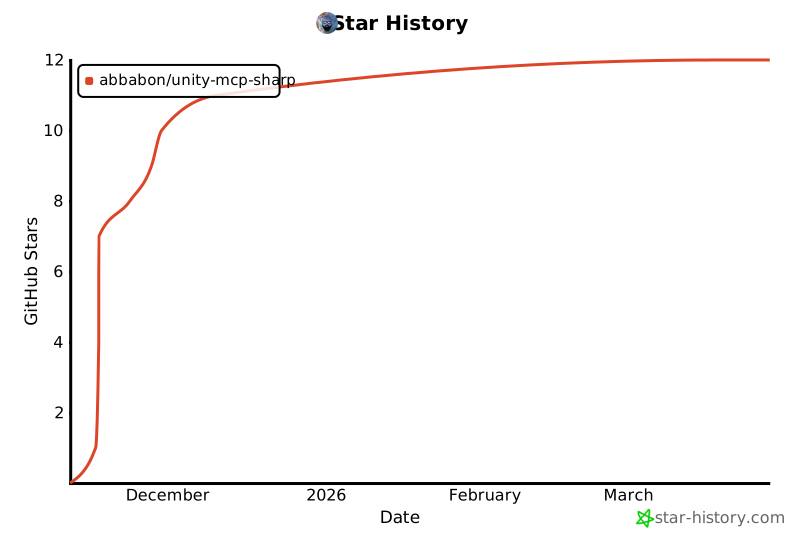
## ⭐ Star History
[](https://www.star-history.com/#Abbabon/unity-mcp-sharp&type=date&legend=top-left)
